


5 Ways to Fix Emoji Keyboard Not Showing Up on iPhone

Emojis are a fun and expressive way to communicate with friends and family online. But sometimes, iPhone users may find that the emoji keyboard disappears or refuses to show up when typing. Once you encounter this issue, try to restart the iPhone. If this can’t work, there are five effective ways that can bring back the emoji keyboard on your iPhone.
- Contents:
- Way 1: Delete Emoji Keyboard and then Re-add It
- Way 2: Ensure You Enabled Predictive Keyboard
- Way 3: Reset Keyboard Dictionary in Your Settings
- Way 4: Download and Install the Latest iOS Version
- Way 5: Repair System Bugs with iOS Repair Tuner
Way 1: Delete Emoji Keyboard and then Re-add It
The most common reason your emoji keyboard disappeared is a minor glitch on the iPhone. Removing and re-adding it usually solves the issue.
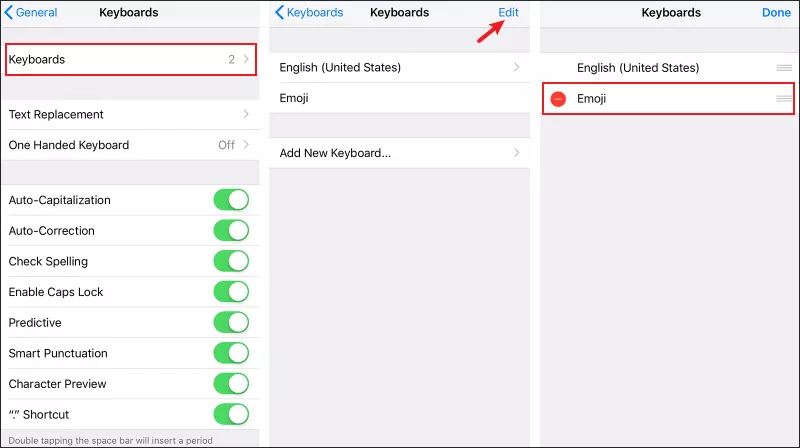
Step 1: Go to Settings > Choose General > Find and click Keyboard > Tap on Keyboards. Click Edit and remove the Emoji keyboard. If you haven’t added the emoji keyboard, just take the following instructions to add it.
Step 2: Restart your iPhone. Head back to Keyboards > Add New Keyboard, and select Emoji.
Way 2: Ensure You Enabled Predictive Keyboard
The predictive keyboard helps you get suggested emojis when typing certain words. If predictive text is turned off, emojis may not appear on the keyboard.
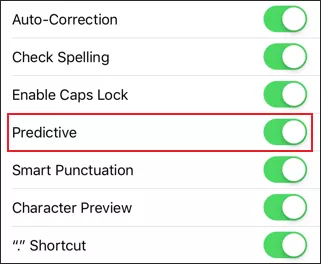
Step 1: Open Settings > General > Select Keyboard. Make sure the Predictive option is enabled.
Step 2: Test it in Messages by typing words like “happy” or “heart” to see emoji suggestions.
Way 3: Reset Keyboard Dictionary in Your Settings
Sometimes, your keyboard’s dictionary may get corrupted, preventing emojis from appearing. Resetting it can help fix the emoji keyboard issue.
Step 1: Navigate to Settings > Click General > Choose Transfer or Reset iPhone > Click Reset.
Step 2: Select Reset Keyboard Dictionary. Enter your passcode to confirm. This will clear custom words but can resolve emoji-related issues.

Way 4: Download and Install the Latest iOS Version
Apple often fixes iPhone keyboard issues in software updates. Updating your iPhone to the latest iOS version can restore emojis.
Step 1: Go to Settings > General > Software Update.
Step 2: If an update is available, tap Install Now. Check the emoji keyboard after updating.

Way 5: Repair System Bugs with iOS Repair Tuner
If none of the above methods work, the problem might be due to deeper iOS glitches. In that case, you can use a professional iOS repair tool like Cocosenor iOS Repair Tuner. It helps fix system bugs without erasing your data.
Step 1: Download the tool on your computer. Then make sure the latest iTunes is installed.
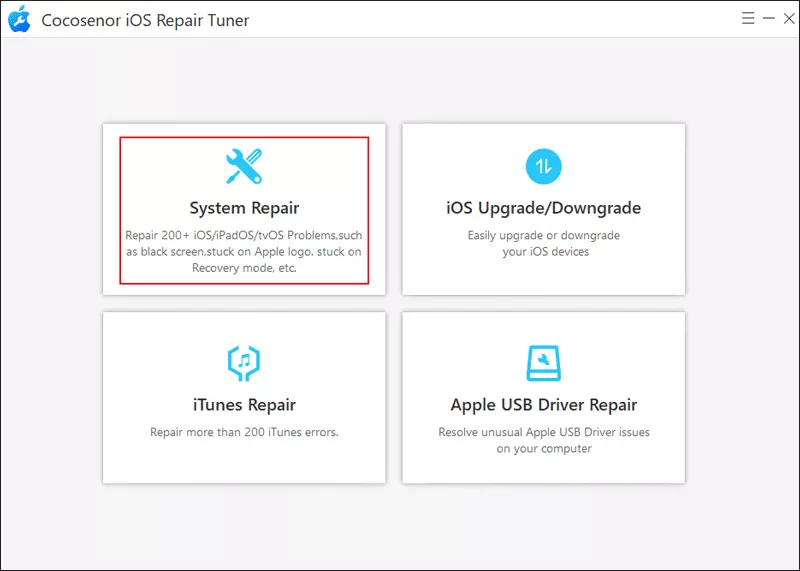
Step 2: Open the program > Choose System Repair > Select Standard Mode.
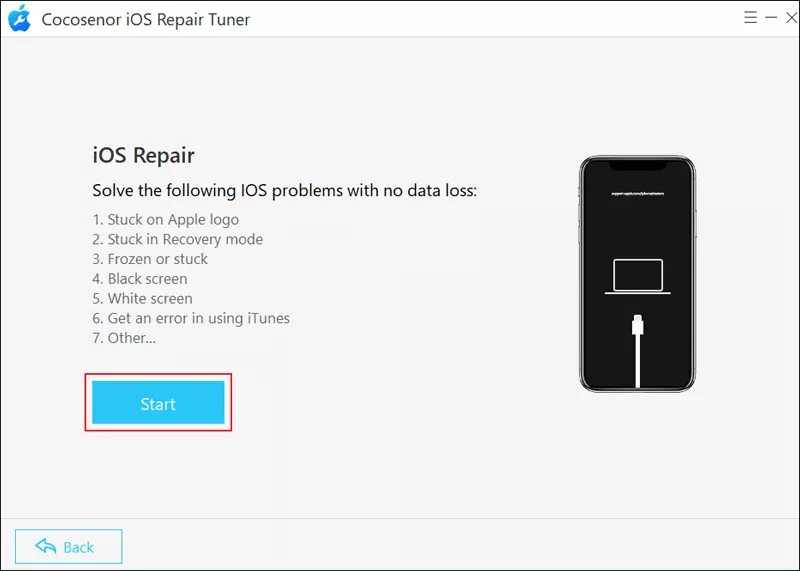
Step 3: Tap on the Start button and then connect the iPhone to the PC via a USB cable. After that, click Next to continue.
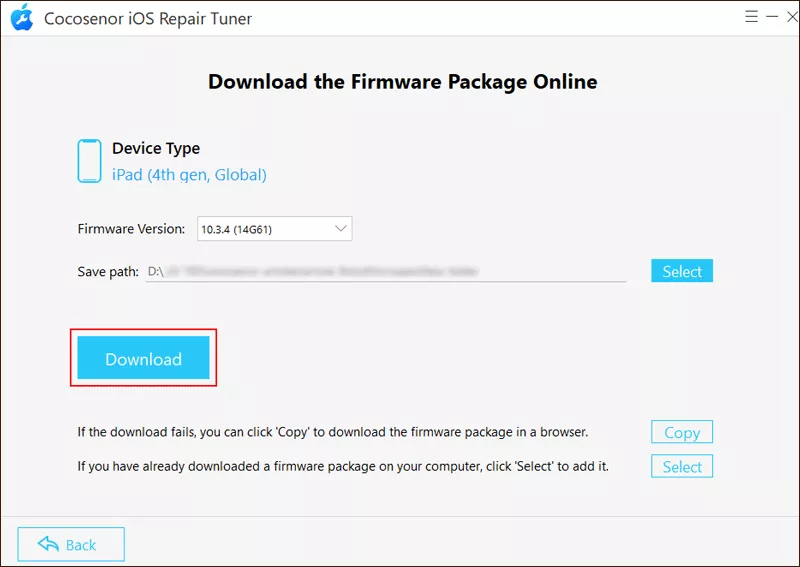
Step 4: Click Download on the screen to get the firmware package.
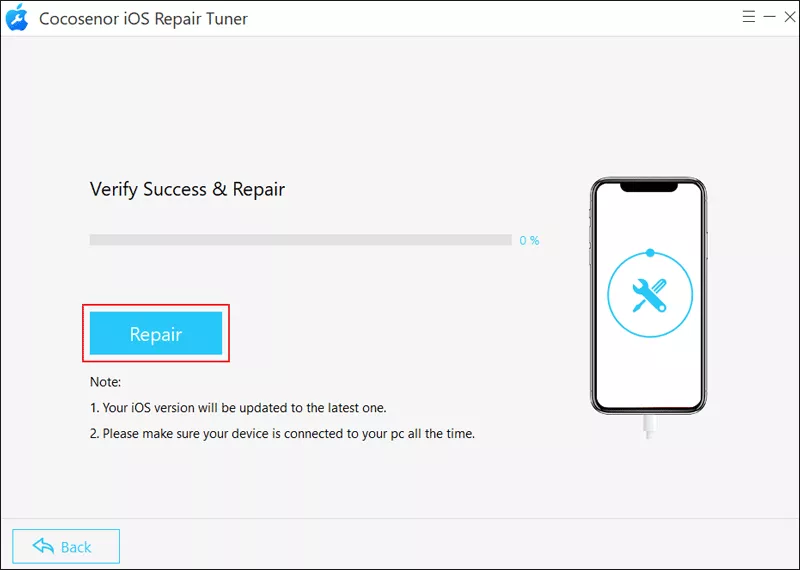
Step 5: Hit the Repair button to begin the repair process.
Related Articles
- How to Fix Ringer on iPhone Not Working Issue
- 5 Ways to Fix iPhone Silent Switch Not Working
- 5 Solutions to Fix iPhone Force Restart Not Working
- Solved-iPhone Passcode Not Working after Update
- How to Fix iPhone Stuck on Setting Up Apple ID -- 5 Ways
- Fixed -- iPhone Stuck on Black Screen with Spinning Wheel



