Fixed – Auto Lock Is Not Working on Your iPhone

To save the battery life and protect the iPhone’s privacy, your mobile phone can be locked automatically when you don’t use it. But if the auto lock feature is not working, it may keep the lock screen bright unless you press the power button. So, try to close the third-party apps and then restart the iPhone. If it doesn’t work, find some practical ways in this guide to solve the problem.
- Contents:
- Way 1: Choose a Shorter Time for Auto-Lock
- Way 2: Turn Off Low Power Mode in Settings
- Way 3: Disable Assistive Touch If You Enable It
- Way 4: Turn Off Passcode and Then Turn It On
- Way 5: Try to Reset All Settings on Your iPhone
- Way 6: Repair the System with iOS Repair Tuner
Way 1: Choose a Shorter Time for Auto-Lock
Sometimes, Auto-Lock may feel like it’s not working simply because the timer is set too long or you choose Never. Now check whether the Auto-Lock settings are configured correctly.
Step 1: Go to Settings > Choose Display & Brightness > Click Auto-Lock.
Step 2: Select a shorter duration (like 30 seconds or 1 minute). This ensures your iPhone locks itself quicker when inactive.

Way 2: Turn Off Low Power Mode in Settings
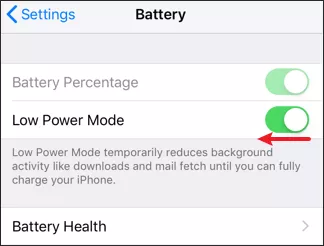
Make sure you haven’t turned on Low Power Mode because it will disable some features to extend battery life, which may cause Auto-Lock to stop working.
Open Settings > Battery. Check if Low Power Mode is enabled. If it is, toggle it off. After this, the Auto-Lock function should work normally.
Way 3: Disable Assistive Touch If You Enable It
When some built-in feature can’t be used, Assistive Touch is helpful for accessibility. But in some cases, it may interfere with Auto-Lock. Thus, remember to turn if off in Settings.
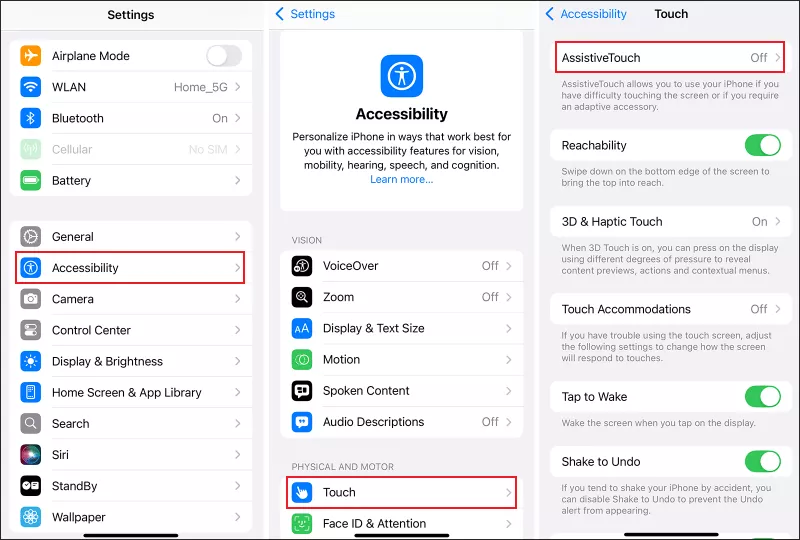
Go to Settings > Choose Accessibility > Click Touch > Tap on Assistive Touch. Toggle it off if you enable it and then check whether Auto-Lock starts working again.
Way 4: Turn Off Passcode and Then Turn It On
If the iPhone auto lock is not working, maybe there are some system bugs. Sometimes turning off the passcode settings can resolve Auto-Lock glitches.
Step 1: Launch Settings > Face ID & Passcode (or Touch ID & Passcode). Tap Turn Passcode Off.
Step 2: Restart your iPhone. After that, go back and turn Passcode on again.

Way 5: Try to Reset All Settings on Your iPhone
Your iPhone’s settings might be conflicting with Auto-Lock. If you don’t know which feature affects the auto lock, advise you to reset all settings, including Bluetooth/Wi-Fi settings.
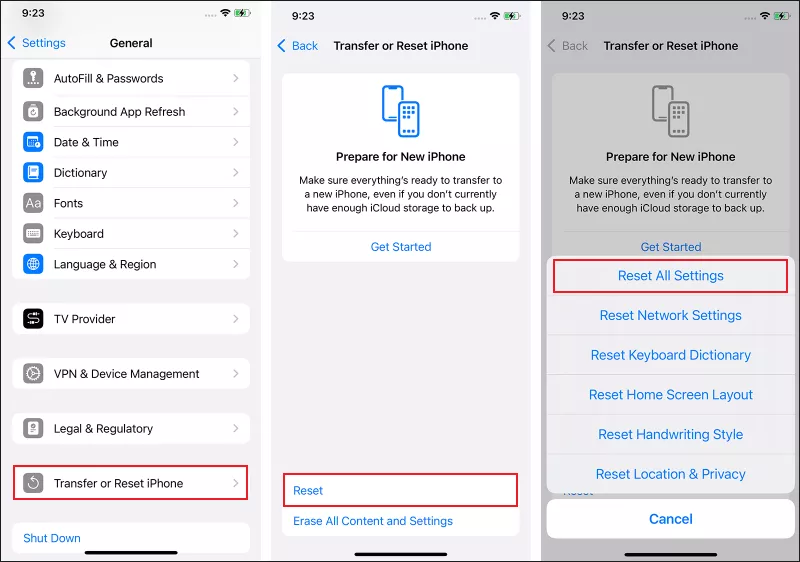
Step 1: Open Settings > General > Transfer or Reset iPhone.
Step 2: Click the Reset option > Choose Reset All Settings. This won’t delete your data but will restore system settings to default.
Way 6: Repair the System with iOS Repair Tuner
If none of the above works, it may be due to deep system bugs or iOS glitches. Directly using professional repair software like Cocosenor iOS Repair Tuner can help you a lot.
Step 1: Download the repair software on your computer. Then make sure the latest iTunes is installed.
Step 2: Open the program, choose System Repair and then select Standard Mode. This mode fixes deep software issues without erasing your data.
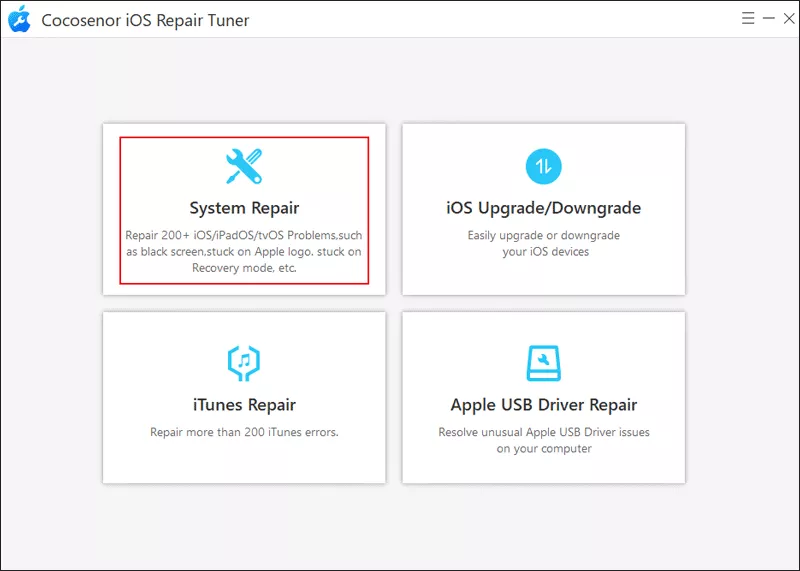
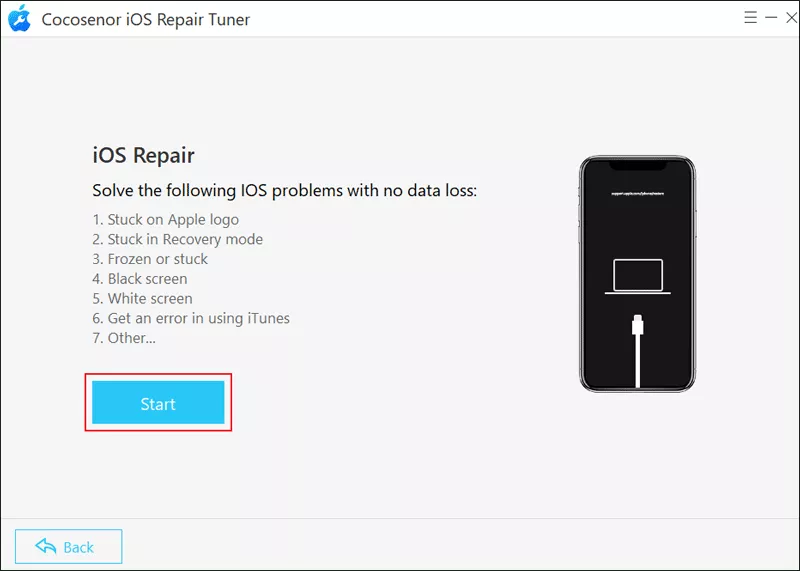
Step 3: Click the Start button > Connect your iPhone to a computer via a USB cable. After that, hit Next.
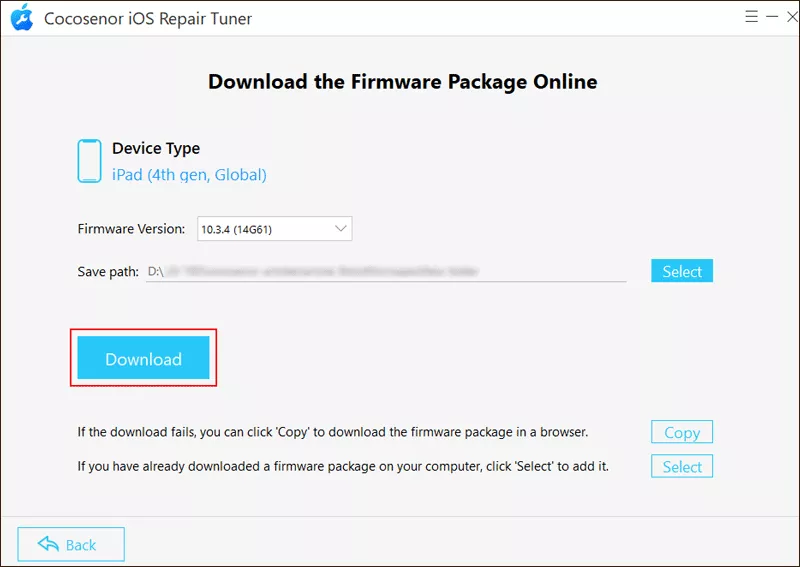
Step 4: Follow the on-screen steps to download the firmware package.
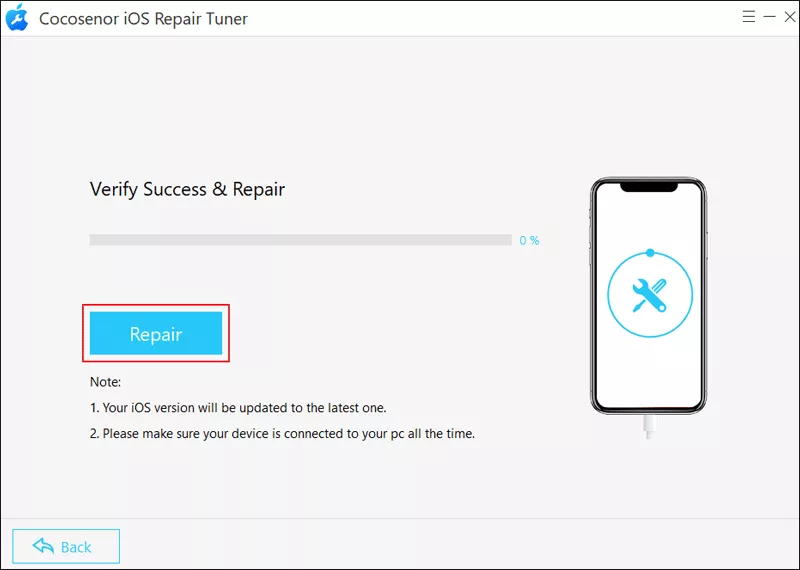
Step 5: Click on Repair to fix the system issue.