


Fixed--iPhone Auto-Lock Never Option Missing
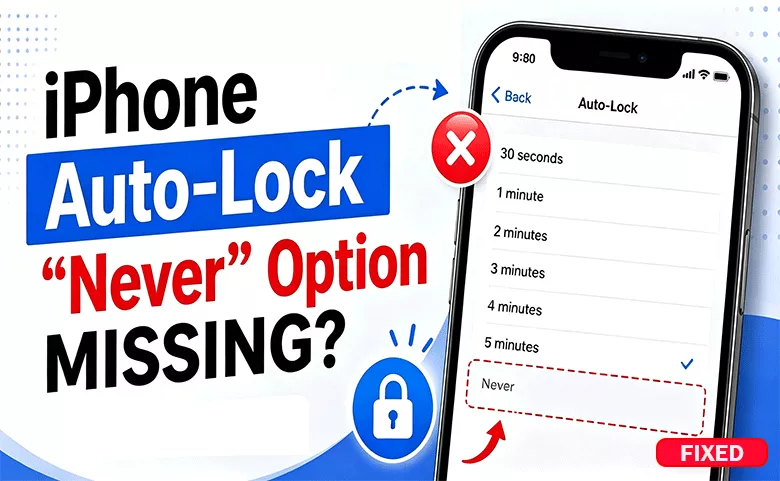
"The Never option on my iPhone Auto-Lock settings is missing, how can I get it back? I want to disable Auto-lock on my iPhone? The iPhone is in iOS 26, please help!"
If you opened your iPhone settings and discovered that the “Never” option is missing from Auto-Lock, you are not alone. Many iPhone users notice that they can only choose options like 30 Seconds, 1 Minute, or 5 Minutes, while the “Never” setting completely disappears. In this guide, you’ll learn why the iPhone Auto-Lock Never option is missing and how to restore it step by step.
- Contents:
- What Is Auto-Lock on iPhone?
- Why is There no Never Option on Auto-Lock
- Fix 1: Turn Off Low Power Mode
- Fix 2: Check Screen Time Restrictions
- Fix 3: Remove Work or School Management Profiles
- Fix 4: Delete Microsoft Outlook or Google Gmail Apps
- Fix 5: Update iOS
- Should You Use the “Never” Auto-Lock Option?
- FAQs on iPhone Auto Lock Never Option
What Is Auto-Lock on iPhone?
Auto-Lock is an iPhone feature that automatically turns off the display after a period of inactivity. It helps save battery life, prevent accidental touches and improve privacy and security.
Generally, you can change Auto-Lock time in Settings > Display & Brightness > Auto-Lock. For most iPhones, there are 7 available options: 30 Seconds, 1 Minute, 2 Minutes, 3 Minutes, 4 Minutes, 5 Minutes, Never. When the “Never” option disappears, your screen can no longer stay awake permanently.
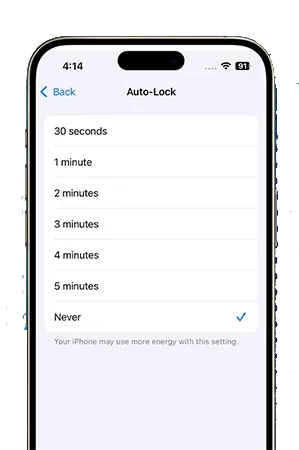
Why is There no Never Option on Auto-Lock
This issue usually happens because of Low Power Mode, Screen Time restrictions, Mobile Device Management (MDM), or company/school profiles. You can easily get it fixed by the following solutions.
Fix 1: Turn Off Low Power Mode
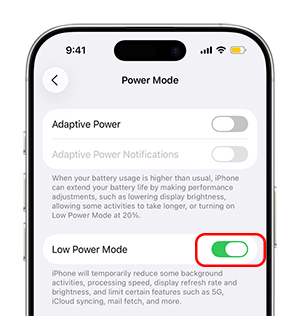
When Low Power Mode is turned on, Apple automatically limits some features to reduce battery usage. One of those limitations is removing the “Never” Auto-Lock option. You can disable the Low Power Mode to restore it.
Go to Settings > Battery> Power Mode, if Low Power Mode is enabled, turn it off. After disabling it, return to Settings > Display & Brightness > Auto-Lock and check whether the “Never” option appears again.
Fix 2: Check Screen Time Restrictions
Sometimes Screen Time settings restrict Auto-Lock customization. If you use Family Sharing, a parent account may also control these settings. You can remove the screen time restrictions to get back the Never option for Auto-Lock settings.
Step 1: Open Settings and choose Screen Time.
Step 2: Select Content & Privacy Restrictions.
Step 3: Check whether display settings are restricted. Then temporarily disable restrictions and test Auto-Lock again.
Fix 3: Remove Work or School Management Profiles
If your iPhone belongs to a company, school, or organization, it may use an MDM (Mobile Device Management) profile. MDM profiles often prevent users from changing Auto-Lock settings for security reasons.
Go to Setting and tap General. After that, select VPN & Device Management. If you see a management profile installed, that profile may block the Never option. You can directly delete the MDM profiles.
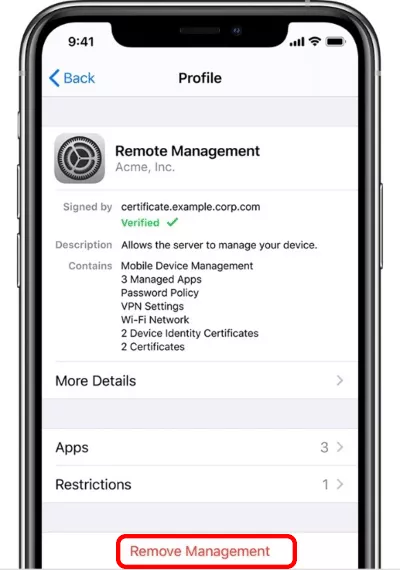
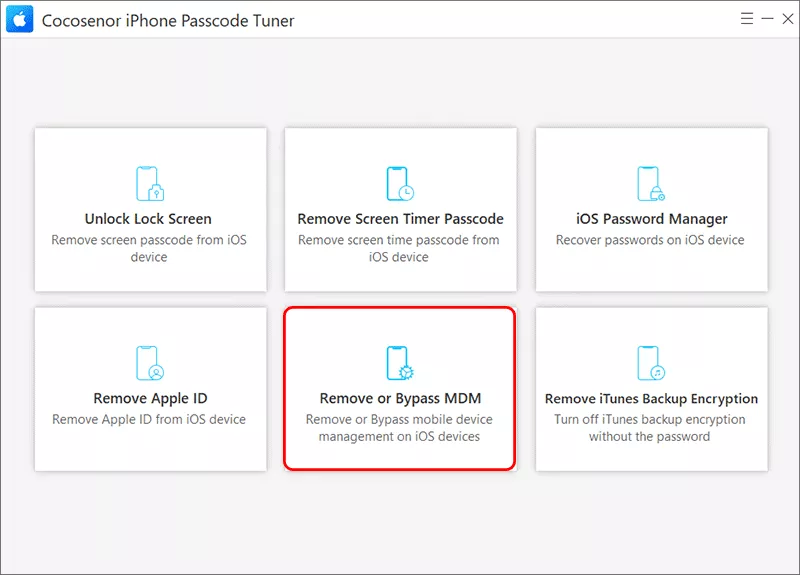
If there is no option to remove MDM profile, Cocosenor iPhone Passcode Tuner can help. This MDM remove tool allows you to remove MDM with no technical expertise. With iPhone Passcode Tuner, you can get rid of the supervision and restriction in clicks. What’s more, there is no data loss during the removal process.
Step 1: Open iPhone Passcode Tuner and select Remove or Bypass MDM function.
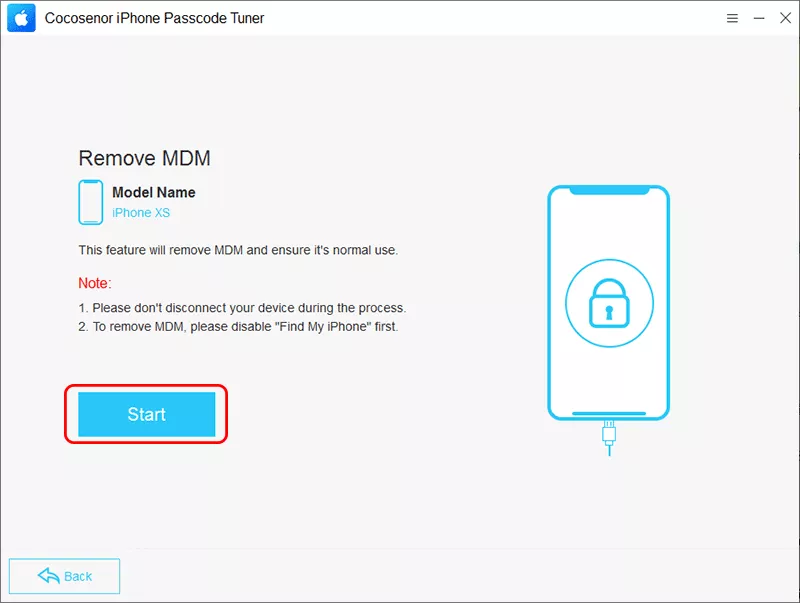
Step 2: Hit the Start button to begin the process of removing MDM lock from your iPhone.
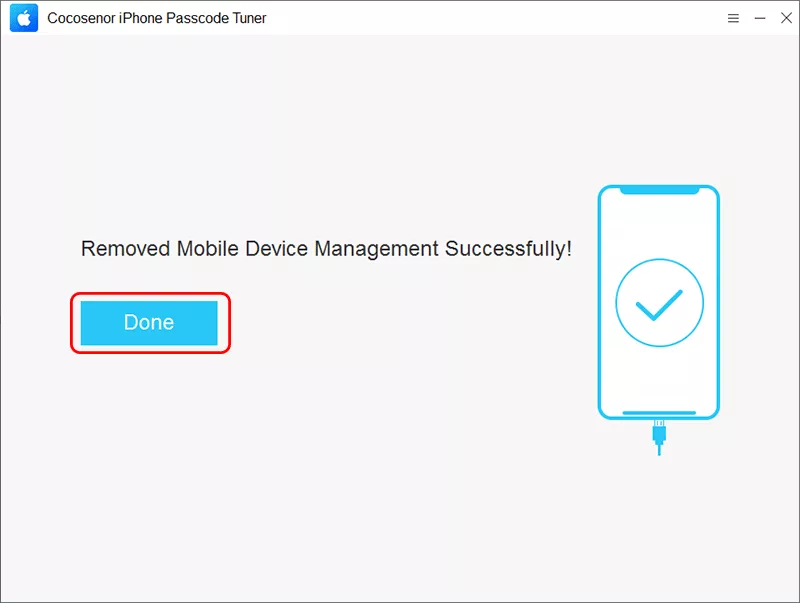
Step 3: The process ends and you see the notification message on the software interface. Hit the Done button and you can check whether the iPhone Auto-Lock Never option exists or not.
Fix 4: Delete Microsoft Outlook or Google Gmail Apps
If you attach the business account into the iPhone, the Never option for iPhone Auto Lock might be hidden. Corporate apps, such as Outlook and Gmail, often include built-in security policies that restrict certain device settings. For the business account in your iPhone, it will be enforced mandatory rules to safeguard confidential data by your company’s IT team. As a result, you cannot find the Never choice in Auto-Lock.
How can you get this issue fixed? It is easy to do it. Just delete the Microsoft Outlook or Gmail apps on your iPhone. Besides, disconnect any business account on your iPhone.
Fix 5: Update iOS
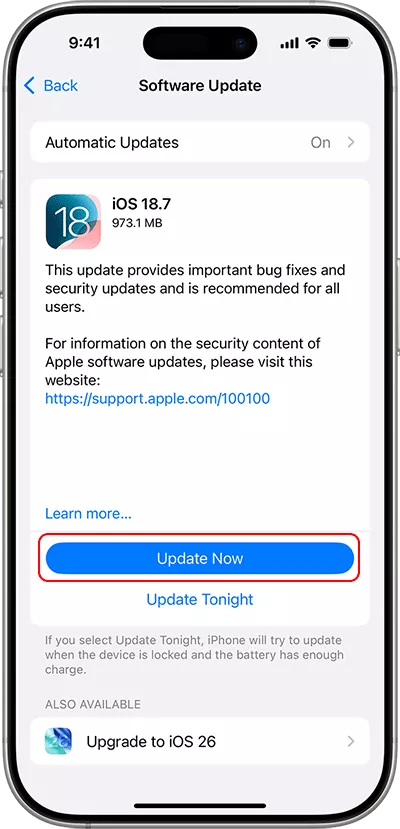
Software bugs can occasionally affect system settings. Apple frequently fixes UI and settings-related bugs through updates.
You can update your iPhone: Open Settings > General and select Software Update. Then install the latest iOS version if available.
Should You Use the “Never” Auto-Lock Option?
If you are going to read long documents, watch recipes while cooking, navigate a travel, present a project, or monitor dashboards, you can enable the Never option for Auto-Lock. It will make your iPhone screen stay awake continuously.
But it leads to faster battery drain and increased screen wear. For most users, setting Auto-Lock to 5 Minutes offers a better balance.
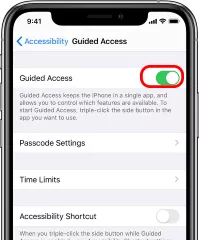
If you only need the screen to stay on temporarily, Guided Access is a safer alternative. Go to Settings > Accessibility and tap Guided Access. Then turn it on and open the app you want. Triple-click the Side button. This can keep your screen active during specific tasks without permanently disabling Auto-Lock.
FAQs on iPhone Auto Lock Never Option
Q1: Why did the Auto-Lock Never option suddenly disappear?
Usually because Low Power Mode was enabled. Turning it off restores the option in most cases.
Q2: Why is Auto-Lock grayed out on my iPhone?
This often happens due to Low Power Mode, MDM restrictions, company-managed devices, and configuration profiles.
Q3: Is the Never option available on all iPhones?
Most iPhones support it, but restrictions from iOS settings or management profiles may hide it.
Conclusion
If the iPhone Auto-Lock Never option is missing, the problem is usually easy to solve. In most cases, simply turning off Low Power Mode restores the setting immediately.
If that does not work, check screen time restrictions, MDM profiles, iOS updates and system settings. Once fixed, you can decide whether keeping your iPhone screen awake permanently is the right choice for your needs.



