


Fix the iPhone Passcode Changed Itself Issue! 3 Easy Ways

When trying to unlock your iPhone without Face ID, suddenly you realize the passcode doesn’t work even though you haven’t changed it. If your iPhone says the passcode is incorrect, don’t worry because you’re not the only one facing this strange issue.
First, you need to ask those who know your password if they have changed it, such as your family or friends. If not, maybe the phone passcode changed itself due to iOS glitches, failed Face ID attempts, or even unauthorized access attempts. In this guide, we’ll show you 3 effective ways to fix the “iPhone passcode changed itself” issue.
- Contents:
- Way 1: Try to Enter the Default or Used Screen Passcode
- Way 2: Use iPhone Passcode Tuner to Unlock the Device
- Way 3: Erase Your iPhone When iPhone Is Unavailable
Way 1: Try to Enter the Default or Used Screen Passcode
Once the iPhone changes passcode itself after an update, it’s worth trying all the possible passcodes used before or entering the default device passcode. Sometimes, your iPhone may still accept an older passcode due to a delayed sync or failed update.
Step 1: Enter the old device passcode or other passcode that was set up for Apple Pay, banking apps, or other services.
Step 2: Try the default passcode: enter 0000, 1234 or 8888 for 4-digit passcode or enter 000000, 123456 or 888888 for 6-digit passcode. Be careful not to enter the wrong passcode too many times, and otherwise your iPhone will be disabled.
Way 2: Use iPhone Passcode Tuner to Unlock the Device
If you’re locked out of the iPhone and it keeps asking for your correct passcode, advise you to use an unlocking tool like Cocosenor iPhone Passcode Tuner, which can help you regain access without needing the correct passcode.
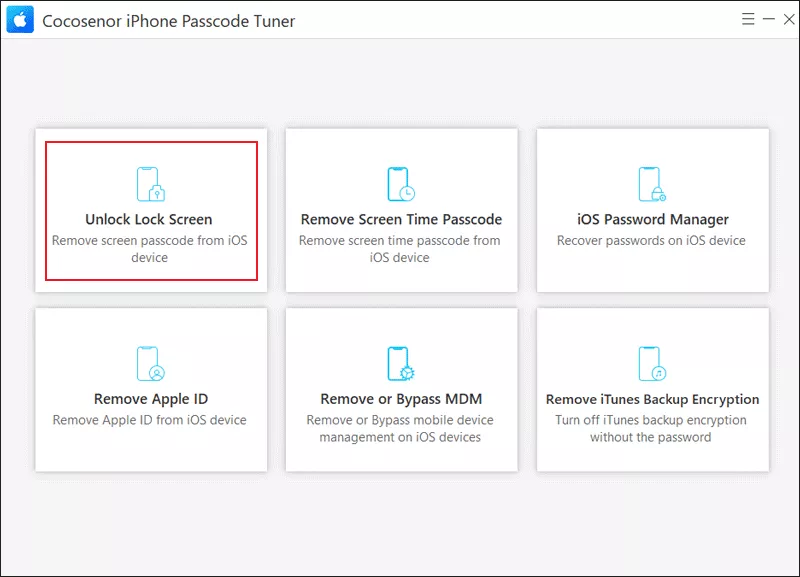
Step 1: Download and install the software on your computer. Then launch it and choose Unlock Lock Screen.
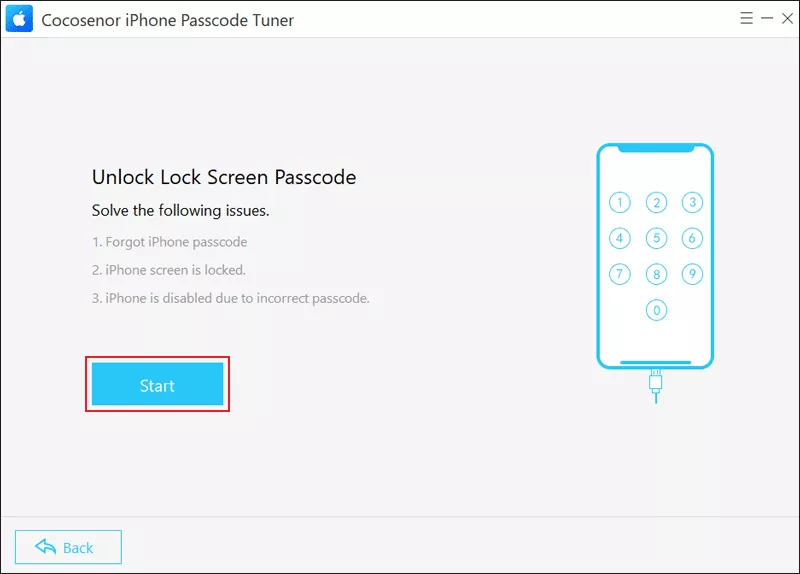
Step 2: Click the Start button and connect the iPhone to the PC with a USB cable. After that, tap on Next to continue.
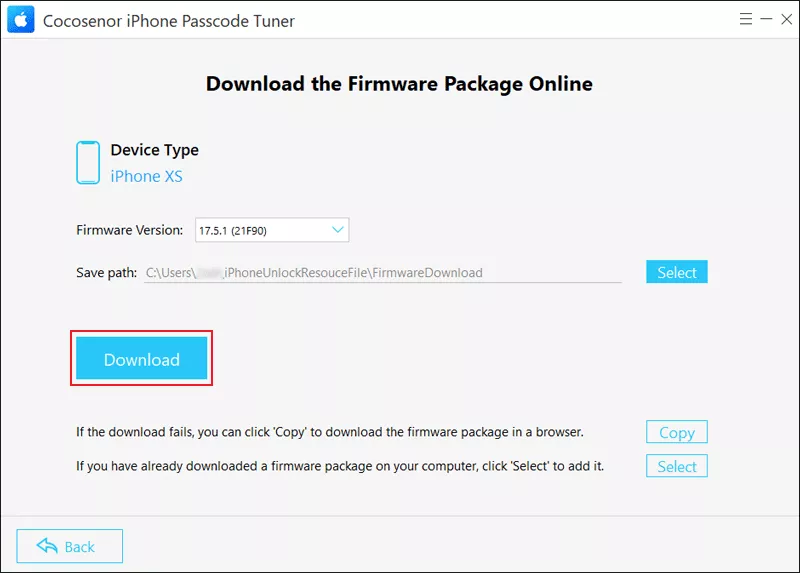
Step 3: Click on Download to get the firmware package. Then wait for it to be downloaded and verified.
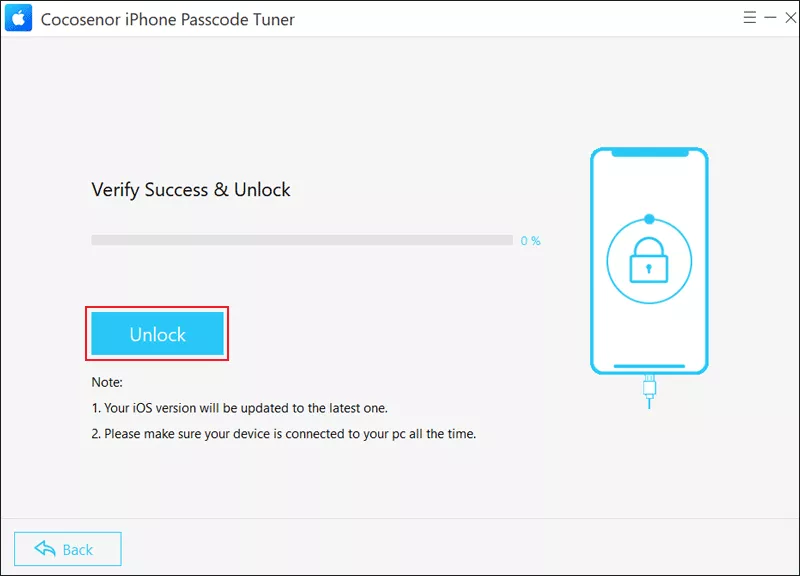
Step 4: Tap on the Repair button (It will erase all the data). Once the iPhone is unlocked, you can set up the iOS device as a new one.
Way 3: Erase Your iPhone When iPhone Is Unavailable
If your iPhone says “iPhone Unavailable” due to repeated failed passcode attempts, you can directly use the Erase iPhone feature on the Lock Screen which can remove the passcode via the Apple account.
Step 1: Ensure whether you have backed up all the data using iCloud or iTunes.
Step 2: When “iPhone Unavailable” appears, tap Forgot Passcode or Erase iPhone at the bottom right. Then click Start iPhone Reset.
Step 3: Enter your Apple ID password and click on Erase iPhone to confirm. After that, the device will erase itself and remove the current passcode.




