


[Easily Fixed] Touch ID Requires Passcode When iPhone Restarts

Many iPhone users notice that after restarting their iOS device, Touch ID isn’t allowed to unlock it although you enable the feature before — the phone asks for the passcode first. This is actually a built-in security feature of Apple: after a simple restart, “Touch ID requires passcode” always shows up before enabling biometric unlocking again. If you forget the passcode and cannot access your iPhone, here are some solutions you can try.
- Contents:
- Part 1: How to Fix Touch ID Still Requires Passcode Due to iOS Errors
- Part 2: How to Remove the Screen Lock If You Forgot iPhone Passcode
Part 1: How to Fix Touch ID Still Requires Passcode Due to iOS Errors
If the iPhone keeps asking for your passcode even when it shouldn’t (for example, during regular use after you’ve already entered the passcode once to activate Touch ID when iPhone restarts), there may be a software glitch or fingerprint recognition issue. So, unlock the iPhone with passcode and then try the following fixes:
Way 1: Delete the Old Fingerprint and Add a New One
Sometimes your saved fingerprint may become less effective over time, especially if your finger has changed or the sensor is dirty. So, you can remove and re-add your fingerprint.
Step 1: Go to Settings > Touch ID & Passcode > Enter your passcode. Under Fingerprints, click each saved fingerprint and delete it.
Step 2: Tap Add a Fingerprint, then follow the prompts to add a new one. After setting up a new fingerprint, clear the Touch ID sensor and test whether Touch ID works properly without unnecessarily asking for the passcode.

Way 2: Update the iOS to the Latest Version in Settings
Running an outdated version of iOS might cause glitches and stuck issues. You have to update the system which can let your iPhone work smoothly, including the Touch ID feature.
Step 1: Go to Settings > General > Software Update. If an update is available, tap Download and Install.
Step 2: After updating, restart your iPhone and check if the issue persists.

Part 2: How to Remove the Screen Lock If You Forgot iPhone Passcode
You may enter multiple wrong device passcode after a restart, even receive the “iPhone Unavailable” message, and then cannot unlock the iPhone. In that case, here are two ways to regain access:
Way 1: Use iTunes to Remove Touch ID and Passcode
If you’ve previously made an iTunes backup on your computer, you can use iTunes to erase your device and remove the passcode.
Step 1: Connect your iPhone to the computer. Open iTunes (or Finder on macOS Catalina and later). Then click the little iPhone icon.
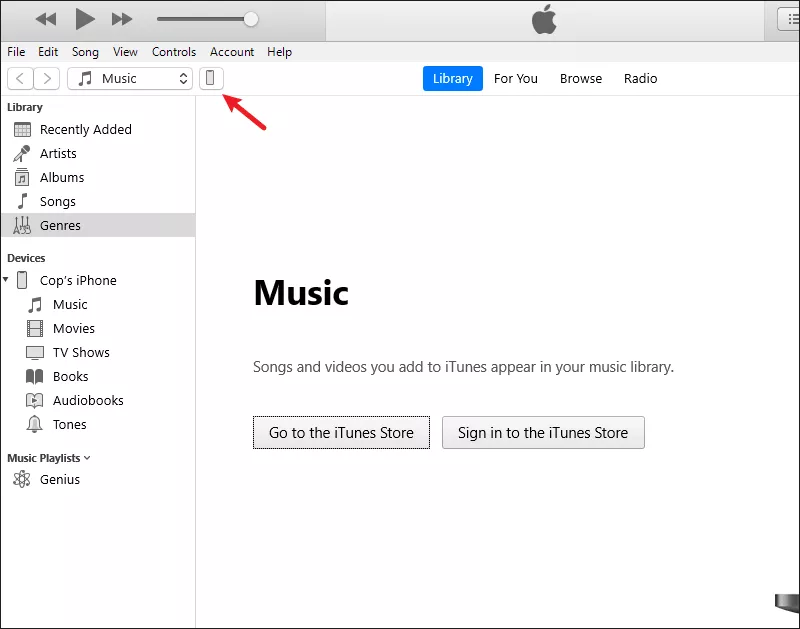
Step 2: Click the Restore iPhone option. After that, iTunes will erase your iPhone and install the latest iOS. Then you can set it up as new.

Way 2: Bypass the Passcode with iPhone Passcode Tuner
How to fix “Touch ID requires your passcode when iPhone restarts” if iTunes doesn’t work? You can use third-party software like Cocosenor iPhone Passcode Tuner, which is designed to help unlock your iPhone even if you forget the passcode.
Step 1: Download and install iPhone Passcode Tuner on your computer. Then ensure you have installed the latest iTunes.
Step 2: Launch the program and choose Unlock Lock Screen.

Step 3: Click the Start button. Then connect the iPhone to the PC via a USB cable > click on Next to continue.

Step 4: Tap on Download to get the firmware package after the tool automatically recognizes the iOS device model.
Note: If there are some connection issues, follow the on-screen instructions to put your device into recovery or DFU mode.

Step 5: Click the Unlock button and start the unlocking process. After it is unlocked successfully, your iPhone will restart without any passcode, and you can set it up again.




