


Fixed-- Face ID and Passcode Missing in Settings on iPhone
If you can’t find the “Face ID & Passcode” option in your Apple iPhone settings, you’re not alone. This issue can be confusing, especially since this feature is essential for unlocking your device, securing apps, and enabling payments. In most cases, the problem is related to restrictions, system settings, or software glitches rather than hardware failure. In this guide, you’ll learn why Face ID and Passcode may be missing and how to fix it step by step.
- How to Fix Face ID and Passcode Missing in Settings on iPhone
- Why Is “Face ID & Passcode” Missing?
- How to Fix Face ID and Passcode Missing on iPhone
- FAQs on Face ID Settings Missing on iPhone Settings
Why Is “Face ID & Passcode” Missing?
Normally, the Face ID & Passcode option appears in the main Settings menu on devices that support Face ID. If it’s missing, one of the following reasons is usually responsible.
1. Screen Time Restrictions Are Enabled
The most common cause is Screen Time restrictions blocking passcode changes. When restrictions are enabled, certain settings—including Face ID and passcode options—can be hidden.
2. Device Management or Work Profile
If your iPhone is managed by a company, school, or organization, it may have a configuration profile installed. Organizations can restrict security settings, including: Disabling passcode changes; Hiding Face ID options; Enforcing security policies.
3. Software Glitch in iOS
Sometimes a bug in iOS can temporarily hide certain settings. This may happen after a system update, app conflicts and temporary system errors.
4. Device Doesn’t Support Face ID
Not all iPhones support Face ID. Older models use Touch ID instead, and the menu may appear differently.
5. Settings App Bug or Corruption
Rarely, the Settings app may fail to load all options properly, causing items to disappear.
How to Fix Face ID and Passcode Missing on iPhone
Try the solutions below one by one until the option reappears.
Fix 1: Check Screen Time Restrictions
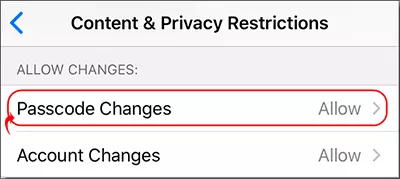
You can open Settings, tap Screen Time and select Content & Privacy Restrictions. After that, tap Passcode Changes and set it to Allow. Also, you need to allow Account Changes in the Content & Privacy Restriction settings.
Fix 2: Turn Off Screen Time
If you’re unsure which restriction is causing the issue, go to Settings > Screen Time > Turn Off Screen Time. Of course, you need the correct screen time passcode to disable this setting. Finally, you can return to Settings and check again.
Fix 3: Remove Device Management Profile
If your phone is managed, access Settings > General, and select VPN & Device Management. Look for a configuration profile. If present, it may restrict passcode settings. You can also find methods to get rid of supervision from this article.
Fix 4: Restart Your iPhone
A simple restart can fix temporary glitches. Generally, you can press Volume Up and then Volume Down button. After that, hold the Side button until you see the Apple logo.
Fix 5: Update iOS
Outdated software can cause missing settings. Open Settings and tap General. Now, select Software Update and install any available update.
Fix 6: Repair the System Glitches with Cocosenor iOS Repair Tuner
If you do not know why Face ID settings missing on your iPhone and can not fix the issue with the above methods, try Cocosenor iOS Repair Tuner. This professional iOS repair tool can resolve kinds of system issues in your iPhone within clicks.
Step 1: Open Cocosenor iOS Repair Tuner and then choose System Repair option on the home interface.

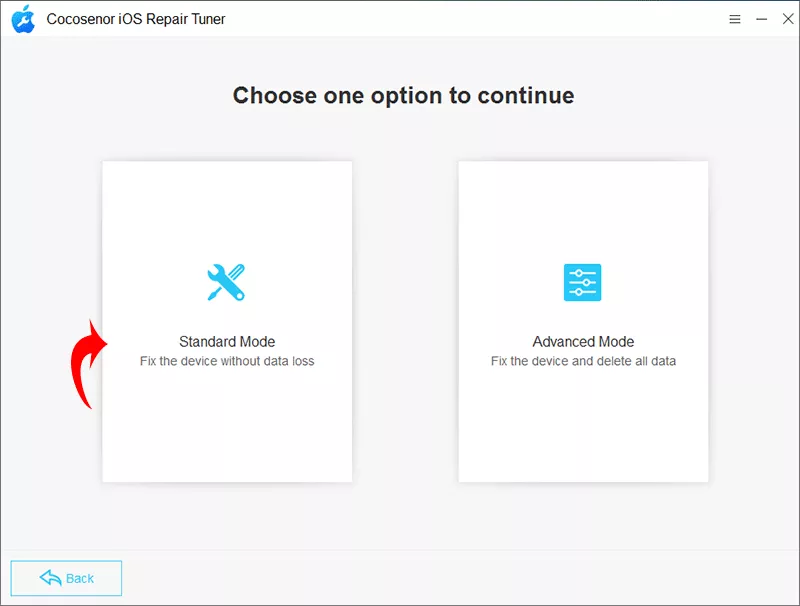
Step 2: Choose the Standard Mode and click the Start button in the coming interface.
Step 3: After connecting your iPhone to the computer, you can click the Next button to proceed.

Step 4: Soon, your iPhone is detected. Hit the Download button to get the firmware package.

Step 5: Now, everything is ready. Click the Repair button to get your Face ID missing issue fixed.

FAQs on Face ID Settings Missing on iPhone Settings
1. Why did Face ID disappear from my iPhone?
It is usually caused by Screen Time restrictions or device management settings.
2. Can a company disable Face ID on my iPhone?
Yes. Managed devices can restrict security features using configuration profiles.
3. Will resetting settings fix the issue?
In many cases, yes. It can restore hidden options without deleting personal data.
Conclusions:
If the Face ID & Passcode option is missing from your Apple iPhone, the issue is usually related to restrictions, management profiles, or a minor glitch in iOS. By checking Screen Time settings, removing restrictions, and updating your device, you can quickly restore the missing option.
With the right steps, your iPhone should return to normal—and your security settings will be back where they belong.