5 Easy Ways to Fix iPhone Stuck on Setting Up Apple ID
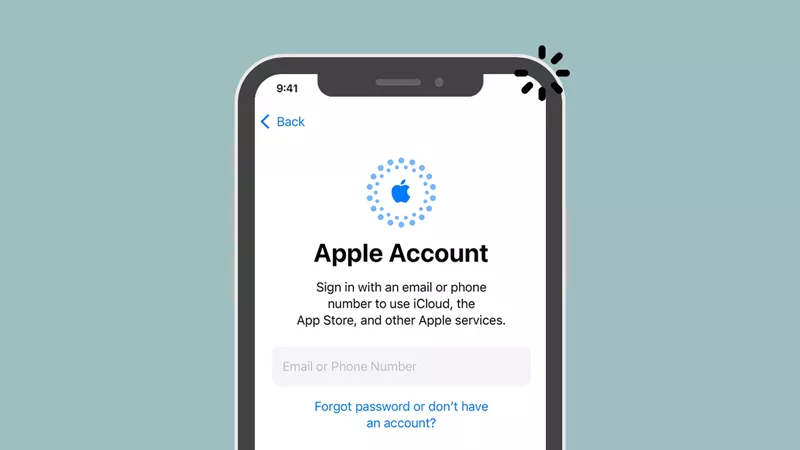
Apple will ask you to sign in with an Apple ID when you set up a new iPhone or transfer data from iCloud Backup. Just enter the Apple account and password in the box, and then you can access many services like iCloud, App Store and iTunes. If the iPhone gets stuck on the logon page and tells you “It may take a few minutes to set up your Apple ID”, find some ways shown in this guide to fix the iPhone stuck issue.
- Contents:
- Way 1: Try to Force Restart the Stuck iPhone
- Way 2: Remove and Reinsert Your SIM Card
- Way 3: Skip Apple ID Setup Loading Screen
- Way 4: Check the Apple System Status Page
- Way 5: Use iOS Repair Software to Fix Errors
Way 1: Try to Force Restart the Stuck iPhone
The first thing you should try is a force restart, which can clear minor glitches and refresh the system. For iPhone 8 or later: Quickly press and release the Volume Up button, then the Volume Down button. Next, press and hold the Side button until you see the Apple logo. Once the iPhone restarts, check if it can skip the “Setting Up Apple ID” screen.
Way 2: Remove and Reinsert Your SIM Card
Inserting a SIM card improperly can affect the iPhone activation process, including Apple ID setup. So, use a SIM ejector tool (or a paperclip) to remove your SIM card tray, then check if the SIM card is clean and properly positioned. After that, reinsert the SIM card securely and restart your iPhone. If the “iPhone set up stuck on Apple ID” issue still shows up, use the next way to skip the setup process.
Way 3: Skip Apple ID Setup Loading Screen
It may last for several hours once the Apple ID setup is stuck. So, you can choose to skip signing in with your Apple ID during the initial setup and then log into later.
Step 1: On the “Apple ID” screen during setup, look for the option that says Forgot password or don’t have an Apple ID.
Step 2: Select Set Up Later in Settings. After setting up the iPhone, sign in to your Apple ID in Settings.

Way 4: Check the Apple System Status Page
Sometimes the problem isn’t with your device at all — Apple’s servers might not be working. Because of this, the iPhone may get stuck on the loading screen although you have connected to a stable network.
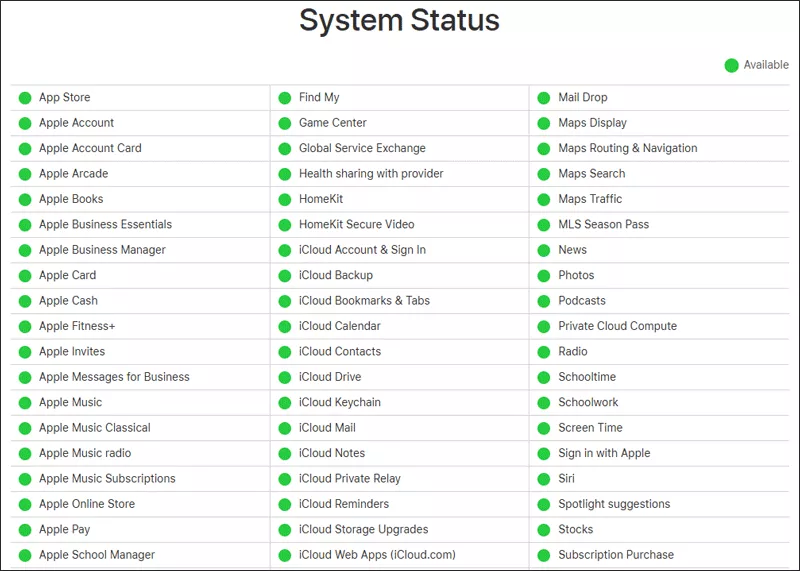
Step 1: On another device, go to Apple’s official System Status page.
Step 2: Look for any issues related to Apple ID or iCloud services. If it is not green, wait until Apple resolves it before trying to sign in with the Apple ID again.
Way 5: Use iOS Repair Software to Fix Errors
If none of the above methods work, there might be an Apple system problem on your iPhone. In that case, you can use iOS repair software like Cocosenor iOS Repair Tuner to fix the system without erasing your data.
Step 1: Download and install the repair software on your computer. Then check whether your PC has installed the latest iTunes.
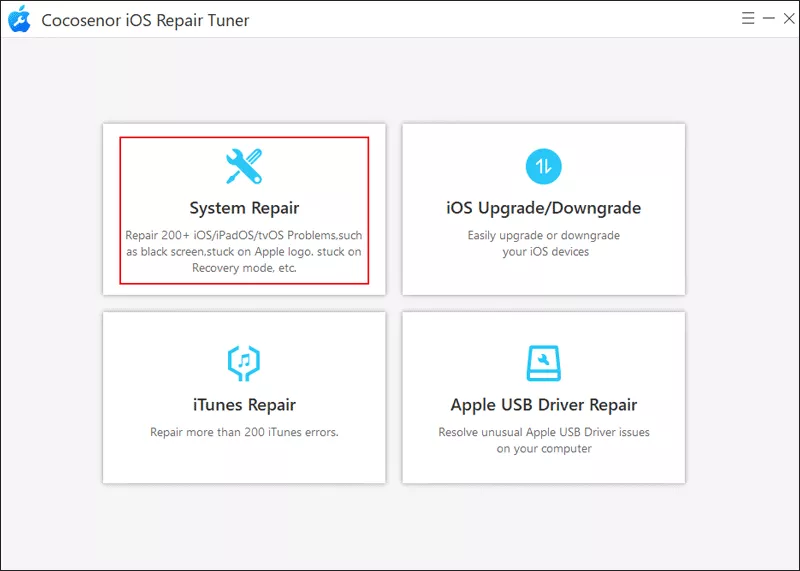
Step 2: Launch the program and choose System Repair > Select Standard Mode.
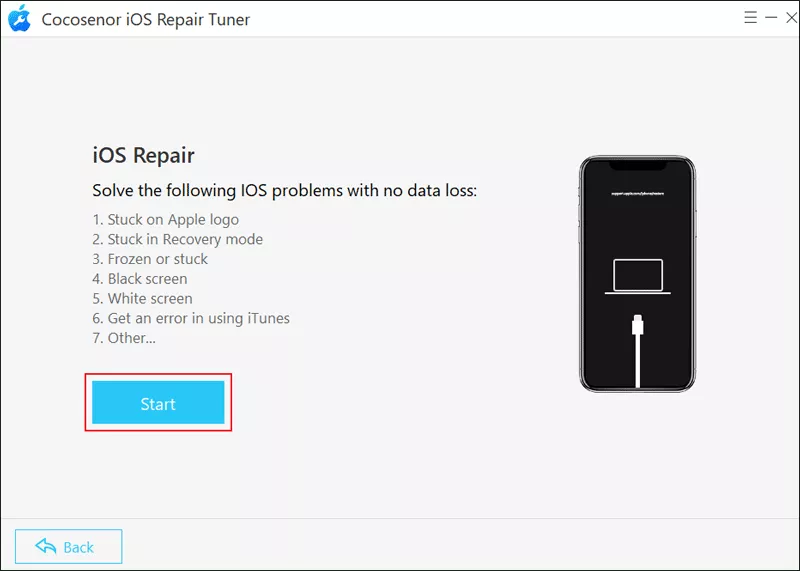
Step 3: Click the Start button > Connect the iPhone to the computer via a USB cable. After that, tap on Next to continue.
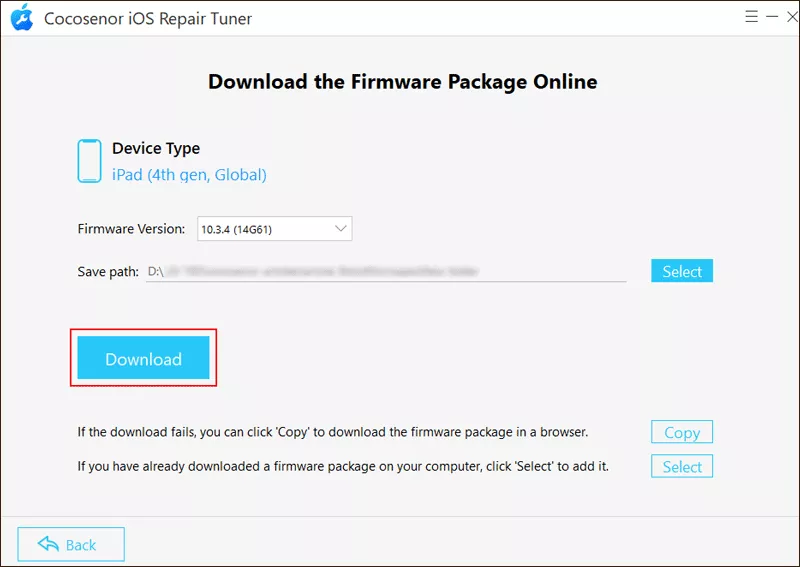
Step 4: After the tool recognizes the iPhone model, you can click Download to download the firmware package.
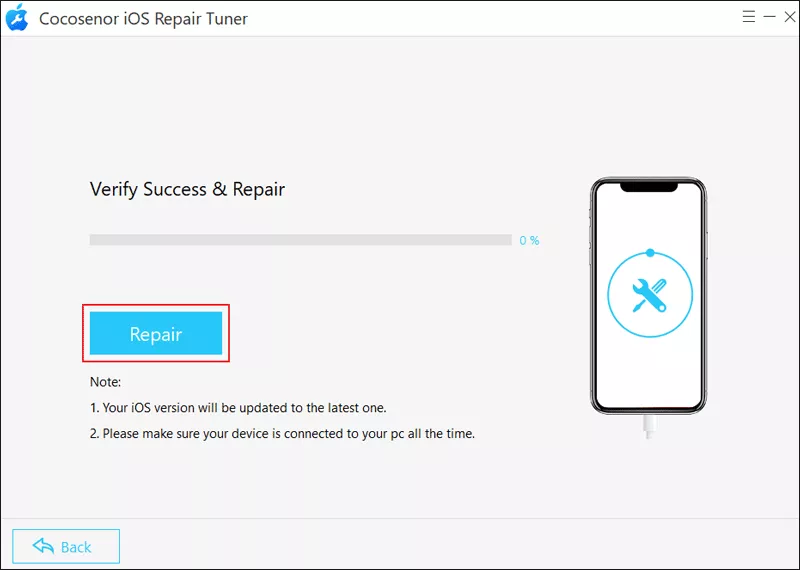
Step 5: Tap on the Repair button to fix system errors. Once completed, click Done.