


4 Ways to Solve New iPhone Stuck on Preparing to Transfer

Apple provides the Quick Start and iCloud Backup feature to easily transfer the data from the old iPhone. When setting up the new iOS device, just connect to the Wi-Fi network and put the iPhones close to each other. Once the Quick Start screen appears, follow the onscreen instructions to begin the transfer. If you encounter some errors like “iPhone stuck on Preparing to Transfer,” the guide introduces 4 practical ways to fix it.
- Contents:
- Way 1: Make Sure You Have a Stable Network
- Way 2: Update Both iPhones to the Latest Version
- Way 3: Restart iPhones and Free Up Some Storage
- Way 4: Use iOS Repair Tuner to Fix System Errors
Way 1: Make Sure You Have a Stable Network
One of the common reasons why your iPhone gets stuck during the transfer is that you have an unstable and slow Wi-Fi connection. Since the process often involves iCloud verification and wireless data transfer, a strong network is essential on both iPhones.
Step 1: Go to Settings and tap on WLAN. Then check whether the iPhone has connected to the same Wi-Fi network and ensure the signal is strong.
Step 2: Once the connection is stable, try the transfer process again. And avoid using mobile data, as it may not support the transfer properly.
Way 2: Update Both iPhones to the Latest Version
Outdated iOS versions can sometimes cause compatibility issues during data transfer. To ensure a smooth process, check if both devices are running the latest iOS version.
Step 1: Launch Settings > Choose General > Select Software Update.
Step 2: If an update is available, download and install it before trying the transfer again. Make sure both iPhones are charged or plugged in while updating.

Way 3: Restart iPhones and Free Up Some Storage
If your iPhone is stuck and can’t skip “Preparing to Transfer” despite having a good network connection and updated software, try to have a simple restart that may help you clear temporary glitches and refresh the system.
Step 1: On each iPhone, press and hold the power button (and volume button on newer models), then slide to power off.
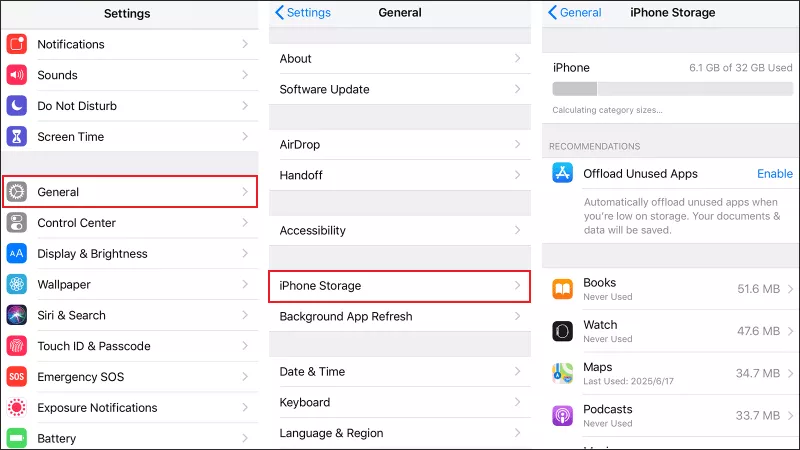
Step 2: Wait a few seconds, then turn the phones back on. If the data size is large, delete unnecessary apps, photos, or files to free up space. Go to Settings > General > iPhone Storage to view and manage your storage.
Way 4: Use iOS Repair Tuner to Fix System Errors
If none of the above methods work, it’s possible that some potential system bugs are causing the “new iPhone stuck at preparing to transfer” problem. You can use an iOS repair tool — such as Cocosenor iOS Repair Tuner — to fix system errors without wiping your data.
Step 1: Download and install the software on your computer. Then make sure the PC has installed the latest iTunes.
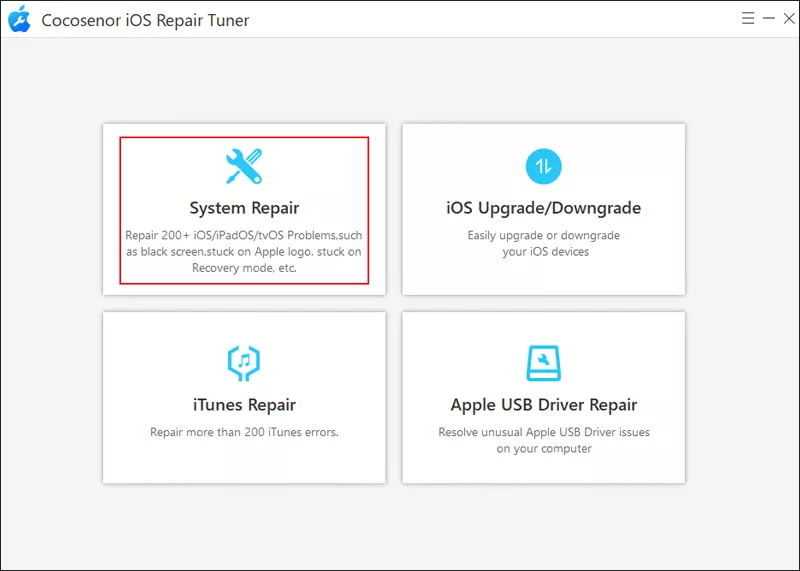
Step 2: Launch iOS Repair Tuner, choose System Repair, and then select Standard Mode.
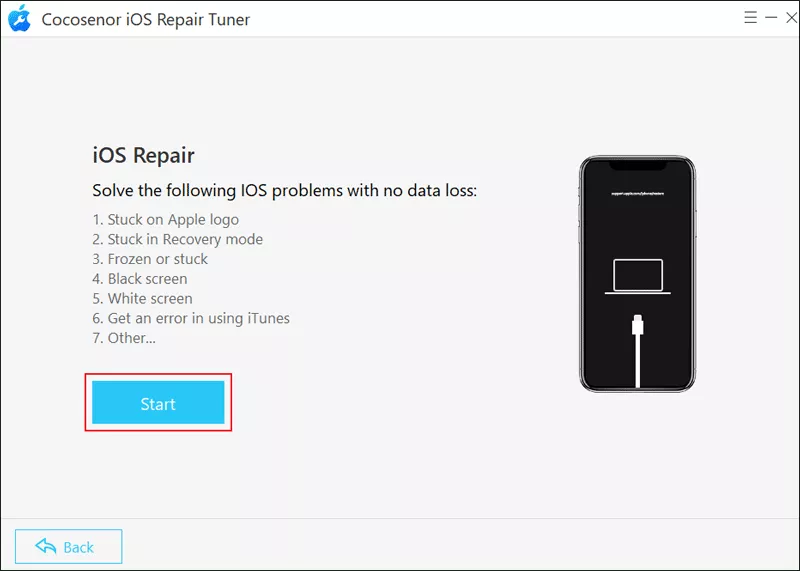
Step 3: Tap on the Start button > Connect your iPhone via a USB cable and click Next to continue.
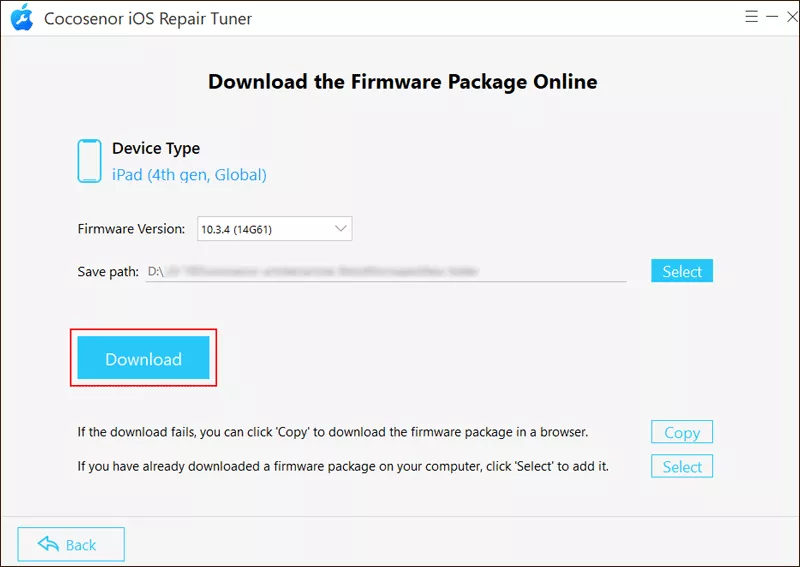
Step 4: Click Download to get the firmware package.
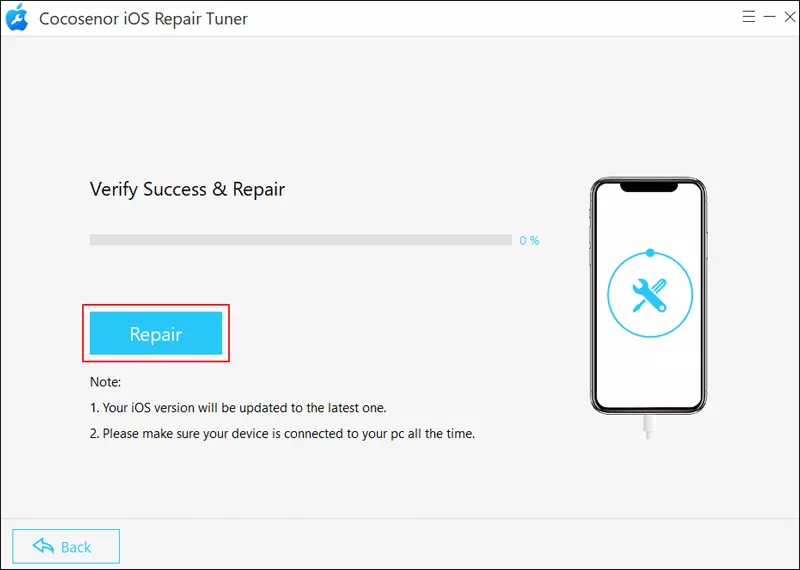
Step 5: Tap on Repair to fix iOS system issues. Once completed, click Done and restart the transfer process.
Conclusion
It is surely a bother when getting stuck on “Preparing to Transfer”, but you can usually resolve it easily by connecting a stable Wi-Fi connection, updating both devices, and restarting them, or consider using iOS Repair Tuner. If the issue persists, try to transfer data via iCloud or iTunes, or contact Apple Support to fix any system errors.



