


[Detailed Guide] How to Fix iPhone Quick Start Not Working

Many Apple users might use the Quick Start feature during the initial iPhone setup, which can help them transfer data from an old iPhone to a new iOS device. Normally, after you choose the language and Quick Start screen shows up, just place the new iPhone near the old one, unlock the old device and click Continue when Set Up New iPhone appears. Then follow the onscreen instruction to start the data transfer using your Apple ID. If you find Quick Start is not working and has no response, get it resolved with the practical ways showed in the tutorial.
- Contents:
- Way 1: Make Sure You Have Enabled Bluetooth
- Way 2: Force Restart Both iPhones Using Buttons
- Way 3: Check and Remove the Management Profile
- Way 4: Choose to Restore Data from iCloud Backup
- Way 5: Download and Install the Latest iOS Version
- Way 6: Repair any iOS Errors with iOS Repair Tuner
Way 1: Make Sure You Have Enabled Bluetooth
Quick Start relies on both Wi-Fi and Bluetooth to detect and connect your two devices. If Bluetooth is turned off on either iPhone, the old iPhone can’t receive the Quick Start signal.
Step 1: On both devices, go to Settings > Bluetooth and make sure it’s activated. You can also swipe down from the top-right corner of the screen (or up from the bottom on older models) to open Control Center and tap the Bluetooth icon.
Step 2: After enabling Bluetooth, bring the devices close together and try Quick Start again.
Way 2: Force Restart Both iPhones Using Buttons
If the iPhone is stuck when using Quick Start, a simple force restart can often resolve temporary glitches. Then set up iPhone manually which can avoid Quick Start not working.
On iPhone 8 or later: Quickly press and release the Volume Up button, then press the Volume Down button once, and then hold the Side button until you see the Apple logo.
On iPhone 7 and 7 Plus: Hold the Volume Down and Power buttons together until the Apple logo appears.
On iPhone 6s or earlier: Hold down the Home and the Volume Down buttons until the Apple logo shows up.

Way 3: Check and Remove the Management Profile
If your device is supervised and managed by an organization (like a school or employer), a management profile might block Quick Start. So, try to remove the MDM lock in Settings.
Step 1: On the old iPhone, go to Settings > General > VPN & Device Management (or Profiles & Device Management).
Step 2: If you see a profile listed, tap on it and select Remove Management (you need to enter your passcode). After removing the profile, restart your old iPhone and try setting up the new mobile phone again.

Way 4: Choose to Restore Data from iCloud Backup
Another option is to restore your data using an iCloud backup if Quick Start still doesn’t work and the MDM lock can’t be bypassed.
Step 1: On your old iPhone, go to Settings > [your name] > iCloud > iCloud Backup, then tap Back Up Now.
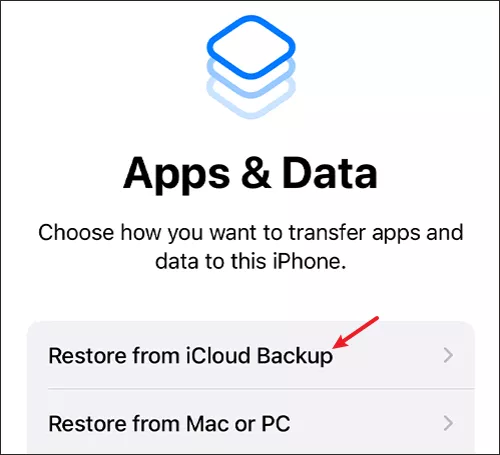
Step 2: On the new iPhone, skip the Quick Start screen, continue to set up iPhone and select Restore from iCloud Backup when prompted.
Step 3: Sign in with your Apple ID and select the most recent backup to restore.
Way 5: Download and Install the Latest iOS Version
Check whether your iPhone is running iOS 11 or later, otherwise there is no Quick Start feature for you to use. And outdated software can also cause compatibility issues, so make sure both iPhones are running the latest iOS version.
Step 1: Go to Settings > General > Software Update.
Step 2: If an update is available, download and install it. Once the iPhone is updated, restart it and retry Quick Start on the new iPhone.

Way 6: Repair any iOS Errors with iOS Repair Tuner
If none of the above methods work, there may be deeper iOS issues preventing Quick Start from working. You can use a third-party tool like Cocosenor iOS Repair Tuner to fix these errors without erasing your data.
Step 1: Install iOS Repair Tuner on your computer and ensure iTunes has been installed.
Step 2: Launch the software, choose System Repair and then select Standard Mode.

Step 3: Click the Start button > Connect the stuck iPhone to the PC via a USB cable > Tap on Next to continue.

Step 4: To get the firmware package, click on Download.

Step 5: Tap on the Repair button to start repairing the system. After the repair, click Done. And then set up your iPhone and try Quick Start again.