4 Ways to Fix the iPhone Frozen on Lock Screen Issue

Is your iPhone stuck on the lock screen and becomes completely unresponsive, no matter how you swipe? This issue can occur due to insufficient storage, software glitches, failed updates, or even system crashes. When the lock screen can’t be skipped, you won’t access your device and use it normally. Luckily, there are several ways to fix this issue and get your iPhone working again.
- Contents:
- Way 1: Reboot the iPhone and Ask Others to Call you
- Way 2: Force Restart the Stuck iPhone with Buttons
- Way 3: Use iOS Repair Tuner to Repair System Bugs
- Way 4: Restore the iPhone in the Latest iTunes App
- Bonus Tips: How to Remove the Screen Lock Without Passcode
Way 1: Reboot the iPhone and Ask Others to Call you
A quick reboot can sometimes resolve temporary glitches that cause the iPhone to freeze on the lock screen. If your power button can be used as normal, try to power off the iPhone now.
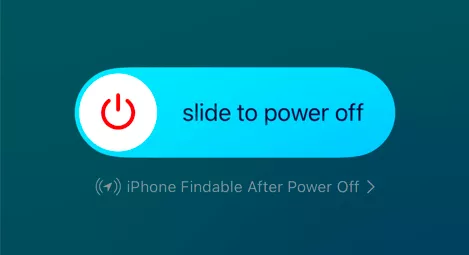
Press and hold the Power button until the slider appears. Then drag the slider to power off your iPhone. After waiting a few seconds, press the Power button again to restart it.
If the screen still seems frozen, ask someone to call your iPhone. Incoming calls can sometimes fix the frozen lock screen issue, giving you access to the device again.
Way 2: Force Restart the Stuck iPhone with Buttons
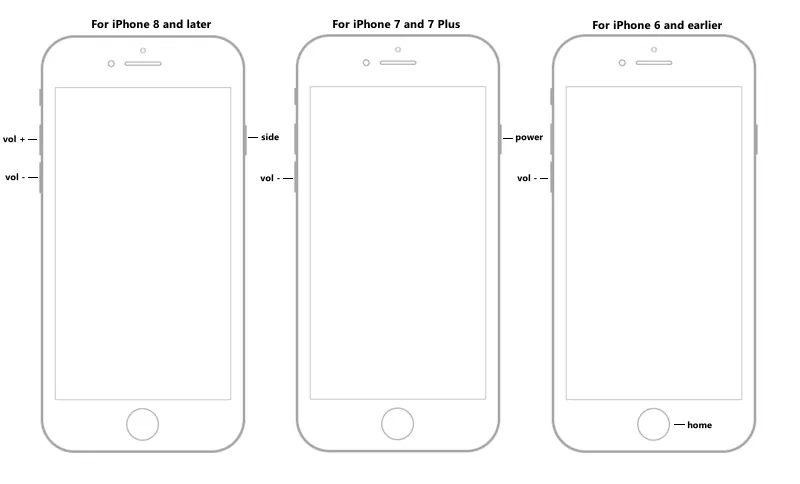
If a normal reboot doesn’t work, try a force restart which can close the problematic apps and refresh the corrupted system completely. This method varies depending on the iPhone model:
iPhone 8 and later: Quickly press Volume Up, then Volume Down, and finally press and hold the Side button until you see the Apple logo.
iPhone 7/7 Plus: Press and hold both the Volume Down button and the Power button until the Apple logo appears.
iPhone 6s and earlier: Press and hold both the Home button and the Power button until the Apple logo shows up.
Way 3: Use iOS Repair Tuner to Repair System Bugs
Sometimes, the lock screen becomes black and the side buttons have no response due to system bugs or iOS errors. A professional tool like Cocosenor iOS Repair Tuner can help fix these issues without data loss.
Step 1: On your Windows or Mac computer, visit the official Cocosenor website, and then download the software iOS Repair Tuner. And at the same time, install the latest iTunes version on the PC.
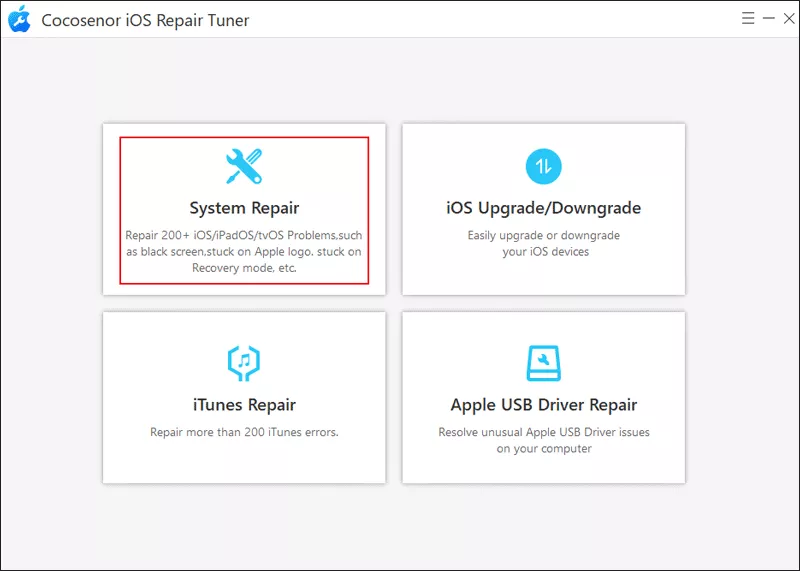
Step 2: Launch the program > Choose System Repair > Select Standard Mode.
Step 3: Click the Start button and then connect the PC to the iPhone via a USB cable. After that, hit Next.
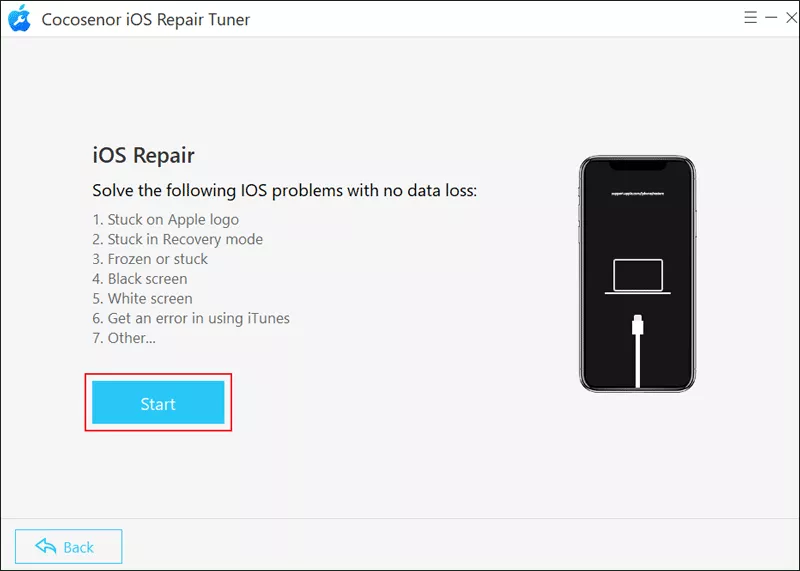
Step 4: Tap on the Download button and then it will quickly download the necessary firmware package.
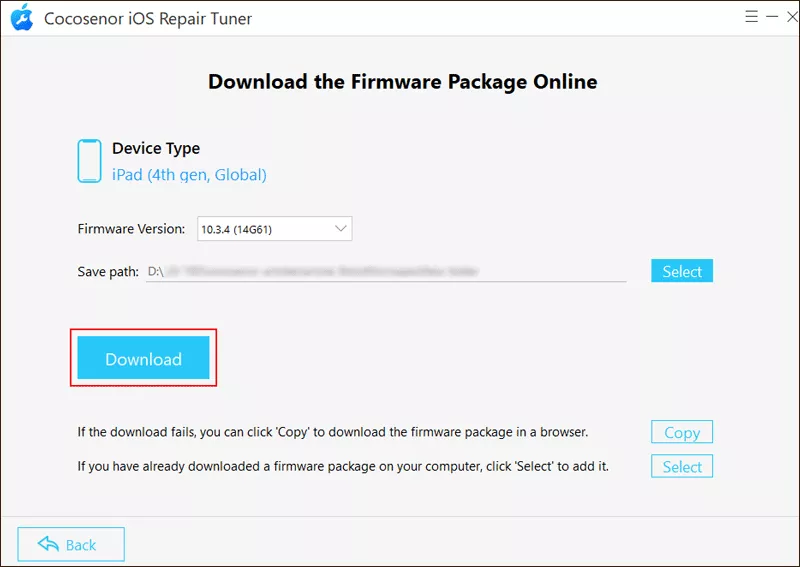
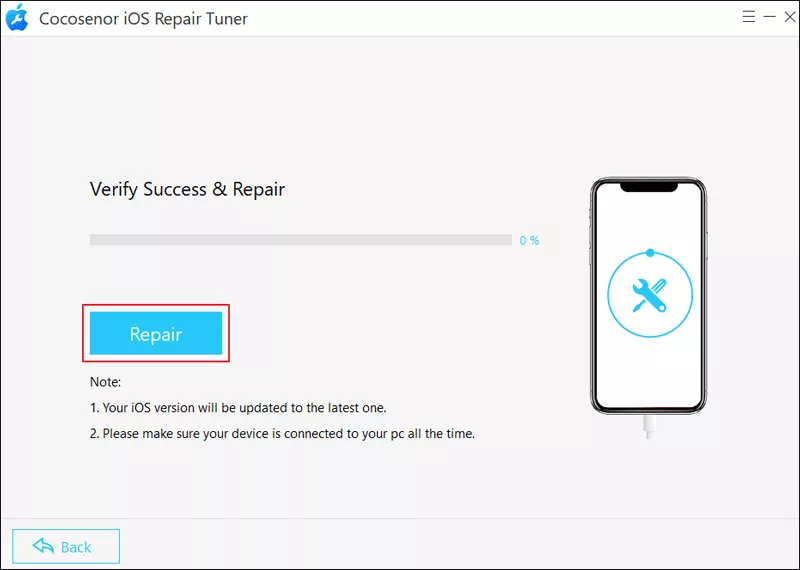
Step 5: Click Repair to start fixing the iPhone issue. After a while, you can find the iOS device restarts and gets back to normal.
Way 4: Restore the iPhone in the Latest iTunes App
If the issue persists, you may need to restore your iPhone through iTunes. But it will erase all data on your iPhone unless you have a full backup.
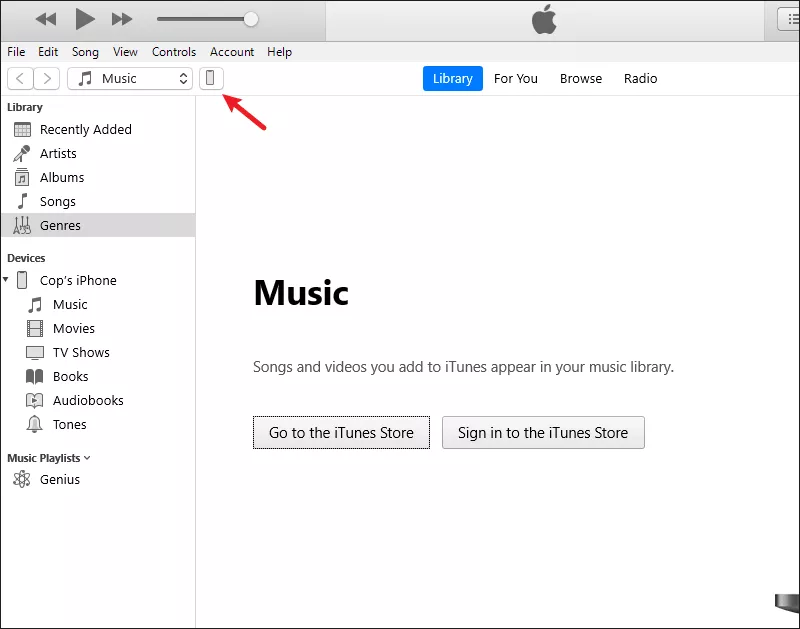
Step 1: Open iTunes on your computer > Connect the iPhone to the PC. Then click the small iPhone icon. (Trust the iPhone and enter the device passcode when prompted on the mobile phone)
Step 2: On the right, choose Restore iPhone and then continue to erase it according to the onscreen steps.
Bonus Tips: How to Remove the Screen Lock Without Passcode
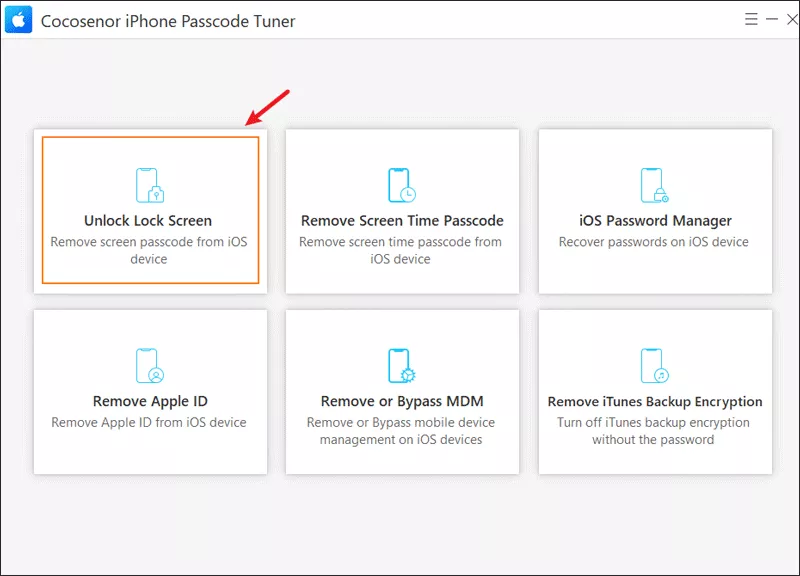
If you forgot your screen passcode or Face ID isn’t working, you can bypass the device lock by using Cocosenor iPhone Passcode Tuner, which supports removing iPhone screen locks without passcode.
Just install the tool on your computer and select Remove Lock Screen after opening the tool. Then follow the onscreen instructions to enter recovery mode, download the firmware package, and unlock the iPhone.