Quickly Fixed – iPhone Force Restart Not Working

A force restart is often the go-to solution when your iPhone becomes unresponsive or freezes. Just quickly press the volume up button, then volume down. After that, press and hold the power button until the Apple logo appears on the screen. However, there are times when this feature is not working so that you can’t fix the stuck iPhone issue. If that happens, below are five effective solutions you can use to fix the “iPhone Force Restart Not Working” issue.
- Contents:
- Fix 1: Download and Install the Latest iOS Version
- Fix 2: Disable the Press Side Button for Siri Feature
- Fix 3: Repair the System Bugs via iOS Repair Tuner
- Fix 4: Open Windows iTunes to Restore Your iPhone
- Fix 5: Erase All Content and Settings on the iPhone
Fix 1: Download and Install the Latest iOS Version
Apple regularly releases iOS updates to address performance issues, security vulnerabilities, and software bugs that may prevent features like force restart from working properly.
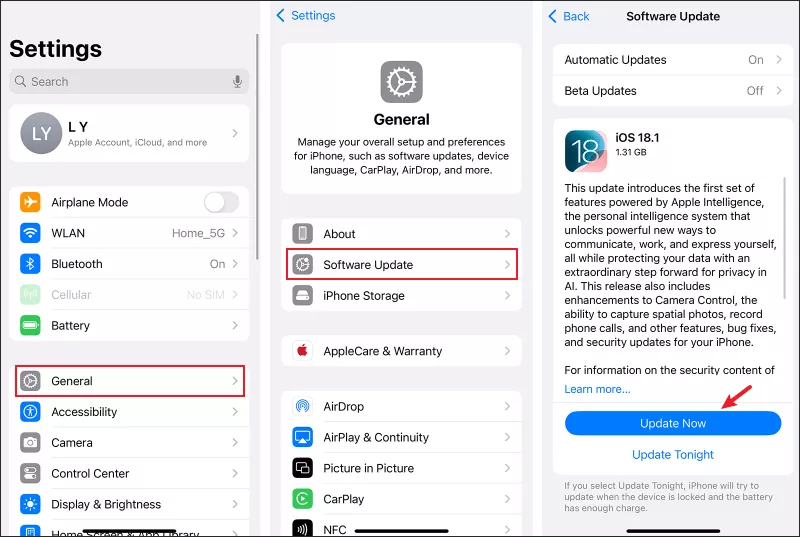
Step 1: Ensure your iPhone has connected to a stable Wi-Fi network and charge it to 100%. Then go to Settings > General > Software Update.
Step 2: If an update is available, tap Update Now. Wait for the process to complete, then try force restarting again once the iPhone is stuck.
Fix 2: Disable the Press Side Button for Siri Feature
On some iPhones, the Press Side Button for Siri setting may interfere with the timing of the force restart key combination. Disabling it can help restore the normal functionality.
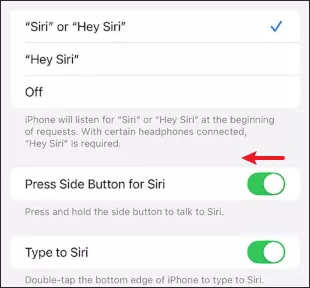
Step 1: Open Settings on your iPhone. Navigate to Siri & Search.
Step 2: Toggle off Press Side Button for Siri. Retry the force restart method for your iPhone model.
Fix 3: Repair the System Bugs via iOS Repair Tuner
If your iPhone’s software has deep system glitches, a professional iOS repair tool such as Cocosenor iOS Repair Tuner can help you a lot. The software can fix common iOS problems without erasing your data.
Step 1: Download and install iOS Repair Tuner on your computer. Then ensure iTunes is installed.
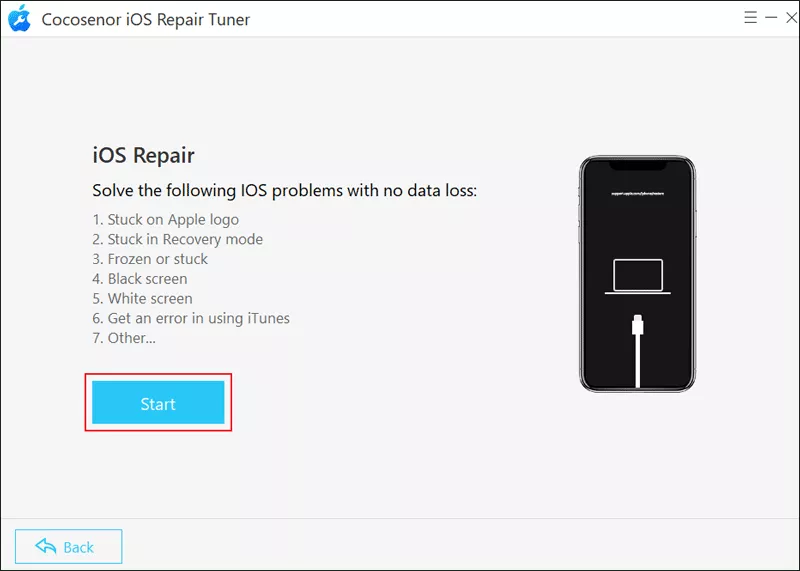
Step 2: Open the software > Choose System Repair > Select Standard Mode. Using this mode can avoid data loss.

Step 3: Click the Start button. After that, connect the iPhone to the PC with a USB cable.
Step 4: Tap on the Download button to get the firmware package.
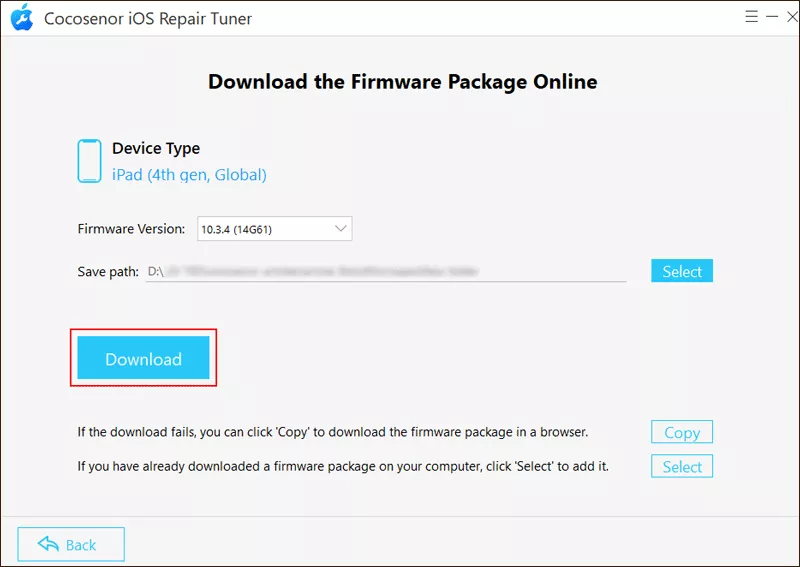
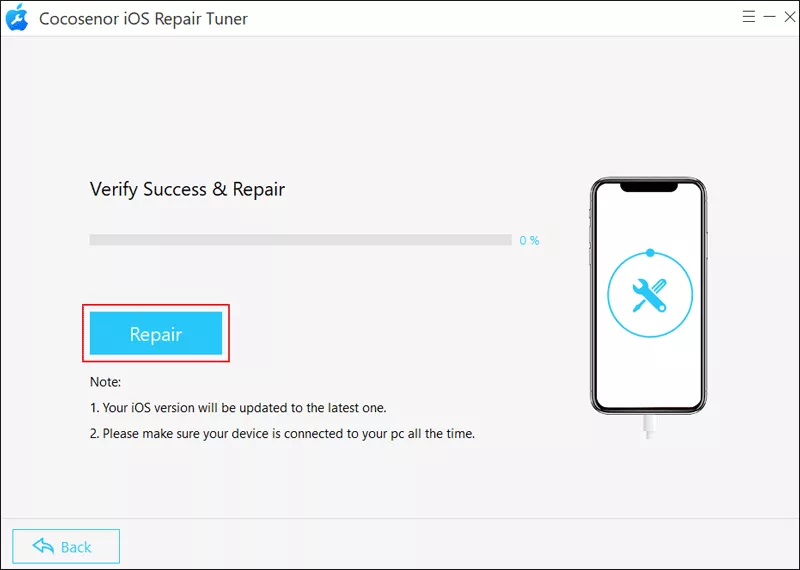
Step 5: Click Repair to repair your system after completing the download. Once it is repaired successfully, try force restarting your device again.
Fix 4: Open Windows iTunes to Restore Your iPhone
If the above methods fail, restoring your iPhone via iTunes on a Windows PC can refresh its firmware and eliminate software errors that might block force restarts.
Step 1: Install the latest version of iTunes on your Windows computer. Then connect your iPhone using a USB cable.
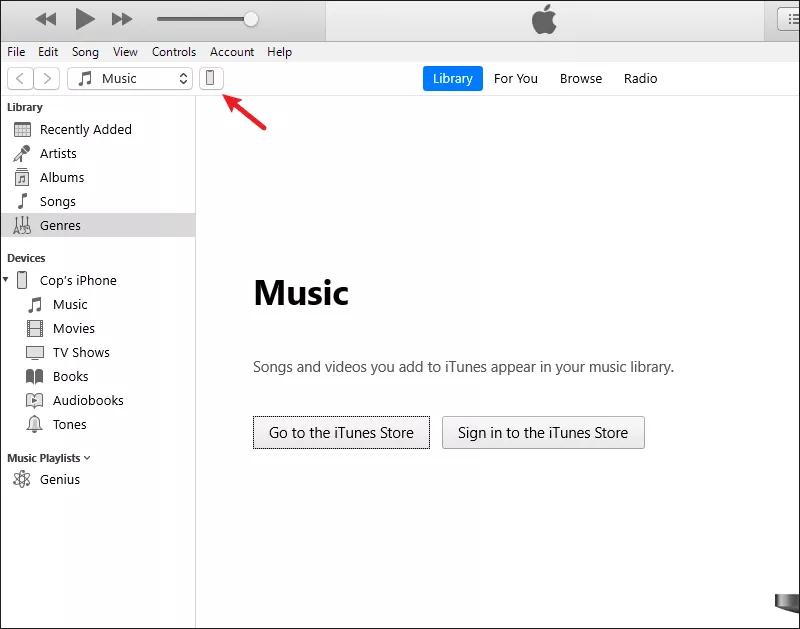
Step 2: Open iTunes and click the little iPhone icon.
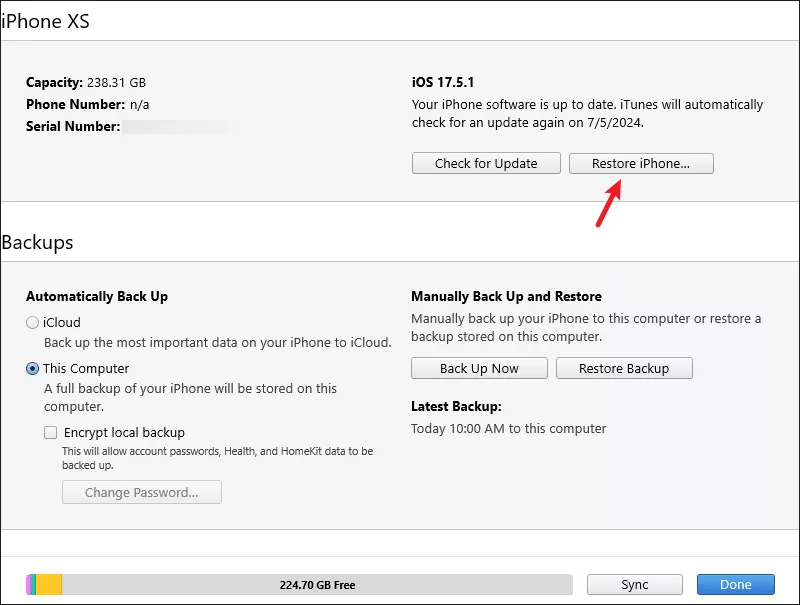
Step 3: Choose Restore iPhone and confirm. Wait for the process to complete, then set up your iPhone.
Note: Restoring via iTunes will erase all data on your iPhone, so back up your files beforehand.
Fix 5: Erase All Content and Settings on the iPhone
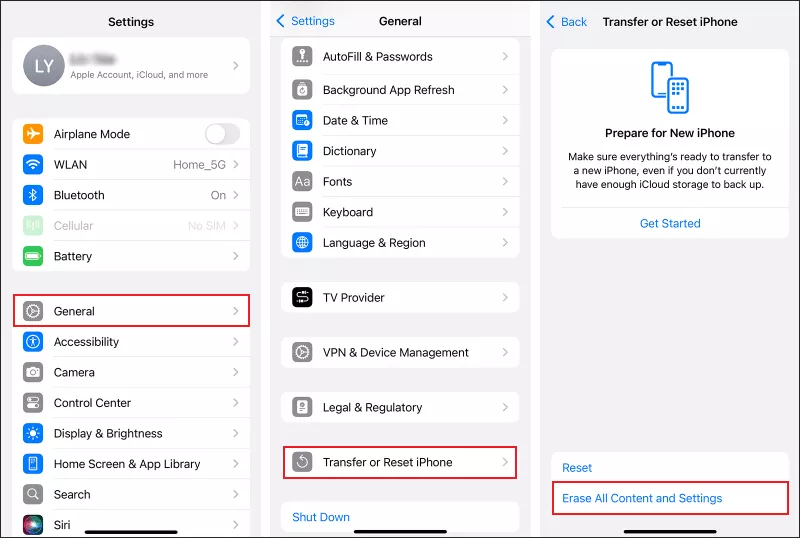
If none of the previous solutions work, you may need to completely reset your iPhone to factory settings. This will remove all data or apps, and then return your iPhone to its original state.
Step 1: Go to Settings > General > Transfer or Reset iPhone.
Step 2: Tap Erase All Content and Settings. Enter your passcode or Apple ID password to confirm. After the reset, set up your iPhone from scratch and test the force restart function.