


5 Ways to Fix iPhone Silent Switch Not Working

The silent switch is on the left side of an iPhone, one of the most useful hardware buttons—it allows you to mute calls, alerts, and notifications instantly. But sometimes, this switch may stop working properly when you try to silence the iPhone. It means there is no Ringer Silent message displayed on the screen, just leaving your iPhone ringing or vibrating.
If that happens, check whether the silent switch button is destroyed and then restart the iPhone to fix temporary bugs. After that, toggle the silent switch button again. If it is still not working, there are several practical solutions to fix it.
- Contents:
- Way 1: Turn on Airplane Mode from Control Center
- Way 2: Enable Assistive Touch to Mute the iPhone
- Way 3: Set a Silent Ringtone as a Default Ringtone
- Way 4: Try to Switch Text Tone to None in Settings
- Way 5: Repair System Bugs with iOS Repair Tuner
Way 1: Turn on Airplane Mode from Control Center
If the silent switch is not responsive, you can long-press the volume down button to reach zero. Alternatively, turn on Airplane Mode when needing to stay silent in certain situations (or opt for Do Not Disturb). Once enabled, this feature disconnects all wireless services, including calls and texts, effectively silencing the device.
Step 1: Swipe down from the top-right corner (iPhone X or later) or swipe up from the bottom (iPhone 8 or earlier) to open Control Center.
Step 2: Tap the Airplane Mode icon (an airplane symbol). You can also turn on Airplane Mode in Settings.

Way 2: Enable Assistive Touch to Mute the iPhone
It is possible that the physical silent switch is broken after being used for a long time. So, the Assistive Touch feature can help you a lot, which can replace the hardware-based switch.
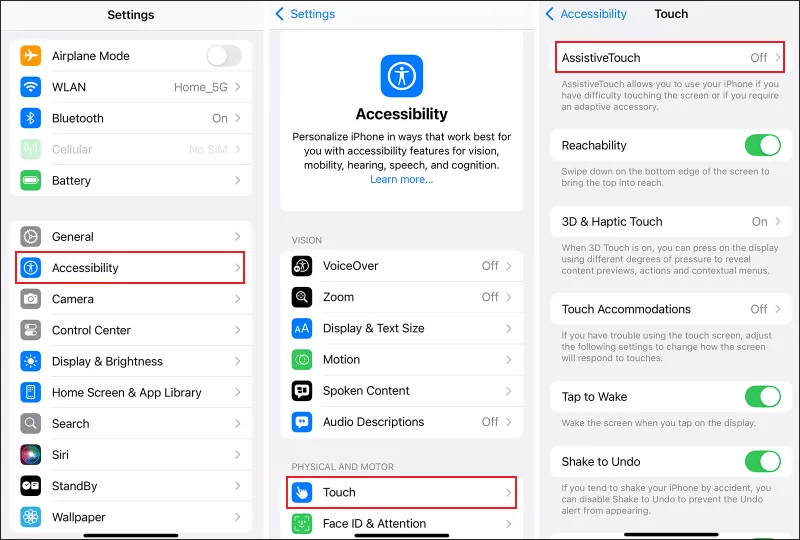
Step 1: Go to Settings > Accessibility > Touch > Assistive Touch. Turn on Assistive Touch.
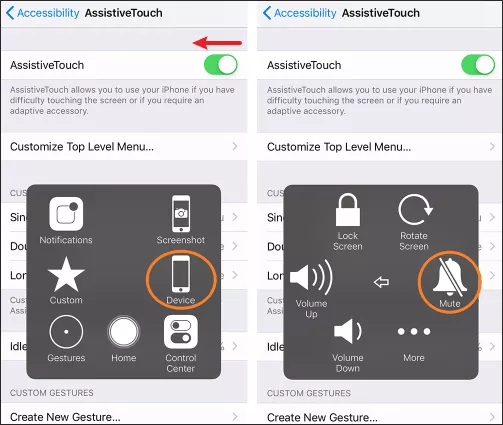
Step 2: A floating button will appear on your screen. Tap it and navigate to Device > Mute. Then this option allows you to mute and unmute your iPhone when having a meeting or needing to study quietly.
Way 3: Set a Silent Ringtone as a Default Ringtone
Another clever workaround is to set a silent ringtone as your default ringtone. With this, even if the silent switch isn’t working, incoming calls won’t make any sound.
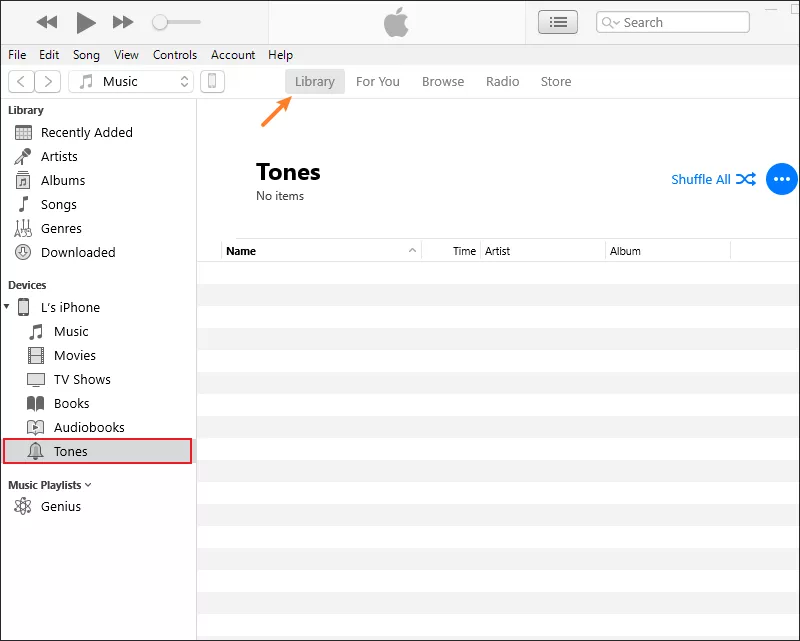
Step 1: Download a silent ringtone file (a few seconds of silence) on your computer. Launch iTunes > Connect the iPhone to the PC > Click Library > Choose Tones under Devices > Drap the downloaded ringtone to the box. Then it will sync the iTunes library to the iPhone.
Step 2: Open Settings > Sounds & Haptics > Ringtone. Choose the silent ringtone as your default. This ensures your iPhone won’t ring out loud during calls, even if the hardware mute button fails.
Way 4: Try to Switch Text Tone to None in Settings
If message notifications are the main issue, you can turn off the sound for text tones. By doing this, your iPhone will no longer play a sound for text messages, keeping things quiet without relying on the mute switch.
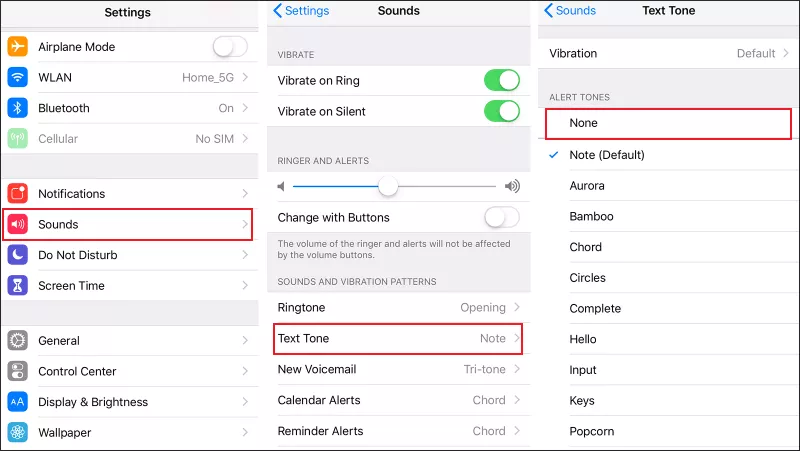
Here’s how: Go to Settings > Sounds & Haptics. Tap Text Tone. Scroll up and select None.
Way 5: Repair System Bugs with iOS Repair Tuner
Sometimes, the silent switch issue isn’t hardware-related but caused by system bugs. In this case, you can use a professional iOS repair tool, such as Cocosenor iOS Repair Tuner.
Step 1: Download and install the program on your computer. Then install the latest iTunes at the same time.
Step 2: Run the software > Choose System Repair > Select Standard Mode.
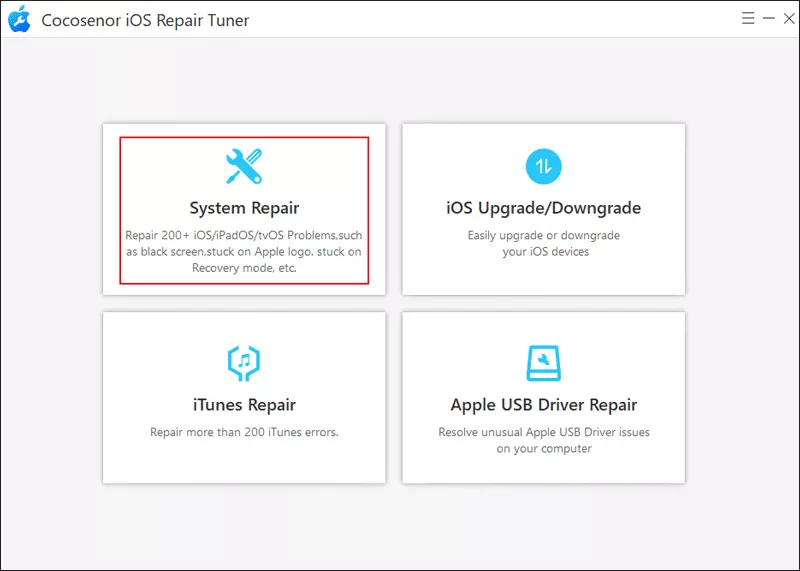
Step 3: Hit the Start button, then connect the PC to the iPhone via a USB cable. After that, click Next.
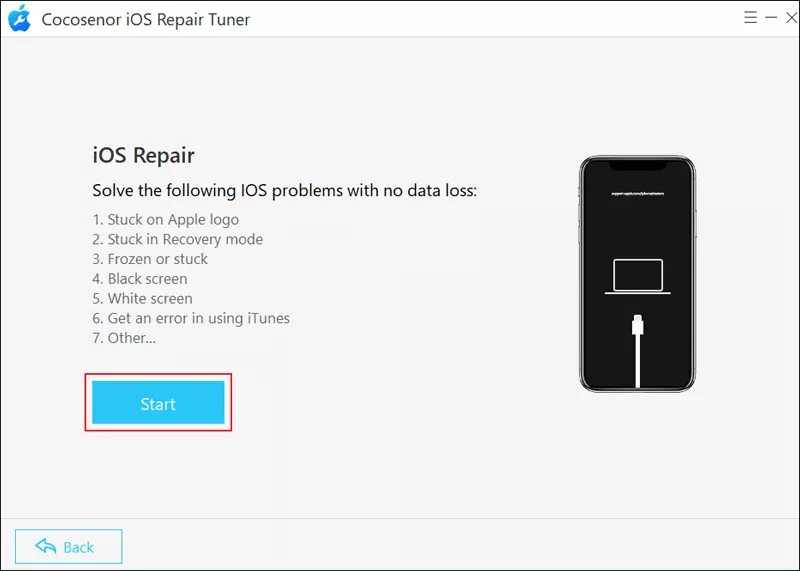
Step 4: Tap on the Download button to get the firmware package. During the period, ensure you have stable network connection.

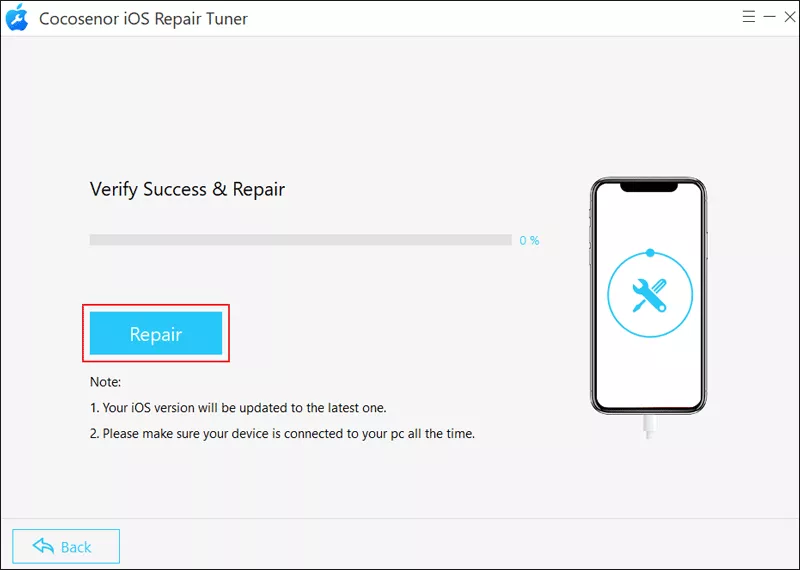
Step 5: Click Repair and then wait for some time. Once repaired successfully, try to use the silent switch to mute the iPhone.
Related Articles
- How to Fix Ringer on iPhone Not Working Issue
- Fixed—iMessage Not Working after Update
- 5 Solutions to Fix iPhone Force Restart Not Working
- Solved-iPhone Passcode Not Working after Update
- How to Fix iPhone Stuck on Setting Up Apple ID -- 5 Ways
- Fixed -- iPhone Stuck on Black Screen with Spinning Wheel



