5 Ways to Fix Ringer on iPhone Not Working Issue

Your iPhone’s ringer is essential for receiving calls, messages, and notifications. If the ringer suddenly stops working, you might miss important alerts. This issue could be caused by incorrect settings, enabled features that silence calls, or even system bugs. So, we’ll walk through five effective solutions to fix your iPhone’s ringer not working issue in the tutorial.
- Contents:
- Way 1: Use the Volume Up & Silent Switch Buttons
- Way 2: Turn Off Do Not Disturb and Airplane Mode
- Way 3: Ensure You Haven’t Silence Unknown Callers
- Way 4: Try to Reset All Settings and Have a Restart
- Way 5: Update the iPhone or Use an iOS Repair Tool
Way 1: Use the Volume Up & Silent Switch Buttons
The first method to start is with your iPhone’s hardware buttons: check whether you press the volume down button to the lowest level and toggle the silent switch button accidently.
Step 1: Press the Volume Up button on the left side to increase the ringer volume. If only the media volume is high, go to Settings > Sounds & Haptics and ensure the Ringer and Alerts slider is not set too low. Also, you can select a new ringtone.
Step 2: Find the silent switch button on the top left side of your iPhone. Make sure it is not toggled down (orange showing), which means your phone is in silent mode.

Way 2: Turn Off Do Not Disturb and Airplane Mode
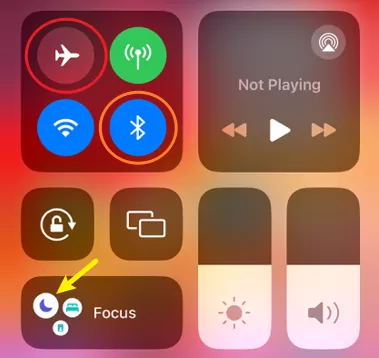
If your iPhone doesn’t ring, some modes may block notifications. You can swipe down from the top-right corner (Control Center) to check if Do Not Disturb is enabled and ensure Airplane Mode is not active, as these modes can block calls and notifications. If you connect the iPhone to a Bluetooth device, you may can’t hear the calls. So, turn off Bluetooth from Control Center.
Way 3: Ensure You Haven’t Silence Unknown Callers
Apple includes a feature called Silence Unknown Callers. If enabled, calls from numbers not in your contacts will go straight to voicemail without ringing.
To check this setting: Go to Settings > Click Phone. Find Silence Unknown Callers. Toggle it off if you want all calls to ring. And ensure you haven’t blocked some phone numbers. You can also check it under the Phone option.

Way 4: Try to Reset All Settings and Have a Restart
Sometimes, misconfigured settings can cause the ringer not to work on iPhone. Resetting all settings can clear conflicts without erasing your data.
Step 1: Open Settings > Choose General > Tap on Transfer or Reset iPhone > Click Reset.
Step 2: Select Reset All Settings. After that, enter the device passcode and confirm it. Restart your iPhone after the reset. This restores default system settings while keeping your apps and data intact.

Way 5: Update the iPhone or Use an iOS Repair Tool
If none of the above methods work, the iPhone may have software bugs. In this case, update the iOS version by going to Settings > Choose General > Click Software. If not available, use a professional tool to repair bugs, such as Cocosenor iOS Repair Tuner.
Step 1: Download and install iOS Repair Tuner on your PC. Ensure iTunes is installed.
Step 2: Run the software > Choose System Repair > Select Standard Mode.

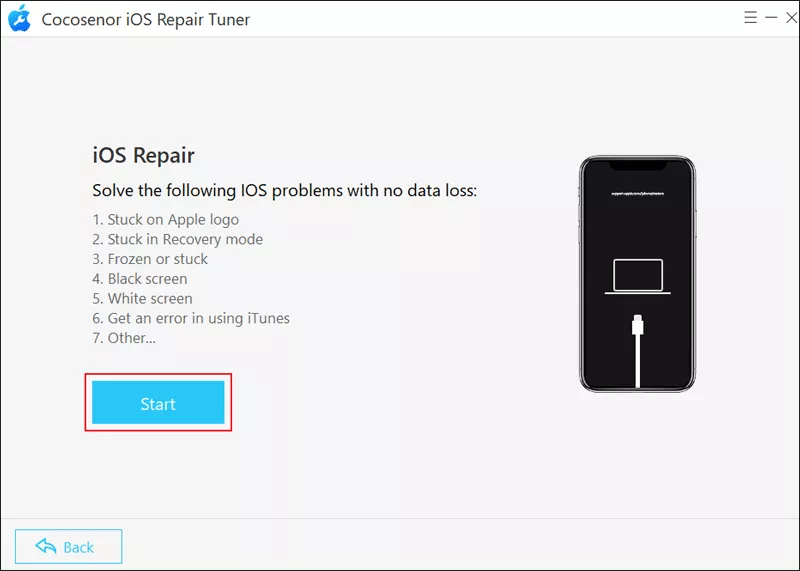
Step 3: Click Start > Connect the devices with a USB cable > Tap on Next.
Step 4: Click on the Download button and then get the firmware package.

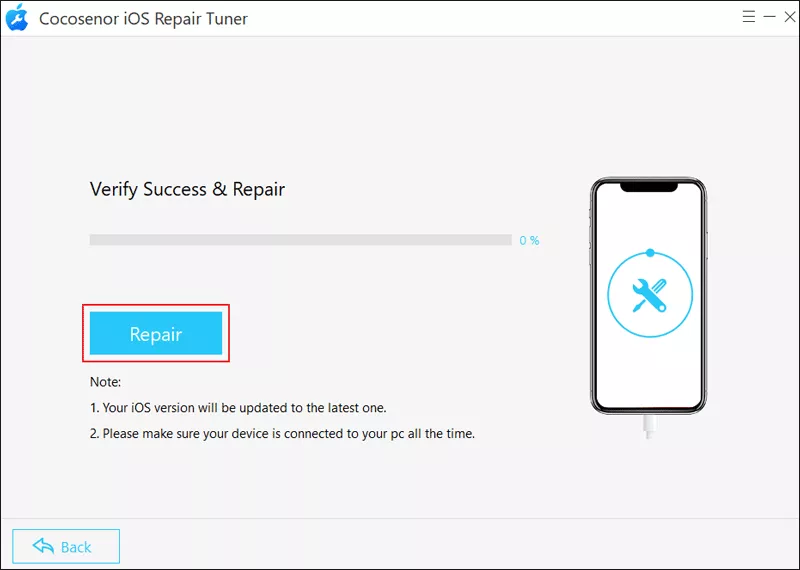
Step 5: Tap on Repair to fix the ringer on iPhone not working issue.