


iPhone Stuck on Home Critical Alerts – How to Fix

“My iPhone 16 stuck on the lock screen with a prompt showing: Home would like to send you critical alerts. It made no response. How can I get my iPhone back to normal?”
Some iPhone users report that their device gets stuck on the “Home Critical Alerts” screen when setting up apps or managing notifications. This issue usually happens when apps request permission for Critical Alerts, a type of notification that bypasses Do Not Disturb and Silent Mode. If your iPhone freezes or won’t move past this screen, here’s how to fix it.
- Fixed--iPhone Stuck on Critical Alerts
- What Are Home Critical Alerts on iPhone?
- Easy Fixes for iPhone Stuck on Home Critical Alerts
- FAQ about iPhone Stuck on Home Critical Alerts
What Are Home Critical Alerts on iPhone?
Critical Alerts are high-priority notifications used by apps like health, security, or safety tools. The “Home Critical Alerts” prompt typically appears when setting up apps such as Home (Apple HomeKit) or other smart device apps.
If the iPhone gets stuck on this screen, it may be caused by a software glitch, app bug, or iOS system issue.
Easy Fixes for iPhone Stuck on Home Critical Alerts
Here you can learn the different methods to get rid of iPhone stuck on home critical alerts.
Fixes 1: Force Close the App
Generally, when the stuck error happens during setting up the app, you can force close the app to get the iPhone back to normal.
On an iPhone with a Home Button, double-press the Home button. For other iPhone models, swipe up from the bottom edge of the screen. Then find the app stuck on the Home Critical Alerts screen, swipe it up to close. After that, you can reopen the app to check whether it works normally or not.
Fixes 2: Force Restart Your iPhone
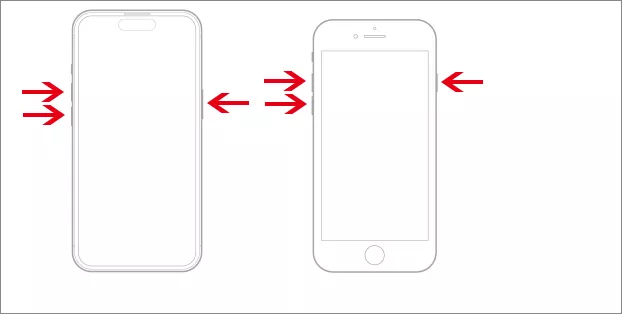
If your iPhone stuck on Home Critical Alerts and made no response, try a force restart. Just press and quickly release the Volume Up button, then do the same with the Volume Down button. Finally, press and hold the Side button. Release the Side button only when you see the Apple logo on the screen. For older iOS version iPhone, check here.
Fixes 3: Restore Your iPhone with iTunes
iTunes can help restore your iPhone to factory settings and update the iOS system, which fix the software glitch or system bugs that cause the iPhone stuck on Home Critical Alerts. You can have a try. Before going ahead, it is recommended to back up your iPhone data in advance.
Step 1: Make your iPhone enter recovery mode.
Step 2: Connect the iPhone to a computer, a Windows PC or Mac, then open iTunes (or Finder).
Step 3: After iTunes/Finder detects your iPhone, hit the Restore button on the prompt.
Step 4: Hit Restore and Update to proceed. After that, follow the prompt to restore your iPhone. Finally, your iPhone restarts at the Hello screen.

Fixes 4: Repair iPhone Stuck on Home Critical Alerts via iOS System Tuner
If you want to get out of the iPhone stuck status without losing iPhone data, Cocosenor iOS Repair Tuner can help you. This iOS system recovery software enables you to repair iOS system errors in clicks, such as iPhone stuck on Apple logo screen. You can free download the software to fix iPhone stuck on Home would like to send critical alerts.
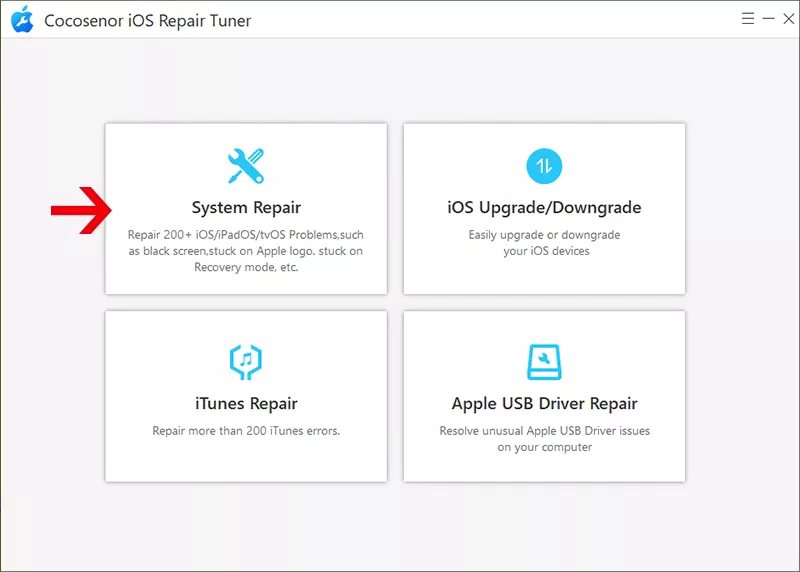
Step 1: Open the software and select System Repair on the interface.
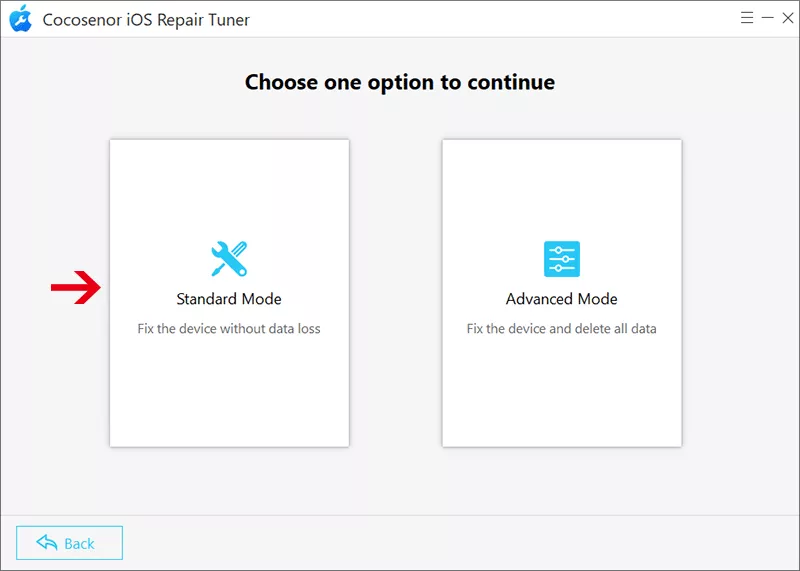
Step 2: Click the Standard Mode and hit the Start button on the next interface.
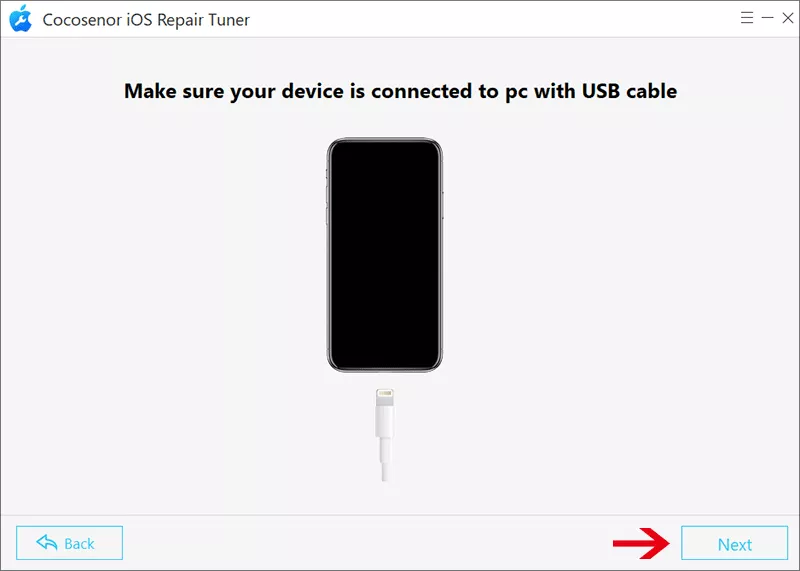
Step 3: Connect your iPhone to the computer and put it into recovery mode.
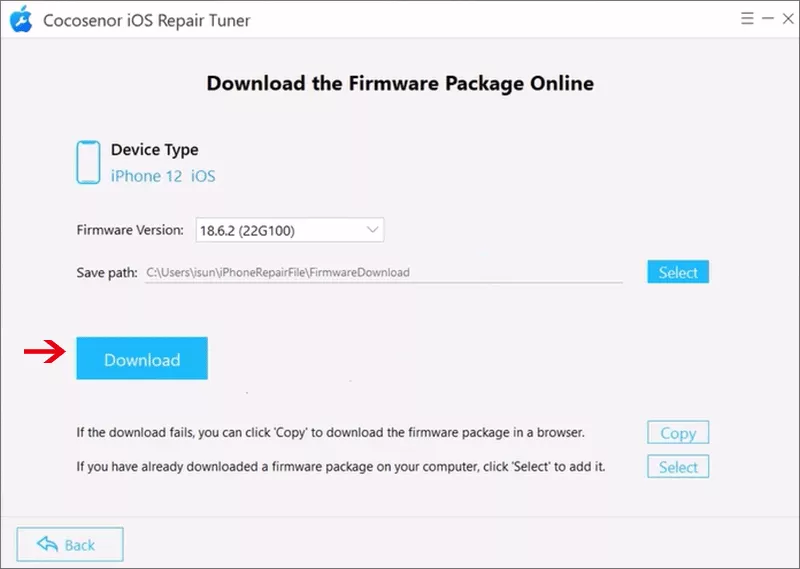
Step 4: Soon, your iPhone details are shown on the software. Hit the Download button to download the iOS firmware package.
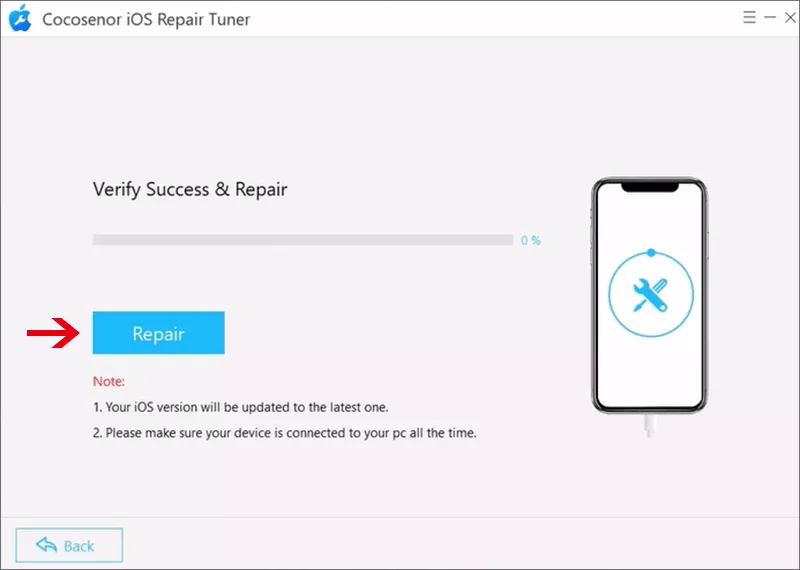
Step 5: Click the Repair button to fix your iPhone stuck on Home critical alerts. You just need to wait for the process to be finished.
FAQ about iPhone Stuck on Home Critical Alerts
1. Why is my iPhone stuck on the Home Critical Alerts screen?
This issue usually happens due to:A software glitch in iOS; An app bug while requesting Critical Alerts; Outdated system software or app versions.
2. Can I turn off Critical Alerts on iPhone?
Yes. Go to Settings > Notifications > [App Name] and toggle off Critical Alerts. Not all apps support this option, as Apple restricts it to essential apps only.
3. iPhone Stuck on Home Critical Alerts, how to fix?
You can try the listed methods on this article to fix iPhone stuck on Home Critical Alerts. If you do not want to lose the iPhone data, Cocosenor iOS Repair Tuner is the best choice.
Conclusions:
If your iPhone is stuck on the Home Critical Alerts screen, the problem usually lies in a buggy app request or notification setting conflict. In most cases, force close the app or restarting your device, should fix it. You can also fix the issue with iTunes or Cocosenor iOS System Tuner.



