


The Best Free Online HEIC to JPG Converter You Should Know
HEIC (High Efficiency Image Coding) was designed to save space. One HEIC photo can be half the size of an equivalent JPG while maintaining the same quality. That is great for your iPhone’s storage, but terrible for compatibility.
Thus, if you’re dealing with iPhone photos on Windows or need better compatibility, it is the fastest solution to use a free online HEIC to JPG converter. These tools work directly in your browser—no installation, no setup.
- Content:
- What Is a HEIC to JPG Converter?
- Best Free Online HEIC to JPG Converters
- Is It Safe to Use Online HEIC Converters?
- FAQs on Online HEIC to JPG Converter
What Is a HEIC to JPG Converter?
A HEIC to JPG converter transforms Apple’s HEIC images into JPG format, which work on any device, any operating system, and any website. This is especially useful when sharing or editing photos outside the Apple ecosystem. The online converter is a web-based tool that converts HEIC to JPG in minutes.
You need one when:
- Windows cannot open HEIC files without a paid add-on from the Microsoft Store
- LinkedIn, Craigslist, and job portals reject HEIC uploads
- Email clients often block HEIC attachments as unsafe
- Social media schedulers like Buffer and Later do not support HEIC
- Your grandma's Android tablet cannot display HEIC photos
Without a HEIC to JPG converter, you are locked out of your own photos the moment you leave the Apple ecosystem.
Best Free Online HEIC to JPG Converters
Here are some reliable tools you can use right now:
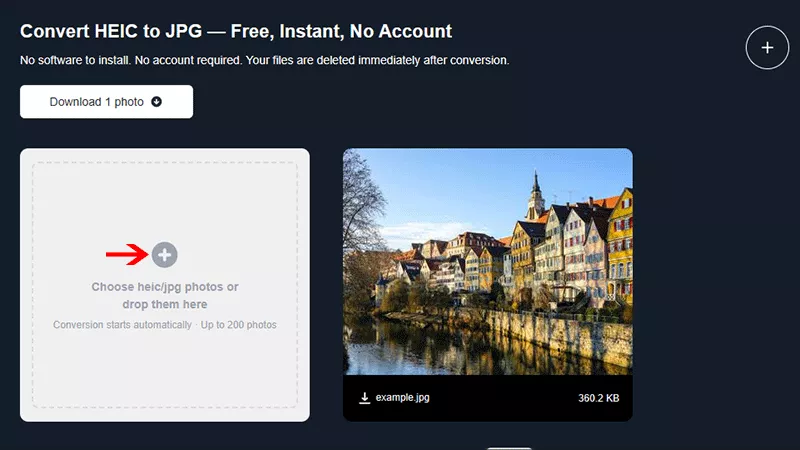
1. Cocosenor HEIC Converter
Why this is the best free online HEIC to JPG converter? Cocosenor HEIC Converter makes it possible for you to convert as many files as you want, at full original size, with no watermark, and deletes your photos immediately after conversion. It supports batch conversion and with no watermarks on output. No sign-up, no credit card, no ads pop out. It is a true free online HEIC to JPG Converter that does exactly what it promises.
How to use it to convert HEIC to JPG with no limit
Step 1: Go to Cocosenor HEIC Converter website: https://www.cocosenor.com/tools/cocosensor-heic-2-any.html. No account is required.
Step 2: Drag and drop your HEIC files onto the page.
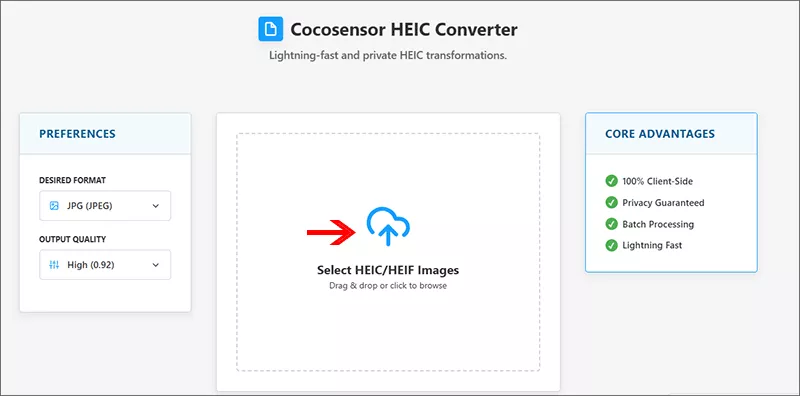
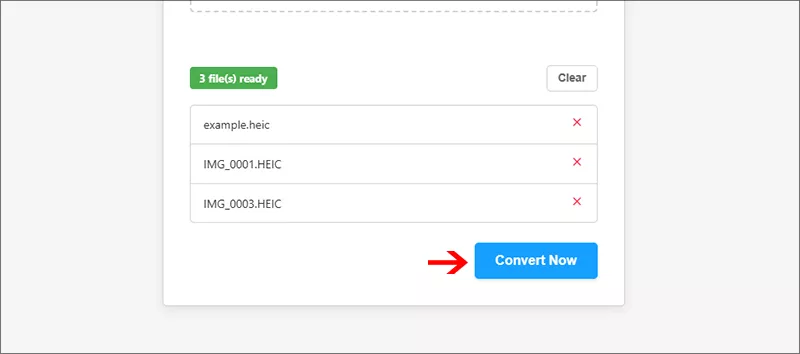
Step 3: Click Convert Now button to start conversion.
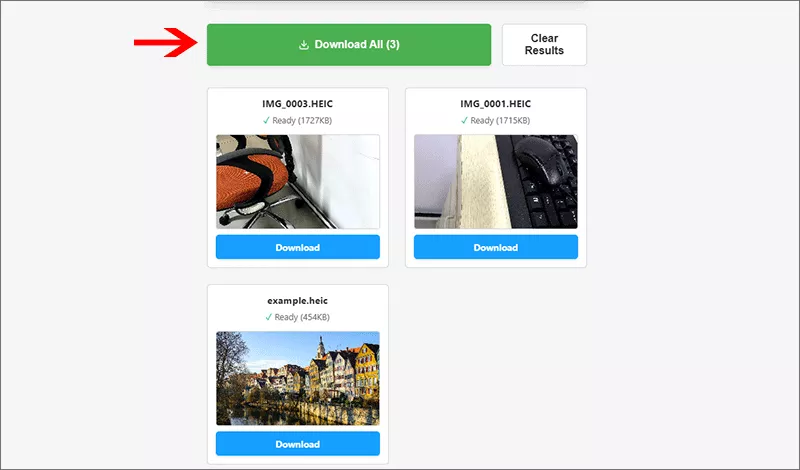
Step 4: Hit the Download All button to save your JPGs.
2. HEICtoJPG
This website heictojpg.com offers free HEIC to JPG converter to convert HEIC to JPG with no daily limit on number of images. Once you add the HEIC files, the instant processing begins in browser. You can directly download the JPG files after the conversion ends.
3. HEICcon
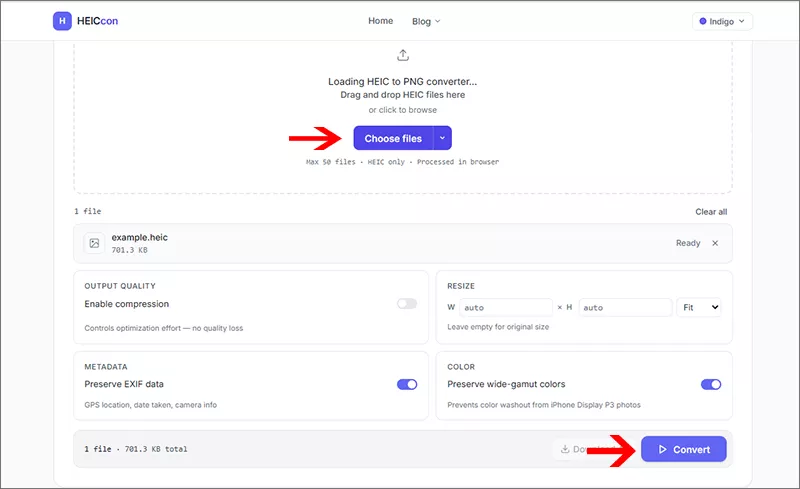
This online converter enables you to convert HEIC to JPG, PNG, Webp and more. You can add up to 50 files for batch conversion. Besides, it offers multiple output settings, such as quality and resolution, for your better control.
4. CloudConvert
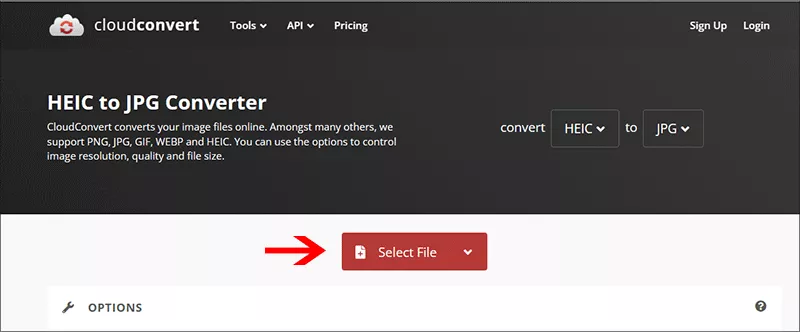
CloudConvert makes the image format conversion easier online, which you can transform the format between PNG, JPG, GIF, WEBP and HEIC. But it limits 10 conversions per day for free users.
Is It Safe to Use Online HEIC Converters?
Yes—especially tools that process files locally in your browser. Many modern converters use browser-based processing, meaning your images are never uploaded. Besides, reputable converters delete your files automatically within 1-2 hours. Thus, it is safe to convert HEIC files to JPG/PNG image online.
Tip: Choose converters that clearly state “no upload” or “local processing”
FAQs on Online HEIC to JPG Converter
Q: What is the best free online HEIC to JPG converter?
Popular options include browser-based tools that support batch conversion, fast processing, and no file uploads for better privacy. Cocosenor HEIC Converter is a good choice.
Q: Can I batch convert HEIC to JPG online?
Yes, many free tools support batch conversion, allowing you to convert multiple HEIC files at once.
Q: Can I use a free online HEIC to JPG converter on my iPhone?
Yes. The same websites work perfectly in Safari or Chrome on iPhone. Alternatively, you can change your iPhone camera settings to capture JPG directly: Settings > Camera >Formats > Most Compatible. This bypasses HEIC entirely.
Q: Is there a desktop alternative to a free online HEIC to JPG converter?
Yes. On Windows 10 and 11, you can install the "HEIF Image Extensions" from the Microsoft Store (paid, about $1). On Mac, double-clicking a HEIC file opens it in Preview, where you can choose File > Export As and save it as JPG for free. But for batch conversion, online tools are faster.
Conclusion
A free online HEIC to JPG converter is the easiest way to make your photos usable anywhere. The best tools today run entirely in your browser, offering faster conversion, better privacy, and no installation required. If you want the safest option, go with tools like Cocosenor HEIC Converter that keep your files on your device.



