


How to Open HEIC Files on Android
HEIC, short for High Efficiency Image Container, is Apple’s cutting-edge image format preinstalled across iPhones and iPads. It delivers premium visual fidelity at reduced storage footprints, yet compatibility flaws prevent smooth preview on numerous Android gadgets and third-party applications. If you've received a HEIC photo and can't view it on your Android phone, don't worry—there are several easy solutions.
- Contents
- What Is a HEIC File?
- Can Android Open HEIC Files Directly?
- Method 1: Open HEIC Files with Google Photos
- Method 2: Use a Third-Party HEIC Viewer
- Method 3: Convert HEIC to JPG
- Method 4: Use Google Drive
- Why HEIC Files Sometimes Fail to Open
- Tips for Working with HEIC Files on Android
What Is a HEIC File?
HEIC follows the HEIF (High Efficiency Image Format) specification. Apple rolled out this format to cut storage consumption without compromising visual quality, and modern iPhones automatically store captured photos as HEIC by factory default.
Can Android Open HEIC Files Directly?
Many modern Android phones running newer versions of Android support HEIC files natively. However, compatibility depends on your device model, Android version, and the app you're using to view the image. If a HEIC file won't open, try the following methods.
Method 1: Open HEIC Files with Google Photos
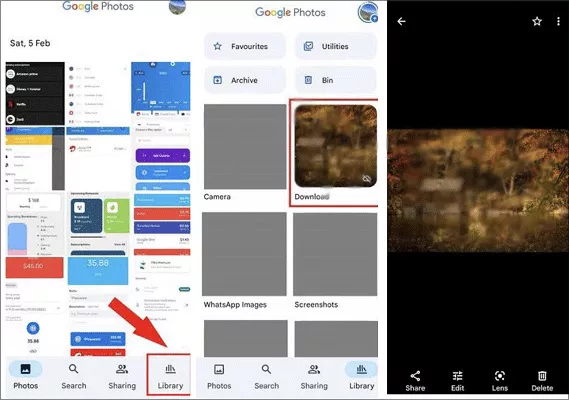
Google Photos supports HEIC images on most recent Android devices. You can download and install it to open HEIC files on your Android phone.
Step 1: Install or update Google Photos from the Google Play Store.
Step 2: Open the Google Photos app. Go to the bottom and tap Library option.
Step 3: Locate where the HEIC files are saved in your Android phone.
Step 4: Tap the image to view it. If the image opens successfully, your device supports HEIC through Google Photos.
Method 2: Use a Third-Party HEIC Viewer
Several Android apps are designed specifically for opening HEIC files, such as File Viewer for Android. You can download the app from the Play Store and use it to open your HEIC photos.
Method 3: Convert HEIC to JPG
Converting HEIC files to JPG is often the easiest solution if compatibility issues persist. You can use free online HEIC to JPG converters, such as Cocosenor HEIC Converter, to convert HEIC files to JPG or PNG images. After conversion, the image can be viewed using any standard photo app in your Android phone.
You can directly convert the HEIC files on your phone, or you can transfer the HEIC files to computer and convert them.
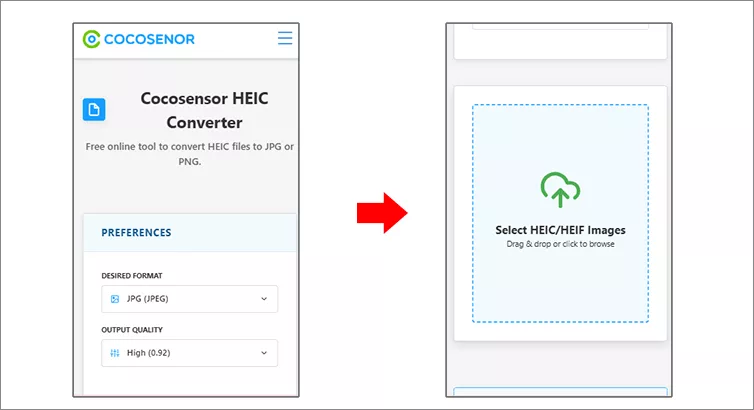
Step 1: Open any browser on your Android phone, then go to https://www.cocosenor.com/tools/cocosensor-heic-2-any.html.
Step 2: Scroll down to the Select HEIC/HEIF Images section. Tap it and choose the HEIC files to upload.
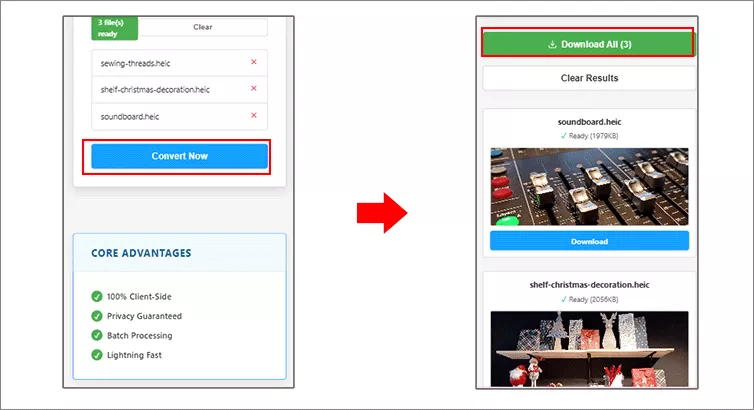
Step 3: After the HEIC files are selected, tap Convert Now button.
Step 4: In no time, the HEIC files are converted to the JPG images. You can click Download all to save them in your Android phone and view them simply.
Method 4: Use Google Drive
Google Drive can often preview HEIC images even if your phone's gallery app cannot.
Step 1:Upload the HEIC file to Google Drive.
Step 2: Select the HEIC file and then tap the three dots behind the file. Choose Open with > Preview.
Step 3: View or download the image in a compatible format.

Why HEIC Files Sometimes Fail to Open
Several prevalent factors lead to HEIC opening failures:
- Outdated Android operating system builds
- Default gallery applications lacking native HEIC support
- Damaged or corrupted source HEIC images
- Third-party file explorers with format incompatibility
- Absent essential image decoding codecs
Updating your phone and photo apps often resolves these issues.
Tips for Working with HEIC Files on Android
Follow these practical suggestions to handle HEIC images smoothly on Android devices:
- Maintain the latest version of Google Photos via regular updates.
- Prefer newer-generation Android hardware for built-in HEIC compatibility.
- Convert vital HEIC pictures into JPG format to guarantee cross-platform accessibility.
- Retain original HEIC copies to keep the original high image quality intact.
Final Thoughts
Opening HEIC files on Android is usually straightforward, especially on newer devices. If your phone doesn't support the format natively, apps like Google Photos or a simple HEIC-to-JPG converter—Cocosenor HEIC Converter can quickly solve the problem. By choosing the right viewing or conversion method, you can access HEIC photos without losing image quality or wasting time troubleshooting compatibility issues.



