


How to Update iPhone to iOS 26 (4 Methods That Actually Work)
iOS 26 is Apple's biggest design overhaul since iOS 7 — introducing the all-new Liquid Glass interface, deeper Apple Intelligence integration, Call Screening, Live Translation, and end-to-end encrypted RCS messaging. The latest version, iOS 26.5, released May 11, 2026, also patches over 50 security vulnerabilities, making updating more important than ever. This guide walks you through 4 proven ways to update your iPhone to iOS 26, whether you prefer updating wirelessly, through a Mac or PC, or need a fix when the standard update isn't working.
- How to Upgrade iOS to the Newest Version
- Preparations for iPhone Upgrade
- Method 1: Update iPhone via Settings (Easiest — No Computer Needed)
- Method 2: Update iPhone with iTunes on Windows PC
- Method 3: Update iPhone Without iTunes Using iOS Repair Software (Windows)
- Method 4: Update iPhone with Finder on Mac (macOS Catalina and Later)
- Tips: How to Install the iOS 27 Beta
- Common iOS 26 Update Problems & Fixes
- FAQs on iOS 26 Update
Preparations for iPhone Upgrade
Although the new iOS is tested before it releases, there are often bugs and issues that can lead to the issues on your iPhone. To avoid the data lost, you’d better back up iPhone data.
Besides, it is better to check if your iOS device is compatible with the newest iOS. iOS 26 supports iPhone 11 and later, as well as iPhone SE (2nd generation and later). Notably, iPhone XS, XS Max, and XR are no longer supported — they are capped at iOS 18 security updates through 2026.
What’s more, iOS 26 requires approximately 2–4 GB of free space. Check available storage at Settings > General > iPhone Storage. Offload unused apps or move photos to free up the storage on the iPhone .
Method 1: Update iPhone via Settings (Easiest — No Computer Needed)
This over-the-air method is the quickest and most straightforward for most users. You only need a Wi-Fi connection.
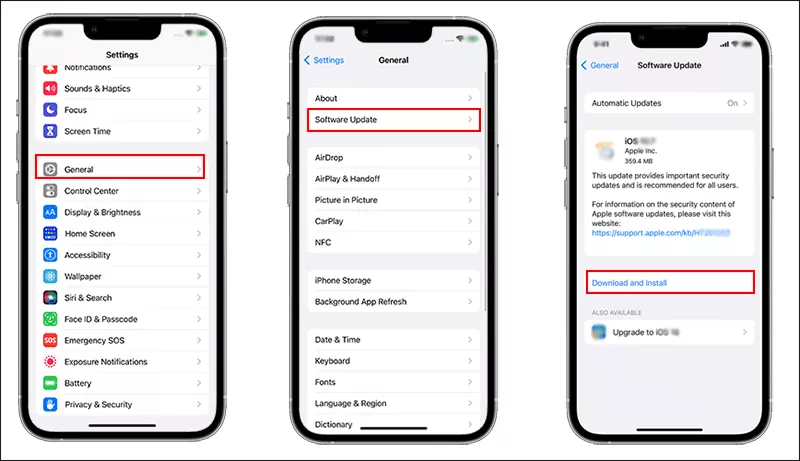
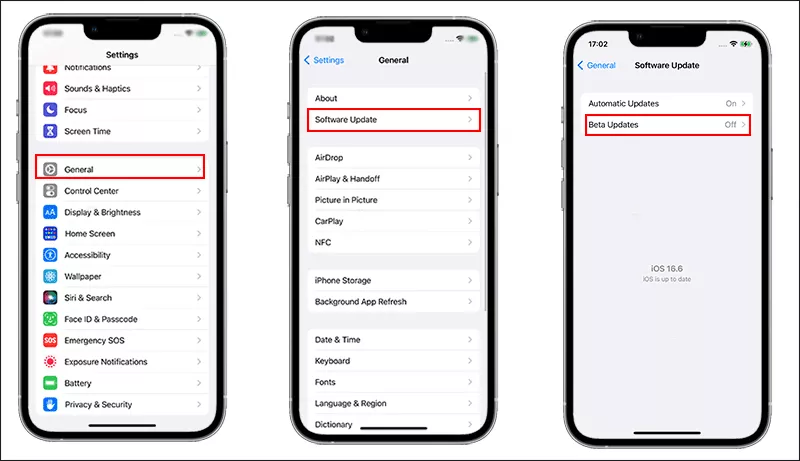
Step 1: Tap Settings > General > Software Update.
Step 2: If there is a new iOS version available, you can see it on the screen. Then tap Download and Install to update your iPhone.
Step 3: Enter your passcode when prompted and agree to Apple's terms.
If you do not want to update the software automatically, you can turn on Automatic Updates on this screen ) to receive future updates automatically overnight while your iPhone is charging and on Wi-Fi.
Method 2: Update iPhone with iTunes on Windows PC
Windows users can update their iPhone through iTunes (Apple Devices in Windows 11). This method also works on older Macs still running macOS Mojave or earlier.
Step 1: Get the newest iTunes on your computer.
Step 2: Connect the iPhone to the computer using the USB cable. If it is the first time for your iPhone to build connection with this computer, you will get the Trust prompt on the iPhone. Tap Trust and enter the device passcode to confirm it.
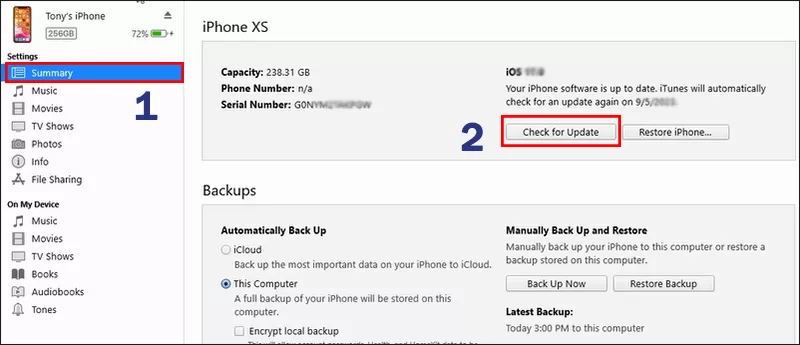
Step 3: Open iTunes and click the iPhone icon. Then click Summary and hit check for Update on the first section of the right panel. Then you can download and update the iOS.
Method 3: Update iPhone Without iTunes Using iOS Repair Software (Windows)
If you get an error prompt while updating iPhone with iTunes, you can get an alternative tool –Cocosenor iOS Repair Tuner to upgrade iOS within clicks. This software can help you to upgrade iPhone to the newest version without iTunes and Wi-Fi connection, such as upgrade iPhone from iOS 26 to iOS 27.
Besides, you can update the iPhone to the newest beta version without signing into the developer program. Cocosenor iOS Repair Tuner makes it convenient to update the iOS to a specific version which is signed by Apple.
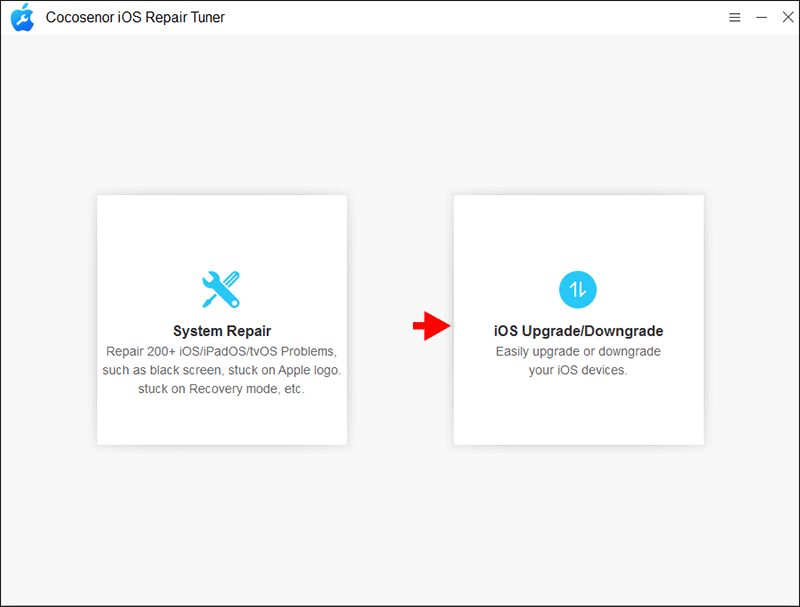
Step 1: Get the USB cable for your iPhone and then use it to build the connection between your iPhone and the PC. After that, launch Cocosenor iOS Repair Tuner and choose iOS Upgrade/Downgrade from the home interface.
Step 2: There are two options offered by the software: Upgrade iOS and Downgrade iOS. You can choose Upgrade iOS to continue.
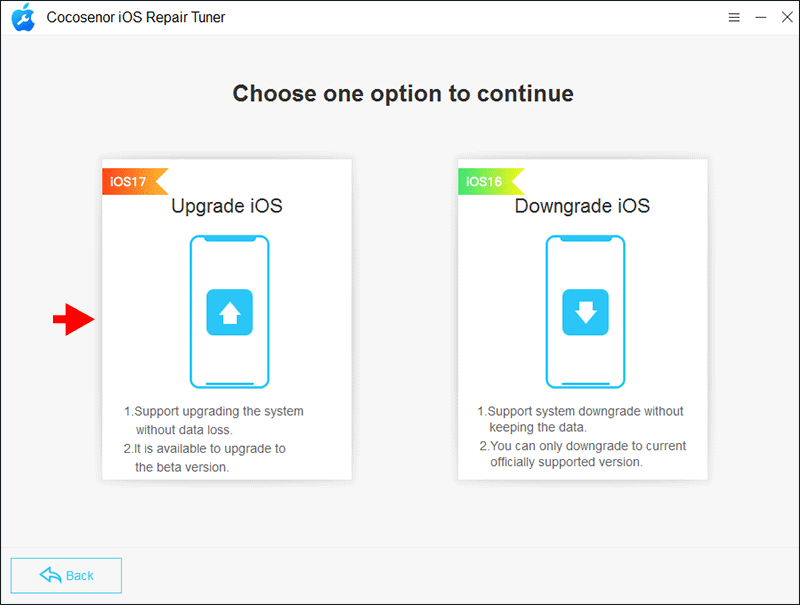
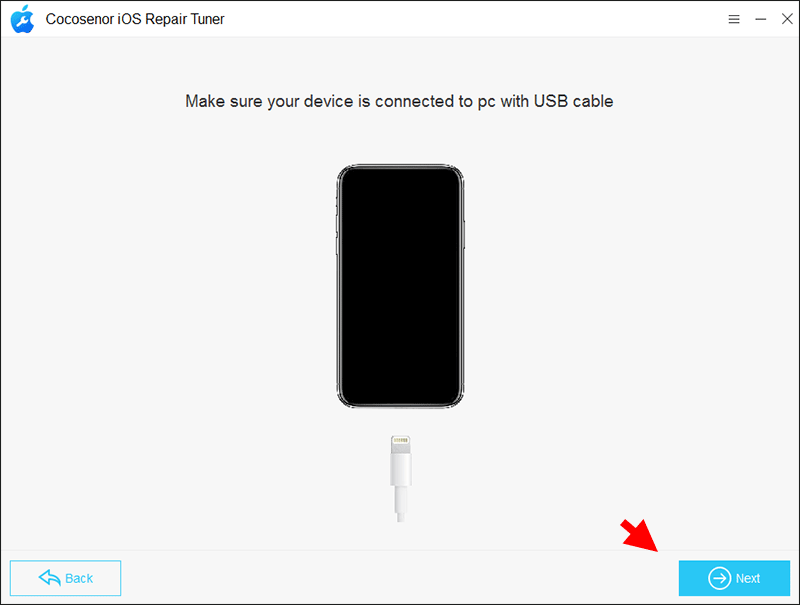
Step 3: Hit Next when your iPhone is well connected.
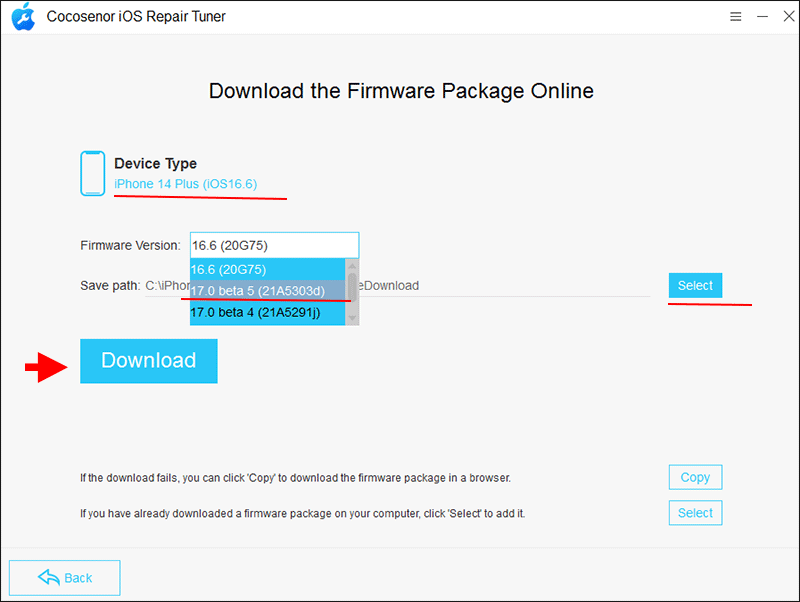
Step 4: In seconds, your iPhone details is loaded on the software. You can view the device type, current OS version and the available iOS versions for your iPhone. The newest iOS beta version is also supported here. If you want to upgrade to iOS 27 beta version, you can choose it on the Firmware Version field. Or you can choose the specific version from the drop-down menu. After that, you can click Download button to download the firmware software.
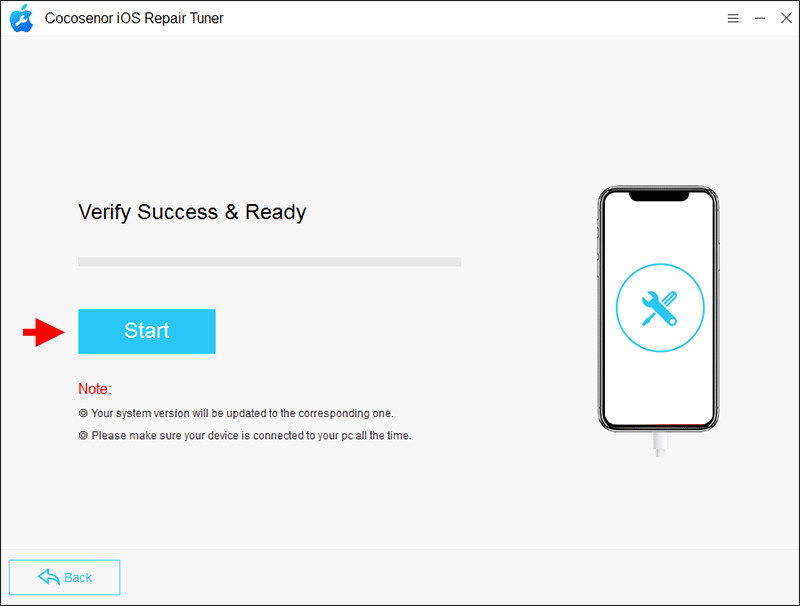
Step 5: Minutes later, the downloading process ends. Click Start to update your iPhone. In the end, you will get the successful message on the software. And your iPhone restarts and updates to the chosen iOS version. All data and settings remain the same as before.
Method 4: Update iPhone with Finder on Mac (macOS Catalina and Later)
If the over-the-air update stalls, fails, or your iPhone doesn't have enough storage for the OTA package, updating via Finder on Mac is a reliable alternative. iTunes was replaced by Finder on macOS Catalina (10.15) and later.
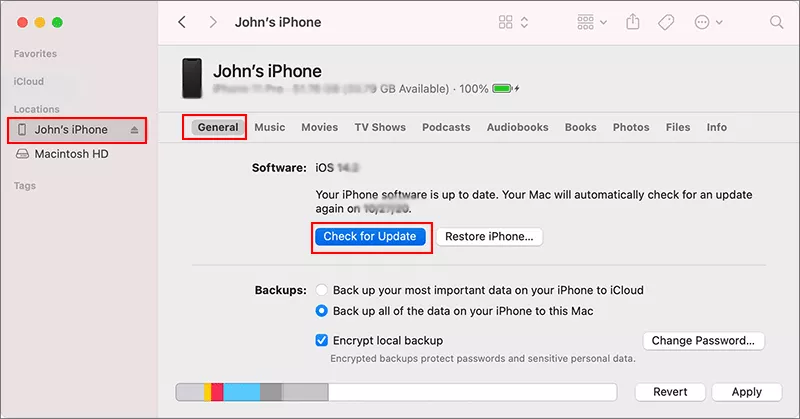
Step 1: Connect your iPhone to the Mac and then run Finder.
Step 2: On the left menu of the Finder window, find your iPhone and then click General on the right panel. After that, you can see Check for Update button on the first part. Click it and the click Download and Update to follow the onscreen instructions to update the iPhone.
Tips: How to Install the iOS 27 Beta
Apple's Public Beta program lets anyone try upcoming iOS features before the official release. Here's how to enroll directly from your iPhone — no computer or developer account required:
Step 1:Make sure your Apple ID has enrolled in the Apple Beta Software Program..
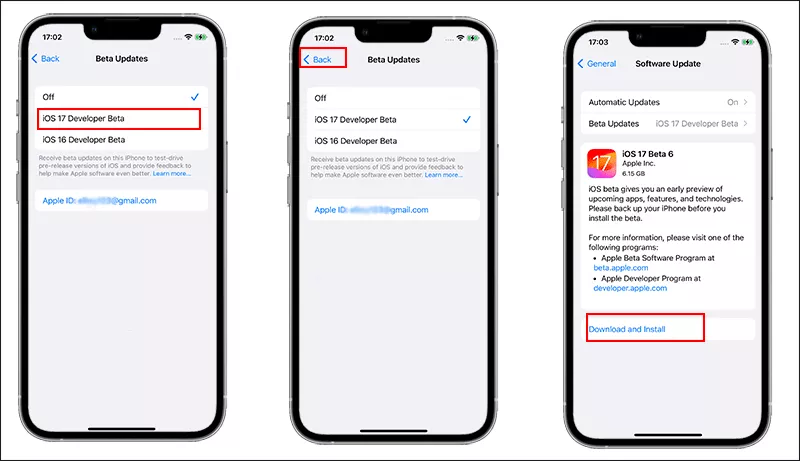
Step 2: Go back to your iPhone home screen, tap Settings > General > Software Update> Beta Updates. If you fail to find Beta Updates, try to turn off the Automatic Updates.
Step 3: Choose the newest iOS developer beta version and then tap the back icon on the left top corner. After that, you can see there is a beta profile shown on the Software Update screen. Tap Update Now to upgrade your iOS to iOS 27 Beta.
Common iOS 26 Update Problems & Fixes
Issues 1: Update not Showing in Settings?
Solution: Force-restart your iPhone (Volume Up > Volume Down > hold Side button), then check again. Or use Finder/iTunes.
Issues 2: Stuck on Apple logo during install?
Solution: Put iPhone in Recovery Mode and restore via Finder (Mac) or iTunes (Window10)/Apple Devices (Windows 11).
Issues 3: Download stuck or very slow?
Solution: Cancel the download, go to Settings > General > iPhone Storage, delete the iOS update file, and try again.
Issues 4: Update greyed out or blocked
Solution: Check for Screen Time restrictions: Settings > Screen Time > Content & Privacy Restrictions > Software Updates.
Issues 5: iTunes error 4000, 4005, or 4013
Solution: Try a different USB cable and port. If error persists, use Method 3 (iOS repair software).
FAQs on iOS 26 Update
Q1: How long does the iOS 26 update take?
Download time is typically 10–30 minutes on a fast Wi-Fi connection. Installation takes another 10–20 minutes. Budget about an hour in total to be safe.
Q2: Can I update iPhone without Wi-Fi?
The Settings (OTA) method requires Wi-Fi — cellular data is not supported for over-the-air updates. However, you can update without Wi-Fi on your iPhone by using Finder (Mac) or iTunes (Windows PC), which download the update on your computer instead.
Q3: My iPhone supports iOS 26, but I don't see Apple Intelligence features — why?
Apple Intelligence requires iPhone 15 Pro, iPhone 15 Pro Max, or any iPhone 16 or 17 model. Older supported iPhones (iPhone 11 through iPhone 14 series) run iOS 26 but do not have the hardware needed for Apple Intelligence.
Q4: Is iOS 26.5 stable enough to install now?
Yes. iOS 26.5 is a mature point release with 50+ security patches and is recommended for all compatible users. The initial iOS 26.0 launch had some notable Liquid Glass interface bugs, but those have been addressed in subsequent updates.
Summary
For most people, the Settings method works perfectly. If you hit a snag, Finder or iTunes are solid fallbacks. For persistent errors or a stuck device, a dedicated iOS repair tool will get you updated without losing data.



