


How to Turn Off Stolen Device Protection Without Face ID
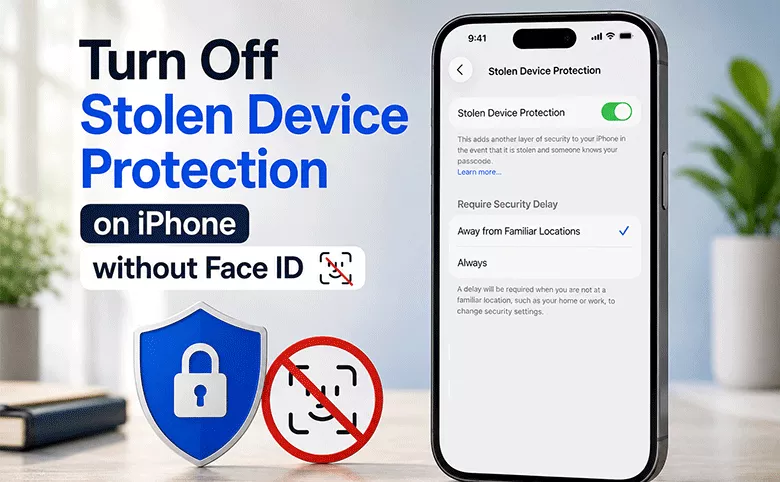
Stolen Device Protection is designed to protect sensitive iPhone settings if someone knows your passcode but doesn't have your trusted biometric authentication. As a result, certain actions require Face ID or Touch ID, and Apple may also require a Security Delay before the protection can be disabled.
So, what can you do if Face ID isn't working, you're unable to authenticate, or the turn off Stolen Device Protection option won't complete? This guide explains the available options to turn off stolen device protection without face ID.
- Contents
- What Is Stolen Device Protection, and Why Is It Blocking You?
- Can You Turn Off Stolen Device Protection Without Face ID?
- Method 1: Erase iPhone From the Lock Screen
- Method 2: Removing Face ID and Passcode Lock with Cocosenor iPhone Passcode Tuner
- FAQs on Turning off Stolen Device Protection without Face ID
What Is Stolen Device Protection, and Why Is It Blocking You?
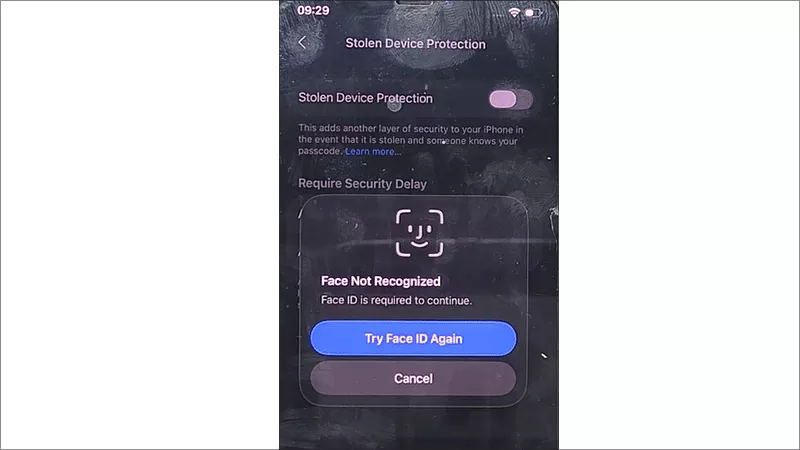
Stolen Device Protection is a security layer Apple added in iOS 17.3. When your iPhone is away from a location it recognizes as familiar (like home or work), it requires Face ID or Touch ID, with no passcode fallback, for sensitive actions such as viewing saved passwords, erasing the device, or turning off Find My. Certain changes, like updating your Apple Account password or disabling the feature itself, also come with a mandatory one-hour security delay plus a second biometric check.
That design is exactly what makes it so frustrating when Face ID itself is the problem. Common triggers people run into include:
- 1. Face ID stopped recognizing you after a facial injury, surgery, or significant appearance change
- 2. The TrueDepth camera or Face ID sensor is physically damaged
- 3. You're setting up a secondhand iPhone that still has the previous owner's Face ID data
- 4. You want to reset Face ID entirely but SDP won't let you get to that setting
Can You Turn Off Stolen Device Protection Without Face ID?
In many situations, you cannot simply replace Face ID with your iPhone passcode. Stolen Device Protection adds an additional layer of biometric authentication for certain security-sensitive actions. Depending on your settings and location, turning the feature off may require Face ID or Touch ID.
This means that methods claiming you can always disable Stolen Device Protection by repeatedly failing Face ID and then entering the passcode should not be treated as a universal solution.
However, if Face ID is permanently unavailable, you can disable Stolen device protection via resetting iPhone.
Method 1: Erase iPhone From the Lock Screen
If Face ID is completely unusable and you can't get through any of the passcode or password fallbacks above, wiping the device from the lock screen will remove Stolen Device Protection along with everything else. You can back up iPhone before erasing the iPhone.
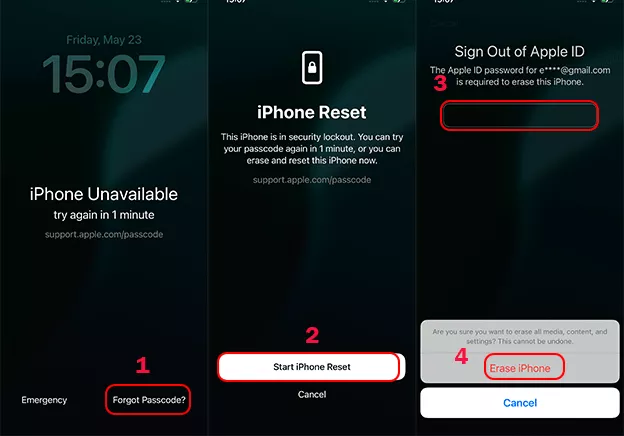
Step 1: On the lock screen, enter the wrong passcode repeatedly until iPhone Unavailable appears with a countdown.
Step 2: Once the option appears, tap Forgot Passcode? (worded as Erase iPhone on older iOS versions).
Step 3: Tap Start iPhone Reset to confirm you want to proceed.
Step 4: Enter your Apple Account password when prompted, then tap Erase iPhone to begin.
Step 5: Wait for the device to reset. Once it restarts, set it up as new or restore from a backup, then set up Face ID and Stolen Device Protection again as needed.
Method 2: Removing Face ID and Passcode Lock with Cocosenor iPhone Passcode Tuner
If you bought a second-hand iPhone where the previous Face ID profile can't be reset without going through Stolen Device Protection first, Cocosenor iPhone Passcode Tuner is built for exactly this situation. It connects to your iPhone from a Windows or Mac computer and removes the screen lock, Face ID, and passcode in one pass, which resets Stolen Device Protection along with them since the feature depends on those credentials existing in the first place.
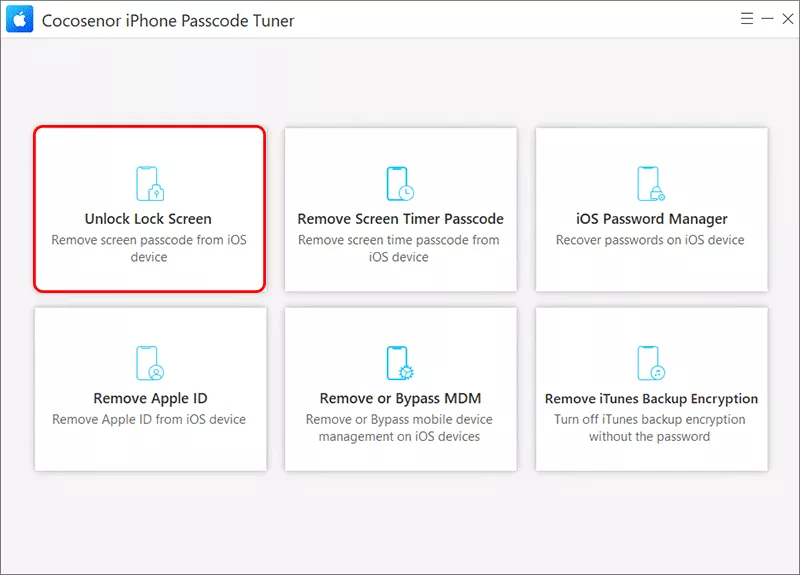
Step 1: Connect your iPhone to your computer with a cable, and open iPhone Passcode Tuner, select Unlock Lock Screen . Then click the Start button to continue.
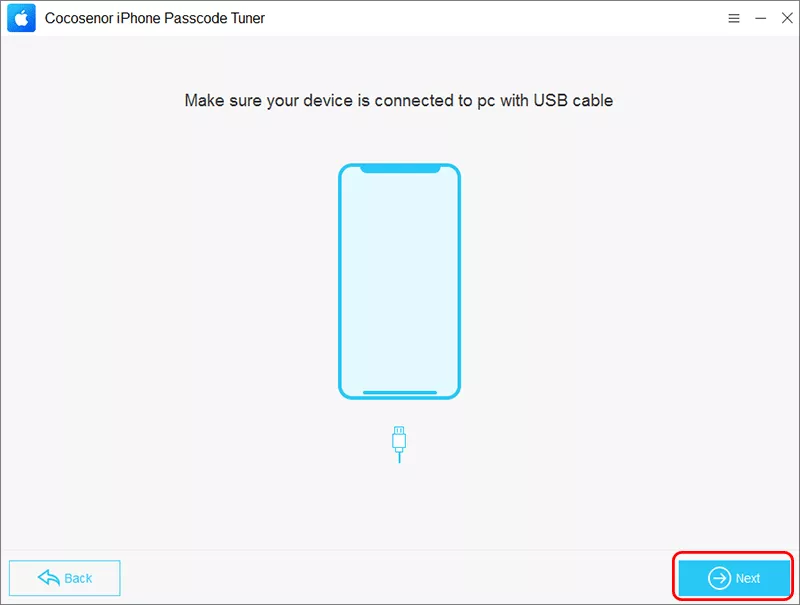
Step 2: Make your iPhone boot into recovery mode. Once done, hit the Next button on the software to proceed.
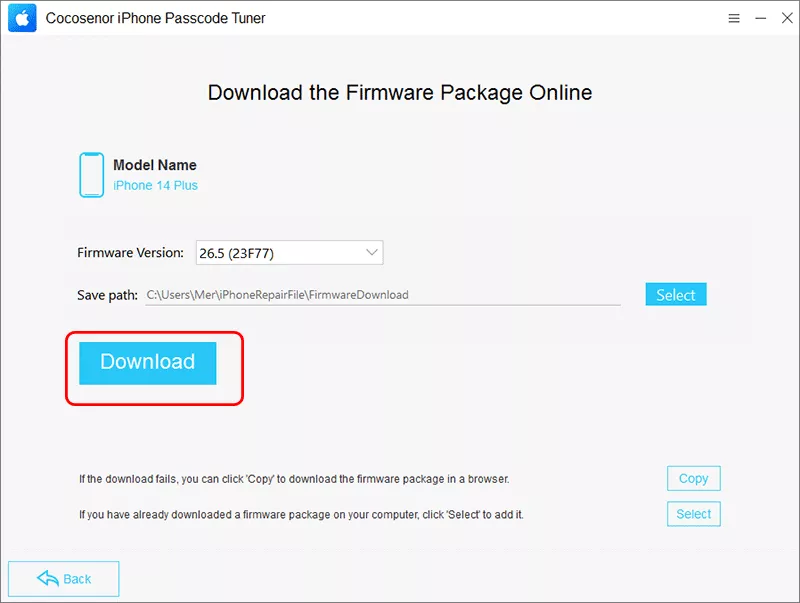
Step 3: iPhone Passcode Tuner will automatically recognize your iPhone models. You need to click the Download button to download the matching firmware package.
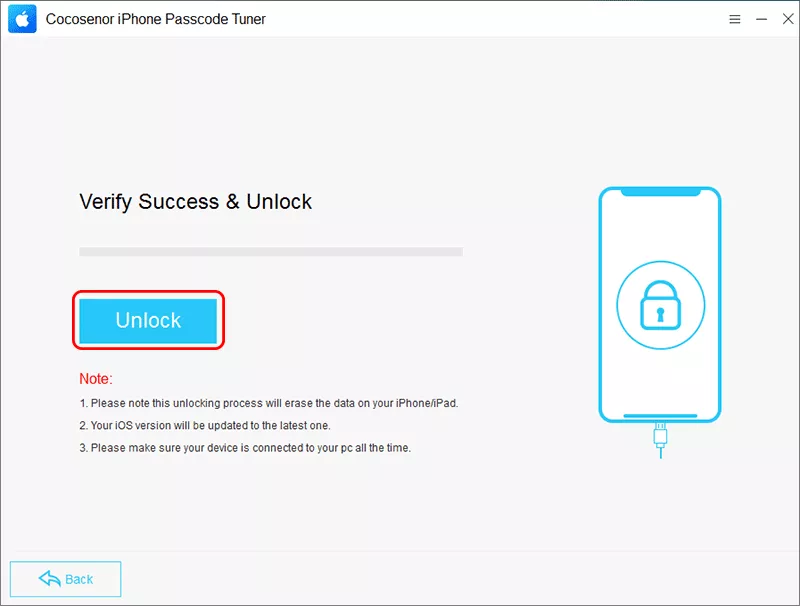
Step 4: Once the firmware is ready, you can click the Unlock button to remove Face ID and passcode. After that, the stolen device protection is turned off. You can set up the iPhone from your previous backup.
FAQs on Turning off Stolen Device Protection without Face ID
Q1: Can I turn off Stolen Device Protection without Face ID at all?
Yes. You can perform a full device erase if you don't need working Face ID for any of these.
Q2: Will turning off Stolen Device Protection delete my data?
Yes, if your Face ID is not working when you want to disable Stolen device protection. The only way to get rid of the protection is erase your iPhone.
Q3: Why does Apple make me wait an hour to turn it off?
The one-hour security delay is intentional. It's designed to stop a thief who has your passcode from disabling protections immediately, giving the real owner time to mark the device as lost through Find My before changes go through.
Conclusions:
Trying to turn off Stolen Device Protection on an iPhone without Face ID can be frustrating because the feature is specifically designed to prevent sensitive security changes from being made with only a stolen passcode. In such a situation, you can back up the iPhone firstly. Then erase iPhone from the lock screen or use Cocosenor iPhone Passcode Tuner. After that, the Stolen device protection is removed and you can set up the iPhone with your backup.