


How to Freeze Location on Find My iPhone
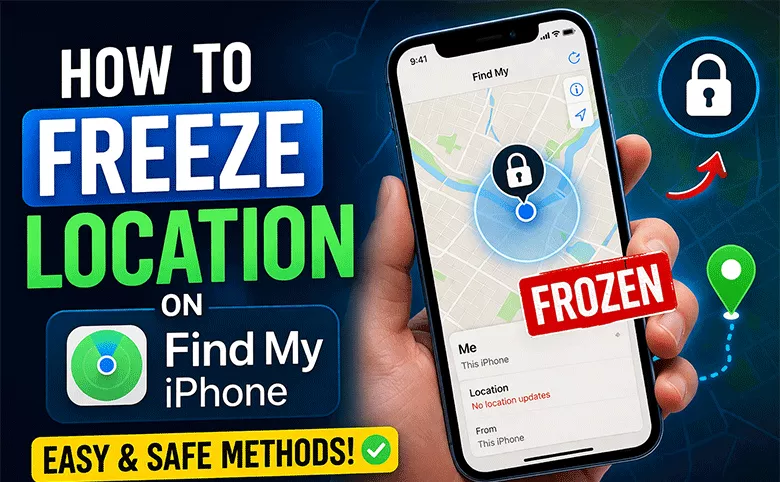
How can I freeze my location on iPhone? Is there any way to freeze location on Find My iPhone without turning it off? Yes, of course. Everyone knows there is no built-in option to freeze your location in Find My feature. Instead, there are several safe and effective ways to stop your location from updating or hide it entirely. In this guide, you’ll learn how to pause or freeze location on Find My iPhone without notifying.
- Contents:
- Can You Freeze Location on Find My iPhone?
- Method 1: Turn On Airplane Mode (Best Quick Fix)
- Method 2: Disable Location Services
- Method 3: Turn Off Your iPhone
- Method 4: Freeze iPhone Location with Cocosenor Locationgo
- FAQs about Freezing Location on Find My iPhone
Can You Freeze Location on Find My iPhone?
No, Apple does not allow users to freeze their live location inside Find My. The app is designed to provide accurate, real-time tracking for safety reasons.
However, you can stop sharing your location, pause location updates, show your last known location or use the fake location. These methods effectively mimic “freezing” your location.
Method 1: Turn On Airplane Mode (Best Quick Fix)
This is the closest method to freezing your location. You just need to swipe down to open Control Center and tap the Airplane Mode icon.
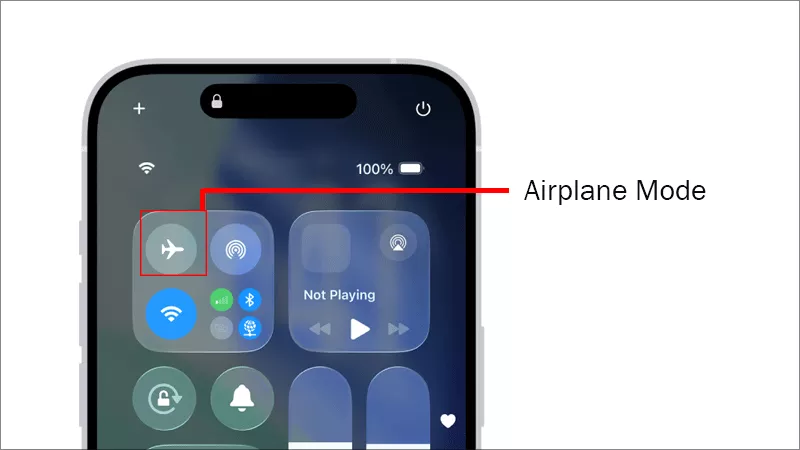
After that, your internet and GPS connections are disabled, only your last known location remains visible. Also, the location stops updating.
Method 2: Disable Location Services
This completely stops all apps from accessing your location.
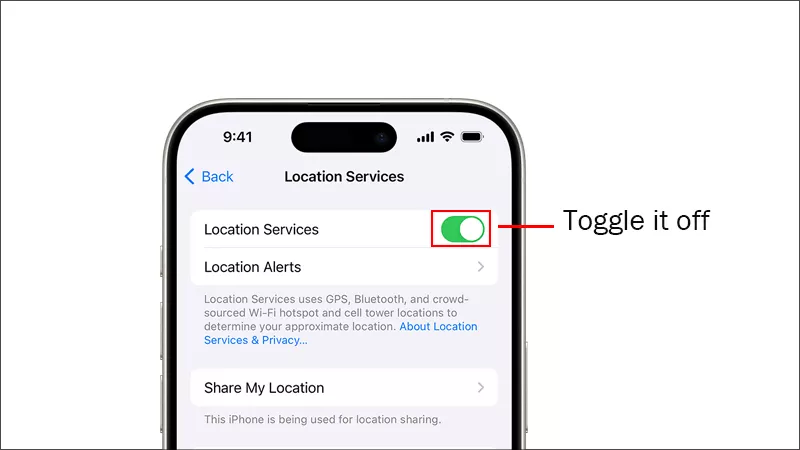
Step 1: Go to Settings and tap Privacy & Security.
Step 2: Select Location Services and toggle it off. After that, no app (including Find My) can track your location.
Method 3: Turn Off Your iPhone
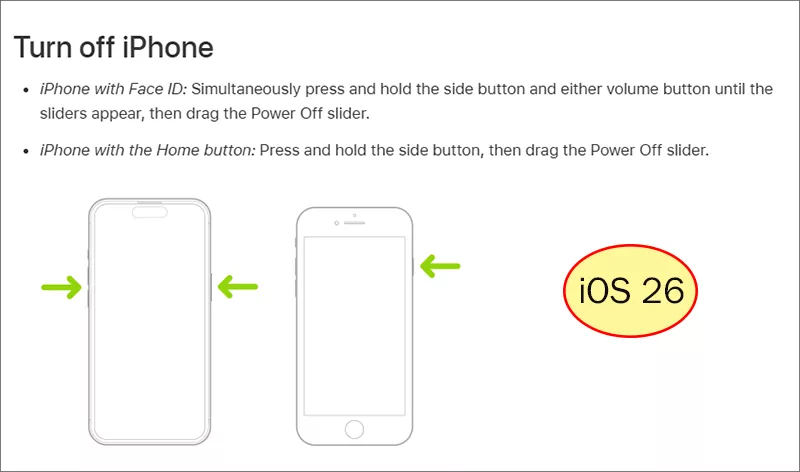
Although it is a simple but effective approach, many people do not like this method. Turning off your iPhone will make Find My function offline. Others can only see your last location. But iPhone plays a vital role in the daily life. It is not recommended to turn off the iPhone.
Method 4: Freeze iPhone Location with Cocosenor Locationgo
When you don’t want constant tracking by friends or family, or you need privacy temporarily, you can freeze the GPS location with location spoof app, such as Cocosenor Locationgo. In this way, you can easily freeze iPhone location without turning any function off.
Cocosenor Locationgo allows you to:
- 1. Freeze location on Find My iPhone without Airplane mode
- 2. Freeze location on Find My iPhone without turning it off
- 3. Freeze location on Find My iPhone without them knowing
- 4. Freeze location on Find My iPhone without notifying any person
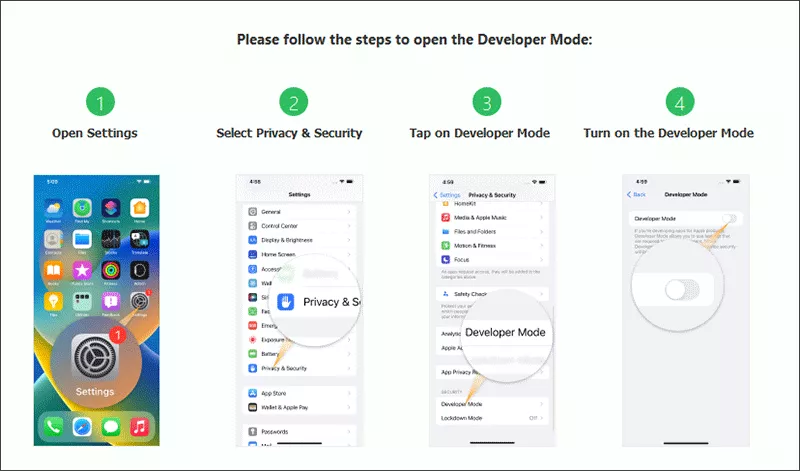
Step 1: Enable the developer mode on your iPhone.
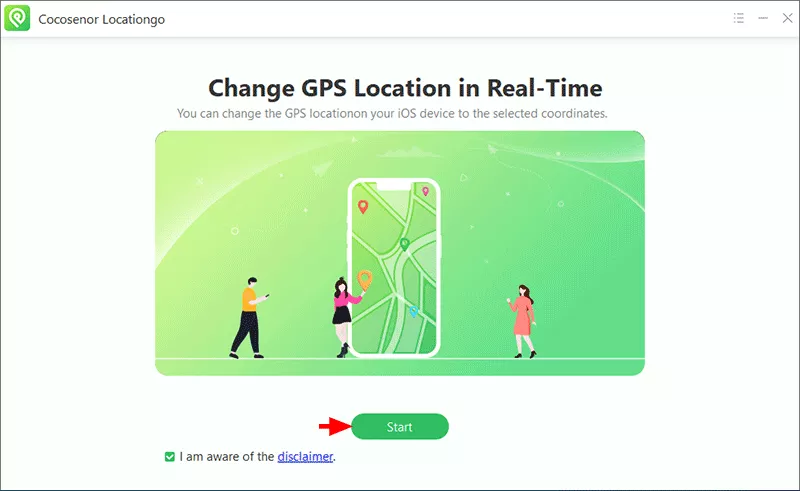
Step 2: Plug your iPhone into the computer and run Cocosenor Locationgo. On the software interface, hit the Start button to continue.
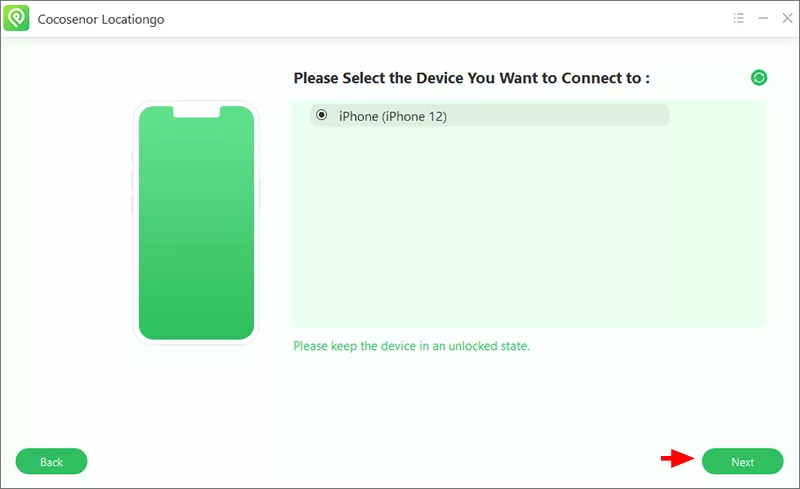
Step 3: Soon, your iPhone is shown on the software device list. Check your iPhone option in the device list and click the Next button on the bottom right corner.
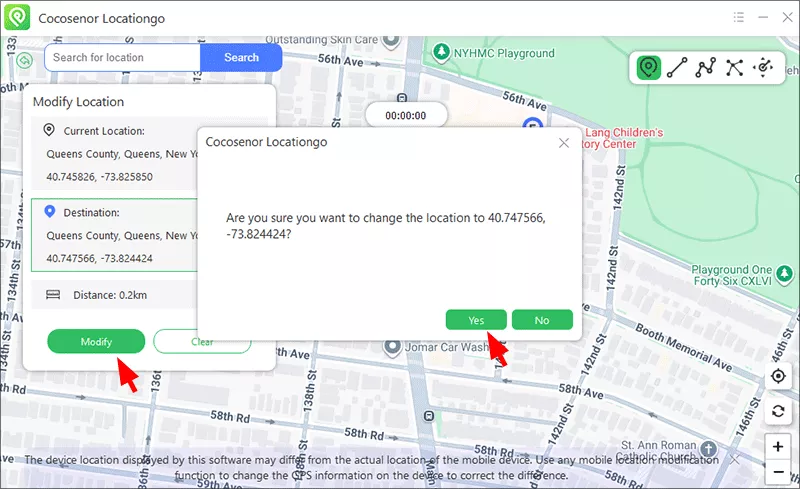
Step 4: The map comes and it is on the Change location mode by default. Thus, you can search a new location from the Map to set as your location. This new location will be shown as your real location when others check your location on their devices.
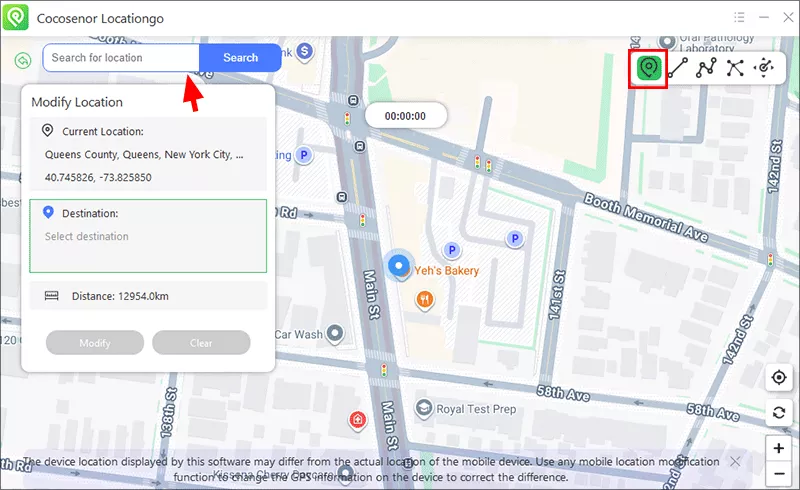
Step 5: When the fake location is selected, you can click the Modify button and make confirmation. Soon, the iPhone location is “freeze” and your privacy is protected.
FAQs about Freezing Location on Find My iPhone
Q1. Can you freeze your location on Find My iPhone without them knowing?
You can try to enable Airplane Mode, which will stop updates and show your last known location. Besides, you can set a fake location with Cocosenor Locationgo to freeze the location.
Q2. How do I hide my location on Find My without turning it off?
You can turn off “Share My Location” in settings without disabling location services for other apps.
Q3. Why is my location not updating on Find My?
This can happen if your device is offline, in Airplane Mode, or if location services are disabled. You can check specific solutions in this article.
Conclusion
While you can’t technically freeze your location on Find My, you can easily stop or pause location sharing using built-in iPhone features. For most users, turning off iPhone or enabling Airplane Mode provides a quick and effective solution without compromising device security. To make your iPhone function normally, the location spoof app –Cocosenor Locationgo is recommended to fake the iPhone location within clicks.



