Fix the Issue: iPhone Photos Not Showing Location
Generally, you can view the location where the photo is taken in the Photos app only if you turn on Location Services and connect to a stable network in advance. But now someone finds the location is missing and the "Photos not showing location" issue occurs on their iPhone. So, why does the location issue happen?
Before knowing the reasons, you need to ensure you find and check the location properly. After opening the image in the Photos app and then tap on the info button ⓘ at the bottom (or place the finger on the photo and swipe it up to view the location). What if the location still can't be displayed? There are a variety of reasons for the error occurrence, including incorrect location settings, outdated iOS and apps version, poor network connection and unallowed privacy access. Now use the methods to resolve the issue.
- Contents:
- Fix 1: Ensure You Have Enabled Location Services
- Fix 2: Change the Incorrect Date and Time Settings
- Fix 3: Update the iOS to the Latest Version Regularly
- Fix 4: Repair Software Bugs with an iOS Repair Tool
- Fix 5: Try to Reset the Location & Privacy Settings
- Fix 6: Report the Location Error in Your Apple Maps
Fix 1: Ensure You Have Enabled Location Services
There is a great possibility that you inadvertently turn off Location Services or don't allow the Camera app to use the location before capturing the precious moments. Follow the instructions below to have a check.
Step 1: Go to Settings > Choose Privacy & Security > Click Location Services.
Step 2: To activate the GPS feature, toggle on Location Services if it is disabled. Tap on Camera under that and then select While Using the App.
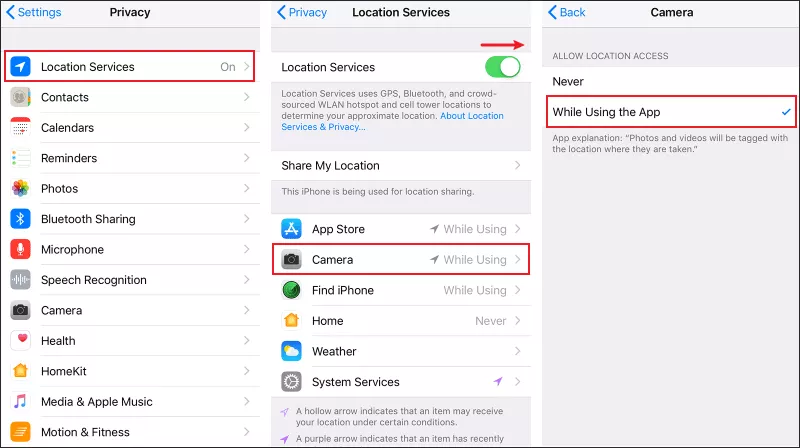
Step 3: If the network and the GPS signal are weak, move to other location and try to temporarily turn on and off Airplane Mode. After that, check whether you can take photos showing location.
Fix 2: Change the Incorrect Date and Time Settings
The time zone varies from one country to another. So, make sure you have a stable network and the iPhone's date & time have updated to the latest. If not, incorrect time zones will lead to inexact location or the "photos not showing location" issue.
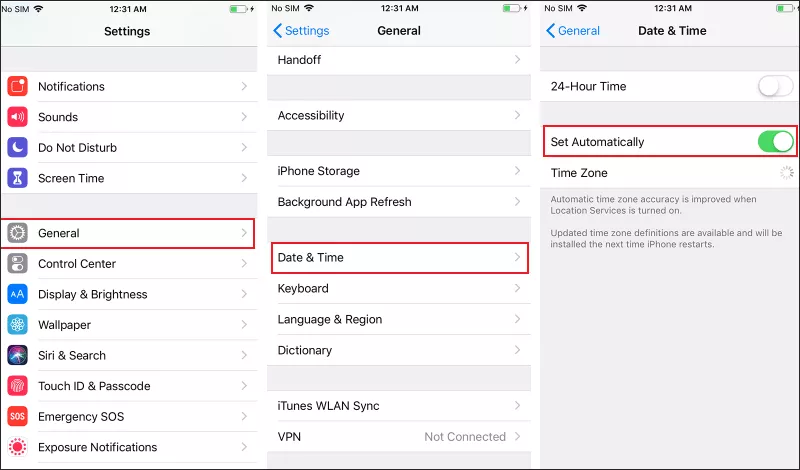
Step 1: Launch Settings > Click on General > Choose Date & Time.
Step 2: Turn on Set Automatically and then make sure the time is updated. Have a restart if the iPhone gets stuck.
Fix 3: Update the iOS to the Latest Version Regularly
The "iPhone photos not displaying location" error may result from the old iOS version. Some temporary system bugs may appear on your iPhone. Try to update it to the latest version. If the device gets stuck when updating, force restart the iPhone with buttons.
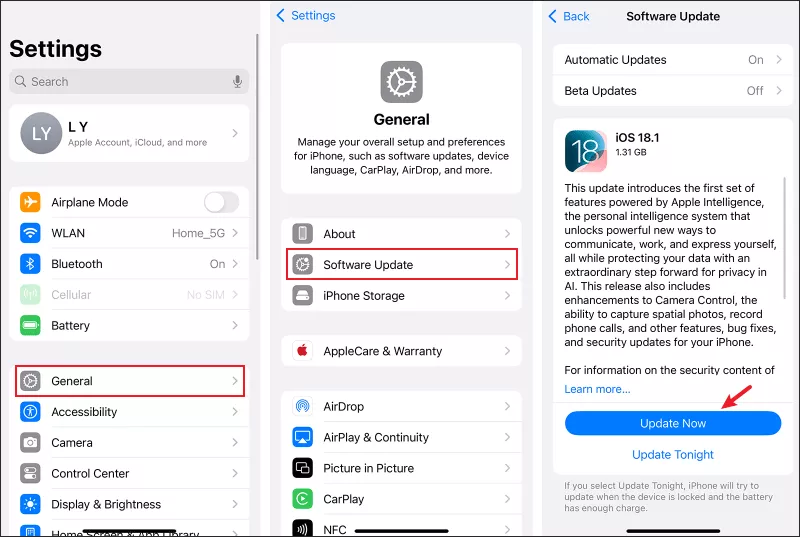
Step 1: Open Settings and choose General. Then click Software Update.
Step 2: Click Update Now if the update is available. If some glitches still appear, do a long press on the Photos app, select Don't Require Face ID, then reopen the app and check whether the location data is added or not.
Fix 4: Repair Software Bugs with an iOS Repair Tool
If you don't want to spend time figuring out where the problem lies, one of the simplest ways is to use some professional and reliable iOS repair software, such as Cocosenor iOS Repair Tuner. With it, you can fix the location-related issues in minutes.
Step 1: Download and install the program on your PC. Then make sure your computer has installed the latest iTunes.
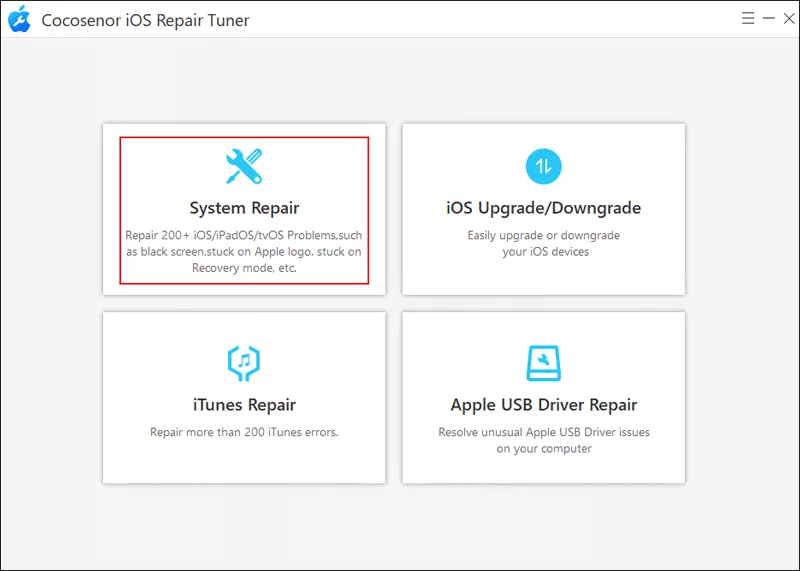
Step 2: Run iOS Repair Tuner after downloading it. After that, choose System Repair.
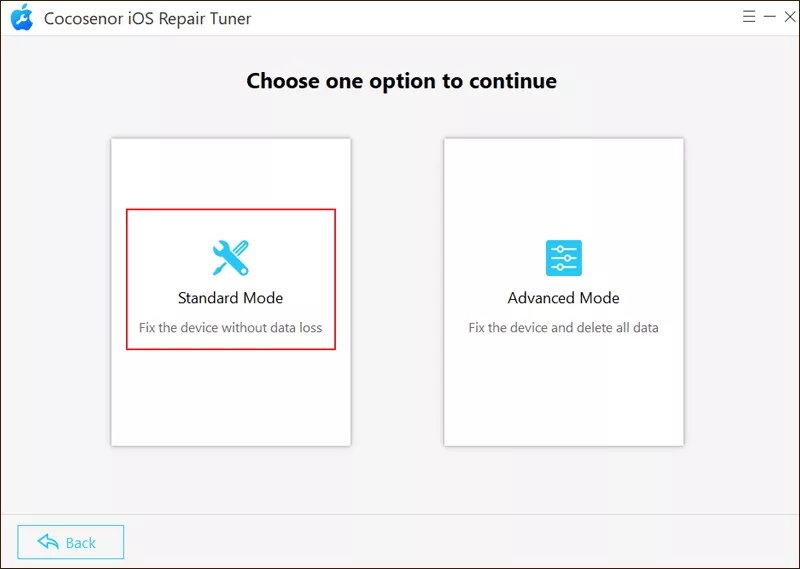
Step 3: Select Standard Mode, which can fix iOS errors without data loss. If this mode can't repair bugs successfully, you can continue to choose Advanced Mode.
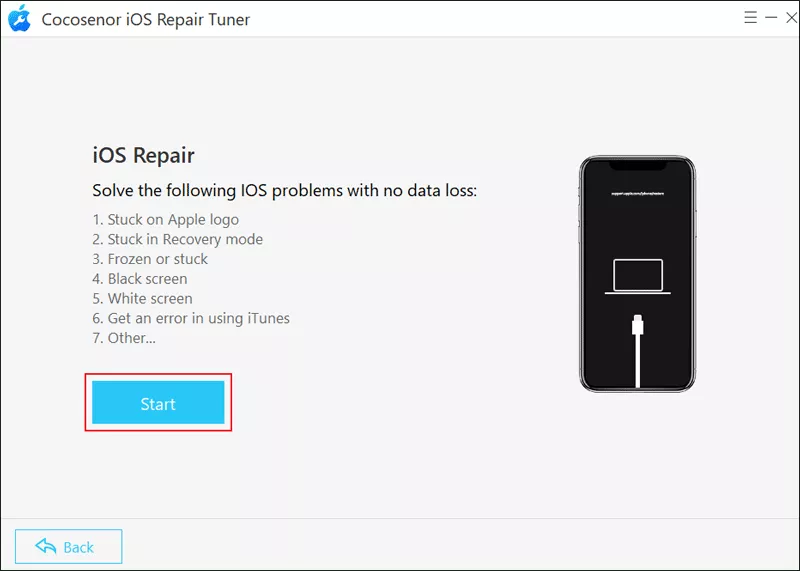
Step 4: Tap on the Start button and then connect the iPhone to the Windows computer using a USB cable. Click Next after that.
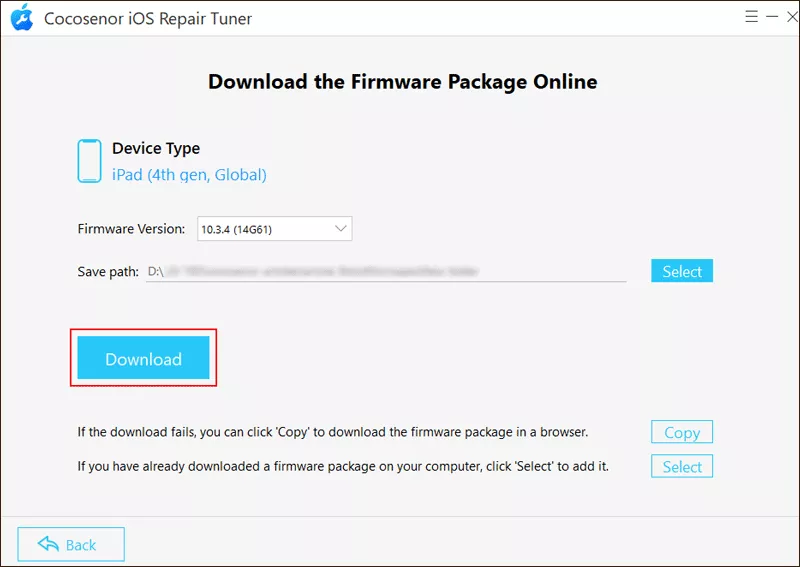
Step 5: The software will identify the iPhone model and provide the corresponding firmware package. Just click Download and wait for it patiently.
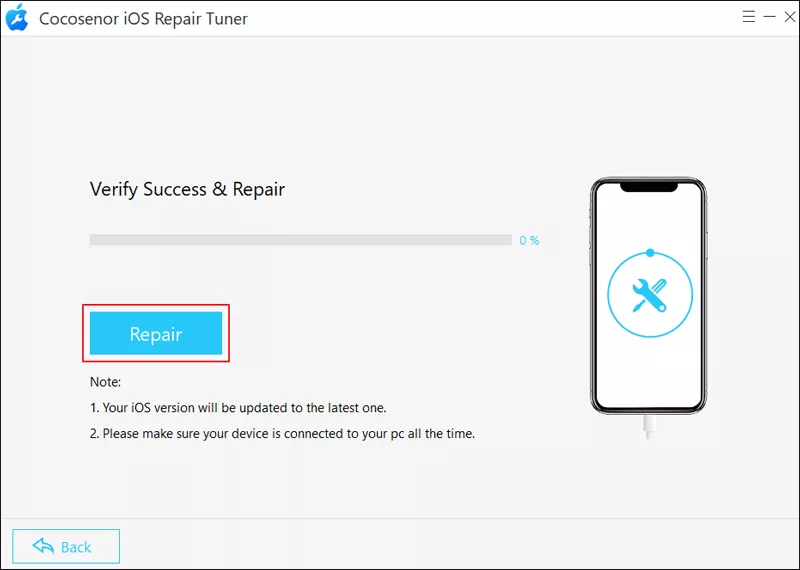
Step 6: Hit Repair to start the repair. Don't disconnect the devices during that time. When it is completed, click Done and close the program.
Fix 5: Try to Reset the Location & Privacy Settings
Sometimes your Location Services can't work even though you have already turned it on. In this case, another option is to reset Location & Privacy settings.
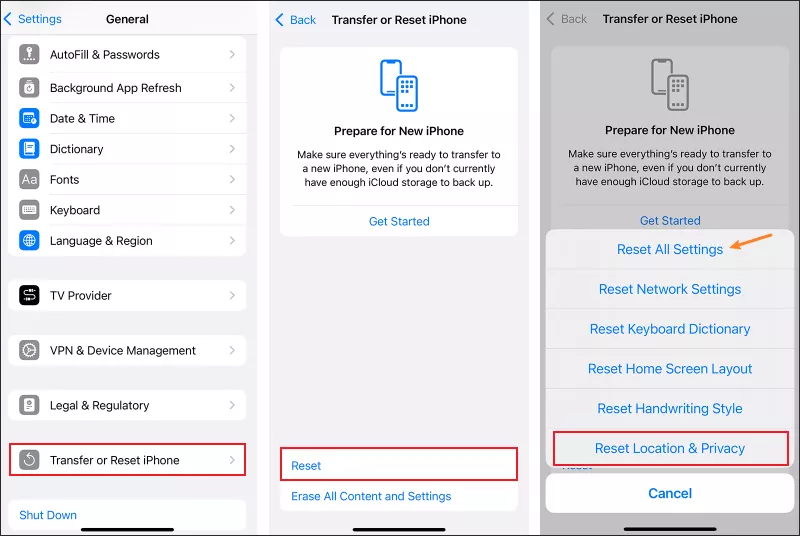
Step 1: Go to Settings > Click General > Select Transfer or Reset iPhone.
Step 2: Choose Reset > Tap on Reset Location & Privacy. Enter the device passcode to confirm the operation.
(Alternatively, you can select Reset All Settings to delete all saved personized settings like Wi-Fi and Bluetooth.)
Fix 6: Report the Location Error in Your Apple Maps
Except from software glitches, some errors may occur in the Map apps. Thus, the last way is to report the location issue to Apple Map.
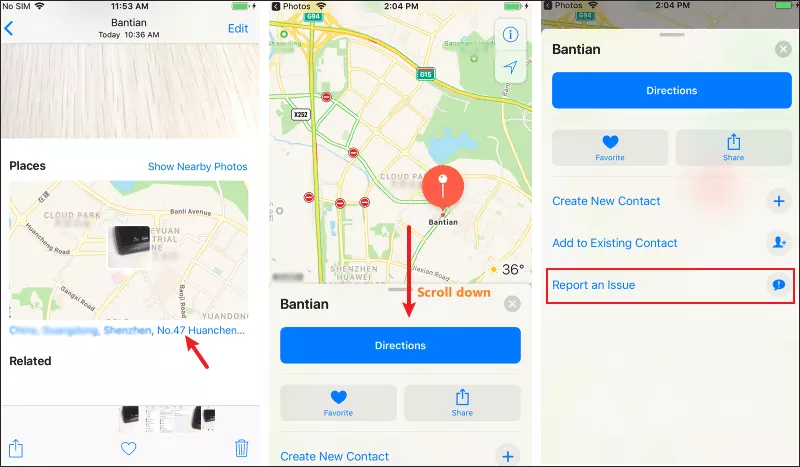
Step 1: Find and open the picture > Finger and swipe up the photo. Then the location details and the map will be displayed here.
Step 2: If there is no detailed data, click the address link. After that, scroll down and tap on Report an issue. Choose the issue type and follow the instructions to finish the report.