


How to Change Skout Location on iPhone
Skout uses your location to connect you with people nearby. While this can be useful, many iPhone users want to change their Skout location to meet people in another city, plan ahead for travel, or protect their privacy. If you’re wondering how to change Skout location on iPhone, this guide explains what’s possible, what’s not, and the safest ways to do it.
- Contents:
- How Does Skout Get Your Location on iPhone?
- Ways to Change Skout Location on iPhone
- Important Things to Know
- FAQs on Changing Skout Location on iPhone
How Does Skout Get Your Location on iPhone?
On iPhone, Skout determines your location using: GPS (Precise Location), Wi-Fi and mobile network data, system location permissions. Skout does not allow you to manually set a location inside the app.
Can You Change Location Directly in Skout on iPhone? No. Skout does not have a built-in option to edit or choose your location. Your location updates automatically based on your iPhone’s GPS data. To change it, you must adjust iOS settings or location data.
Ways to Change Skout Location on iPhone
1. Turn Off Precise Location (Basic Privacy Option)
This method does not let you choose a new city, but it reduces location accuracy.
Step 1: Open Settings, go to Privacy & Security > Location Services.
Step 2: Tap Skout and select While Using the App.
Step 3: Turn Precise Location OFF.
2. Change Location Using an iPhone Location Changer (Most Effective)
To actually appear in a different city on Skout, many iPhone users use GPS location changer tools that modify the device’s location data. Cocosenor Locationgo is one of such GPS location changer which can change your iPhone’s GPS coordinates. It does not require jailbreaking. After you connect the iPhone to a computer, you can change the iPhone location to anywhere in simple clicks.
Step 1: Install the trusted location changer--Locationgo on your computer. Besides, connect your iPhone using a USB cable.
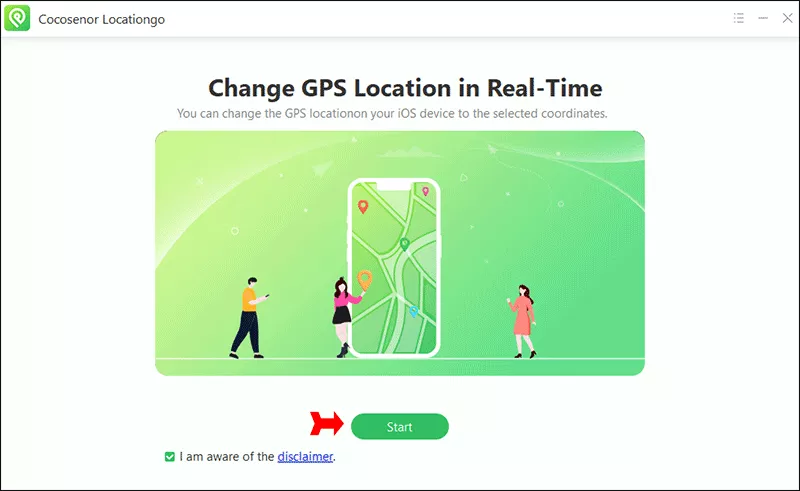
Step 2: Open Locationgo and hit the Start button on the home interface.
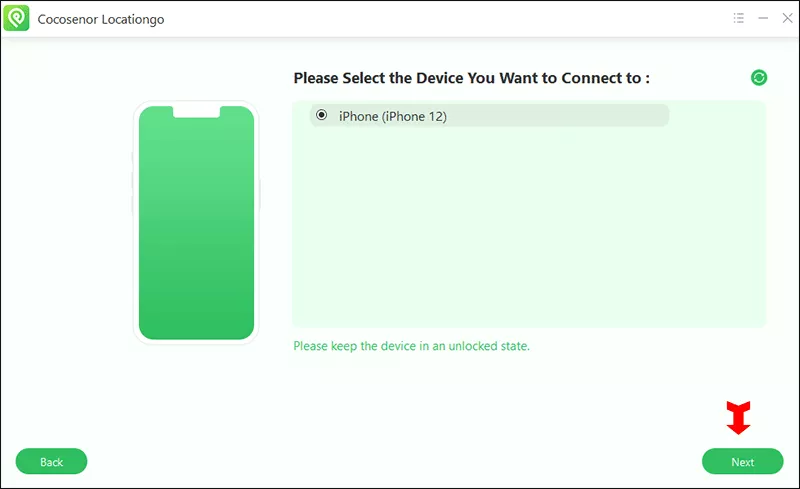
Step 3: Check whether your iPhone is selected. If it is, click the Next button to load the Map.
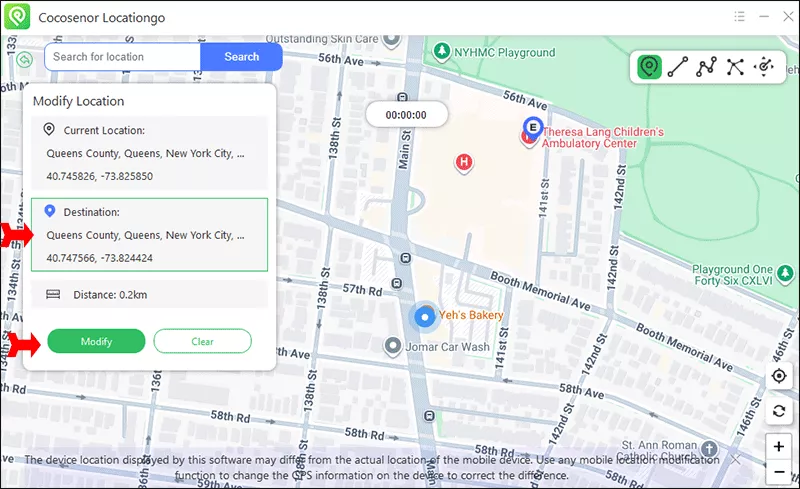
Step 4: Choose a new location on the map. Then click the Modify button to apply the location. After that, open Skout, it will show the new location.
3. Travel to a New Location (Official Method)
When you physically travel, Skout updates your location automatically. There is no settings or tools needed. This is the only method officially supported by Skout.
Important Things to Know
You should pay attention to the following things:
Skout may detect unusual location changes
Large jumps between cities can look suspicious
Always follow Skout’s terms of service
Use location changes responsibly
FAQs on Changing Skout Location on iPhone
1. Can I manually set my location in Skout on iPhone?
No. Skout does not allow manual location selection.
2. Can Skout ban me for changing my location?
Extreme or unrealistic location changes may violate Skout rules. Use realistic movements.
3. Does a VPN Change Skout Location on iPhone?
No. A VPN changes your IP address, not your GPS location. Since Skout relies mainly on GPS, VPN alone usually won’t change your Skout location.
4. Why does Skout keep updating my location?
Because it continuously uses GPS when location permission is enabled.
Conclusion
Changing your Skout location on iPhone isn’t possible inside the app, but you can control or modify your location through iOS settings or GPS location changers. Whether your goal is privacy or meeting people in another city, understanding how Skout tracks location helps you choose the safest method.



