


How to Change Location on Hily
Hily matches you with people based on where you are, so a wrong or outdated location can leave you with an empty feed. Maybe you are moving, planning a trip, or Hily is simply showing the wrong city. This guide walks through every working way to change your location on Hily, starting with the safest, lowest-risk options and ending with a location-changer tool for full control.
- Contents:
- How Hily Decides Where You Are
- Method 1: Change Location in Hily's Settings (Safest)
- Method 2: Use a VPN
- Method 3: Change Hily Location with Locationgo
- Troubleshooting: Hily Location Not Changing
- FAQs on Changing Location on Hily
How Hily Decides Where You Are
Hily detects your position automatically from several signals at once, so changing only one of them often does not work:
- GPS: your phone's precise coordinates, shared when you allow location access.
- Wi-Fi and cell networks: nearby networks used to refine or approximate your position.
- IP address: your network region, which is what a VPN changes.
- Profile location: the city shown on your profile, which Hily may update from your device.
Because Hily relies on GPS first, methods that change your GPS position tend to work better than methods that only change your IP address.
Method 1: Change Location in Hily's Settings (Safest)
This is the non-destructive method. It uses Hily's own features, needs no extra software and carries the lowest account risk.
Step 1: Open Hily and tap your profile icon.
Step 2: Open Settings (the gear icon).
Step 3: Find the Location or Global search option and choose the city or region you want to browse.
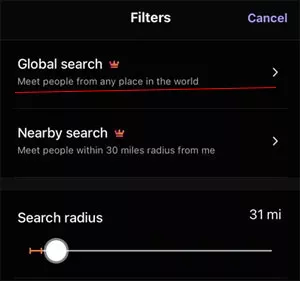
Step 4: Save the change, go back to the main feed and pull down to refresh.
Good to know
Menu names and availability can differ by app version and region, and some location options may require Hily Premium. If you do not see a location option, move on to Method 2.
Method 2: Use a VPN
A VPN changes your IP address, which can nudge Hily toward the VPN server's region. Results are inconsistent, because Hily may still use your real GPS position.
Step 1: Install a VPN app and connect to a server in the city or country you want.
Step 2: In your phone's location settings, set Hily's location access to Never so the app falls back to IP-based location.
Step 3: Fully close and reopen Hily.
Limitation
If Hily keeps showing your real city, a VPN is not enough. Turn the VPN off before using a GPS-based method, because a VPN and a GPS location changer sending different signals is a common cause of a location that will not update.
Method 3: Change Hily Location with Locationgo
If you want to appear in a specific city that Hily's settings do not offer, Cocosenor Locationgo sets a different GPS position on your iPhone from your computer. Because the change happens at GPS level, Hily and your other location-based apps read the new position.
Step 1: Download and install Locationgo on your Windows PC or Mac. Connect your iPhone with a USB cable and tap Trust This Computer on the phone when prompted.
Step 2: Open Cocosenor Locationgo then hit the Start button. Choose your iPhone and click the Next button.
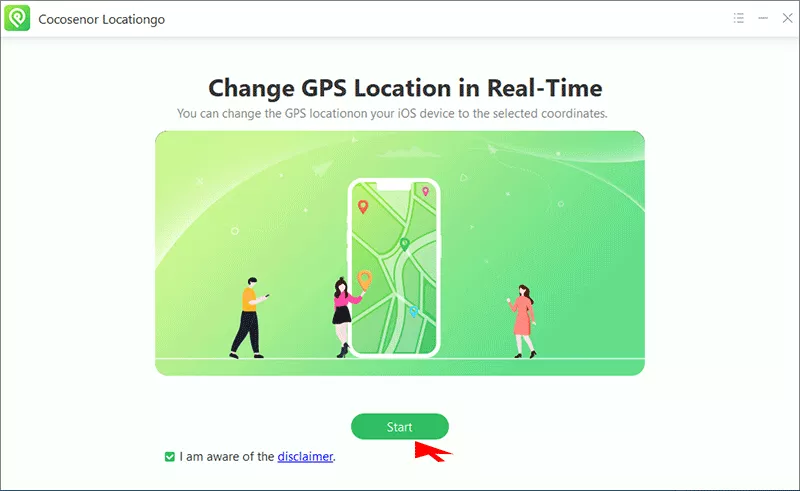
Step 3: In Locationgo, choose the location change mode and search for the city or address you want.
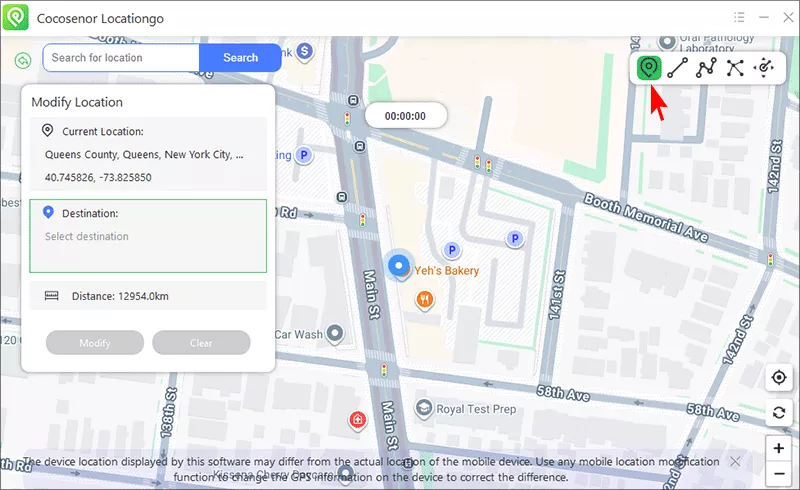
Step 4: Click the Modify button to apply and confirm the new location.
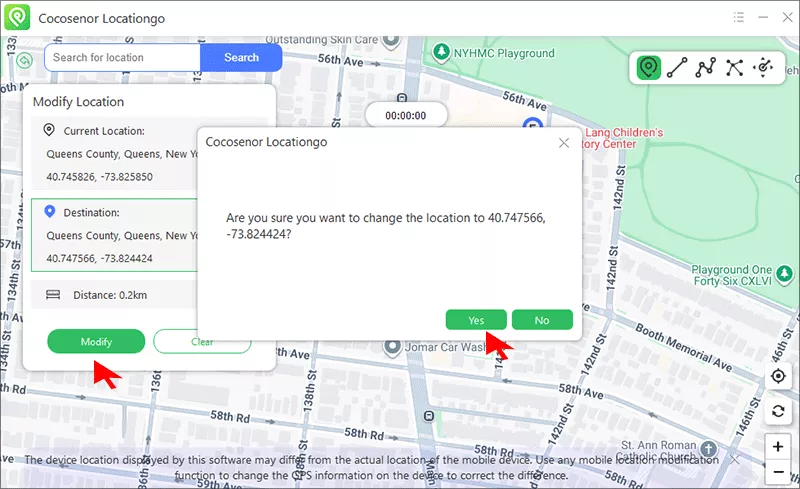
Step 5: Open Hily, force-close it first if it was already running, and refresh your feed. When you want to go back to your real location, close Locationgo to restore the real location, or simply restart your iPhone.
Troubleshooting: Hily Location Not Changing
| Problem | Likely Cause | Quick Fix |
|---|---|---|
| Location still shows the old city | App is using a cached position | Force-close Hily, toggle Airplane Mode for 10 seconds, reopen, and refresh the feed. |
| Hily shows no matches after the change | Few users in the new area, or the feed has not refreshed | Wait a few minutes, pull to refresh, and widen your distance filter. |
| Location jumps back to the real city | Hily re-reads GPS, or the location change was reset | Reapply the change, keep the phone connected until Hily loads, and avoid switching apps mid-refresh. |
| Conflicting location signals | VPN and GPS changer both active | Turn off the VPN and use only one method at a time. |
| Location option missing in Hily settings | Older app version or a Premium-only feature | Update Hily and check your plan, then try Method 2 or Method 4. |
| Hily says it cannot detect location | Location permission is off or set to Never | Set Location to While Using the App with Precise Location on. |
| LocationGo cannot connect to the iPhone | Trust prompt not accepted, or Developer Mode is off | Reconnect the cable, tap Trust, enable Developer Mode, and restart the iPhone. |
FAQs on Changing Location on Hily
Q1: Can you change your location on Hily?
Yes. You can change your location through Hily's own location settings (some options may require Premium), with a VPN, or with a location changer such as Locationgo that sets a different GPS position on your iPhone.
Q2: Why is my Hily location wrong?
Hily builds your location from your phone's GPS, Wi-Fi and network signals. A wrong location is usually caused by Precise Location being off, a stale location cache, a VPN pointing to another region, or a previous location change that was never reset. Turn on precise location, disable any VPN, restart the app and check again.
Q3: Why won't my Hily location update after I changed it?
The most common reasons are that the app is still using a cached position, location permission is set to Never, or a VPN and a GPS spoofer are sending conflicting signals. Force-close Hily, toggle airplane mode for a few seconds, then reopen the app. Finally, you can try to restart the iPhone.
Q4: Does Hily notify other people when I change my location?
No notification is sent to other users when your location changes. The visible effect is that your profile starts appearing to people near the new location, and you start seeing profiles there.
Final Thoughts
Can you change your location in Hily? Yes, start with the low-risk options: Hily's own location settings. If you need to appear in a city that Hily does not offer, a GPS-level tool such as Locationgo gives you full control, as long as you keep the change realistic and use it responsibly.