


5 Easy Ways to Fix This Apple ID Is Not Valid or Not Supported

When logging into the Apple ID in Settings or using Apple services like App Store, all you need to enter a correct account and password. Otherwise, you may be locked out of the Apple ID due to repeatedly wrong attempts and receive the “This Apple ID is not valid or not supported” message when resetting the password. Besides typos, if the Apple account is either disabled or restricted, the error message will also appear on the iPhone’s screen.
How to get it resolved? You can use the five practical and effective ways shown in this tutorial. Just enter the Apple ID carefully, use other ways to change the password, or check whether your Apple ID has some regional restrictions and there are software glitches on the iPhone.
- Contents:
- Way 1: Check the Apple ID Credentials and Sign in Again
- Way 2: Change or Reset the Forgotten Account Password
- Way 3: Update the Payment Info and Change the Region
- Way 4: Try to Download and Install the Latest iOS Version
- Way 5: Contact Apple Support to Reactivate the Account
- Conclusion
Way 1: Check the Apple ID Credentials and Sign in Again
If you type the wrong Apple ID username and password over and over again, it will prohibit you from signing in again and this Apple ID will be locked for security reasons. Therefore, firstly wait for some time in case the log-in attempts are too frequent, then think about and find the forgotten password. After that, open Settings and try again.
When signing in with the account, carefully check the email address, including missing @ or non-existent account. And pay attention to the lowercase and uppercase letters while entering the password. Lastly, ensure you have a stable network and click Next to continue.
(What if you still encounter the account verification issue? Maybe the Apple server has a delay or it is repairing bugs, so don’t have login attempts within a short period of time.)
Way 2: Change or Reset the Forgotten Account Password
You are more prone to mistype the Apple ID information when using a stuck or old iPhone/iPad. In that case, it is recommended to directly change the password on another trusted iOS device once the “This Apple ID is not valid” error shows up. Alternatively, open your computer and go to the official Apple website to reset it.
1. On a Trusted iOS device: Head to Settings > Click the Apple ID name. Select Sign-In & Security > Tap on Change Password. Then enter a verification code and type the new password. After that, hit Change.

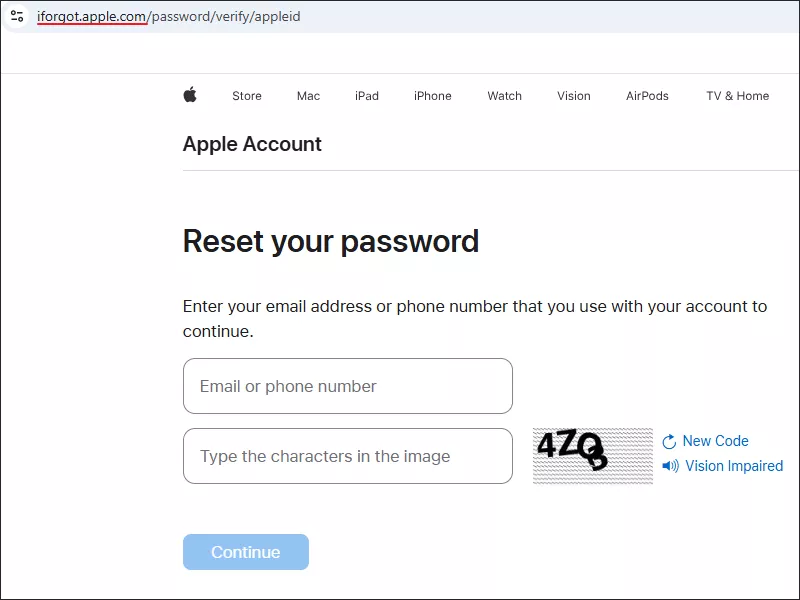
2. On a Windows Computer: Open a web browser like Google Chrome and go to iforgot.apple.com. Click Reset Password. Enter the email address used with your account, type the code in the image and click Continue. Then enter the phone number > Tap on Continue > Click Send Code. Next, enter a 6-digit verification code that is sent to a trusted iOS device or the associated phone number. Set a new password in the box.
(If it is your family/friend’s account, get in touch with him and let him help reset the password on his smartphone.)
Way 3: Update the Payment Info and Change the Region
Make sure the account details are all right. First, check whether you have outdated payment information. Then ensure you use the Apple ID in the region where the account was created, or else some Apple services and features cannot be accessible, especially when you go abroad now.
Step 1: Launch the Settings app and then tap on your Apple ID profile.
Step 2: Choose Media & Purchases > Select View Account > Hit Manage Payments. Remove the expired credit card and add a new one.
Step 3: Find and Click Country/Region. Choose a country without any restrictions and follow the instructions to complete the region setup. After the changes are verified, the Apple account is not valid issue may disappear.

Way 4: Try to Download and Install the Latest iOS Version
Generally, your iPhone has some temporary system glitches if you haven’t updated it regularly. The bugs may cause some compatibility issues with Apple services. To keep the account safe and help your iPhone run smoothly, restart the device using the Side button or have a software update in Settings.
Step 1: Open Settings > Click the General option > Choose Software Update.
Step 2: If the update is available, click on Update Now. After downloading and installing the latest iOS version, sign in with the Apple ID again and check the Apple ID status.

Way 5: Contact Apple Support to Reactivate the Account
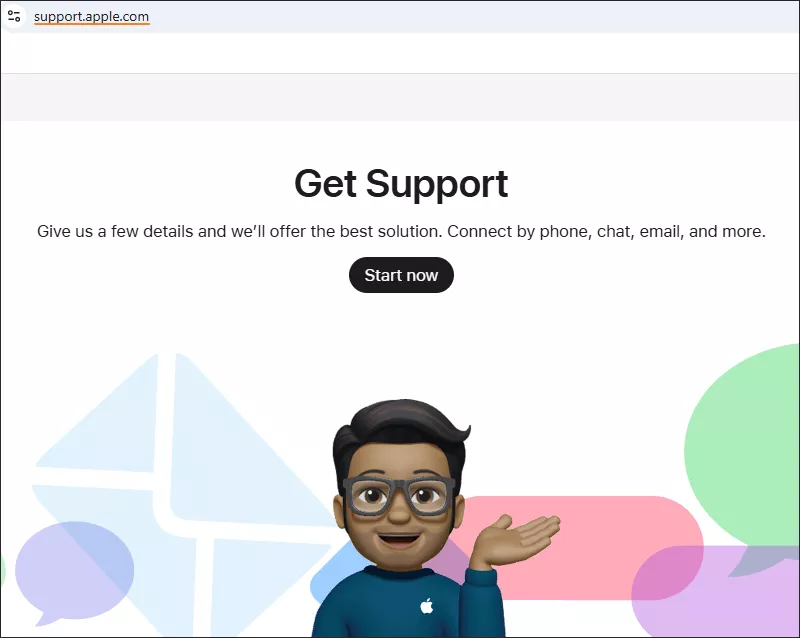
Considering the security of Apple product or services, its server may disable the suspicious account or deactivate the rarely used Apple ID. So, the above-mentioned methods sometimes can’t work as normal. In order not to lose anything you purchased, you can ask Apple Support for assistance and tell them the “Apple ID is not supported” error. They will guide you how to unlock it or request to reactivate the account.
Conclusion
After signing in with the Apple ID, at times it still requires you to enter the password when using some built-in features like Find My and iCloud. If you forget the Apple ID password and want to fix the “Apple ID is not supported” issue, it is highly recommended for you to use Cocosenor iPhone Passcode Tuner. With the software, you can remove the Apple account completely without password. And then easily set up the iPhone and create a new Apple ID.



