


How to Change Location on Match
Say you just accepted a job in Denver, yet Match keeps serving you people from the zip code you left behind. Or you fly out next month and want a feel for who is around before you land. In both cases the cause is the same: the app builds your matches around a location, and that location is out of date.
The useful way to think about it is that Match can look at two things. One is the place saved on your profile. The other is the position your phone reports. Most people only ever need to fix the first. When that is not enough, the second is where a tool comes in. The sections below go from the simplest fix to the most hands-on one.
- Contents:
- Method 1: Modify Location on Match.com
- Method 2: Edit Your Location Inside the Match App
- Method 3: Make Your iPhone Report a Different Place with Locationgo
- When the Change Won't Stick: Symptoms and Fixes
- FAQs About Match Locations
Method 1: Modify Location on Match.com
A desktop browser shows the full settings page, which makes it the least fiddly place to start. Wording on the page may shift a little as Match redesigns it.
Step 1: Navigate to match.com and sign in to your account.
Step 2: Open your profile or account settings.
Step 3: Locate the location fields, which hold a city and a zip or postal code.
Step 4: Type the place you want to be matched in and confirm the entry.
Step 5: Save, reload the page, and glance at your search results to make sure the area has changed.
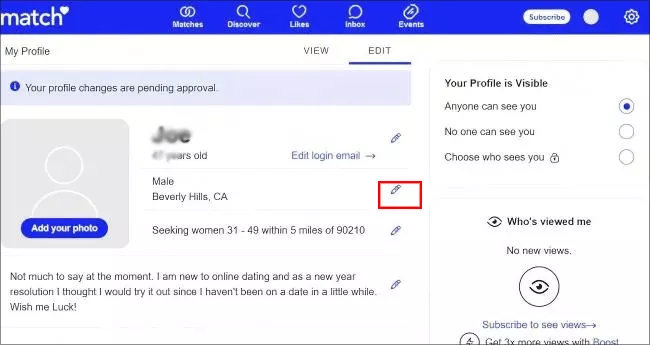
If the field will not open: switch browsers, wipe the site's cookies, and log in once more. Should the field stay locked, Match support is the next stop.
Method 2: Edit Your Location Inside the Match App
When you are away from a computer, the mobile app does the same job in a few taps on both iPhone and Android.
Step 1: On your iPhone, tap the Match app and make sure you are signed in.
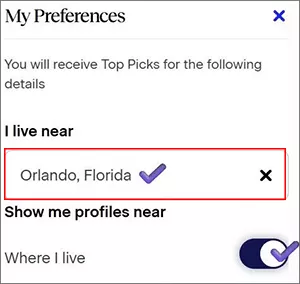
Step 2: Tap the profile icon to reach your settings. Then change the location under I live near section.
Step 3: Tap Done to save the change. Now the new location is live on Match app.
Why the app can disagree with you
Typing a new city into your profile leaves your phone's real position untouched. If Match also uses the phone's position, the two can clash, and that clash is the usual reason a change appears to undo itself.
Method 3: Make Your iPhone Report a Different Place with Locationgo
Reach for this when the profile edit is not holding, or when you want to browse another city without actually going there. Cocosenor Locationgo is an iPhone location changer which can help to change your iPhone location without moving.
Gather these first
- A Windows PC or Mac running Locationgo (the product page lists supported systems).
- An iPhone and its charging cable.
- Developer Mode switched on, if your iOS version asks for it.
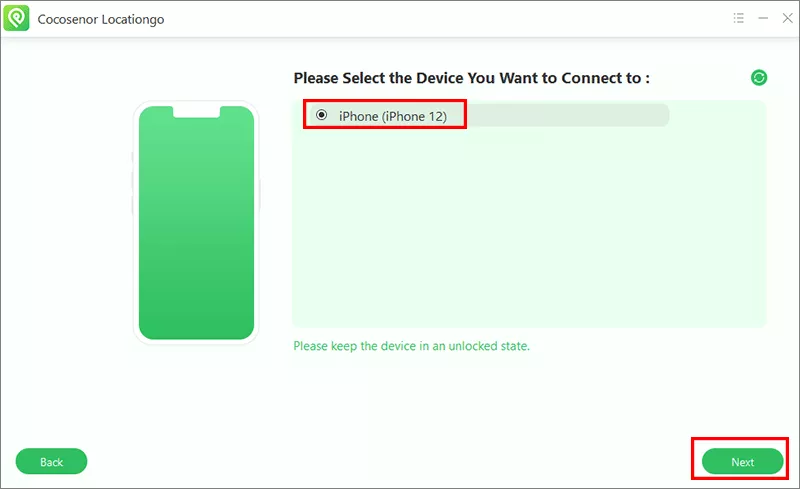
Step 1: Plug in the iPhone and accept the Trust prompt on its screen. Open Cocosenor Locationgo and hit the Start button.
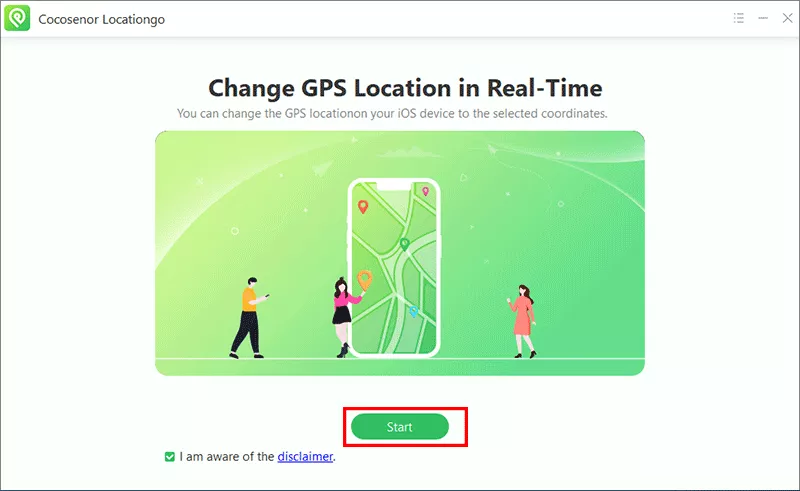
Step 2: Choose your iPhone and hit the Next button.
Step 3: Now choose the first mode that jumps to a single point, then search for the target city.
Step 4: Click the Modify button to apply the location so the phone adopts it.
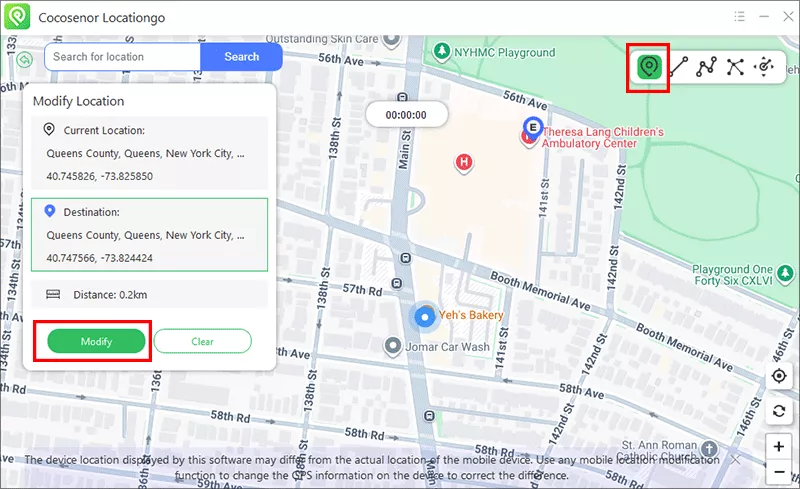
Step 5: Open Match and you can view the people from new location.
When the Change Won't Stick: Symptoms and Fixes
| What You See | What Is Probably Going On | What to Try |
|---|---|---|
| No location field to edit | A browser quirk or a locked field | Use a different browser, clear cookies, log in again, then ask Match support. |
| Save button does nothing | A short-lived connection or sync hiccup | Confirm your network is stable, wait several minutes, and save again. |
| Old city comes back | The app pulls the phone's position on refresh | Allow location only While Using the App, quit Match completely, and set the place again. |
| Profile and results disagree | A profile set to one city while the phone reports another may yield a confusing mix of results. | Set both targets to the same city, or allow Locationgo to define your phone's location. |
| Locationgo change is ignored | Developer Mode is off or the cable connection broke | Enable Developer Mode, reconnect the iPhone, and apply the place once more. |
| Results look stale | Old results are cached | Force quit the app, reopen it, and pull to refresh. |
FAQs About Match Locations
Q1: Will Match let me pick any city I like?
Match ties the search pool to the city or postal code stored on your profile. Enter the place where you want to meet people and save it, and your results will be drawn from that area. Features and options can differ by country and subscription, so what you see may not match another member's screen.
Q2: My profile says Denver but my phone is in Austin. Which one wins?
It depends on what the app is reading at that moment. The profile entry is the stable setting, while the phone can report its own position as well. When the two disagree you can get odd distances or a location that quietly flips back, so it is best to make them agree.
Q3: Is there a cap on how many times I can edit my location?
Match does not list a public limit. If a save fails, give it a little time and retry, then contact Match support if nothing changes.
Q4: Why does Match snap back to my home city?
That is the classic sign of the app refreshing from the phone. Re-apply the new location, fully close and reopen Match, and confirm location access is set to While Using the App.
Conclusions
Begin with the free route: edit the place on your profile through the website or the app, since that settles most moves and trips. If Match refuses to let go of your old city, or you simply want a look at another one, Locationgo can set your iPhone's position for you. Whichever you choose, keep the profile and the phone pointing at the same place, and switch back when you are done.