


Fixed--Pokémon GO Failed to Authenticate
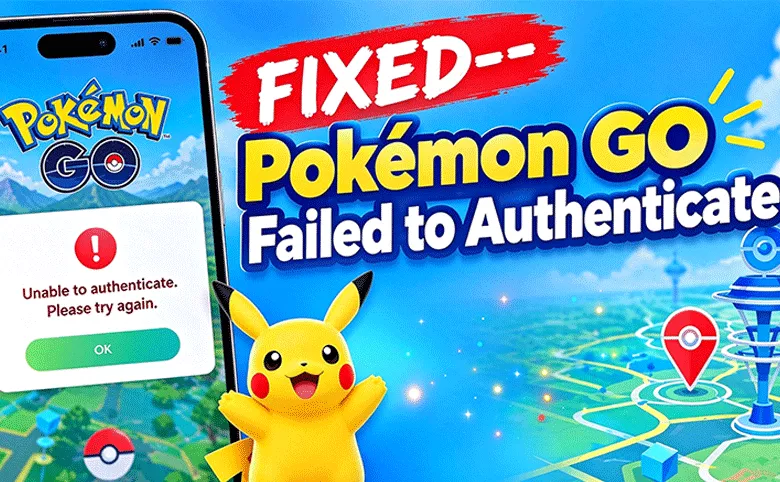
You open Pokémon GO, the logo loads, and then a message stops you cold: "This account has failed to authenticate." Sometimes it says "unable to authenticate" or "failed to sign in" instead, but the result is the same. You are unable to access the game, and the prompt seldom provides any specific reason for the failure.
The good news is that this error usually comes from something small: a server hiccup, a shaky connection, an outdated app, or a stale login link. This guide walks through 10 fixes for iPhone, starting with the ones that change nothing on your phone and moving on to the ones that reset local app data.
- Contents:
- What Does "Failed to Authenticate" Mean in Pokémon GO?
- Fix 1: Check Whether Pokémon GO Is Down
- Fix 2: Reset Your Network Connection
- Fix 3: Close VPN and Location-Changing Tools
- Fix 4: Force Close and Relaunch the App
- Fix 5: Restart Your iPhone
- Fix 6: Get Newest Pokémon GO and iOS Version
- Fix 7: Check Date, Time and Background Permissions
- Fix 8: Re-Link Your Login
- Fix 9: Offload the App
- Fix 10: Reinstall Pokémon GO
- Which Login Method Are You Using? Quick Checks
- A Note on Location-Changing Tools and Login Errors
- Troubleshooting Table on Pokémon GO Failed to Authenticate
- FAQs on Pokémon GO Failed to Authenticate
What Does "Failed to Authenticate" Mean in Pokémon GO?
After verifying your identity, Pokémon GO allows you to access the game. When you tap your login method, the app talks to Pokémon GO's servers and to your sign-in provider (Google, Apple, or Facebook) to verify your account. If anything goes wrong anywhere in this process, you’ll hit an authentication error instead of your account loading in.
The most common causes include:
- Server-side issues or scheduled maintenance, which frequently occur during high-traffic in-game events.
- Unstable network connectivity, such as weak cellular data, unreliable Wi-Fi, or active VPN connections.
- An outdated app or operating system that no longer meets the server’s compatibility requirements.
- An expired login authorization between Pokémon GO and your linked Google, Apple, or Facebook account.
- Device-level restrictions, including background activity limits, incorrect date and time settings, or corrupted cached data.
"Failed to authenticate", "unable to authenticate", "failed to log in" and "failed to sign in" are different wordings of the same family of login errors. The fixes below apply to all of them.
Fix 1: Check Whether Pokémon GO Is Down
If the servers are having trouble, nothing you do on your phone will help. Before changing any settings:
Step 1: Open a service status platform such as Downdetector and navigate to the Pokémon GO page to check for a spike in user issue reports.
Step 2: Review official Pokémon GO support channels and community subreddits for published outage or maintenance notifications.
Step 3: If others report the same error, wait 15 to 30 minutes and try again.
Fix 2: Reset Your Network Connection
Even if all your other apps load without issue, a spotty or dropping connection can still derail the game’s login verification process.
Step 1: Switch from Wi-Fi to mobile data, or the other way around, and reopen the game.
Step 2: Turn on Airplane Mode for about 10 seconds, then turn it off.
Step 3: If you are on Wi-Fi, restart your router and reconnect.
Step 4: If you are outdoors, move to a spot with a stronger signal.
Fix 3: Close VPN and Location-Changing Tools
VPN services, proxy servers, and certain location-associated utilities can reroute network traffic or interrupt connectivity to the game’s backend servers. Disable them, fully close the app, and try signing in again.
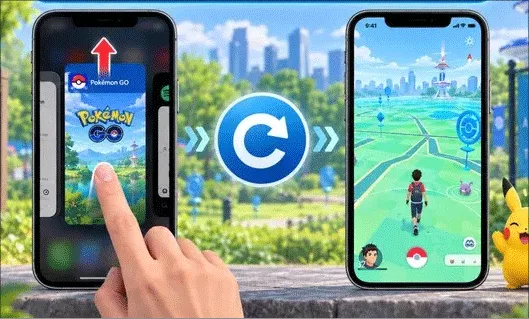
Fix 4: Force Close and Relaunch the App
A fresh launch clears a stuck session.
iPhone with Face ID: swipe up from the bottom edge and pause, then swipe the Pokémon GO card up to close it.
iPhone with a Home button: double-press Home, then swipe the Pokémon GO card up.
After closing the app, you can restart the app a few minutes later.
Fix 5: Restart Your iPhone
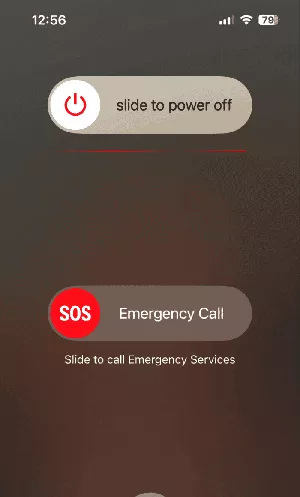
A full restart clears temporary network and memory problems that a force close doesn't. Power the phone off, wait about 30 seconds, turn it back on, and open Pokémon GO before launching other apps.
Fix 6: Get Newest Pokémon GO and iOS Version
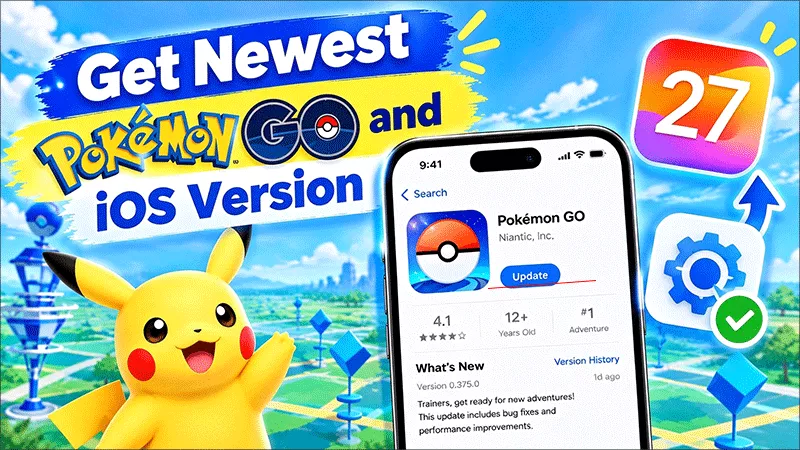
An outdated app can fail to authenticate because it no longer matches the version the servers expect. An outdated OS can cause the same problem.
You can open the App Store, tap your profile picture, and update Pokémon GO. Then check Settings > General > Software Update. Restart the phone after updating.
Fix 7: Check Date, Time and Background Permissions
Your login verification relies on your device’s time being set correctly, and aggressive battery-saver settings can kick the app out before you finish signing in.
Step 1: Turn on automatic date and time: Settings > General > Date & Time > Set Automatically on iPhone.
Step 2: Open Settings > General > Background App Refresh and make sure Pokémon GO is allowed. Also check Settings > Pokémon GO and confirm mobile data is enabled for the app.
Fix 8: Re-Link Your Login
If the authentication link between the game and your sign-in provider has expired, signing out and back in will usually resolve the issue. Note that all your game progress is saved to your account, not stored locally on your device.
Step 1: If you can access the in-game settings screen, sign out of Pokémon GO. If not, proceed directly to step 2.
Step 2: For Google account users: Open your Google Account settings, navigate to the Security section, locate Third-party apps and services, and remove Pokémon GO’s access permission. Be sure to sign back in using the exact same Google account you originally linked to the game.
Facebook users: log in to Facebook in the app or browser first to confirm your session is active, then try again.
Apple users: confirm you are signed in to your Apple ID in Settings and that iCloud has a connection, then retry.
Step 3: Relaunch Pokémon GO and try to login.
Fix 9: Offload the App
Go to Settings > General > iPhone Storage > Pokémon GO and tap Offload App, then tap Reinstall App. iOS doesn't offer a separate cache-clearing option for apps.Open Pokémon GO and sign in again.
Fix 10: Reinstall Pokémon GO
If nothing else has worked, a clean install removes any corrupted files.
Step 1: Delete Pokémon GO from your phone.
Step 2: Restart the phone.
Step 3: Download Pokémon GO again from the App Store or Google Play.
Step 4: Open the game and sign in with your linked account.
Which Login Method Are You Using? Quick Checks
Different login methods fail in slightly different ways. Use this table to target the likely cause.
| Login Method | Typical Cause | Quick Fix |
|---|---|---|
| Wrong account selected or stale third-party access | Remove Pokémon GO from your Google account's third-party access, then sign in again with the correct account. | |
| Apple | Apple ID session anomalies or iCloud connectivity issues | Confirm Apple ID sign-in status, check connectivity, then re-sign in. |
| Expired or interrupted Facebook session | Log in to Facebook first to refresh the session, then retry in Pokémon GO. |
A Note on Location-Changing Tools and Login Errors
Using a VPN or location-altering tool alongside Pokémon GO can interfere with your network connection and change how your device appears to the game. Both factors can contribute to login problems. If you encounter this error:
- Turn off the tool completely and restart your mobile device before attempting to sign in again.
- Don't switch tools or settings repeatedly in a short time. Make one change, then test.
- Remember that using third-party location tools may go against the game's terms of service. Review them before using any such tool with an account you care about.
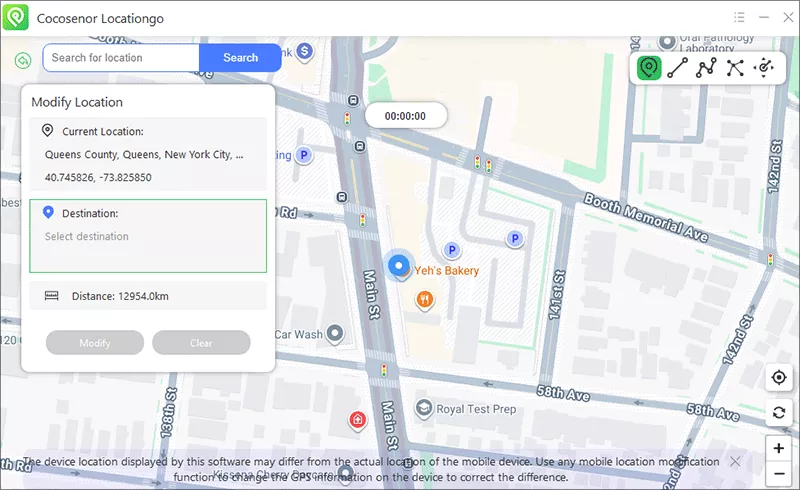
If you use a location changer for other apps or for privacy reasons, Cocosenor Locationgo is one option for changing your iPhone's location. Whichever tool you choose, switch it off before troubleshooting a login error so you can tell whether it is the cause.
Troubleshooting Table on Pokémon GO Failed to Authenticate
| What You See | Likely Cause | What to Try |
|---|---|---|
| Everyone reports the error at the same time | Server issue or maintenance | Wait and retry later (Fix 1). |
| Error on mobile data only (Wi-Fi OK), or vice versa | Network or carrier problem | Switch networks, toggle Airplane Mode, and restart the router (Fix 2). |
| Error only with a VPN or proxy on | Unstable or blocked route | Disable the VPN and retry (Fix 3). |
| Error started right after an app or OS update | Version mismatch | Update both and restart (Fix 6). |
| Error after changing a Google or Apple password | Stale login link | Re-link your login (Fix 8). |
| Error on one phone only | Cache, permissions, or corrupted data | Clear data or reinstall (Fixes 9 and 10). |
| Error on every phone and network | Account or login-method issue | Contact Pokémon GO support with the details below. |
FAQs on Pokémon GO Failed to Authenticate
Q1: What does "This account has failed to authenticate" mean in Pokémon GO?
It means the game couldn't verify your login with its servers or your sign-in provider. You can try the above solutions to get it fixed.
Q2: Is "failed to authenticate" the same as "unable to authenticate" or "failed to sign in"?
They are different wordings of the same family of login errors, and the same fixes generally apply to all of them.
Q3: Why does the error only happen on one phone?
A single-device error usually points to cached data, background restrictions, a wrong date and time, or a VPN on that phone. A quick and easy way to confirm this is to try signing into the same account on another device.
Final Thoughts
Pokémon GO shows the error prompt which tells you failed to authenticate, what to do? You can start with the quick checks, sever status, your connection and a force close. After that, try to update the app, check the permission and re-link your login.
Only clear data or reinstall if the earlier fixes don't work. If the error follows your account across devices and networks, contact support with the details above so they can look at the account itself.