


Pokémon GO Error 12: Failed to Detect Location — Full Fix Guide
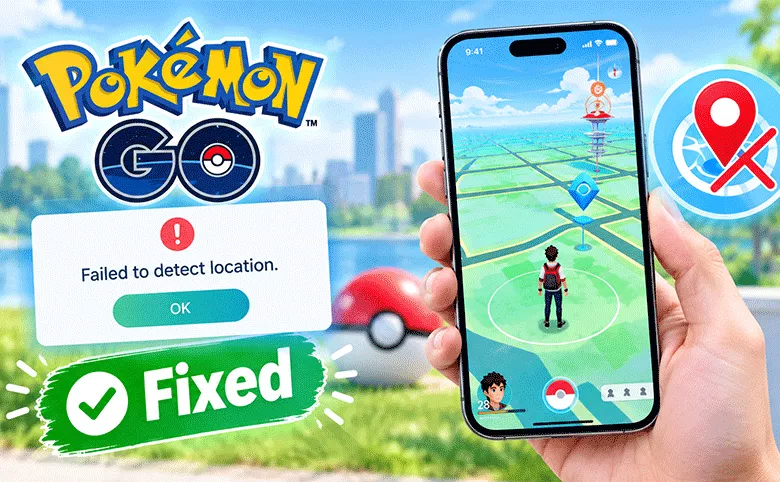
If Pokémon GO suddenly throws up a red banner reading “Failed to detect location (12)” right as you're about to spin a PokéStop or join a raid, the game has lost confidence in the GPS coordinates it's receiving from your device. It's not the same thing as a ban, and it's usually fixable in a few minutes once you know which of the handful of underlying causes is behind it. This guide walks through the no-download fixes first, then a tool-based fix for anyone whose location was already being managed by a virtual-location app before the error appeared.
- Contents:
- Part 1: What Causes Pokémon GO Error 12?
- Part 2: Try the Non-Destructive Fixes First
- Part 3: Fix It with Cocosenor Locationgo (Virtual Location Users)
- Part 4: Troubleshooting Issues with Quick Fixes
- Part 5: FAQs on Pokémon GO Error 12
Part 1: What Causes Pokémon GO Error 12?
Error 12 fires when Pokémon GO's anti-cheat and location-verification layer can't reconcile the position data it's being handed. That mismatch can come from something as mundane as a weak GPS fix in a building, or from something more specific to players using a virtual-location tool. The most common triggers are:
- 1. Location Services disabled, or set to a low-accuracy mode, on the device
- 2. A recent Pokémon GO client update that changed how the game validates location signals
- 3. A virtual-location (GPS spoofing) app that jumped the pin too far, too fast, or without a clean cooldown
- 4. A stale or conflicting cached location, often after switching Wi-Fi networks or toggling Airplane Mode
- 5. A VPN reporting an IP-based region that doesn't match the GPS coordinates the game is seeing
- 6. Background apps (Find My) fighting over which location value is authoritative
Part 2: Try the Non-Destructive Fixes First
These don't require installing anything and resolve the error for a large share of players — especially anyone who was playing normally and hasn't touched their location settings.
1. Force-close Pokémon GO completely (swipe it out of your recent apps) and relaunch it.
2. Restart your iPhone. This clears cached GPS state that a simple app restart won't touch.
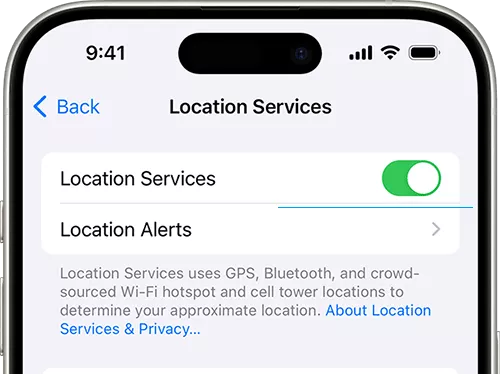
3. Check the Location Services status, which should be available and set with the highest accuracy mode: access Settings> Privacy & Security > Location Services.
4. Turn off any active VPN before opening the game, so your IP region and GPS region agree.
5. Log out of Pokémon GO and log back in with the same account.
6. Make sure both the Pokémon GO app and your device's OS are fully updated — Niantic has shipped location-validation changes in recent client updates that older app versions don't handle gracefully.
7. Step outside or near a window for a cleaner GPS fix, then give the game 60–90 seconds before interacting with a PokéStop or gym.
If none of these clear the error, and you were using — or want to use — a virtual location on iPhone, the cause is almost always the spoofing method itself rather than anything above.
Part 3: Fix It with Cocosenor Locationgo (Virtual Location Users)
When Error 12 shows up specifically after changing your GPS location, it's typically because the previous method delivered an abrupt jump, an unstable signal, or a location value the game's verification layer doesn't trust. Cocosenor Locationgo avoids this by writing a consistent, system-level GPS signal instead of an app-layer override, and by offering gradual movement modes so the transition between coordinates looks like real travel rather than a teleport.
Step 1: Download and install Cocosenor Locationgo on your Windows or Mac computer.
Step 2: Connect your iPhone to the computer with a cable and open Locationgo.
Step 3: Click Start, select your connected iPhone, then click Next.
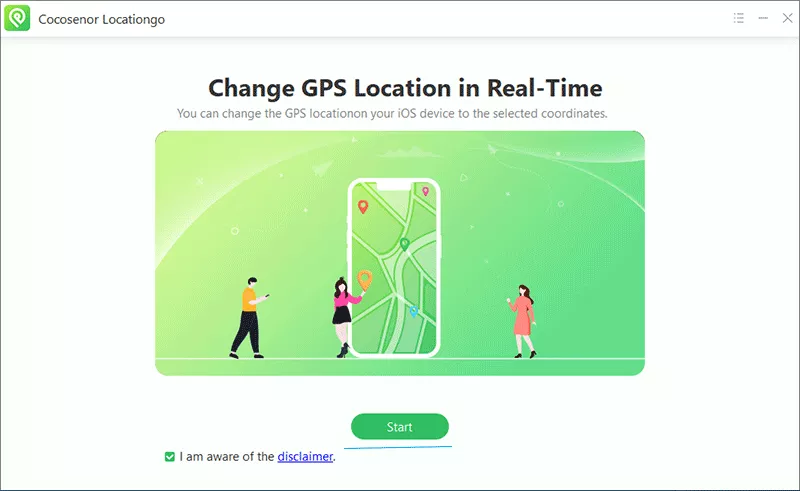
Step 4: Pick Multi-Spot Movement or Joystick Movement rather than a single instant jump — this keeps the reported route realistic and reduces the chance of triggering another location-trust error.
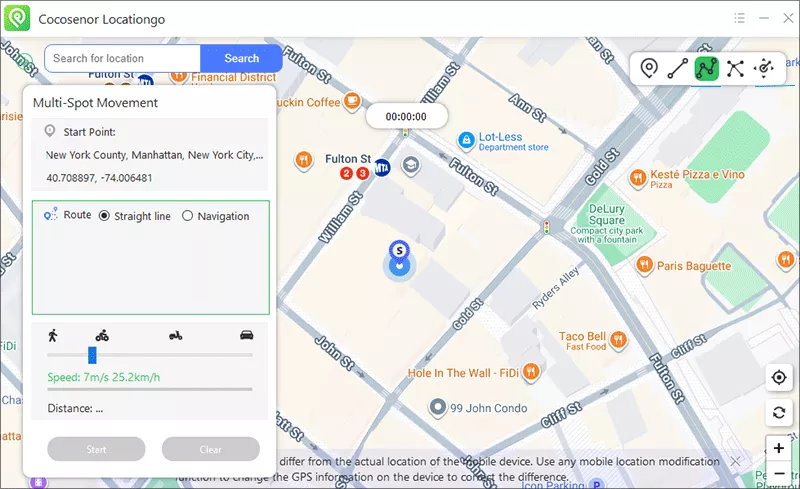
Step 5: Set a moderate movement speed, click Start to apply it, then relaunch Pokémon GO and give it a moment to load PokéStops and gyms at the new location.
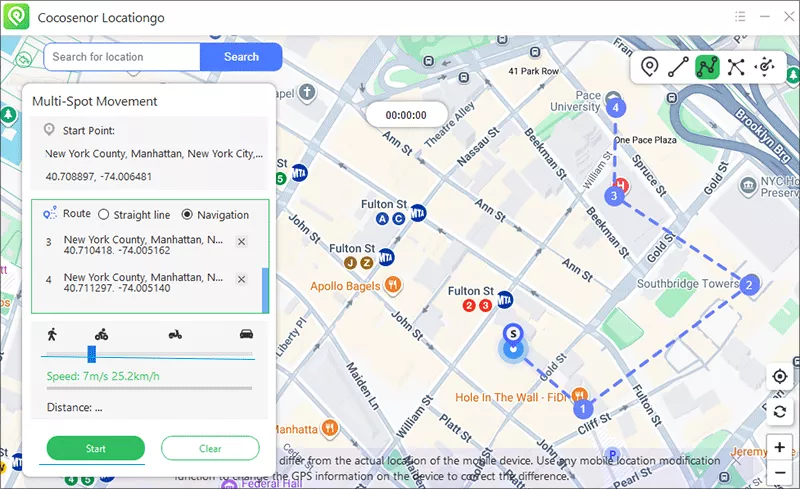
If you need to return to your real GPS position afterward, simply disconnect and restart your iPhone.
Part 4: Troubleshooting Issues with Quick Fixes
| Symptom | Likely Cause | Quick Fix |
|---|---|---|
| Error 12 appears only indoors | Weak/blocked GPS signal | Move near a window or outside; retry after a clean GPS fix |
| Error 12 right after a jump to a far location | Movement flagged as an impossible jump | Use gradual movement (Multi-Spot/Joystick) instead of instant teleport |
| Error 12 only with VPN on | IP region and GPS region mismatch | Disable the VPN, or match the VPN server region to your set GPS location |
| Error 12 after an app update | Client-side location validation changed | Update Pokémon GO and your OS to the latest versions |
| Error 12 with no spoofing involved | Location Services misconfigured | Re-enable Precise Location and High Accuracy mode |
| Error 12 returns repeatedly within minutes | Cooldown/soft-ban style throttling | Pause location changes for 30+ minutes before trying again |
Part 5: FAQs on Pokémon GO Error 12
Q1: Does Error 12 mean I've been banned?
No. It's a location-verification error, not a ban notice. Your account status is unaffected unless Niantic separately flags repeated suspicious location changes.
Q2: Can Error 12 happen without using any spoofing tool?
Yes. Weak GPS signal, disabled Location Services, or a recent app update can all trigger it for players who have never changed their location.
Q3: Will restarting my phone fix it?
Often, yes, if the cause is a stale cached location rather than an active spoofing conflict.
Final Thoughts
Pokémon GO Error 12 looks alarming the first time it interrupts a raid or a PokéStop spin, but it's rarely more than a location-trust mismatch that the game couldn't verify in the moment. Most players clear it with the basics — a restart, a Location Services check, or disabling a VPN — and never see it again.
If it kept showing up specifically after changing your GPS position on iPhone, the fix usually isn't to give up on virtual location altogether, but to switch to a method that reports a steady, gradual movement instead of an abrupt jump. That's the gap Cocosenor Locationgo is built to close, and it's worth pairing with the cooldown habits in the troubleshooting table above so the error doesn't resurface after your next location change.