


How to Pause Life360 Without Anyone Knowing on iPhone
Life360 has become the go-to app for families who want peace of mind about where everyone is. But peace of mind for one person can feel like a lack of privacy for another — and if you're an iPhone user wondering how to pause your location on Life360 without it showing up as an alert to your Circle, you're not alone in asking.
This guide walks through exactly how location pausing works on iPhone, what your Circle actually sees when you do it, and which methods can be used to pause Life360 without anyone knowing.
- Contents:
- How Can You Pause Your Location on Life360 in the First Place?
- Method 1. Turn Off Location Services for Life360 Only
- Method 2. Use Airplane Mode
- Method 3. Turn Off Background App Refresh
- Method 4: Use GPS Location Changer –Cocosenor Locationgo
- FAQs on Turning off Life360 Location on iPhone
How Can You Pause Your Location on Life360 in the First Place?
Life360 gives you a built-in way to stop sharing your location, but it's tied to something a lot of people overlook: Circles. A Circle is simply a private group inside the app — your immediate family might be one Circle, while a friend group or extended family could be another. Location sharing is controlled separately for each one.
To pause your Life360 location on iPhone:
Step 1: Open the Life360 app.
Step 2: Tap the Settings icon (usually top-left or top-right, depending on your app version).
Step 3: Tap Location Sharing.
Step 4: Select the Circle you want to pause sharing with. Then toggle the switch off.
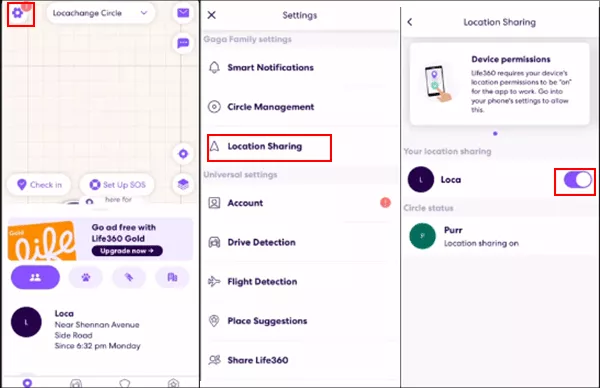
If you belong to more than one Circle, this only pauses sharing for the Circle you selected — you'll need to repeat the process for each one if you want to go fully off-grid.
Note:
this method is convenient, but it's the least discreet option. Members of that Circle will typically see a status change next to your name indicating your location sharing has been paused.
Method 1. Turn Off Location Services for Life360 Only
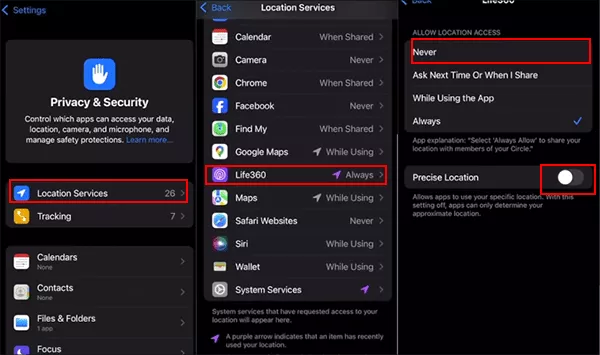
Rather than pausing inside the app, you can revoke Life360's location permission at the iOS level. This stops the app from pulling GPS data entirely. It's more effective than the in-app toggle for actually cutting off tracking, but it isn't invisible — your Circle will usually still notice your location has stopped updating, and depending on app version, a paused or "location off" status may appear.
Step 1: Open Setting and choose Privacy & Security.
Step 2: Tap Location Services and scroll to Life360.
Step 3: Turn off Precise Location and tap Never.
Method 2. Use Airplane Mode
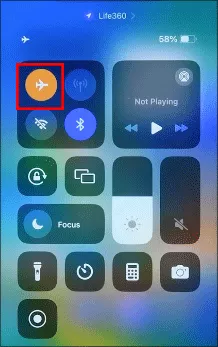
Swipe down to open Control Center and tap the airplane icon. This cuts off cellular data, Wi-Fi, and GPS connectivity all at once, meaning Life360 has no way to transmit an updated position. Your last known location is what your Circle will continue to see until you reconnect.
It's fast and requires no digging through settings, but it's a blunt instrument — every other app that needs a connection goes down with it, which can itself raise questions if people notice you're suddenly unreachable.
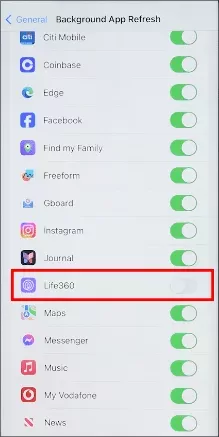
Method 3. Turn Off Background App Refresh
Head to Settings > General > Background App Refresh and switch off the toggle for Life360 specifically. Without background refresh, the app can only update your location when it's actively open on your screen, which naturally creates gaps in your tracked movement.
Method 4: Freeze iPhone Location with Cocosenor Locationgo
For those who want to pause their locations on Life360 without its showing, the GPS location changer is a good choice as it can change your GPS location to a fake spot so that others will not know your location sharing is paused and where you actually are.
Cocosenor Locationgo makes it easy to modify the location without notifying others, which enables you to hide the real location on Life360. No jailbreak, no data loss, you can easily pause Life360 without anyone knowing.
Step 1: Run Cocosenor Locationgo on your computer and connect the iPhone with the USB cable. You should close Life360 app on your iPhone.
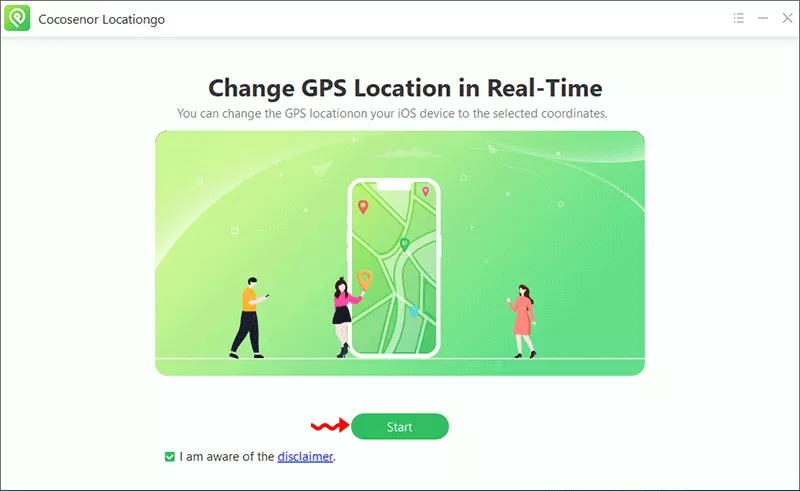
Step 2: Click the Start button in Locationgo home interface. Then you can select your iPhone and hit the Next button.
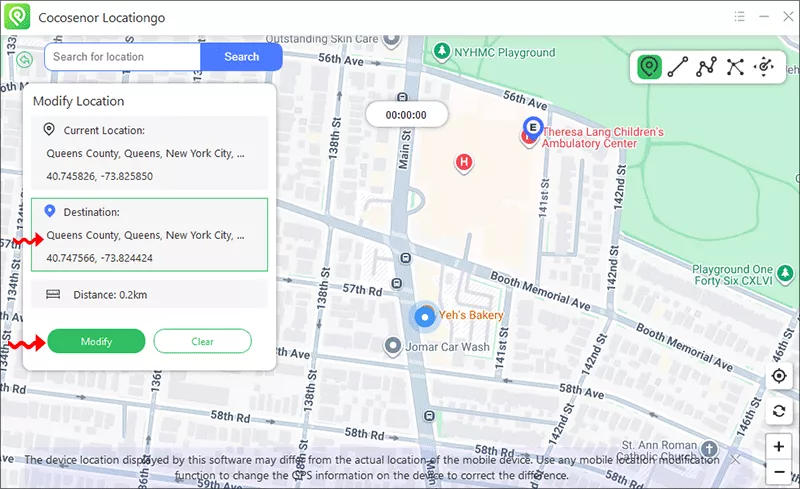
Step 3: A map shows up with your current location. Now you can select a specific location on the Map and hit the Modify button to set it as your new location. After that, you can open Life360 and use it as normal.
FAQs on Turning off Life360 Location on iPhone
Q1: How can you pause your location on life360?
You can directly turn off the location services for Life360, enable the Airplane mode or disable background app refresh. But all these actions will show a status on your friends’ Life360.
Q2: Does Life360 notify when you pause your location?
Life360 doesn't send a push notification the moment you pause sharing, but your Circle can see a status change next to your name (like "Location Paused") the next time they open the app. It's a passive indicator rather than an active alert.
Q3: Does Airplane Mode stop Life360 from tracking you?
Yes, temporarily. Airplane Mode cuts all connectivity, so Life360 can't send new location data. Once you turn Airplane Mode off, tracking resumes and your Circle will see your current location again.
Q4: Is it possible to pause Life360 without your Circle knowing at all?
Yes, you can use the location changer, such as Cocosenor Locationgo, to set a fake location on iPhone so that Life360 will show the location on your circle without anyone knowing your real location.
Conclusion
There's no single switch that pauses Life360 location on iPhone with zero trace. The in-app toggle is the cleanest way to do it if you don't mind your Circle seeing that you've paused. Whichever method you choose, it is safe to protect your privacy.



