


How to Bypass FRP on Samsung
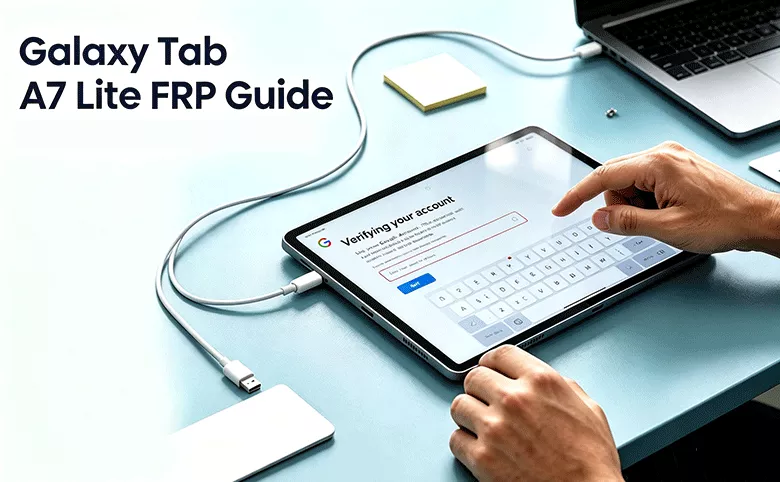
If your Galaxy Tab A7 Lite is stuck on a “Verify your account” screen after a factory reset, you've run into Factory Reset Protection (FRP) — a Google security feature that keeps a tablet locked to its last signed-in account until that login is confirmed again. It's a common snag whether you're setting up a used tablet, restoring your own after a long break, or troubleshooting a family device nobody remembers the login for.
This guide covers the Tab A7 Lite specifically — including both the Wi-Fi model (SM-T220) and the LTE model (SM-T225) — across Android 11 through the current Android build, and explains which methods still hold up on newer firmware.
- Content
- Why the Tab A7 Lite Locks You Out
- Method 1: Recover the Original Google Account Password to Sign Back in
- Method 2: TalkBack / Google Keyboard Workaround (Limited Success)
- Method 3: Bypass With Cocosenor Android Password Tuner
- Troubleshooting Common Problems
- FAQs on Samsung Tablet A7 Lite FRP Bypass
Why the Tab A7 Lite Locks You Out
FRP switches on automatically the moment a Google account is added to the tablet. After that, a factory reset through Settings or recovery mode doesn't clear the lock — the system still expects the original account to confirm the reset was authorized. This is by design: it's what stops a lost or stolen tablet from being wiped and resold.
Two details matter for the Tab A7 Lite specifically. First, it ships as either the SM-T220 (Wi-Fi only) or SM-T225 (Wi-Fi + LTE) — the bypass steps are identical for both, so don't worry about which one you have. Second, unlike most Samsung phones, the Tab A7 Lite runs a MediaTek Helio P22T chipset instead of an Exynos or Snapdragon chip. That difference is mostly invisible to you as a user, but it's why some free bypass tricks that work on other Samsung devices don't translate cleanly here.
Method 1: Recover the Original Google Account Password to Sign Back in
This is the fastest option and it's worth ruling out before anything else. If you or the previous owner remembers the Gmail address that was on the tablet, it is easy to recover or reset the Google account password online. After that, you can enter them at the verification screen, which clears FRP instantly and keeps all data intact.
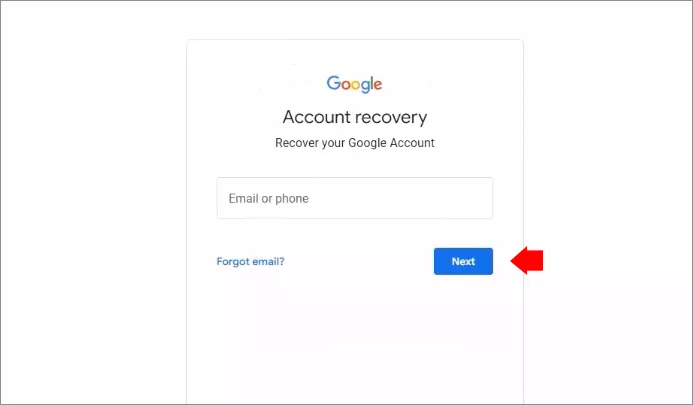
Step 1: If you know the email but not the password, use Google's account recovery page on a separate phone or computer to reset it, then return to the tablet. Account resets can take up to 24 hours to sync, so it's worth waiting it out if the new password doesn't work right away.
Step 2: Connect the tablet to Wi-Fi during setup.
Step 3: At the “Verify your account” prompt, enter the Gmail address and new password to sign in your Samsung Tablet.
Method 2: TalkBack / Google Keyboard Workaround (Limited Success)
Older setup wizards had loopholes that let TalkBack or the Google Keyboard's help menu open a path into Settings before the account check completed. It's worth trying if your tablet is still on an older Android build, but it's inconsistent even then — and largely patched on Android 13 and 14, which is where most Tab A7 Lite units sold new are landing now.
Step 1: On the “Verify your account” screen, press Volume Up + Volume Down together to turn on TalkBack.
Step 2: Draw an “L” shape on the screen when prompted, then double-tap to use voice commands.
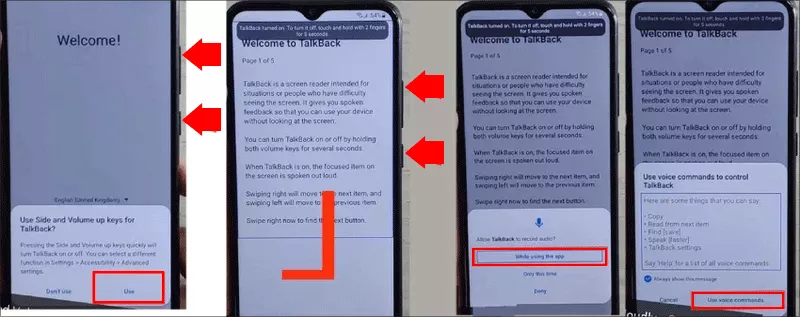
Step 3: Tap the microphone icon and try opening Google Assistant, then navigate toward Settings from there.
Step 4: If this opens Settings, go to Developer options (tap Build number seven times under About tablet) and enable OEM unlocking, then restart.
Note:
If the mic icon never appears, or Settings never opens, this method isn't going to work on your firmware — move on to Method 3 rather than repeating it.
Method 3: Bypass With Cocosenor Android Password Tuner
When the original account is truly out of reach and the manual workaround doesn't apply to your firmware, a dedicated FRP tool is the most consistent path. Cocosenor Android Password Tuner handles Samsung's FRP implementation through a guided, PC-based process — no root access or ADB commands required.
Step 1: Install Android Password Tuner on a Windows PC and launch it.
Step 2: Choose Unlock Google Lock (FRP) from the main menu, then select Samsung as the brand.
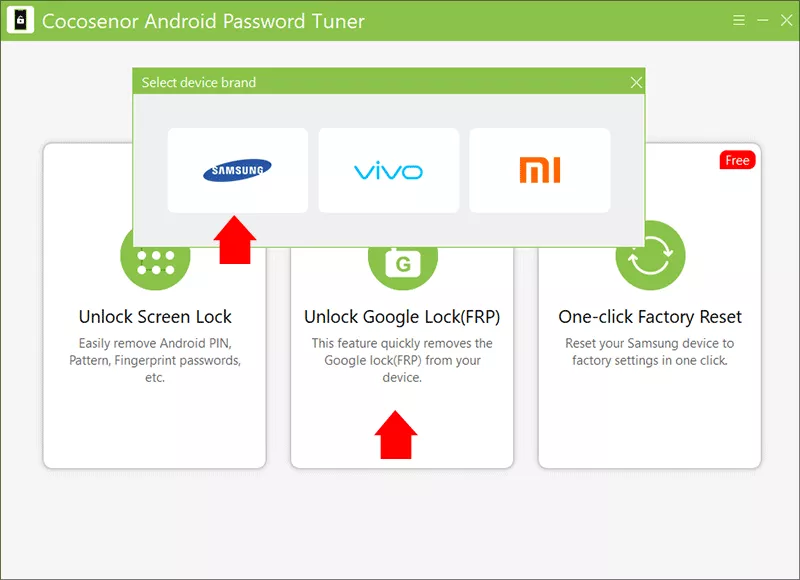
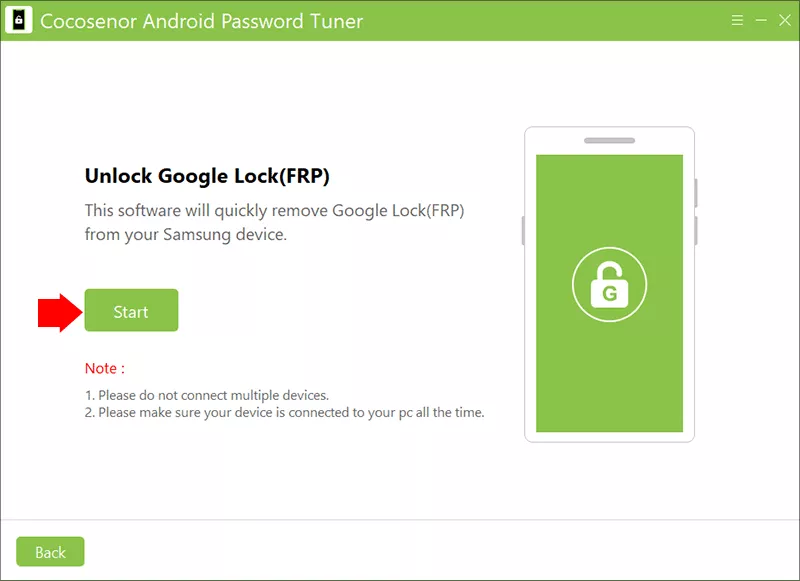
Step 3: Connect the Tab A7 Lite to the computer with a USB cable and click Start.
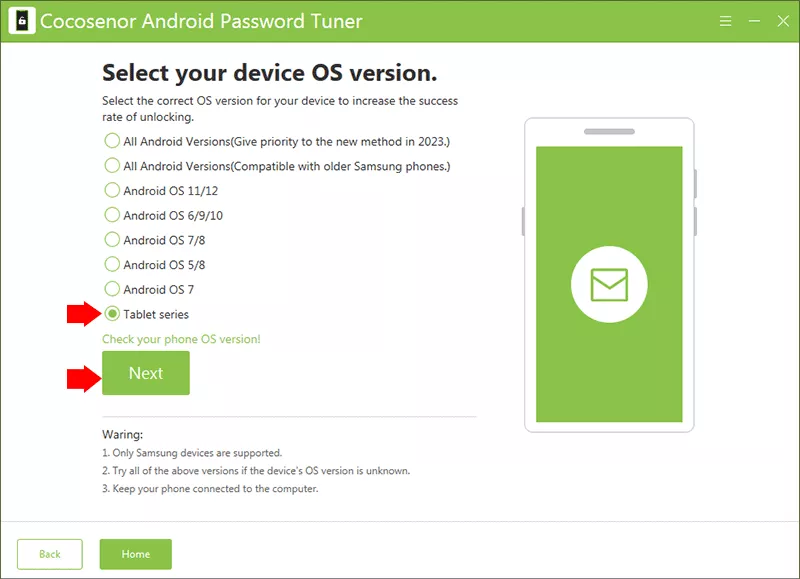
Step 4: Select the Tablet series option and follow the on-screen steps to set up the connection.
Step 5: Once the process completes, the tablet restarts and the Google account prompt no longer appear — you can complete setup normally.
Troubleshooting Common Problems
| Problem | What to Try |
|---|---|
| Tablet isn't detected by the computer | Switch to a different USB cable or port, enable USB debugging if you can reach Settings, and confirm the Samsung USB driver is installed. |
| Bypass tool gets stuck mid-process | Restart the tablet, reconnect the cable, and run the process again. Don't unplug the tablet while a progress bar is active. |
| FRP screen reappears after restart | Double-check your Android version and security patch level against the tool's supported list, then retry with the latest version of the software. |
| No Wi-Fi networks shown on setup screen | Try a mobile hotspot instead — some carrier-locked units restrict the Wi-Fi list shown during initial setup. |
| TalkBack shortcut doesn't trigger anything | This workaround depends on firmware and security-patch level. It's largely patched on Android 13/14 builds, so move on to the PC-based method instead. |
FAQs on Samsung Tablet A7 Lite FRP Bypass
Q1: Does this work on both the Wi-Fi and LTE Tab A7 Lite?
Yes. The Wi-Fi model is SM-T220 and the LTE model is SM-T225 (sometimes seen as SM-T225N). Both use the same FRP bypass steps — the model number itself doesn't change the process.
Q2: Can I bypass FRP on the Tab A7 Lite without a computer?
Signing back into the original Google account doesn't need a PC. The TalkBack/Google Keyboard workaround also doesn't need one, but it depends heavily on Android version and security patch, and is largely unreliable on Android 13 and 14. A software-based bypass does require a Windows computer.
Q3: How do I check which Android version my tablet is running?
Boot into recovery mode (Volume Up + Power, then release at the Samsung logo) to see the Android version and security patch listed on the recovery screen. Confirming this first helps you pick the right method and avoid wasted attempts.
Conclusions:
Is there any way to bypass Samsung Galaxy Tab A7 Lite FRP without password? Yes, you can learn the useful tricks in this article no matter you have PC or not. Cocosenor Android Password Tuner is the professional Samsung Tab A7 Lite FRP unlock tool which can help to remove the FRP lock without original credentials. Everyone can try it now.