


How to Bypass Google FRP Lock on a Samsung Tablet
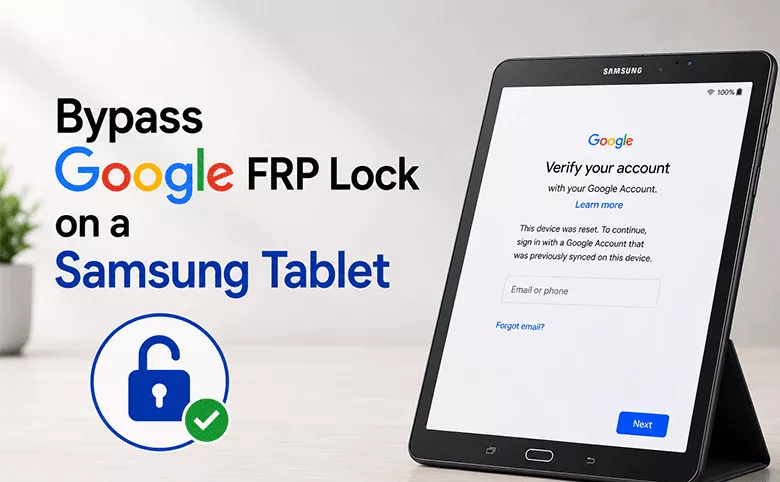
If you have picked up a Samsung tablet after a factory reset and landed on a screen asking you to “verify your account,” you have run into Factory Reset Protection, better known as FRP. It is a built-in Google safeguard that keeps a tablet locked to its last registered Google account until that same login is entered again.
This guide walks through what causes an FRP lock on a Samsung tablet, and three ways to get past it.
- Content
- Why Does a Samsung Tablet Get Locked by FRP?
- Method 1: Sign Back in With the Original Google Account
- Method 2: Google Keyboard Workarounds
- Method 3: Bypass with Cocosenor Android Password Tuner
- Troubleshooting Common Problems on Samsung Tablet FRP Bypass
- FAQs on Samsung Tablet FRP Bypass
Why Does a Samsung Tablet Get Locked by FRP?
FRP switches on automatically the moment a Google account is signed into a Samsung tablet. From that point forward, wiping the device through Settings or recovery mode will not remove the lock — the system still expects the original account to confirm the reset was authorized.
This trips up three common situations: buying a used Galaxy Tab that still carries the previous owner's login; forgetting the password on your own tablet after a long period of not using it; and inheriting a family tablet where nobody remembers which account was ever added.
Method 1: Sign Back in With the Original Google Account
This is the fastest fix, and it is worth ruling out before anything else. If you or the previous owner still remembers the Gmail address and password that was on the tablet, simply entering them at the verification screen clears FRP instantly with no data loss.
Step 1: Connect the tablet to Wi-Fi during setup.
Step 2: At the “Verify your account” prompt, enter the Gmail address and password.
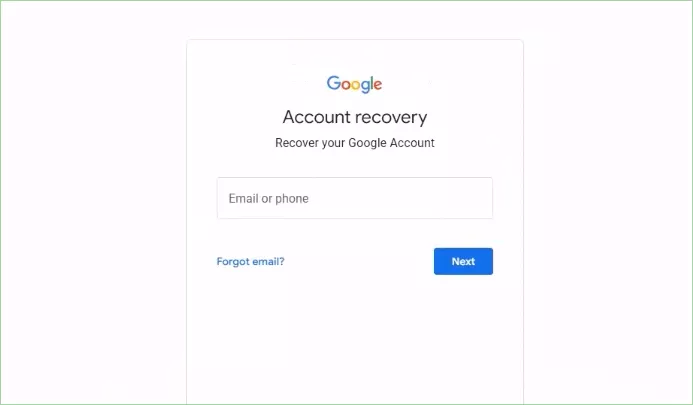
Step 3: If the password is forgotten but the email is known, use Google's account recovery page from a separate phone or computer to reset it, then return to the tablet once the new password is active. Google account resets can take up to 24 hours to fully sync on the device, so patience helps here.
Method 2: Google Keyboard Workarounds
Some older Galaxy Tab models running outdated Android versions may have setup wizard loopholes that can provide temporary access to certain settings. These methods are inconsistent, depend on the exact firmware and security patch level, and no longer work on most modern Samsung tablets.
If your Samsung Tablet is old, you can try this Google keyboard workarounds without PC:
Step 1: On the Google Verifying your account screen, tap the text box to open keyboard.
Step 2: Tap and pressing the @ button until you see the keyboard settings menu.
Step 3: Tap Google Keyboard Settings and tap the three-dot option in the top-right corner. Then choose Help & Feedback.
Step 4: Tap Using Google Keyboard. After that, enter any text and pressing it until the Web search option comes.
Step 5: Enter Settings in the search bar to access the Settings menu.
Step 6: Go down and choose About tablet. Go to the Build number option and tap it 7 times to enable Developer options.
Step 7: Return to the Settings screen and tab Developer options.
Step 8: Find OEM unlocking. Toggle it on and make the confirmation. After that, you can go back to the main menu and restart your Samsung tablet to check whether the FRP lock screen disappears or not.
Method 3: Bypass with Cocosenor Android Password Tuner
When the account is truly lost or the manual workaround does not apply to your model, a dedicated FRP bypass tool is the most consistent option. Cocosenor Android Password Tuner is built specifically to handle Samsung's FRP implementation without requiring root access or technical Android knowledge. Here is the process:
Step 1: Install Android Password Tuner on a PC and launch it.
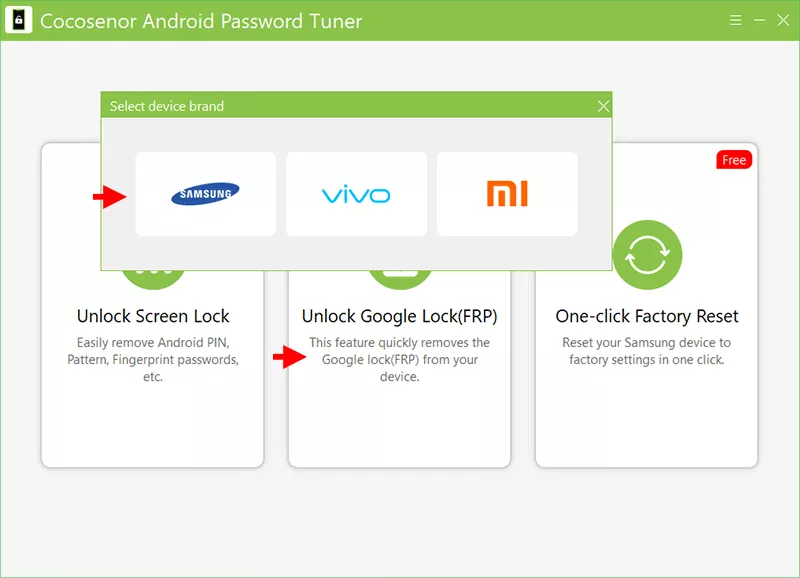
Step 2: Choose the FRP removal mode—Unlock Google Lock from the main menu. And choose the Samsung brand from the pop-up box.
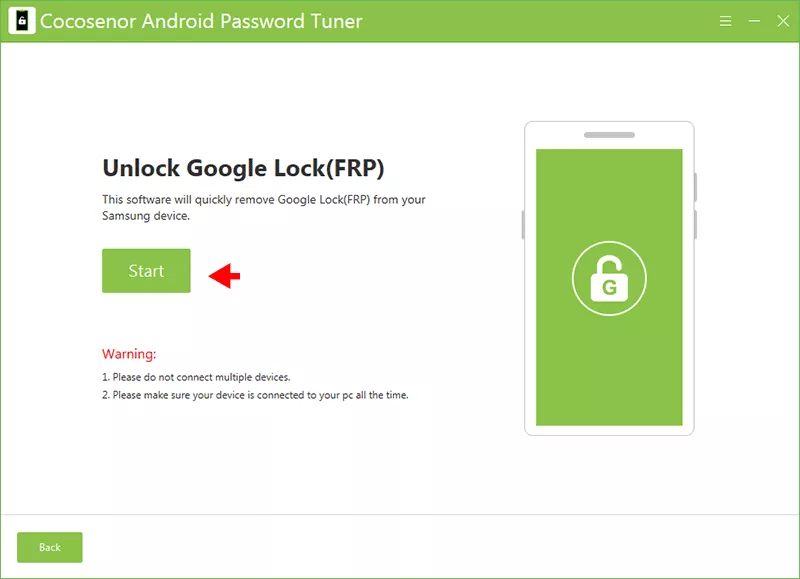
Step 3: Connect the Galaxy Tab to the computer with a USB cable and hit the Start button.
Step 4: Select the Tablet series option and follow the steps to set up your Samsung tablet.
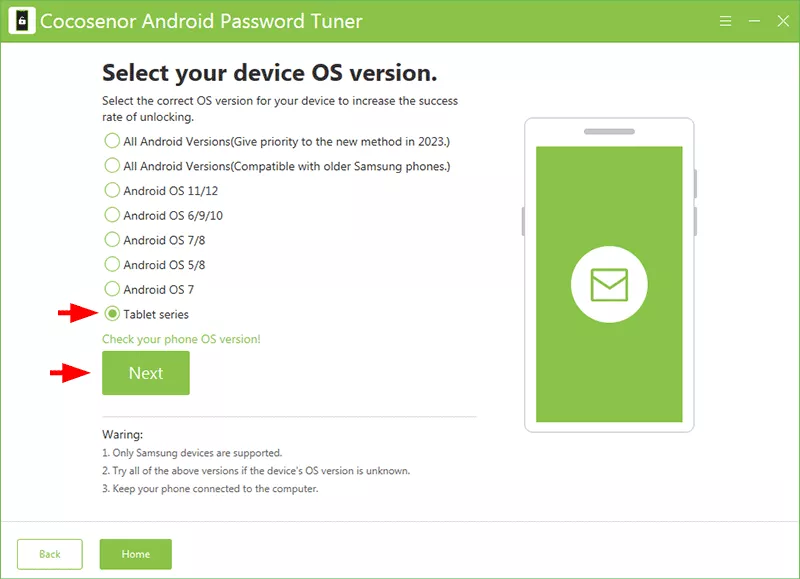
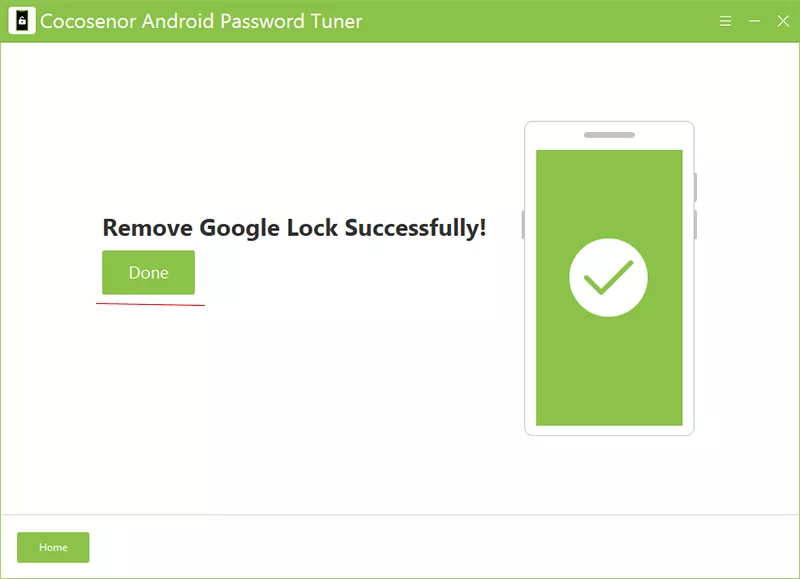
Step 5: The FRP lock is bypassed. And you can complete the setup screen as normal — the Google account prompt will no longer appear.
Troubleshooting Common Problems on Samsung Tablet FRP Bypass
Problem 1: Tablet is not detected by the computer
You can switch to a different USB cable or port, enable USB debugging if the tablet allows access to Settings, and confirm the correct USB drivers are installed.
Problem 2: Tool gets stuck mid-process
Restart the tablet, reconnect the cable, and run the bypass again. Avoid disconnecting the device while a progress bar is active.
Problem 3: Tablet restarts but FRP screen reappears
Confirm the Android version and security patch match a supported combination, then repeat the process using the latest version of the tool.
Problem 4: No Wi-Fi option on the setup screen
Try connecting via a mobile hotspot instead, since some carrier-locked units restrict the initial Wi-Fi list.
FAQs on Samsung Tablet FRP Bypass
Q1: Will bypassing FRP delete my files?
Software-based methods like Android Password Tuner typically involve a reset, which clears locally stored data. Signing back in with the original account is the only method that preserves existing files.
Q2: Is there any way to bypass FRP on a Samsung Tablet without computer?
The Google account recovery method and manual keyboard workaround (on supported older models) do not require a PC. A software-based bypass, however, does need a computer to run.
Q3: How do I know what Android version my tablet is running?
Boot the tablet into recovery mode; the version and security patch details are listed on that screen, which helps confirm compatibility before choosing a method.
Conclusions:
It is frustrating when you encounter a FRP lock on the Samsung Galaxy Tab which you forgot the Google account and password. But here, you can learn the ways to recover the original Google account credentials, or turn to a dedicated tool such as Cocosenor Android Password Tuner when neither approach works.