


How to Fix This Device Isn’t Play Protect Certified Error
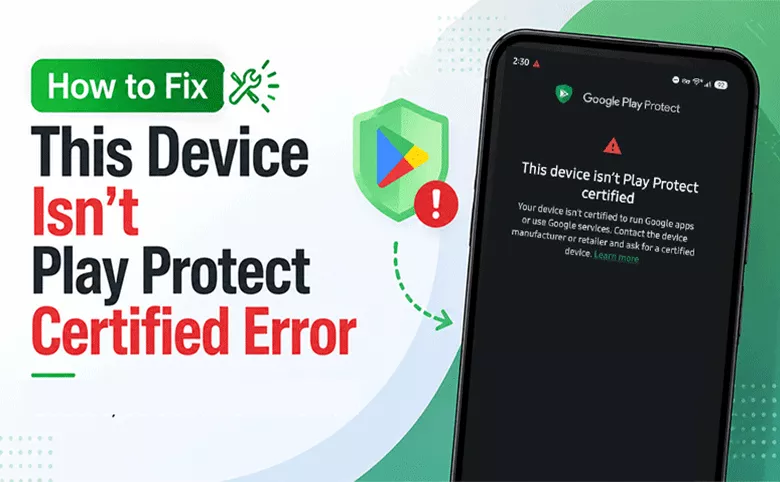
My Samsung Galaxy got this error prompt constantly: This device isn’t play protect certified. What’s the fix?
Many users complain that they are experiencing the same notification with Google Play Protect on Samsung phones. This issue usually prevents you from downloading apps from the Google Play Store or using certain Google services properly. Luckily, in this guide, you’ll learn the most effective ways to fix the Play Protect certification error on Samsung phones quickly and safely.
- Fix Samsung Play Protect Certified Error
- What Does “Device Isn’t Play Protect Certified” Mean?
- How to Check If Your Samsung Is Play Protect Certified
- Easy Fixes for Samsung Play Protect Certification Error
- FAQs on Play Protect Certification Error
What Does “Device Isn’t Play Protect Certified” Mean?
Google Play Protect certification confirms that your Android device meets Google’s security and compatibility requirements. When your Samsung phone loses certification, you may experience:
- Google Play Store errors
- Apps not downloading or updating
- Banking apps refusing to work
- Google Wallet issues
- Netflix or streaming apps disappearing
- Safety warnings from Google
This error commonly happens after flashing custom ROM, rooting the device, installing unofficial firmware, system corruption, failed software updates, or factory resetting modified devices.
How to Check If Your Samsung Is Play Protect Certified
Before fixing the issue, you can follow the steps below to check play protect certification status:
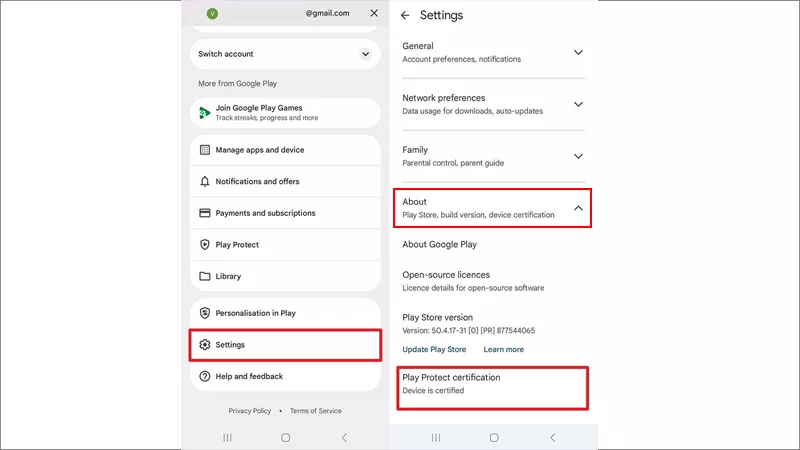
Step 1: Unlock your Samsung phone and tap the Google Play Store icon on the home screen.
Step 2: Tap your profile picture and choose the Settings option.
Step 3: Go to the About section and expand it. Now you can see the Play Protect certification settings: Device is certified or Device is not certified.
Note: You can also check if your device is on the list of certified devices here.
Easy Fixes for Samsung Play Protect Certification Error
Fix 1: Clear Cache in Google Play Store and Google Play Services
The corrupted cache is one of the most common causes for this frustrated play protect notification. You can clear cache and data in Google Play Store and Google Play Services resolve this error.
Step 1: Open Settings on your Samsung and tap Apps & notifications > See all apps.
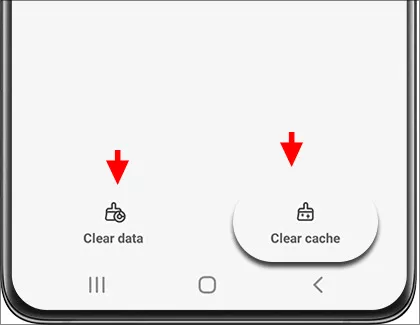
Step 2: Choose Google Play Store and tap Storage. After that, tap Clear Cache and Clear Data.
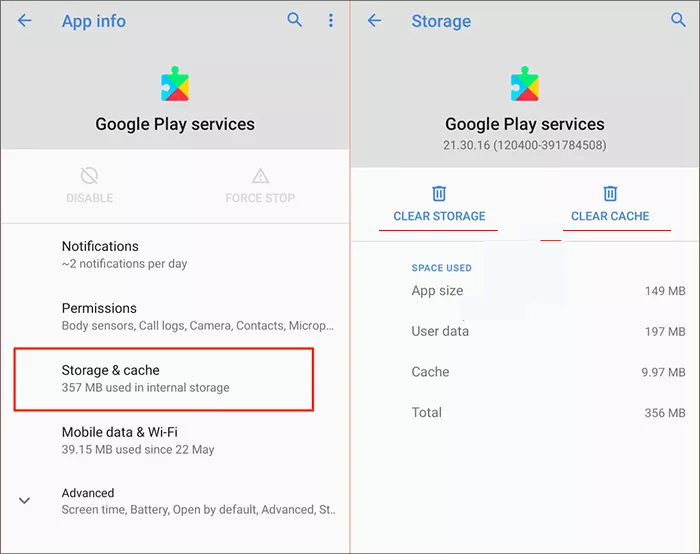
Step 3: Go back to the Apps screen and choose Google Play Services.
Step 4: Select Storage & cache and tap Clear Cache. Then choose Clear storage and tap Clear all data. Afterwards, restart your Samsung phone. Wait several minutes after rebooting because Google services may take time to resync. Then reopen the Play Store and check certification again.
Fix 2: Remove and Re-Add Your Google Account
A syncing issue with your Google account can also trigger certification problems.
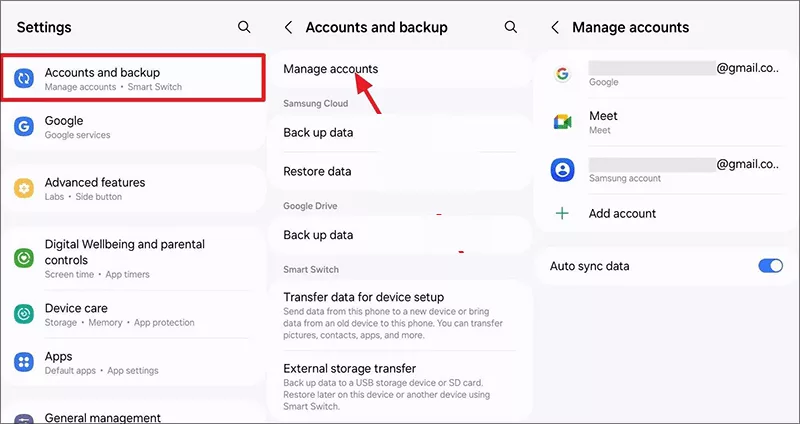
Step 1: Open Settings and tap Accounts and Backup.
Step 2: Select Manage Accounts and choose your Google account.
Step 3: Tap Remove Account and restart the device.
Step 4: Add your Google account again. Then check the Play Store certification status.
Fix 3: Update Samsung Software
Outdated firmware may conflict with Google certification requirements.
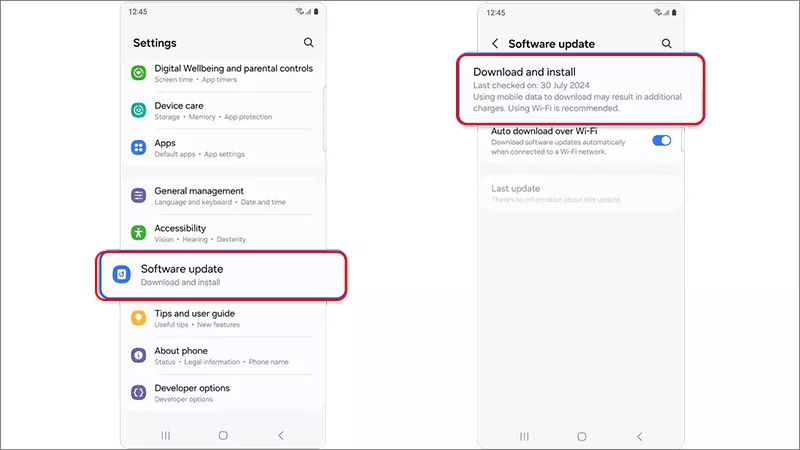
Step 1: Access Settings > Software Update.
Step 2: Tap Download and Install. If there is available update, click Install Now to update the firmware.
Step 3: After updating, restart your Samsung device.
Fix 4: Update Google Play Service
The outdated service will trigger the combability issues, which will lead to the Play Protect Certification error. You need to make sure the Google Play Service is up to date.
Step 1: Open your Samsung phone and tap Settings.
Step 2: Tap your profile picture and choose All services.
Step 3: Go to Privacy & Security option and choose it. After that, tap System services> Google Play services.
Step 4: Tap Update or Install if there is available update.
Fix 5: Disable Root Access (If Rooted)
If your Samsung device is rooted, Google may automatically mark it as uncertified.
You may need to unroot the device, restore stock firmware, hide root using Magisk and relock the bootloader. Rooted devices commonly fail Google SafetyNet and Play Protect verification.
Fix 6: Register Your Device Manually With Google
If your Samsung phone uses custom firmware, manual registration may help.
Step 1: Get Your Google Service Framework (GSF) ID. You can use apps like Device ID or DRM Info to find your GSF ID.
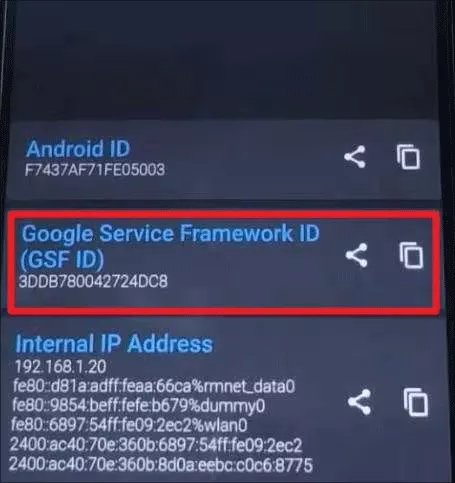
Step 2: Register the Device. Visit Google’s Android certification page and register your GSF ID.
Step 3: After registration, restart the phone. Then wait several hours and recheck Play Protect certification.
Fix 7: Repair Firmware Issue with Cocosenor Android Repair Tuner
If the issue started after flashing ROMs or modifying the system, there might be problems in the system firmware itself. Here, Cocosenor Android Repair Tuner can help you reinstall and fix the Samsung system issues without manually flashing firmware. It is easy to get your Samsung phone back to normal in simple clicks.
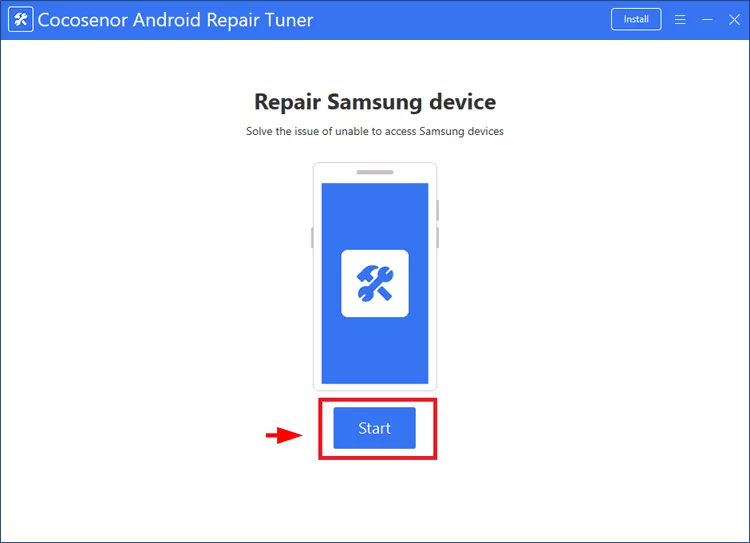
Step 1: Open Cocosenor Android Repair Tuner and click the Start button.
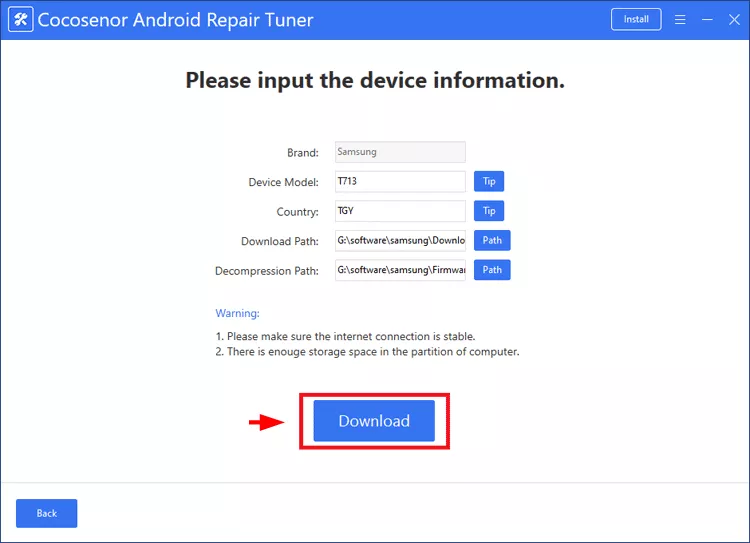
Step 2: Input your Samsung phone model and country. Meanwhile, choose the location to save the downloaded firmware package. After that, hit the Download button.
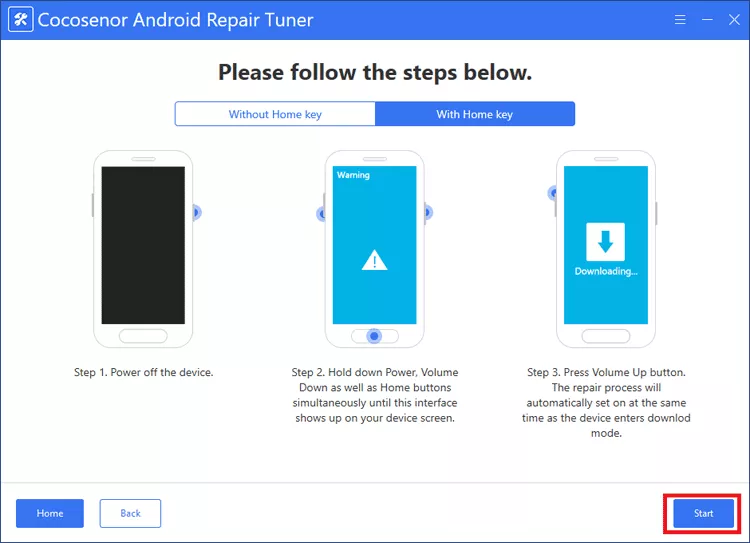
Step 3: Follow the instructions to put your phone into Download mode. After that, hit the Start button to fix the firmware issue.
FAQs on Play Protect Certification Error
1. Why did my Samsung suddenly lose Play Protect certification?
This usually happens after system modifications, rooting, failed updates, corrupted Google Play Services, or installing unofficial firmware.
2. Can uncertified devices still use Google Play Store?
Sometimes partially, but many apps and Google services may stop working correctly.
3. My device is certified but I still receive the notification—This device isn’t play protect certified, what to do?
You can access Settings and tap your profile picture. Go down to the bottom and you can see the Give feedback option. Tap this option and feedback your experience to Samsung support team.
Final Thoughts
The “This device isn’t Play Protect certified” error on Samsung can look serious, but it’s often fixable using simple troubleshooting methods like clearing Play Store data, updating software, or restoring official firmware.
With the fixes above, your Samsung phone should regain Play Protect certification and work normally again.



