


Easy Flashing Enable ADB Failed? 5 Fixes and a Reliable Alternative
You plug your Samsung phone into the PC, start Easy Flashing FRP Bypass, and partway through the process the tool stops with "Enable ADB Failed". The phone is still locked, and the tool gives you no clue what went wrong.
This is one of the most common errors with Easy Flashing and similar Samsung FRP tools, and it usually has one of a handful of causes. This guide explains what the error means, walks through the fixes in the order you should try them, and covers what to do when the tool simply cannot get past it.
- Contents
- What "Enable ADB Failed" Actually Means
- Quick Diagnosis
- Fix Easy Flashing Enable ADB Failed: 5 Non-Destructive Fixes
- Alternative Method to Bypass FRP: Use Cocosenor Android Password Tuner
- How to Troubleshoot the Problem on Your Phone
- Tips to Avoid the Error Next Time
- FAQs on Easy Flashing Enable ADB Failed
What "Enable ADB Failed" Actually Means
ADB (Android Debug Bridge) is the channel a PC uses to send commands to an Android phone. Many FRP tools need that channel open before they can continue. "Enable ADB Failed" means the tool tried to open it and either could not reach the phone or was refused.
The most common reasons are:
- • Unstable USB connection. Charge-only cables, worn ports and USB hubs can drop the connection mid-handshake.
- • Missing or incorrect drivers. If Windows does not recognize the phone properly, the tool cannot talk to it.
- • Unapproved debugging prompt. If a USB debugging authorization prompt appears and you do not tap Allow, ADB stays blocked.
- • Newer Android security. Recent Android versions (Android 13 and later in particular) and security patches restrict automatic ADB activation, which can break methods that worked on older builds.
- • Outdated or damaged tool install. An old build or a corrupted download can fail even when everything else is fine.
Quick Diagnosis
Match what you see to the most likely cause before you start changing things.
| What you see | Likely cause | Start with |
|---|---|---|
| Phone not detected by the PC at all | Cable, port or driver problem | Fix 1 and Fix 2 |
| Phone detected, then the connection drops | Unstable cable or USB hub | Fix 1 |
| A prompt appears on the phone and the tool fails | Debugging not authorized | Fix 3 |
| Tool crashes or behaves oddly | Outdated or corrupted install | Fix 4 |
| Everything looks fine but it still fails | Firmware blocks the method | Fix 5, then the alternative |
Fix Easy Flashing Enable ADB Failed: 5 Non-Destructive Fixes
Try these in order. None of them erase data or change the phone's software.
Fix 1: Replace the cable and change the USB port
Use the original Samsung cable or another cable you know supports data transfer. Many cheap cables only charge.
Step 1: Plug directly into a USB port on the PC. On a desktop, use a rear motherboard port rather than a front panel or hub.
Step 2: Try a USB 2.0 port if you have one; older ports are sometimes more stable with flashing tools.
Step 3: Reconnect the phone and run the tool again.
Fix 2: Install the Samsung USB driver
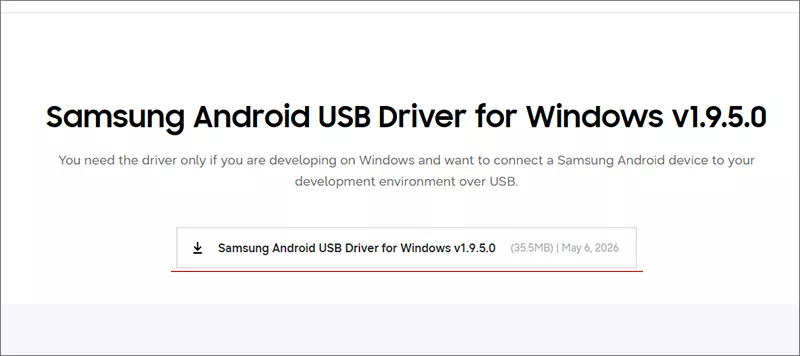
Step 1: Download the official Samsung USB driver for Windows and install it. Restart the PC after installation.
Step 2: Open Device Manager with the phone connected. If it shows up under an unknown device or with a warning icon, the driver is not applied correctly; unplug, reinstall the driver and reconnect.
Fix 3: Approve the debugging prompt on the phone
Watch the phone screen while the tool runs. If a prompt asks you to allow USB debugging or trust the computer, tap Allow immediately. The prompt can disappear quickly, and if you miss it ADB stays blocked. Unplug the phone, reconnect it and start again so the prompt reappears.
Fix 4: Reinstall the latest version of the tool
Step 1: Close Easy Flashing and temporarily pause antivirus software if it is quarantining files, since security tools often flag FRP utilities.
Step 2: Delete the old install and download the latest version.
Step 3: Run it as administrator and try again.
Note:
Only download from the official source, and scan the file. Unofficial mirrors of bypass tools are a common way to spread malware.
Fix 5: Restart both devices and retry from a clean state
Step 1: Restart the phone and the PC.
Step 2: Get the phone to the screen the tool expects (for example the Wi-Fi or Welcome screen) and connect it to Wi-Fi.
Step 3: Close other phone-management software such as Smart Switch, which can grab the USB connection.
Step 4: Connect the phone and run the tool once.
Alternative Method to Bypass FRP: Use Cocosenor Android Password Tuner
If you have tried all five fixes and the connection is stable, the block is probably in the phone's firmware. Newer Android versions and security patches can stop older bypass techniques from working, so no amount of reinstalling will change the result. In that case, switch to a tool that uses a different approach.
When Easy Flashing keeps failing, a dedicated Android unlock tool is the practical next step. Cocosenor Android Password Tuner is the well-known Samsung FRP bypass tool which can remove the FRP lock on your Samsung phone without any credentials.
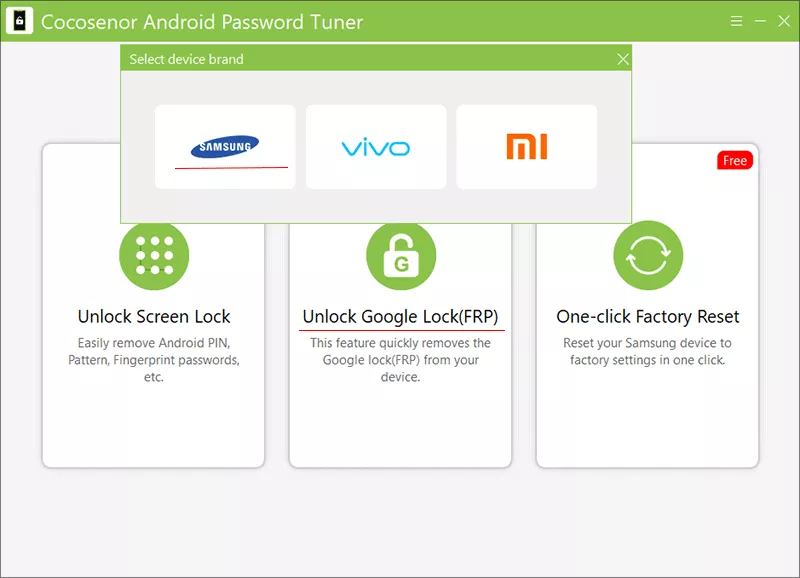
Step 1: Open Cocosenor Android Password Genius and run it. Choose the FRP removal option and select your device brand.
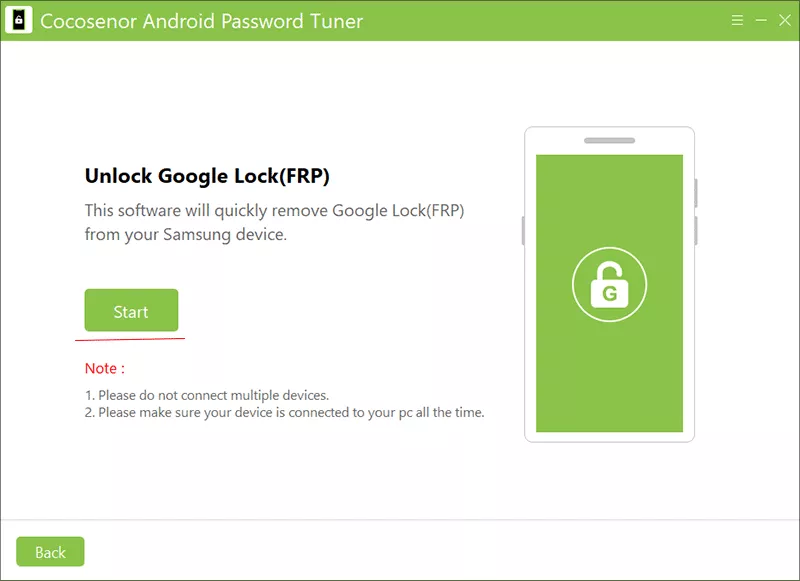
Step 2: Hit the Start button and connect the phone with a good data cable.
Step 3: Select the OS version and follow the on-screen prompts, including any confirmation needed on the phone.
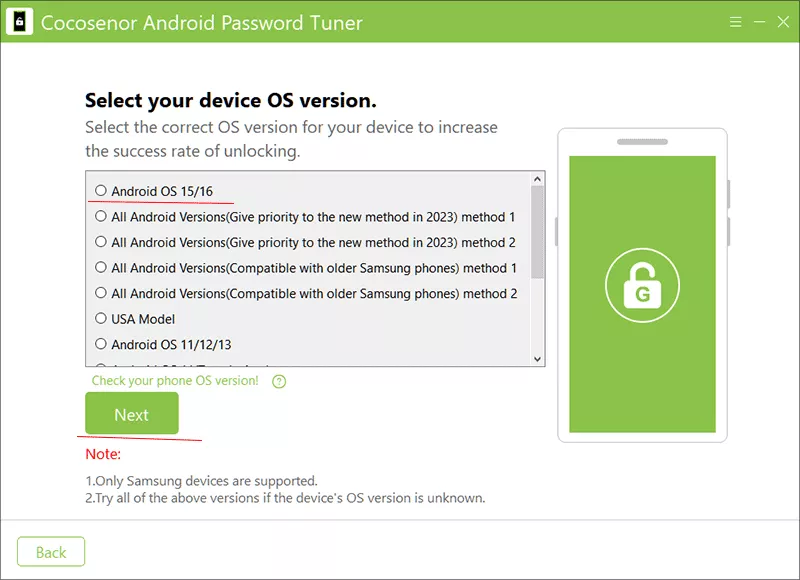
Step 4: Wait for the process to complete, then restart the phone and finish setup with your own Google account.
How to Troubleshoot the Problem on Your Phone
| Problem | Possible Cause | What to Do |
|---|---|---|
| PC does not recognize the phone | Charge-only cable or driver not installed | Get a data cable and install the Samsung USB driver. |
| Connection drops during the process | Hub or loose port | Plug directly into a rear USB port. |
| No prompt appears on the phone | Prompt blocked or already dismissed | Unplug, reconnect, and watch the screen. |
| Tool closes or freezes | Corrupted or outdated install | Reinstall the latest official version as administrator. |
| Antivirus deletes tool files | False positive on FRP utilities | Reinstall from the official source and add an exclusion only if you trust the file. |
| Fails on every attempt | Firmware blocks the method | Use an alternative such as Android Password Tuner. |
Tips to Avoid the Error Next Time
- • Keep a known-good data cable dedicated to flashing and unlocking tasks.
- • Use one PC with drivers already installed rather than switching machines.
- • Close Smart Switch and other phone managers before you start.
- • Check the tool's supported Android versions before you begin, and note your phone's security patch level.
- • Download tools only from official sources.
FAQs on Easy Flashing Enable ADB Failed
Q1: What does "Enable ADB Failed" mean in Easy Flashing?
It means the tool could not switch on or reach the Android Debug Bridge (ADB) interface on your Samsung phone. The usual causes are a poor USB connection, missing or wrong drivers, an unapproved debugging prompt on the phone, or newer Android security that blocks the method the tool uses.
Q2: Why does Easy Flashing Enable ADB Failed happen more on newer Samsung phones?
Recent Android versions and security patches restrict automatic ADB activation and often require manual authorization on the device. Older bypass techniques can stop working after an update, so the same tool version may succeed on one phone and fail on another.
Q3: Can a bad USB cable cause Enable ADB Failed?
Yes. Charge-only or low-quality cables, worn ports and USB hubs can drop the data connection during the handshake. Use an original or known-good data cable and connect directly to a rear USB port on a desktop PC.
Q4: Do I need to reinstall Easy Flashing to fix the error?
Not always. Try the cable, port, driver and authorization checks first. If the error persists, reinstalling the latest version can rule out a corrupted install, but it will not help if the phone's firmware blocks the method.
Q5: What can I do if Easy Flashing keeps failing on my Samsung phone?
If you own the device and the basic fixes do not work, you can use a dedicated Android FRP removal tool such as Cocosenor Android Password Tuner, which uses a guided process instead of relying on a manual ADB step. Only use it on a device you own or are authorized to unlock.
Conclusions:
"Enable ADB Failed" in Easy Flashing is usually a connection, driver or authorization problem you can fix in a few minutes. First check the cable and USB port. Then verify the Samsung USB driver and respond to prompts on your phone. If the problem remains, clean-reinstall the driver.
If the error survives all of that, the phone's firmware is most likely blocking the method, and a guided tool such as Cocosenor Android Password Tuner is the more reliable route. Whatever you use, only unlock devices you own or have permission to unlock.