


How to Reset a Admin Password on Windows 11 Without USB
Locked out of your Windows 11 local administrator account and don’t have a password reset USB handy? You still have several safe, built-in options — no bootable drive or second PC required for most of them. This guide walks through the free native methods first, then a software fallback for the edge cases where Windows’ own tools fall short.
- Contents
- What You’ll Need
- Method 1: Reset the Password from Another Administrator Account
- Method 2: Reset via Microsoft Account (No Local Password Needed)
- Method 3: Use Safe Mode and the Built-In Administrator Account
- Method 4: Reset the Password from the Recovery Environment Command Prompt
- Method 5: Use Cocosenor Windows Password Tuner (For No Other Admin)
- Common Problems and Solutions in Resetting Windows 11 Password
- FAQs on Resetting Windows 11 Password
What You’ll Need
- 1. A Windows 11 PC that is powered on (even if you can’t log in)
- 2. 5–15 minutes, depending on which method applies to you
- 3. Optional: Cocosenor Windows Password Tuner, only needed if Methods 1–4 don’t apply to your situation (e.g., with no other admin account)
Method 1: Reset the Password from Another Administrator Account
If any other account on the PC has administrator rights, this is the fastest and safest fix — no recovery environment needed.
Step 1: Sign in with the other administrator account.
Step 2: Open Control Panel > User Accounts > Manage another account.
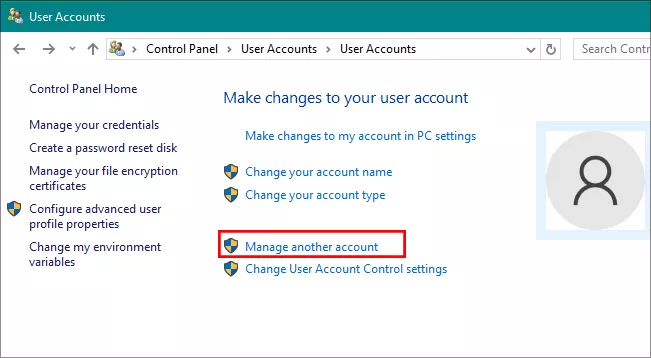
Step 3: Select the locked account, then choose to change or remove its password.
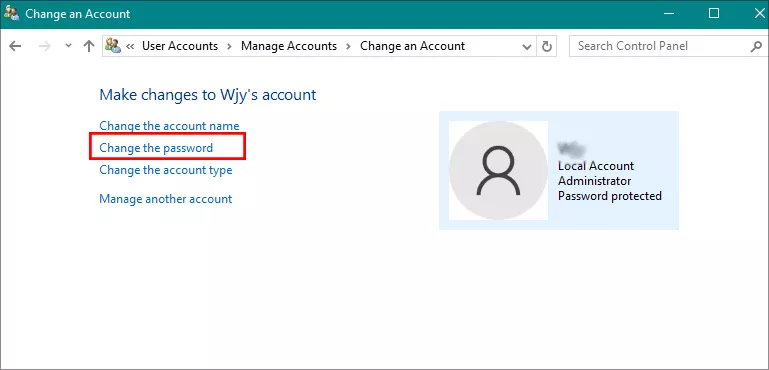
Step 4: Sign out and log back in to the previously locked account with the new password.
Method 2: Reset via Microsoft Account (No Local Password Needed)
If your Windows 11 sign-in is a Microsoft account rather than a local account, you don’t need any of the recovery-environment steps below — you can reset it online from any device.
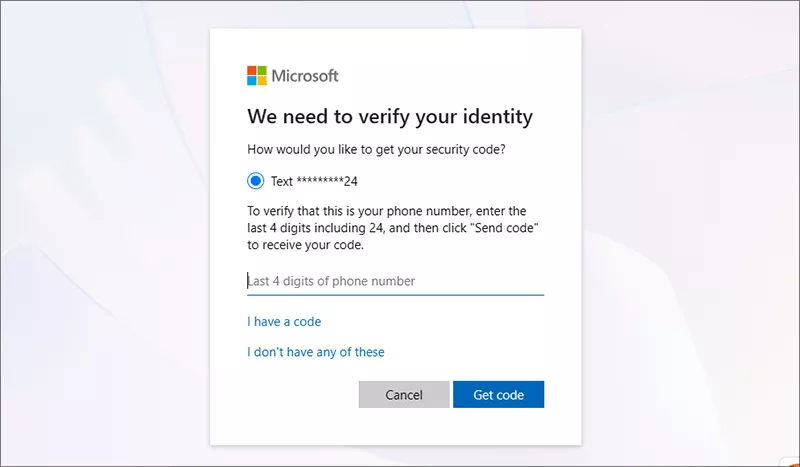
Step 1: On another device (phone, tablet, or another PC), go to account.live.com/password/reset.
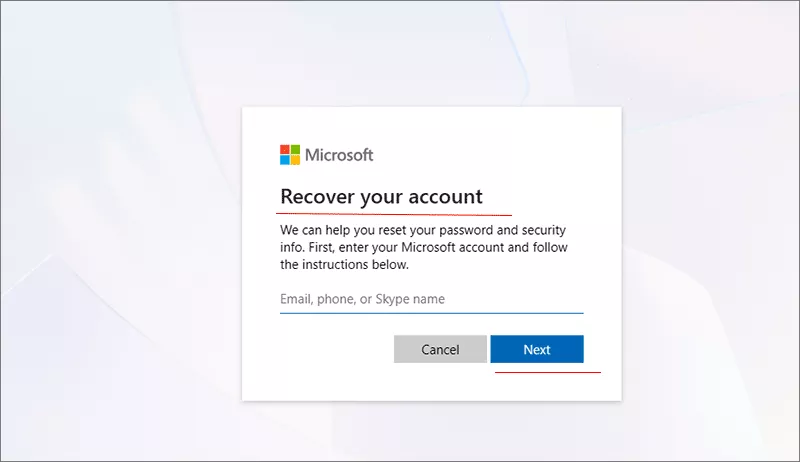
Step 2: Verify your identity using your recovery email, phone number, or authenticator app. Set a new password, then use it to sign back in on the locked PC.
Method 3: Use Safe Mode and the Built-In Administrator Account
Windows 11 includes a hidden built-in Administrator account that is disabled by default but can be enabled from Safe Mode to reset any local account’s password — no installation media required.
Step 1: At the sign-in screen, hold Shift and select Restart.
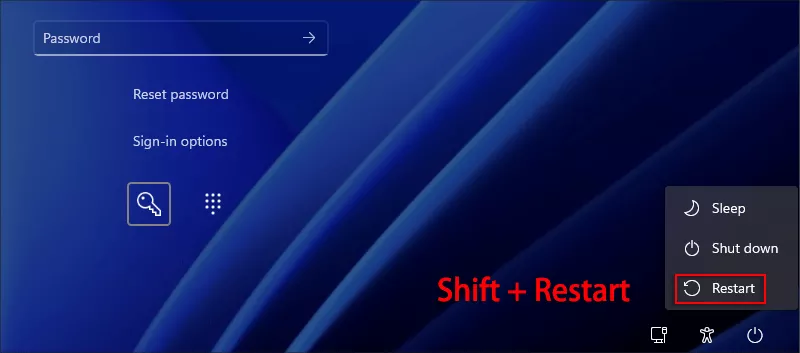
Step 2: Windows boots into the recovery environment. Select Troubleshoot → Advanced options → Startup Settings → Restart.
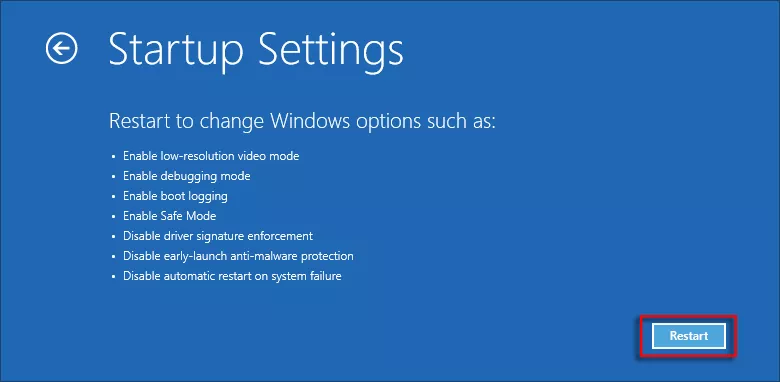
Step 3: When the PC restarts, press 4 (or F4) for Safe Mode, or 5 (F5) for Safe Mode with Networking.
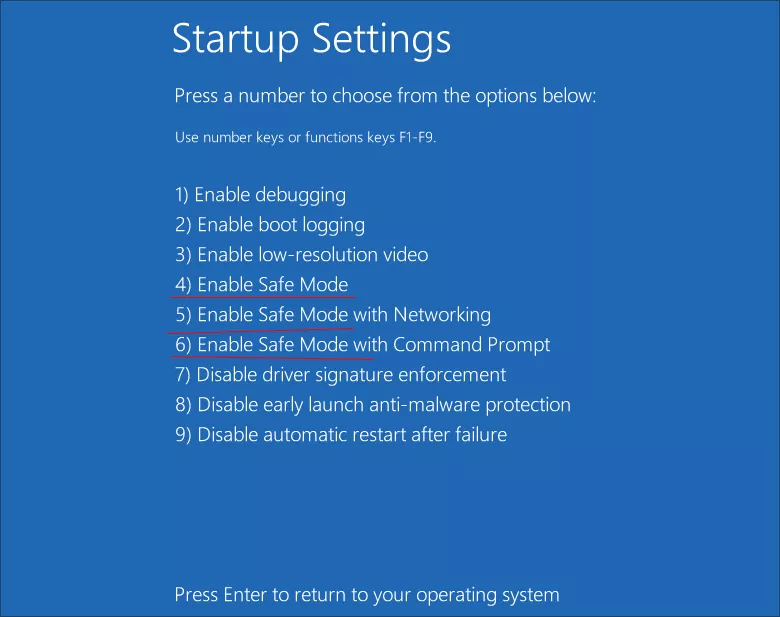
Step 4: Once in Safe Mode, sign in with the built-in Administrator account if it’s already enabled and blank (try username "Administrator" with no password).
Step 5: If it isn’t enabled yet, sign in with any available local admin account, then open Command Prompt as administrator and run: net user administrator /active:yes.
Step 6: Restart into Safe Mode again, sign in as Administrator, then run net user [your account name] [new password] to reset the locked account.
Step 7: Restart normally and sign in with the new password.
Tip: after you’re back in, it’s good practice to disable the built-in Administrator account again with net user administrator /active:no.
Method 4: Reset the Password from the Recovery Environment Command Prompt
This method skips Safe Mode entirely and works directly from the Windows Recovery Environment (WinRE), which is accessible on any Windows 11 PC without extra media.
Step 1: From the sign-in screen, hold Shift and select Restart to enter WinRE.
Step 2: Choose Troubleshoot > Advanced options> Command Prompt.
Step 3: In the Command Prompt window, run: net user [account name] [new password].

Step 4: Close the window, select Continue, and sign in with the new password. If Command Prompt reports the account can’t be found or access is denied, see Method 5.
Method 5: Use Cocosenor Windows Password Tuner (For No Other Admin)
If Methods 1–4 don’t apply — for example, there’s no other admin account and the built-in Administrator route fails — Cocosenor Windows Password Tuner can reset the password from a bootable environment it creates for you, without wiping your files.
Step 1: On any other accessible computer, download and install Cocosenor Windows Password Tuner.
Step 2: Insert a USB drive or blank CD/DVD into that computer, open the program, and select your option.
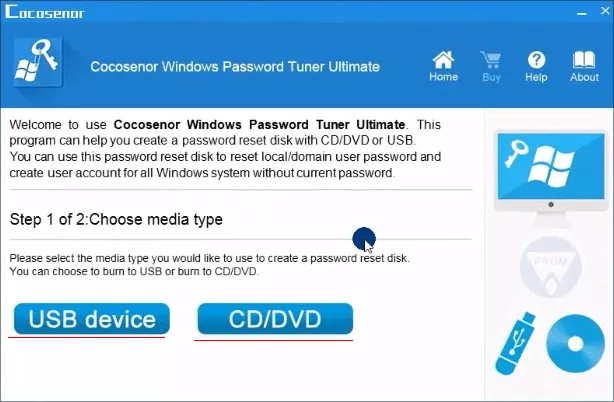
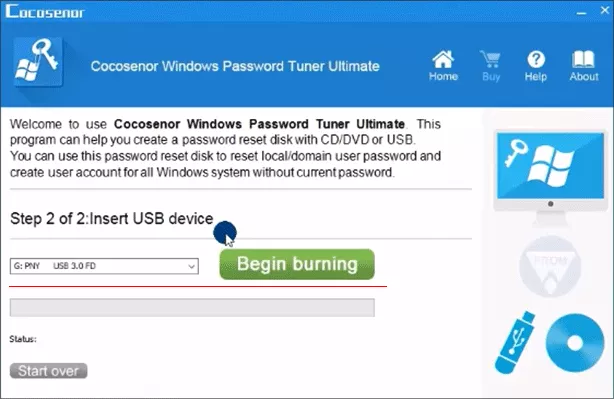
Step 3: Choose your media and click Begin Burning to create the bootable password-reset media.
Step 4: Insert the media into the locked Windows 11 PC and boot from it (press the boot-menu key during startup, commonly F12, Esc, or Del).
Step 5: Select the locked user account, click Reset Password, then confirm.
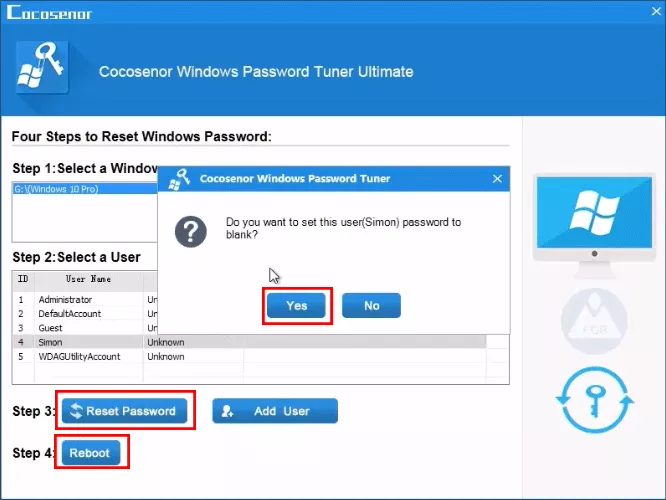
Step 6: Reboot, remove the media, and sign in without a password (or set a new one from Settings once logged in).
Note:
This method still requires removable media at the burning step — it’s included here because it’s the most reliable fallback when the no-USB methods above are blocked by account restrictions, not because it’s literally USB-free.
Common Problems and Solutions in Resetting Windows 11 Password
| Problem | Likely Cause | Fix |
|---|---|---|
"Access is denied" running net user
|
Account is a Microsoft account, not local | Use Method 2 instead. |
| Built-in Administrator account won’t enable | Command not run with elevated rights | Confirm you opened Command Prompt as administrator. |
| Command Prompt option missing from Advanced options | Group policy restriction, common on managed or work PCs | Contact your IT department — this restriction is often intentional. |
| Drive is BitLocker-encrypted and account can’t be found | WinRE can’t read an encrypted volume without the recovery key | Use Method 5, or locate your BitLocker recovery key. |
| No boot-menu key works to boot from USB | Boot order or Secure Boot settings are blocking USB startup |
Enter BIOS/UEFI setup, often by pressing Del or F2 at startup, and enable booting from removable media.
|
FAQs on Resetting Windows 11 Password
Q1: Can I reset a Windows 11 password without losing my files?
Yes. All five methods above reset only the account password — they don’t touch personal files, apps, or settings. Data loss risk only appears if you later choose "Reset this PC → Remove everything," which isn’t required for a password reset.
Q2: Does this work if my Windows 11 account is a Microsoft account instead of local?
Yes — use Method 2. Microsoft account passwords are reset online through account.live.com and don’t involve the recovery environment at all.
Q3: What if there’s no other administrator account on the PC?
Safe Mode’s built-in Administrator account (Method 3) is designed for exactly this case. If that’s blocked by BitLocker encryption, Cocosenor Windows Password Tuner (Method 5) is the most reliable fallback.
Q4: Is it safe to enable the hidden built-in Administrator account?
It’s safe temporarily for recovery purposes. Disable it again afterward with net user administrator /active:no so it isn’t left as an open account.
Q5: Why does Command Prompt say the account doesn’t exist?
This typically means the drive is BitLocker-encrypted and the recovery environment can’t read the account database. Locate your BitLocker recovery key, or use Method 5.
Conclusion
Most Windows 11 lockouts don't need a USB drive to fix — another admin account, a Microsoft account reset, or Safe Mode's built-in Administrator will get you back in for free. Save Cocosenor Windows Password Tuner for the tougher cases, like no other admin accounts. Either way, set up a PIN or Windows Hello afterward so you don't end up locked out again.