


Forgot Microsoft Account Password and PIN? How to Unlock Windows 11
Have you forgotten both your Microsoft account password and your Windows 11 PIN? If so, you may be unable to sign in to your computer, leaving you locked out of important files and applications. The good news is that forgetting your password and PIN doesn't necessarily mean you've lost access to your PC forever. Windows 11 provides several recovery options, and there are additional methods that can help you regain access if the built-in solutions don't work.
In this guide, you'll learn why this happens and discover several effective ways to unlock a Windows 11 computer after locking out when forgetting your Microsoft account password and PIN.
- Contents
- Why Can't You Sign In to Windows 11?
- Method 1: Reset Your Microsoft Account Password Online
- Method 2: Create New Administrator Account to Unlock Windows 11 via Command
- Method 3: Unlock Windows 11 with Cocosenor Windows Password Tuner
- FAQs on Forgetting both Microsoft Account and PIN
Why Can't You Sign In to Windows 11?
Although your Microsoft account password and Windows Hello PIN are both used to sign in, they work differently. Microsoft account password authenticates your online Microsoft account, while Windows Hello PIN is stored locally on your device and is unique to that PC. If you forget both, Windows cannot verify your identity, preventing you from signing in.
Method 1: Reset Your Microsoft Account Password Online
If you've forgotten your Microsoft account password, Microsoft allows you to reset it online. With the Microsoft account password, you can use the "I Forgot My PIN" option on the Windows 11 login screen to reset the PIN.
Step 1: On another device, visit the Microsoft password reset page.
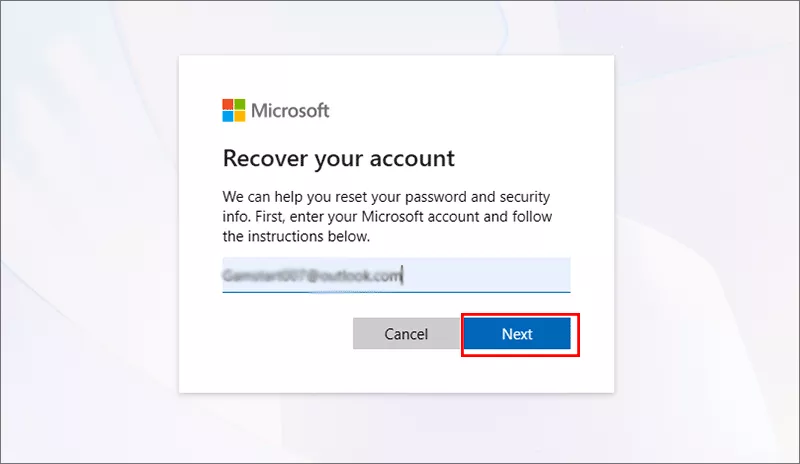
Step 2: Enter your Microsoft account email address. Then complete the identity verification process.
Step 3: Create a new password. And return to your locked Windows 11 PC.
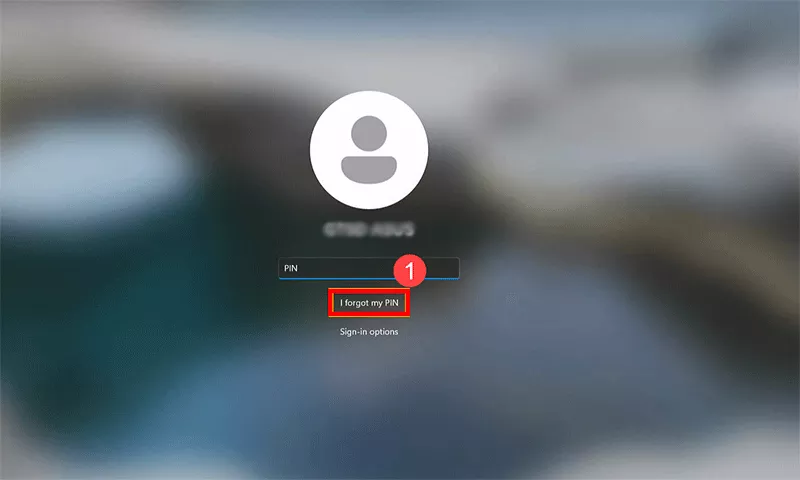
Step 4: Make sure your computer to the internet. Then on Windows login screen, click I forgot my PIN option under the PIN enter box.
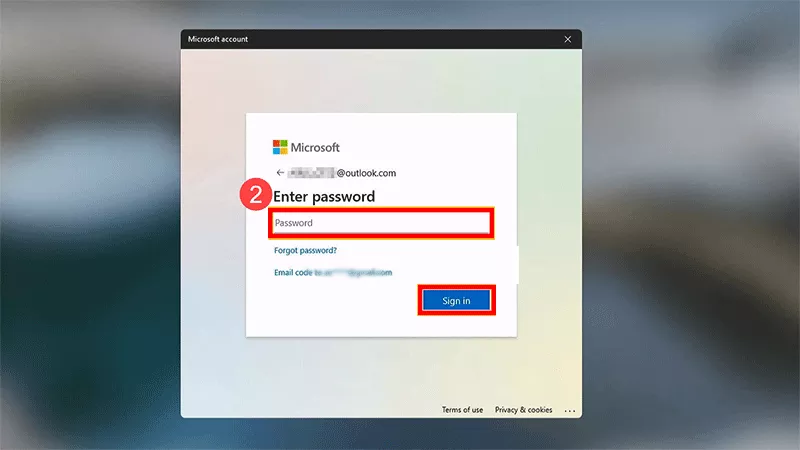
Step 5: Input the new Microsoft account password and hit the Sign-in button.
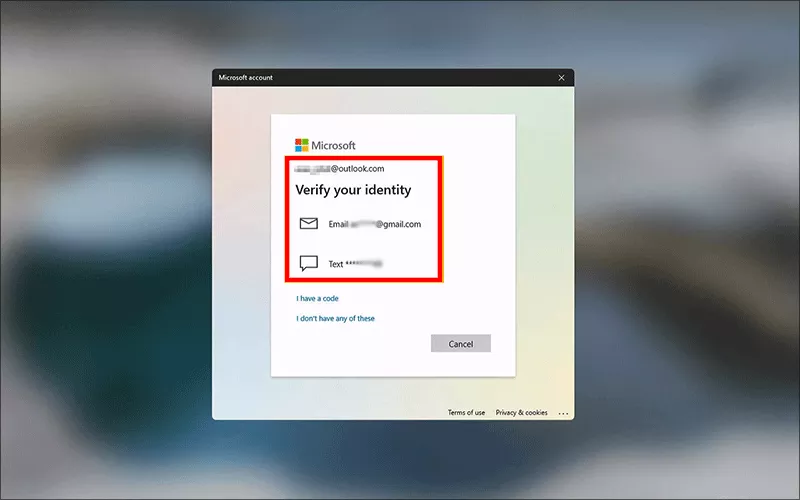
Step 6: Choose a way to verify your identity and follow the onscreen instructions to finish the verification.
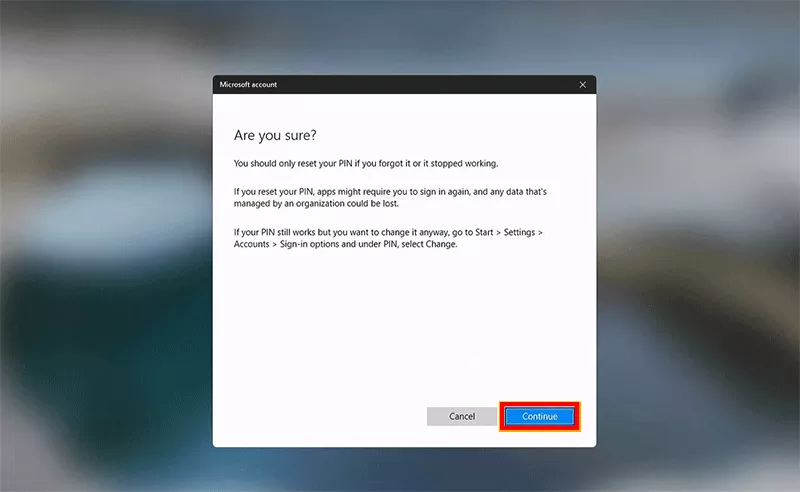
Step 7: Hit the Continue button to make a confirmation.
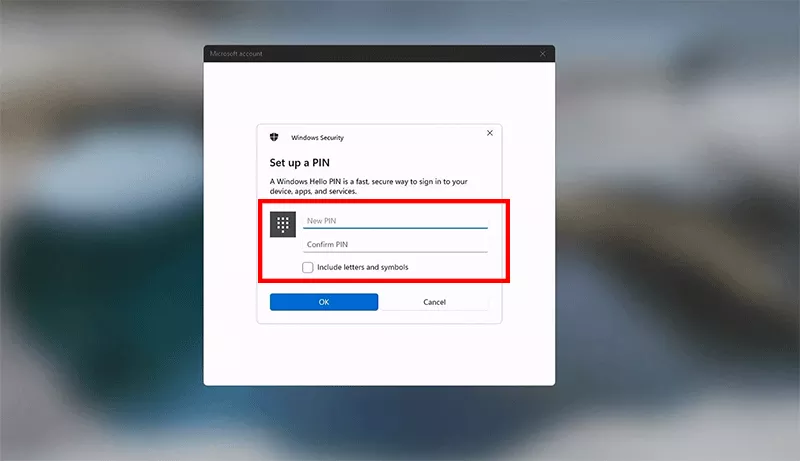
Step 8: Finally, you can set a new PIN and confirm it for your Windows 11 sign-in.
Method 2: Create New Administrator Account to Unlock Windows 11 via Command
If you are stuck in the Google account verification step in resetting PIN process for no linked email or phone number, it is recommended to create a new administrator account to get into your Windows 11. If you are professional in command lines, just go ahead with the below steps. Otherwise, directly go to Method 3.
Step 1: Create the recovery drive in another Windows PC.
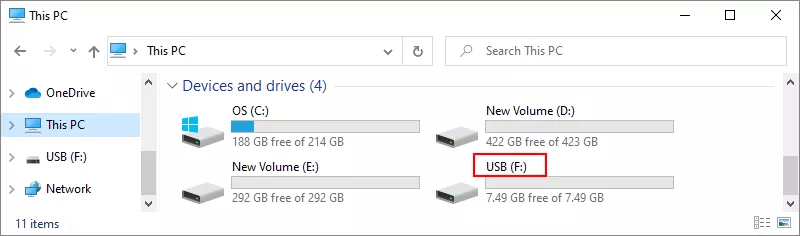
1. Find another working Windows PC and insert a USB drive. Then open This PC and check the letter of your USB drive.
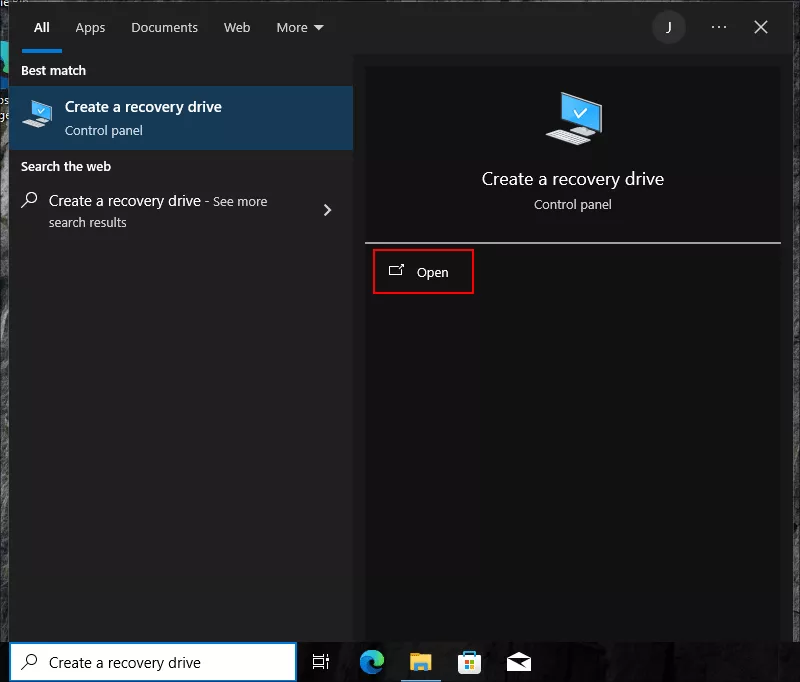
2. Search Create a recovery drive in Windows search box and click to open it.
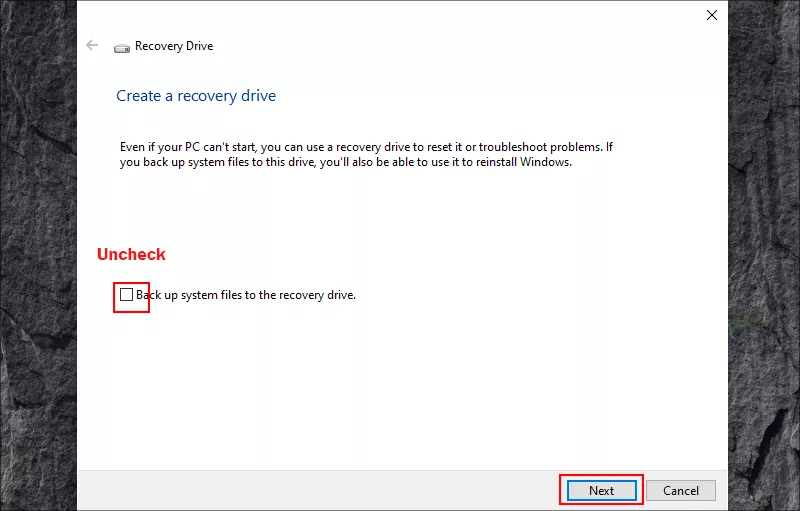
3. Uncheck the option: Back up system files to the recovery drive and click the Next button.
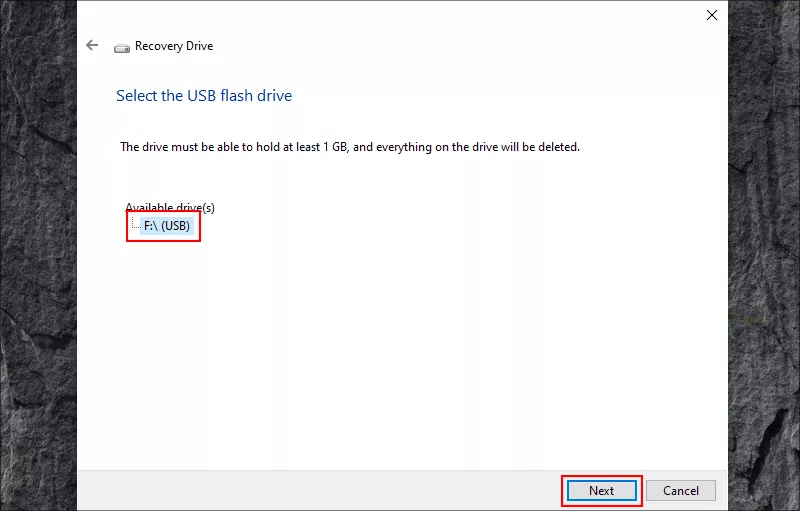
4. Select your USB drive and hit the Next button to continue.
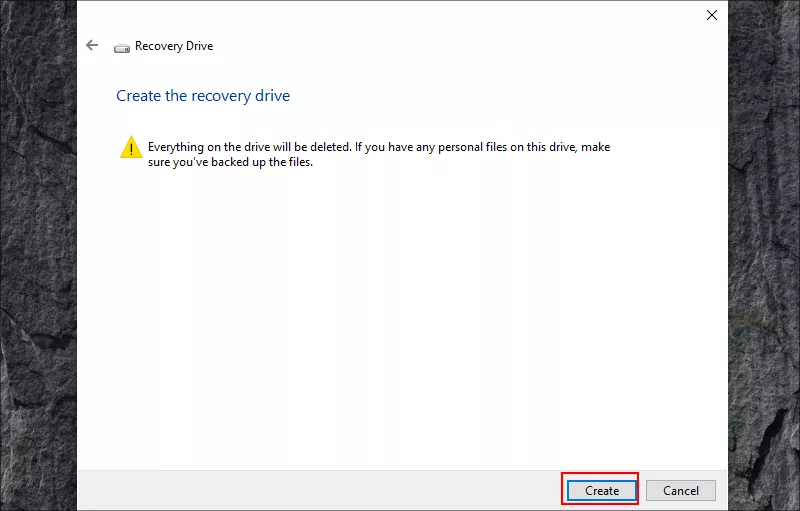
5. Hit the Create button to burn the recovery drive.
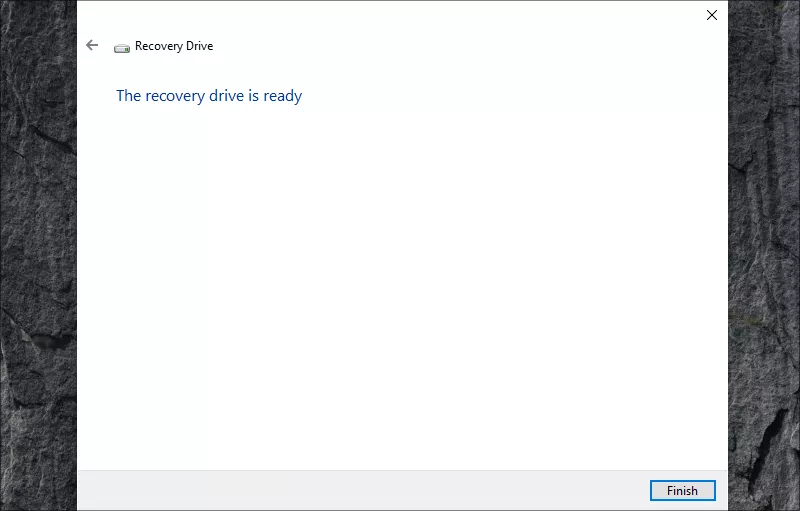
6. The process ends and the recovery drive is ready.
Step 2: Boot the locked Windows 11 into WinPE
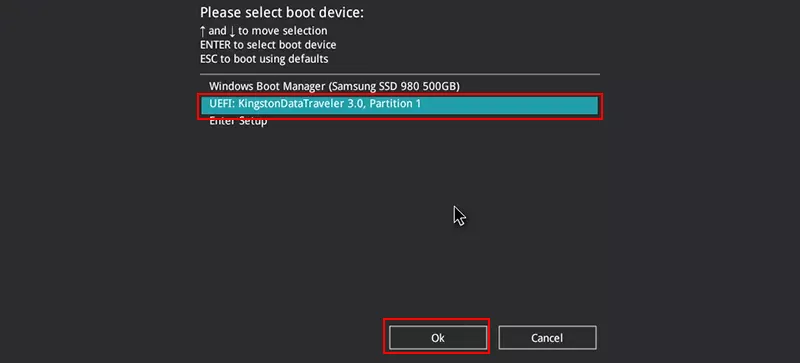
1. Insert the recovery drive into the locked Windows 11. Then press F8 or F12 to access the boot menu. After that, select to boot from USB recovery drive.
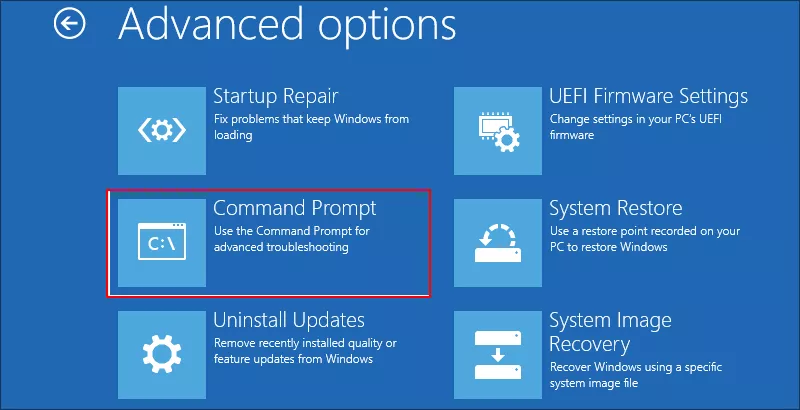
2. Choose your keyboard layout, click the Troubleshoot option and click the Command Prompt to continue.
Step 3: Run command line to replace utilman.exe with cmd.exe
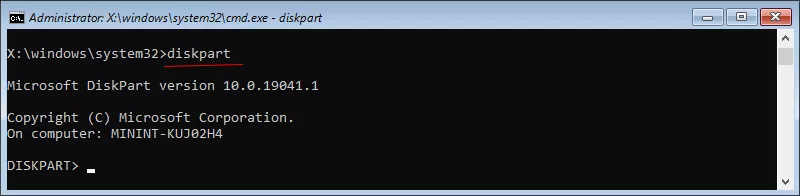
1. In the command prompt, run diskpart to enable diskpart tool.
2. Execute list volume command to check the system partition. Here, C drive is the system partition.
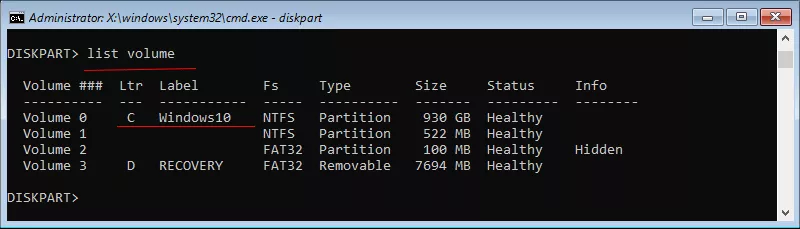
3. Execute exit to close diskpart utility.

4. Execute dir C:\ to check all files under the system drive.
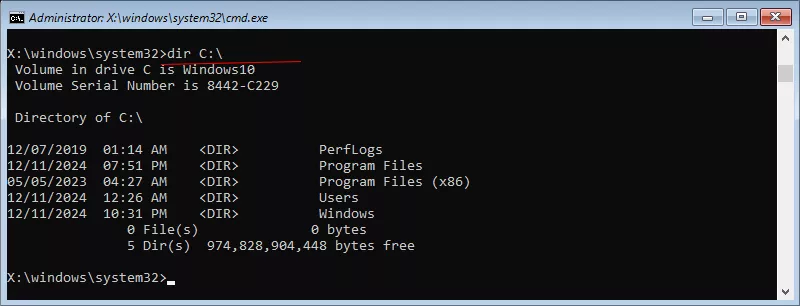
5. Execute move C:\windows\system32\utilman.exe C:\ to move the utilman.exe.

6. Execute copy C:\windows\system32\cmd.exe C:\windows\system32\utilman.exe to replace the utilman.exe with cmd.exe.

7. Execute wpeutil reboot to restart your Windows 11. You should eject the USB drive now.

Step 4: Create new administrator account without logging in
1. On Windows 11 login screen, go to the bottom right corner and click the center icon.

2. Now the Command Prompt appears and you can run the command line: net user to check all user accounts.
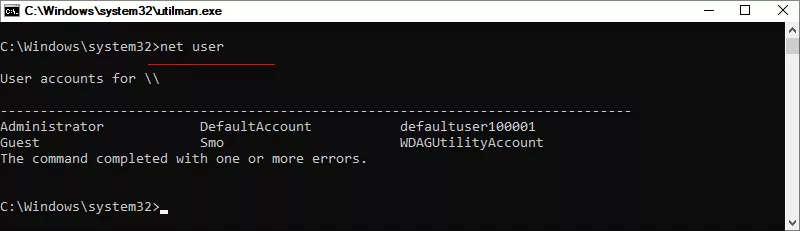
3. Execute net user Renee 123456 /add command line to create a new user account: Name—Renee, Password—123456.

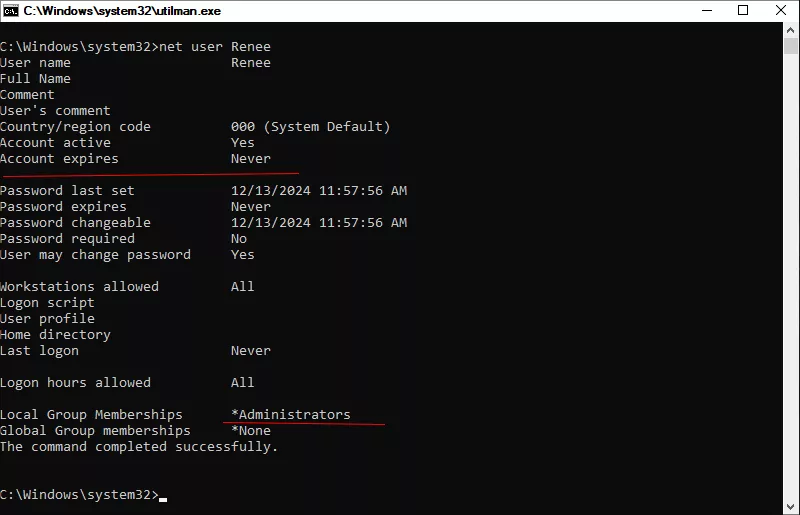
4. Execute net user Renee command to check the details of Renee user account.
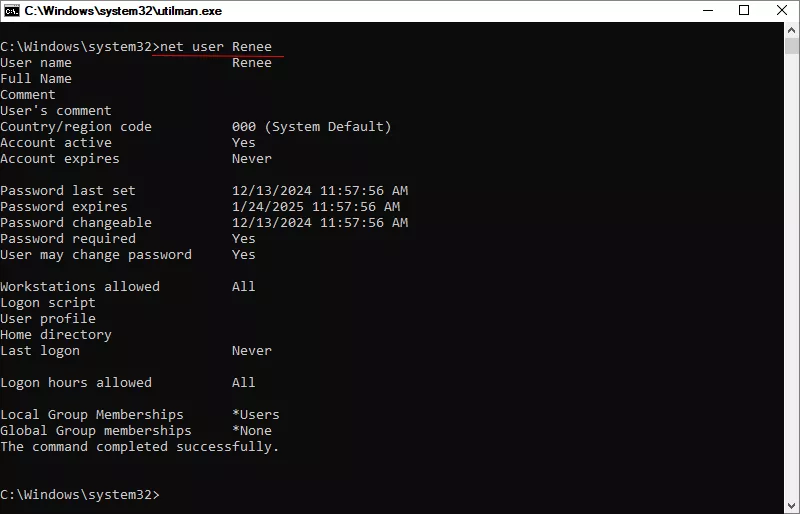
5. Execute net localgroup administrators Renee /add command to apply administrator right to Renee.

6. Execute net localgroup Users Renee /delete command to delete the guest users right for Renee.

7. Execute net user Renee /Passwordreq:no command to set Renee next login with no need to change password.

8. Execute powershell Set-LocalUser -Name "Renee" -PasswordNeverExpires $true command to set Renee password never expire.

9. Execute net user Renee command to check account details of Renee. As you can see, Renee becomes the administrator now.
Step 5: Unlock your windows 11 with new administrator account
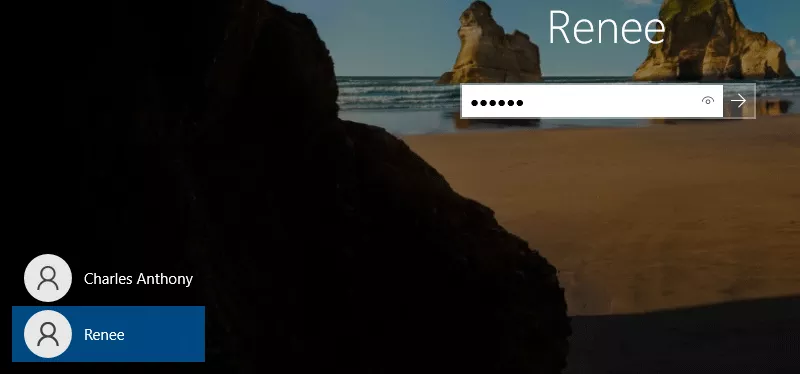
1. Restart your computer normally. In the Windows login screen, select the new administrator account and enter the password to sign in.
2. Minutes later, you can use your Windows 11 as usual. Now open Command Prompt as administrator and retrieve utilman.exe back to its original location with the command line: move C:\utilman.exe C:\windows\system32\utilman.exe.

Method 3: Unlock Windows 11 with Cocosenor Windows Password Tuner
If you've forgotten both your Microsoft account password and PIN and cannot access any administrator account, Cocosenor Windows Password Tuner offers an easy way to create a new administrator account to regain access to your Windows 11 PC. It is much simpler than the command line method.
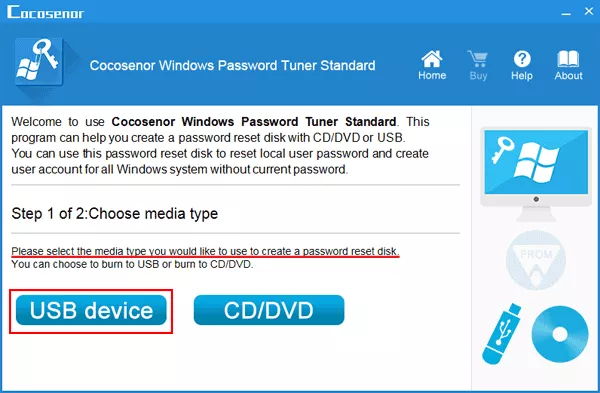
Step 1: Find another accessible computer and get Cocosenor Windows Password Tuner in the computer. Open it and choose the USB device option to create a bootable USB drive.
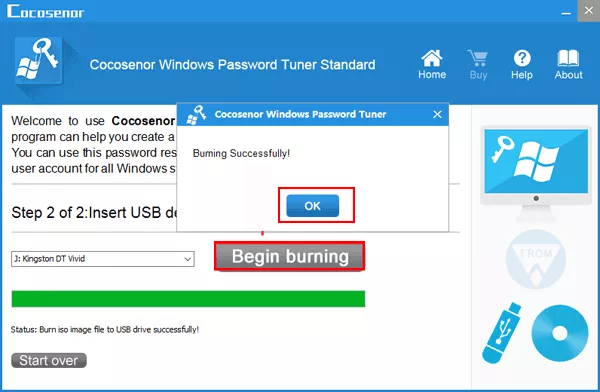
Step 2: Insert a USB drive and select it on the software. Then click the Begin burning button.
Step 3: After the bootable USB is made, insert the USB drive into the locked Windows 11 computer. Press F8/F12 to open boot menu and set to boot from USB drive.
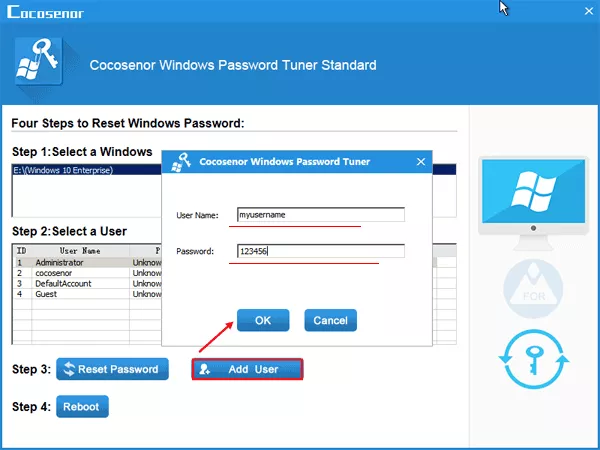
Step 4: Hit the Add user button and set your new user account & password.
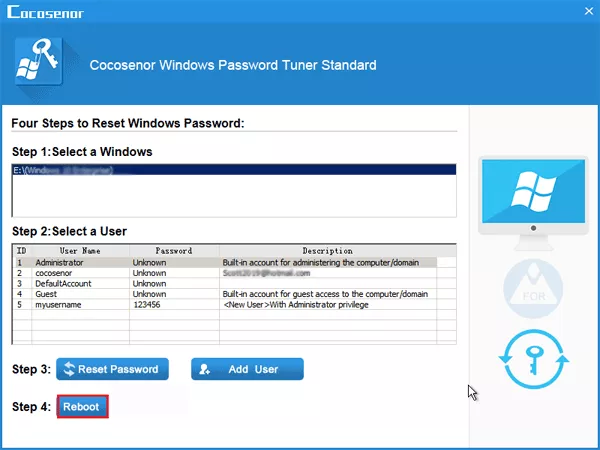
Step 5: Hit the Reboot button and eject the USB drive. On the Windows login screen, switch to your new account and enter the password to unlock. Soon, you can get into the computer again without data loss.
FAQs on Forgetting both Microsoft Account and PIN
Q1: Can I unlock Windows 11 if I forgot both my Microsoft account password and PIN?
Yes. You can first try resetting your Microsoft account password online. If you still can't access your computer, other recovery methods, including administrator accounts, may help.
Q2: Is the Windows Hello PIN the same as my Microsoft account password?
No. Your PIN is stored locally on your device and only works on that specific computer, while your Microsoft account password is used to access Microsoft services across devices.
Q3: Will resetting my Microsoft account password delete my files?
No. Resetting your Microsoft account password doesn't erase files stored on your Windows PC.
Q4: Can I recover my Windows 11 account without reinstalling Windows?
In many cases, yes. Password recovery, PIN reset, or administrator account access, can restore access without reinstalling the operating system.
Final Thoughts
Being locked out of Windows 11 because you've forgotten both your Microsoft account password and Windows Hello PIN can be stressful, but it doesn't always require a factory reset or a fresh Windows installation.
Start with Microsoft's official password recovery process, then try resetting your PIN, checking your internet connection, or using another administrator account if one is available. If you're still unable to access your PC, Cocosenor Windows Password Tuner can provide an easy method to create an administrator account, helping you regain access while avoiding unnecessary data loss whenever possible.