5 Ways to Fix Photos Stuck on Preparing to Import from iPhone
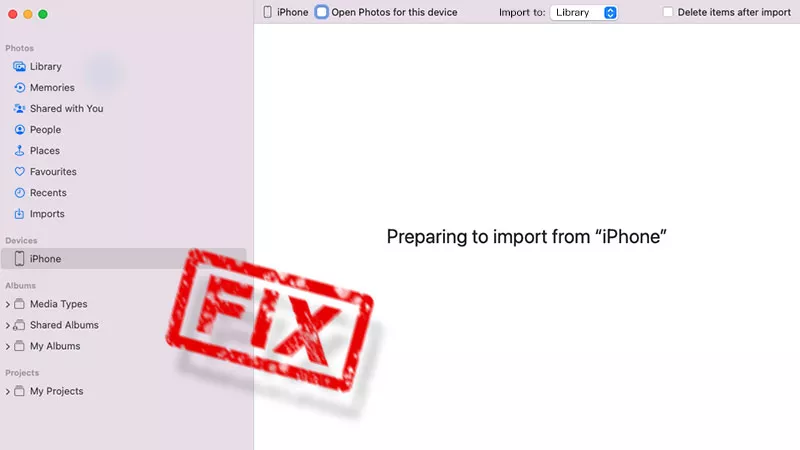
When transferring photos from your iPhone to a computer, you expect the process to be smooth and quick. But sometimes, the Mac Photos app may get stuck at “Preparing to Import”, leaving you waiting indefinitely. This issue can be caused by poor network connection, incompatible file size and formats, device connectivity problems, iCloud sync settings, outdated software, or trust permissions not being granted. Here are 5 effective ways to fix the “Photos stuck on preparing to import from iPhone” problem.
- Contents:
- Way 1: Try to Restart the iPhone and the Mac
- Way 2: Disable iCloud Photos Sync in Settings
- Way 3: Click Trust This Computer on iPhone
- Way 4: Reset the Location & Privacy Settings
- Way 5: Update the iOS Version to the Latest
Way 1: Try to Restart the iPhone and the Mac
If there are some temporary glitches on your iPhone, you can have a simple restart to clear caches, close the apps and refresh the device connection, which can resolve the Photos app from importing pictures issue.
On iPhone: Press and hold the Side button and Volume Down button together. Then drag the slider to power off the device. After a few seconds, try to turn it back on.
On Mac: Click the Apple menu > Tap on the Restart option. Once both devices restart, reconnect your iPhone and try to import photos again.
Way 2: Disable iCloud Photos Sync in Settings
If iCloud Photos is enabled, some of your images might be stored in the cloud rather than on your device. This can slow down the import process or lead to being stuck on the preparing to import from iPhone screen.
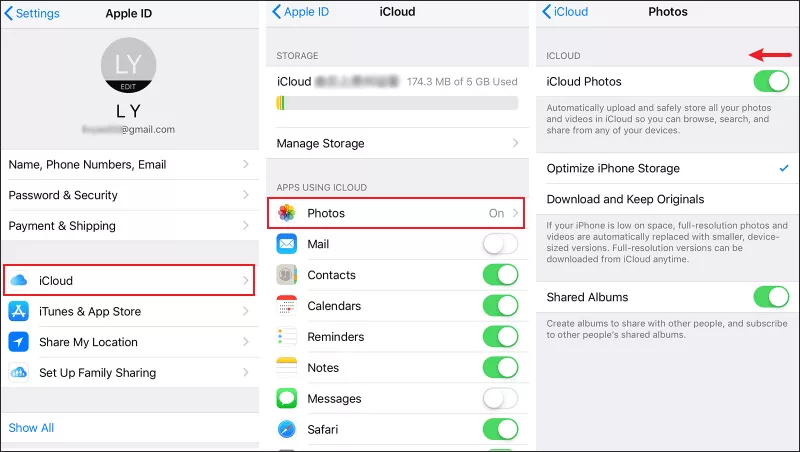
Step 1: Open the Settings app > Click the Apple ID profile. Then find and choose iCloud.
Step 2: Tap on Photos. Next, toggle off iCloud Photos. After disabling, try reconnecting your iPhone and importing photos again.
Way 3: Click Trust This Computer on iPhone
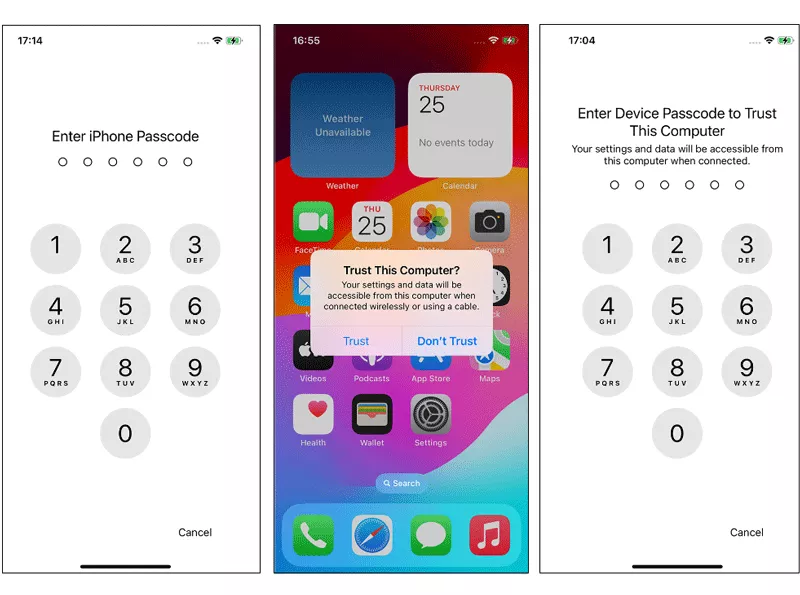
When you connect the iPhone to the PC, remember to click Trust once “Trust This Computer” pops up on the iOS device. Then the Mac is granted to share data.
Step 1: Reconnect the iPhone to your Mac with a USB cable. Unlock your iPhone with passcode.
Step 2: When prompted, tap Trust This Computer and enter your passcode again. Without trusting the device, the Photos app will not be able to read or import your image.
Way 4: Reset the Location & Privacy Settings
Sometimes, incorrect privacy settings can prevent your iPhone from transferring data properly to your Mac. Resetting these settings can help you a lot.
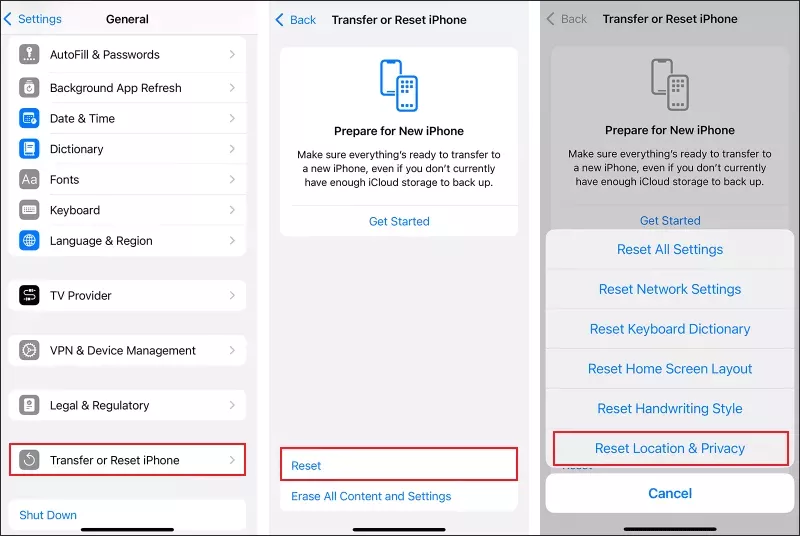
Step 1: On your iPhone, launch Settings > choose General > select Transfer or Reset iPhone.
Step 2: Tap on the Reset option and then choose Reset Location & Privacy. Enter your passcode if prompted. After the reset, reconnect your iPhone and select Trust This Computer again.
Way 5: Update the iOS Version to the Latest
Probably, there are some system bugs if the iOS software is outdated. So, updating to the latest version may resolve the problem.
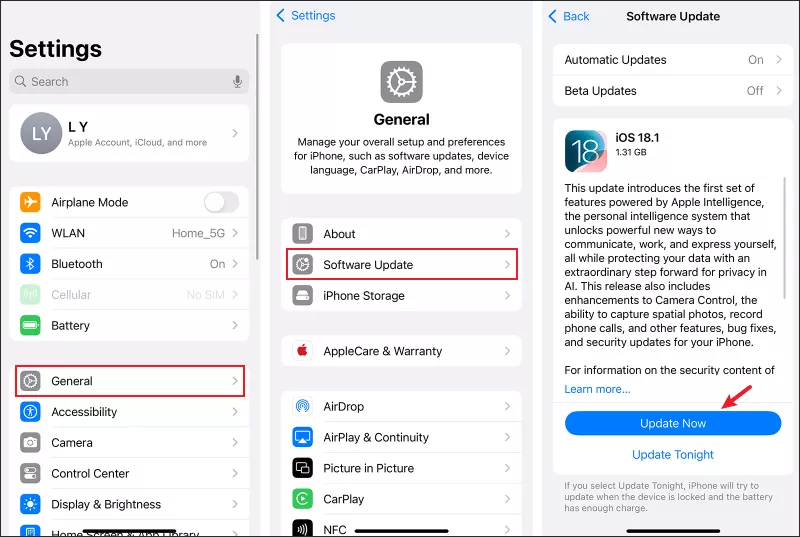
Step 1: Go to Settings > Select General > Choose Software Update.
Step 2: If an update is available, tap Update Now. Once updated, try importing your photos again.