


We'll Need Your Current Windows Password One Last Time: 6 Ways to Fix It
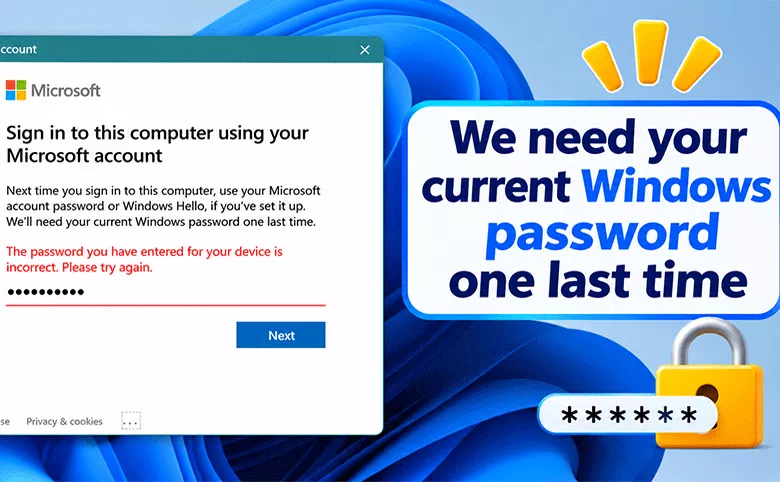
You click Sign in with a Microsoft account instead, type your email and password, and Windows stops you with a prompt: “We’ll need your current Windows password one last time.” There is no obvious place to get that password, and no way to skip the screen. This is one of the most common stumbling blocks when moving from a local account to a Microsoft account.
The good news is that the message is predictable, and so are the fixes. Below you’ll find out what Windows is actually asking for, why you can’t simply “look it up”, and seven methods that work on both Windows 10 and Windows 11, ordered from the safest to the most powerful.
Quick answer
- If you never set a password on this local account: leave the password box empty and click Next.
- If you did set one and can’t remember it: Windows doesn’t keep it in a readable form, so you can’t retrieve it. Reset it (Methods 4 to 6) or skip the prompt altogether (Method 3).
- Contents
- What does “We’ll need your current Windows password one last time” mean?
- Can you find your current Windows password?
- Method 1: Leave the password box empty
- Method 2: Check what Windows is asking for and test likely passwords
- Method 3: Add your Microsoft account for apps only (skip the prompt)
- Method 4: Reset the password from another administrator account
- Method 5: Use security questions or a password reset disk
- Method 6: Reset it with Cocosenor Windows Password Tuner
- Troubleshooting: when the prompt still won’t go away
- FAQs on Current Windows Password One Last Time
What does “We’ll need your current Windows password one last time” mean?
Windows shows this message when it is about to link your sign-in to a Microsoft account. Before it makes the change, it verifies that you are the person who owns the current sign-in. The “current Windows password” is whatever password you use today to unlock this PC with this account. It is not your Microsoft account password, and it is not your PIN, unless your account already is a Microsoft account.
You will typically see it in one of these situations:
- Going to Settings > Accounts > Your info and choosing Sign in with a Microsoft account instead on a local account.
- Signing in to Microsoft Store, Office, OneDrive or other apps and accepting the offer to use that account for Windows too.
- Setting up Windows Hello or syncing a Microsoft account on a PC that was originally configured with a local account.
In every case the message is a security check, not an error. Windows is fine. It simply needs the right password to continue.
Can you find your current Windows password?
No. Windows doesn’t store your sign-in password in plain text, so there is no screen, command or setting that displays it. Credential Manager is often suggested, but it only lists saved logins for websites, apps and network shares, not the password you use to unlock the PC. Guides that promise to “show” the password usually end up resetting it or recovering something else.
What you can do is test the passwords you might have used, reset the password, or avoid the prompt. That is exactly what the methods below cover.
Method 1: Leave the password box empty
Many people who set up a PC with a local account never added a password. If that’s you, Windows is waiting for an empty value, and the box looks required even though it isn’t.
Step 1: Leave the Current Windows password field completely empty. Don’t type a space.
Step 2: Click Next.
Step 3: Continue with the Microsoft account setup.
If Windows accepts the empty field, you’re done. If it says the password is incorrect, the account does have a password. Go to Method 2.
Method 2: Check what Windows is asking for and test likely passwords
A wrong guess is often a right password typed in the wrong place. Before you reset anything:
- PIN vs. password. If you unlock the PC with a PIN or fingerprint, that is Windows Hello, not the password. The prompt wants the account password.
- Caps Lock, Num Lock and keyboard layout. A different input language can change symbols such as @ or “.
- Which account. If several users exist on the PC, make sure you are signed in to the one you are converting.
To test a password safely, press Windows + L to lock the PC. On the sign-in screen choose Sign-in options, select the key (password) icon and type your guess. If you can access the PC with the password, congratulations, you find the right one! Try the passwords you used around the time the PC was set up, including variations with a different year or number.
Method 3: Add your Microsoft account for apps only (skip the prompt)
If your real goal is to use Microsoft Store, OneDrive, Office or Xbox, you don’t have to convert your Windows sign-in at all. You can attach the Microsoft account to the apps and keep the local account as it is.
Step 1: Open Settings > Accounts > Email & accounts.
Step 2: Under Accounts used by other apps, click Add a Microsoft account.
Step 3: Sign in with your Microsoft account details.
Step 4: When Windows offers Sign in to this app only or Microsoft apps only instead of making it your Windows account, choose that option.
The menu labels shift slightly between Windows 10 and 11, but the idea is the same: use the account in apps without changing how you sign in to Windows. This avoids the “one last time” prompt entirely.
Method 4: Reset the password from another administrator account
If there is a second administrator account on the PC and you can sign in to it, that account can set a new password for the one you’re locked out of.
Step 1: Sign in to the other administrator account.
Step 2: Right-click Start and open Command Prompt (Admin).
Step 3: Type the command below, replacing USERNAME with the name of the locked account, and press Enter: net user USERNAME * .
Step 4: Windows asks you to type a new password twice (it won’t show characters as you type). Press Enter twice instead to set an empty password. Sign back in to the original account and use the new password, or leave the field empty, at the Microsoft account prompt.

Note: Reset is not the same as change
A forced reset replaces the password without needing the old one. Windows can then lose access to data tied to the old password, such as files encrypted with EFS and some saved credentials. If you use BitLocker, make sure you have your recovery key before resetting anything.
Method 5: Use security questions or a password reset disk
These only work if you prepared them before forgetting the password, but they are worth a quick check.
- • Security questions. If you added them when you created the local account, a Reset password link appears under the password box on the sign-in screen after a failed attempt. Answer the questions and choose a new password.
- • Password reset disk. If you ever created one on a USB drive, click Reset password on the sign-in screen, run the Password Reset Wizard and insert the drive.
Method 6: Reset it with Cocosenor Windows Password Tuner
When you have no second administrator account and no reset disk, a dedicated tool is the most direct way back in. Cocosenor Windows Password Tuner creates a bootable USB drive or disc on another computer, starts your locked PC from it, and resets the password for a local, Microsoft or domain account without reinstalling Windows or erasing your files.
What you need
- • A second working computer with internet access.
- • A USB flash drive (or a blank CD/DVD).
- • Windows Password Tuner. Check the edition list on the product page to pick the one that suits your Windows version.
Step 1: On the other computer, download, install and open Windows Password Tuner.
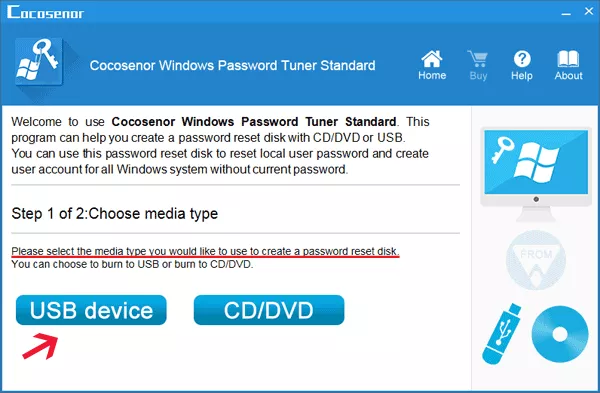
Step 2: Insert the USB drive and choose USB Device option to create the bootable reset disk.
Step 3: Choose your USB drive and click Begin Burning. After that, wait for the burning process ends.
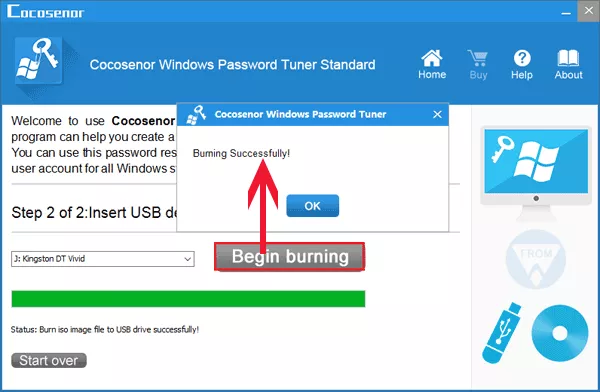
Step 4: The bootable reset disk is made. And you can plug the USB drive into the locked PC. Then restart the PC from USB drive.
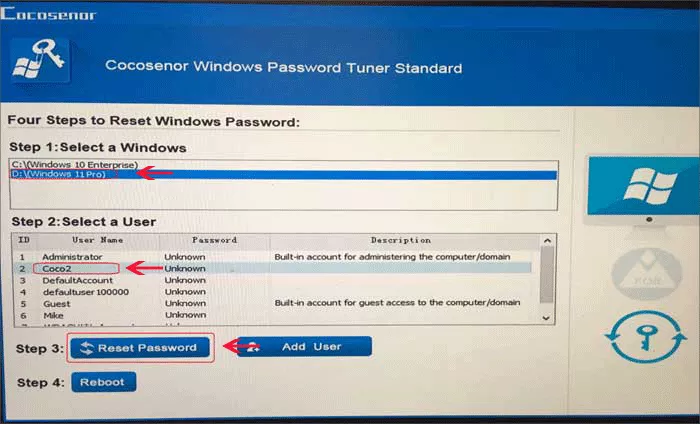
Step 5: When the tool loads, select your Windows system and the user account you want to reset.
Step 6: Click Reset Password and confirm. After that, click Reboot and remove the USB drive to restart the PC.
Step 7: Finally repeat the Microsoft account switch and leave the field empty to continue.
Troubleshooting: when the prompt still won’t go away
| Symptom | Likely Cause | What to Do |
|---|---|---|
| Blank password is rejected | The account has a password you don’t remember | Use Method 2 to test likely passwords, then Method 4, 5, or 6 to reset it. |
| Correct password shows “incorrect” | PIN entered instead, Caps Lock, or a different keyboard layout | Test it from the lock screen with Windows + L (Method 2). Switch the input language and retry. |
| “Something went wrong” after the password | Connection problem or a temporary Microsoft service issue | Check your internet, wait a few minutes, and retry. Restart the PC if needed. |
| Can’t reach Settings at all | You’re locked out of Windows | Use another admin account (Method 4) or boot from a reset USB (Method 6). |
| Work or school PC | Account is managed by an organization | Contact your IT administrator. Don’t reset it yourself. |
FAQs on Current Windows Password One Last Time
Q1: Where can I find my current Windows password?
You can’t view it. Windows doesn’t store your sign-in password in readable form, and Credential Manager only lists saved website and app logins. You can test likely passwords, reset it, or avoid the prompt.
Q2: What if I never set a Windows password?
Leave the password field empty and click Next. Windows accepts an empty value for local accounts that have no password.
Q3: Do I have to switch to a Microsoft account?
No. You can use a Microsoft account in Store, Office and OneDrive while keeping your local Windows sign-in (Method 4).
Final Thoughts
Seeing "We'll need your current Windows password one last time" doesn't mean something is wrong with your PC. Windows is just checking that you own the account before it links it to a Microsoft account.
If you never set a password, leave the box empty and click Next. If you set a local password and forgot it, you can't look it up, but you can still get past the prompt: skip it by adding your Microsoft account for apps only, reset the password from another admin account, or use Cocosenor Windows Password Tuner to reset it from a bootable USB without losing your files. Whichever method you choose, back up your BitLocker recovery key first, and only reset passwords on a PC you own or are authorized to manage.