[Useful Tips] Can You Unlock iPhone with a Picture

With the increasing use of Face ID on iPhones, many users wonder how secure it really is. A common question is often asked: Can someone unlock an iPhone using just a photo of the owner? This article answers that question, explains how to prevent unauthorized access, and offers solutions if you’re locked out of your iPhone.
- Contents:
- Part 1: Can You Unlock iPhone with a Picture
- Part 2: How to Prevent Others from Unlocking the iPhone
- Way 1 – Ensure the Device Passcode Is Strong
- Way 2 -- Enable Require Attention for Face ID
- Way 3 – Update the iOS Version to the Latest
- Part 3: How to Unlock the iPhone Without Passcode
Part 1: Can You Unlock iPhone with a Picture
No, you cannot unlock an iPhone using a 2D picture. After going to Settings and turning on Face ID, True Depth Camera System can build a precise 3D map of your face. Then if you want to unlock the iPhone using Face ID, Apple’s Face ID system will detect real, live faces using sophisticated technology that goes far beyond simple photo matching. And Face ID checks for natural facial movements like blinking or subtle changes to confirm that it’s scanning a real person, not a flat image.
Part 2: How to Prevent Others from Unlocking the iPhone
Generally, Face ID is fairly secure because it is hard to unlock using a picture. If you still worry about it, there are several ways to strengthen your iPhone’s defenses and prevent unauthorized access.
Way 1 – Ensure the Device Passcode Is Strong
Face ID can occasionally not work well, in which case your iPhone will require the passcode. If your passcode is weak or easy to guess, it can be a security risk. To improve this:
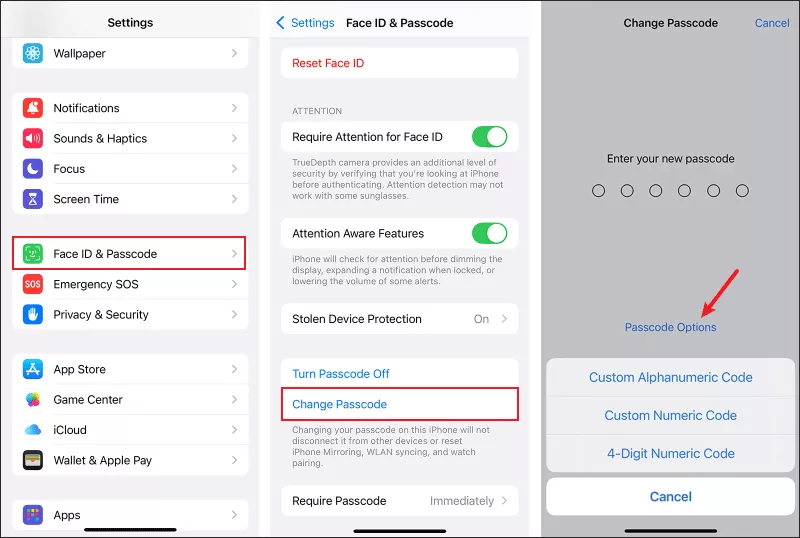
Step 1: Go to Settings > Face ID & Passcode > Change Passcode. Enter the old passcode if asked.
Step 2: Choose Passcode Options and select a custom alphanumeric or 6-digit numeric code. After that, type the new passcode. A strong passcode ensures your iPhone stays secure even when Face ID is unavailable.
Way 2 -- Enable Require Attention for Face ID
To stop someone from unlocking your iPhone while you’re unaware (e.g., while you’re sleeping), you can turn on Face ID and then enable the attention detection feature in the Settings app.
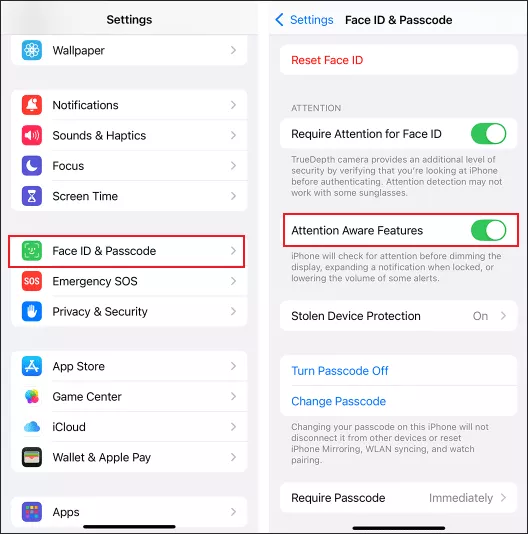
Step 1: Open Settings > Face ID & Passcode. Make sure Require Attention for Face ID is turned on.
Step 2: After you activate the feature, it can ensure Face ID only works when you’re actively looking at the screen, making it harder for anyone else to unlock your phone without your permission.
Way 3 – Update the iOS Version to the Latest
Apple continuously improves security with each iOS update. Running an outdated version can expose you to unknown system bugs. To check for updates:
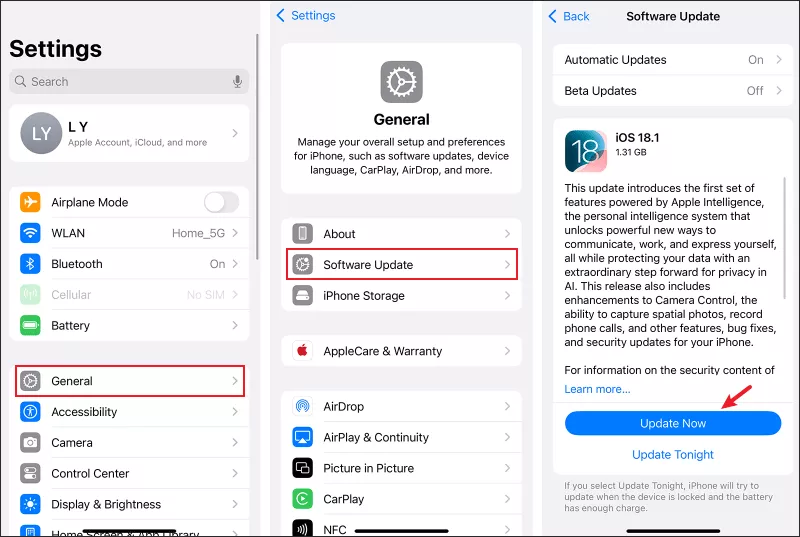
Step 1: Go to Settings > General > Software Update.
Step 2: Click Update Now if the latest iOS version is available. Regular update guarantees you have the latest security patches and enhancements for Face ID and other protective features.
Part 3: How to Unlock the iPhone Without Passcode
If you forget your passcode or Face ID stops working, you still have several options to regain access to your iPhone. Third-party iOS unlocking software like Cocosenor iPhone Passcode Tuner can help bypass the lock screen without any passcode.
Step 1: Download and install the unlocking tool on your computer. Then launch it and choose Unlock Lock Screen.

Step 2: Click the Start button and then connect the iOS device to the PC with a USB cable. After that, tap on Next to continue.

Step 3: Click Download to get the firmware package. Keep the connection during the download.

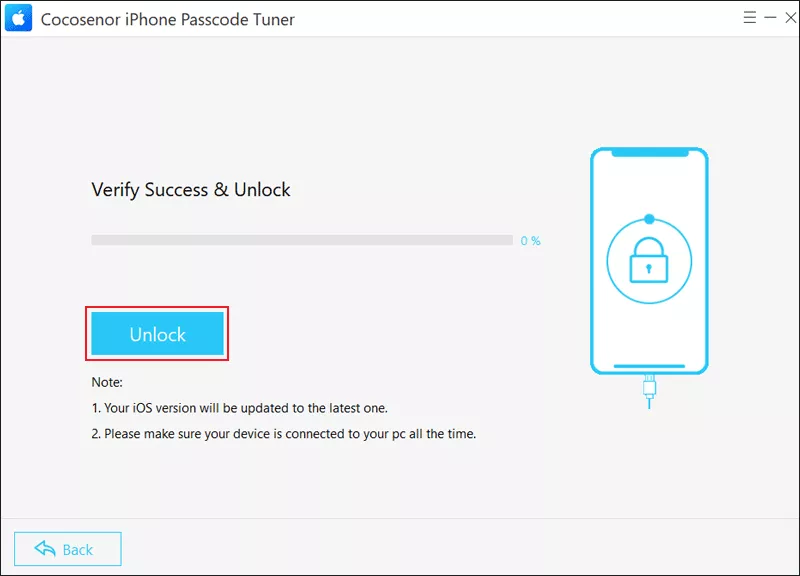
Step 4: Tap on the Unlock button after the firmware package is verified.