


How to Fix Windows 11 Login Screen Not Showing Password Box
You restart your PC or wake it from sleep, and the Windows 11 sign-in screen shows your name and picture, but there is no password box to type into. Sometimes even the password icon is gone, and clicking around does nothing.
In most cases the password option is hidden rather than removed. A display bug in recent updates, a Windows Hello setting, or corrupted PIN data can all make the password box disappear. This guide starts with fixes that take seconds, moves on to recovery-environment methods, and finishes with a tool-based option if you still cannot get in.
Quick fix (works for most people)
On the sign-in screen, move your mouse over the empty spot in the sign-in options row where the password icon normally sits, then click it. If the password box appears, type your password and sign in. Details are in Method 1 below.
- Contents
- Why Windows 11 is not showing the password box
- Method 1: Click the hidden password icon
- Method 2: Open Sign-in options and choose the key icon
- Method 3: Restart and reset the sign-in screen
- Method 4: Uninstall the latest update or use System Restore
- Method 5: Turn off the Windows Hello-only sign-in setting
- Method 6: Bring back the password option through the registry
- Method 7: Reset Windows Hello (PIN) data by renaming the NGC folder
- Last resort: reset the Windows 11 password with Windows Password Tuner
- Which method should you use?
- Troubleshooting common problems
- FAQs on windows 11 sign-in options not showing
Why Windows 11 is not showing the password box
Several different problems produce the same symptom, which is why one fix does not work for everyone:
- A known display bug. Microsoft confirmed that Windows 11 updates released since August 2025 can make the password icon invisible on the lock screen, even though the button still works. It happens when more than one sign-in method, such as a PIN, fingerprint or security key, is set up.
- The Windows Hello-only setting. An option that allows only Windows Hello sign-in for Microsoft accounts can hide the password option. If your PIN stops working, there is no visible fallback.
- Corrupted PIN or Windows Hello data. Damaged credential data can leave the sign-in screen without any usable fields.
- A registry value that forces passwordless sign-in. The DevicePasswordLessBuildVersion value can keep the password field from appearing.
- A sign-in screen (LogonUI) glitch. A failed or interrupted update, a driver problem or a frozen sign-in process can leave the screen blank, blurry or unresponsive.
Method 1: Click the hidden password icon
This is the workaround Microsoft recommends for the update bug. The password icon is invisible, but the button is still there.
Step 1: Wake the PC and get to the sign-in screen by pressing a key or clicking the mouse.
Step 2: Move your mouse slowly across the empty space in the sign-in options row, where the password (key) icon normally appears.
Step 3: When the spot highlights, click it. The password box should appear. Type your password and press Enter.
Method 2: Open Sign-in options and choose the key icon
Windows 11 shows the password option only when several sign-in methods are set up, and it may be tucked under Sign-in options.
Step 1: On the sign-in screen, click Sign-in options below the PIN or fingerprint prompt.
Step 2: Select the key icon, which is the password option.
Step 3: Type your password and press Enter.
If the key icon is not in the list, continue to Method 3.
Method 3: Restart and reset the sign-in screen
A one-off glitch in the sign-in process, especially after waking from sleep, often clears with a restart.
Step 1: Click the Power icon in the bottom-right corner of the sign-in screen and choose Restart. If the screen is frozen, hold the power button for about 10 seconds to shut the PC down, wait 30 seconds, then turn it on again.
Step 2: Before the restart, unplug external devices such as USB drives, docks, security keys and extra displays. Reconnect them after you are signed in.
Step 3: If more than one account appears in the bottom-left corner, click another account and then click back to yours.
Method 4: Uninstall the latest update or use System Restore
If the password box disappeared right after Windows installed an update, rolling the update back can bring it back. You do this from the Windows Recovery Environment (WinRE), which does not require you to sign in.
Step 1: On the sign-in screen, click the Power icon, hold Shift, and click Restart.
Step 2: Choose Troubleshoot, then Advanced options.
Step 3: Select Uninstall Updates, then Uninstall latest quality update, and follow the prompts.
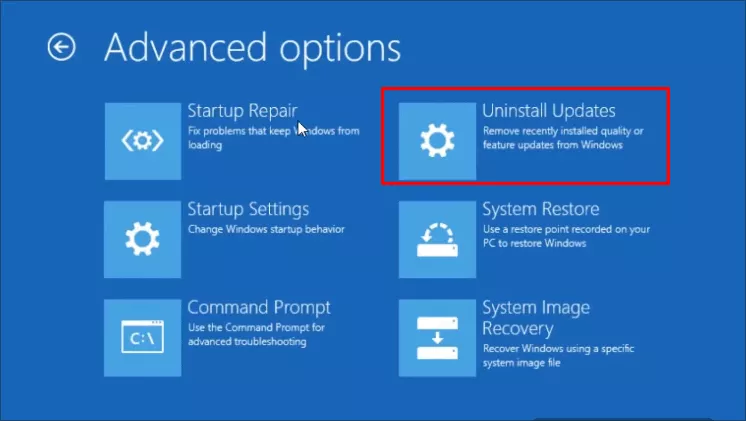
If that does not help, go back to Advanced options, choose System Restore, and pick a restore point from before the problem started.
BitLocker note
If the drive is encrypted with BitLocker, recovery options may ask for your 48-digit recovery key. You can find it in your Microsoft account with another device.
Method 5: Turn off the Windows Hello-only sign-in setting
Use this method if you can still sign in with a PIN, fingerprint or face recognition.
Step 1: Press Windows + I to open Settings, then go to Accounts and Sign-in options.
Step 2: Scroll down to Additional settings.
Step 3: Turn off For improved security, only allow Windows Hello sign-in for Microsoft accounts on this device.
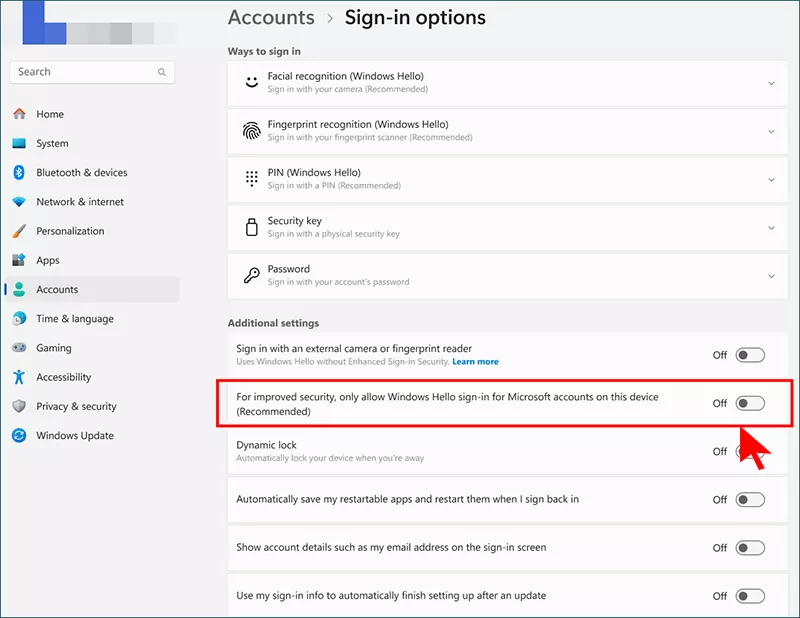
Step 4: Press Windows + L to lock the screen and check that the password option now appears.
Method 6: Bring back the password option through the registry
Step 1: Open WinRE: on the sign-in screen click Power, hold Shift, click Restart, then choose Troubleshoot > Advanced options > Command Prompt.
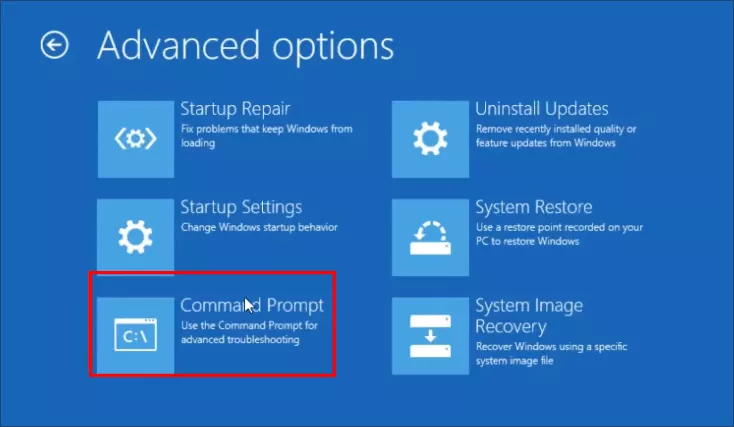
Step 2: Find the drive letter of your Windows installation. It is often D: in WinRE, not C:. Check with command:
dir D:\WindowsStep 3: Type the following and press Enter to open the Registry Editor:
regeditStep 4: In the left pane, select HKEY_LOCAL_MACHINE, then choose File > Load Hive.
Step 5: Browse to Windows\System32\config\SOFTWARE on your Windows drive, open it, and name the hive OfflineSoft.
Step 6: Go to the following key:
HKEY_LOCAL_MACHINE\OfflineSoft\Microsoft\Windows NT\CurrentVersion\PasswordLess\DeviceStep 7: Double-click DevicePasswordLessBuildVersion, set the value data to 0, and click OK.
Step 8: Select OfflineSoft, choose File > Unload Hive, close the Registry Editor, and click Continue to start Windows.
If the PasswordLess\Device key or the value does not exist, this is not the cause. Move on to Method 7.
Method 7: Reset Windows Hello (PIN) data by renaming the NGC folder
Corrupted PIN data is stored in the NGC folder. Renaming it forces Windows to discard the broken data, so the password becomes the only sign-in option and the password box can appear.
Step 1: Open Command Prompt in WinRE as described in Method 6 and confirm your Windows drive letter (D: is used below).
Step 2: Rename the NGC folder:
ren D:\Windows\ServiceProfiles\LocalService\AppData\Local\Microsoft\NGC NGC.oldStep 3: If you get Access is denied, take ownership first, then repeat the rename:
takeown /f D:\Windows\ServiceProfiles\LocalService\AppData\Local\Microsoft\NGC /r /d y
icacls D:\Windows\ServiceProfiles\LocalService\AppData\Local\Microsoft\NGC /grant administrators:F /t
Step 4: Type exit, click Continue, and sign in with your password.
Step 5: Go to Settings > Accounts > Sign-in options and set up your PIN, fingerprint or face recognition again.
Renaming the folder removes your existing PIN and Windows Hello enrollments, so you will need to set them up again. Your files and password are not affected.
Last resort: reset the Windows 11 password with Windows Password Tuner
If none of the methods above work, you cannot get past the sign-in screen, or you do not remember the password either, a password reset tool can get you back in. Cocosenor Windows Password Tuner creates a bootable USB drive or disc on another computer, which can boot your locked computer and remove the account password. After that, it will not require password to login. The missing password box is none of your business.
Step 1: On another Windows PC that you can access, download and install Windows Password Tuner.
Step 2: Insert a blank USB drive or disc and open the software, choose USB Device and then click Begin burning to create a bootable password reset disk.
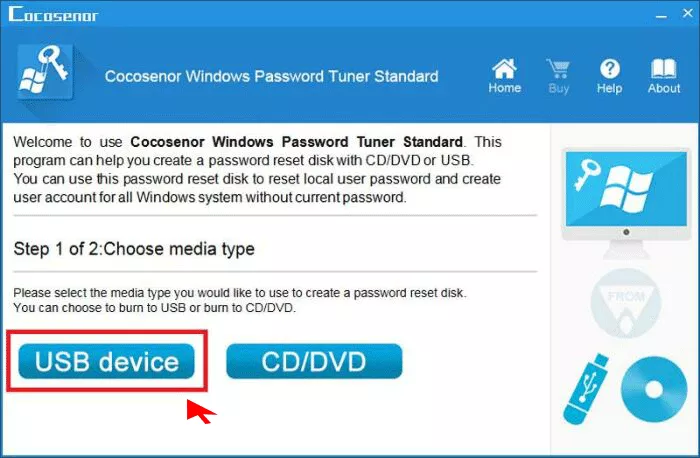
Step 3: After that, connect the disk to your PC and boot from it. Open the boot menu (commonly F12, Esc or F2, depending on the manufacturer) and choose the USB drive.
Step 4: In the tool, select the account you want to access. Click the Reset Password button, confirm, then click the Reboot button. Meanwhile, remove the disk and restart the PC.
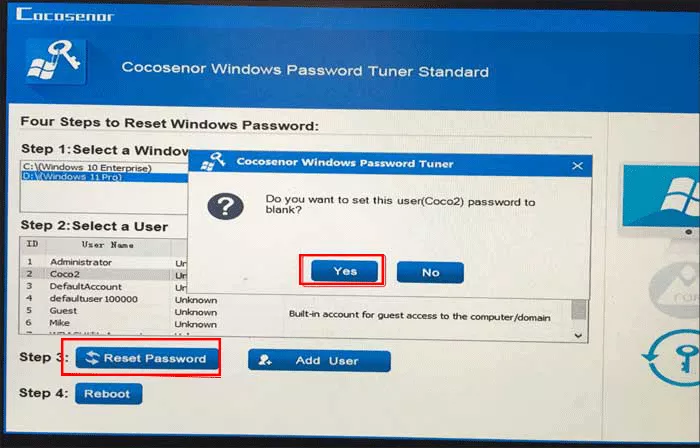
Step 5: Now you can access the PC automatically without asking for the password. Then set up a PIN again under Settings > Accounts > Sign-in options.
Which method should you use?
| Method | Best For | Need to Be Signed In? | Risk Level | Difficulty |
|---|---|---|---|---|
| 1. Click Hidden Icon | Update bug hiding the icon | No | None | Easy |
| 2. Sign-in Options Key Icon | Password option collapsed under Sign-in options | No | None | Easy |
| 3. Restart and Reset Screen | One-off sign-in screen glitch | No | None | Easy |
| 4. Uninstall Update / System Restore | Problem started right after an update | No (uses WinRE) | Low | Medium |
| 5. Turn Off Hello-Only Setting | Hello-only setting hiding the password | Yes (PIN, fingerprint, or face) | None | Easy |
| 6. Registry Edit | Passwordless value forced and you cannot sign in | No (uses WinRE) | Medium | Advanced |
| 7. Rename NGC Folder | Corrupted PIN data | No (uses WinRE) | Low (PIN must be set up again) | Advanced |
| Windows Password Tuner | Everything else failed or password forgotten | No | Low to medium (see caveats) | Easy to medium |
Troubleshooting common problems
| What You See | Likely Cause | What to Try |
|---|---|---|
| PIN box shows, but no password icon | Update bug or multiple sign-in methods | Methods 1 and 2, then install the latest Windows update. |
| Only your name and picture, no fields at all | Hello-only setting or corrupted PIN data | Methods 5, 6, and 7. |
| Password box missing only after sleep or wake | Lock screen glitch | Method 3, then check for updates. |
| Blurry or frozen sign-in screen | Sign-in screen (LogonUI) or display problem | Methods 3 and 4. |
| Recovery asks for a BitLocker recovery key | Drive is encrypted with BitLocker | Look it up at aka.ms/myrecoverykey on another device. |
| Access is denied when renaming the NGC folder | Folder permissions | Run the takeown and icacls commands in Method 7, then rename again. |
| PasswordLess\Device key not found | Registry value is not the cause | Skip to Method 7. |
| Password box shows but says the password is wrong | Different problem (wrong password or keyboard layout) | Check Caps Lock and keyboard layout, or reset the password with the tool. |
FAQs on windows 11 sign-in options not showing
Q1: Why is the password box missing on my Windows 11 login screen?
The usual causes are a display bug in recent Windows 11 updates that hides the password icon, the Windows Hello-only sign-in setting, corrupted PIN data, or a sign-in screen (LogonUI) glitch after an update. In most cases the password option is hidden rather than deleted.
Q2: How do I sign in if the password button is invisible?
Move your mouse over the spot in the sign-in options row where the password (key) icon should be and click it. The password box then appears. You can also click Sign-in options and pick the key icon.
Q3: Why does Windows hide the password option when I use a PIN?
Windows 11 only shows the password icon when several sign-in methods are available. If the setting that allows only Windows Hello sign-in for Microsoft accounts is turned on, the password fallback can be hidden, so a broken PIN leaves you with no visible way in.
Q4: What if the password box appears but Windows says the password is wrong?
That is a different problem. Check Caps Lock, Num Lock and the keyboard layout first, then try your Microsoft account password if you recently changed it. If you cannot remember the password, a reset tool can create a new one.
Final thoughts
A missing password box is usually a hidden option, not a lost account. Start with the hidden icon and Sign-in options methods, and work toward the recovery-environment fixes only if you need them. If nothing gets you past the sign-in screen, Windows Password Tuner is a straightforward way to regain access to a PC you own.