


How to Reset an iPad Without Apple ID Password
Forgetting the Apple ID password tied to an iPad is more common than you'd think — especially on a device that's been sitting in a drawer for a year, or one you just picked up secondhand. The good news: in most cases you can still reset the iPad without ever typing that password. Which method works for you depends on one thing above everything else: whether Find My iPad is turned on.
- Methods to Reset iPad without Apple ID Password
- Quick Answer: Check This First
- Method 1: Reset From Settings (No Apple ID Needed)
- Method 2: Recovery Mode via Computer (iTunes/Finder)
- Method 3: Using Cocosenor iPhone Passcode Tuner
- Reset a Secondhand iPad Without the Previous Owner's Apple ID
- FAQs on Resetting iPad without Apple ID
Quick Answer: Check This First
Before trying anything else, find out whether Find My iPad is enabled on the device. This single setting determines which reset methods will actually work.
Find My iPad: OFF
You can erase the iPad directly from Settings or via computer (Recovery Mode) without ever needing the Apple ID password. Jump to Method 1 or Method 2.
Find My iPad: ON
A standard reset will leave the iPad locked behind Activation Lock afterward. You'll need iCloud access, proof of purchase, or a dedicated unlocking tool. Jump to Method 3.
Method 1: Reset From Settings (No Apple ID Needed)
This is the simplest method, and it works whenever Find My iPad is turned off. You'll only need the device's screen passcode, not the Apple ID password.
Step 1: Open Settings and tap General.
Step 2: Scroll down and tap Transfer or Reset iPad.
Step 3: Tap Erase All Content and Settings.
Step 4: Enter your screen passcode when prompted, then confirm. Wait for the iPad to erase and restart as new.
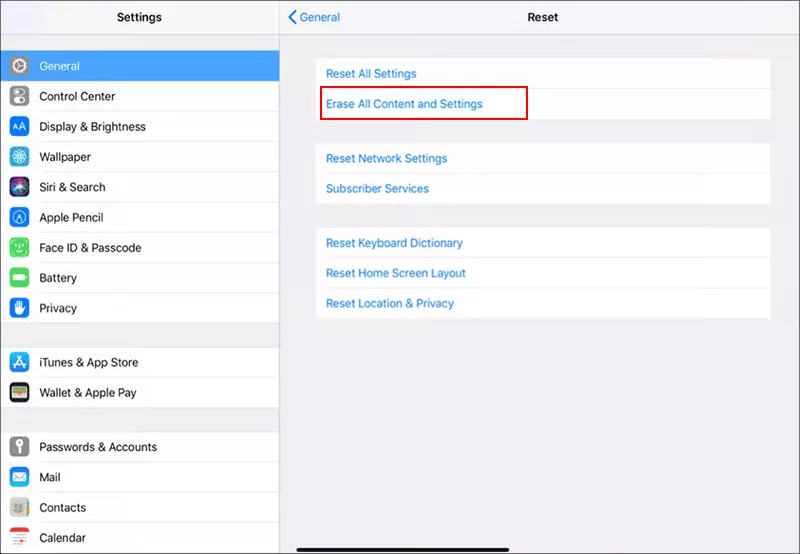
If a screen appears asking for the Apple ID password at this stage, Find My iPad is actually turned on. Move to Method 2.
Method 2: Recovery Mode via Computer (iTunes/Finder)
If Find My iPad is off but you can't unlock the screen at all, Recovery Mode lets you wipe the device through a computer.
Step 1: Turn off the iPad completely.Connect it to a Mac or PC using a USB cable, and open Finder (macOS Catalina or later) or iTunes (Windows / older macOS).
Step 2: Make the iPad into recovery mode.
iPad models with Face ID: quickly press and release Volume Up, then quickly press and release Volume Down, then press and hold the Top button until the recovery screen appears.
iPad models with a Home button: press and hold both the Home button and the Top button together until the computer-connection screen appears.
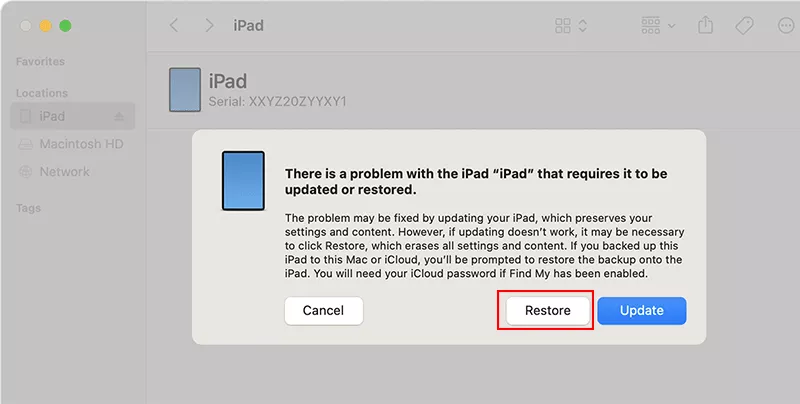
Step 3: When prompted by Finder/iTunes, choose Restore (not Update). Wait for the software to download and install; the iPad will restart once finished.
Method 3: Using Cocosenor iPhone Passcode Tuner
If Find My iPad is on and you can access the iPad with screen lock, how can you factory reset iPad without Apple ID password. For the activated iPad, Cocosenor iPasscode Tuner provides a computer-based workflow to remove the Apple ID without the original credentials.
Step 1: Download and install Cocosenor iPhone Passcode Tuner on a Windows PC or Mac.
Step 2: Connect the iPad via USB cable and let the program detect the device.
Step 3: Run iPhone Passcode Tuner and select the option—Remove Apple ID to proceed.
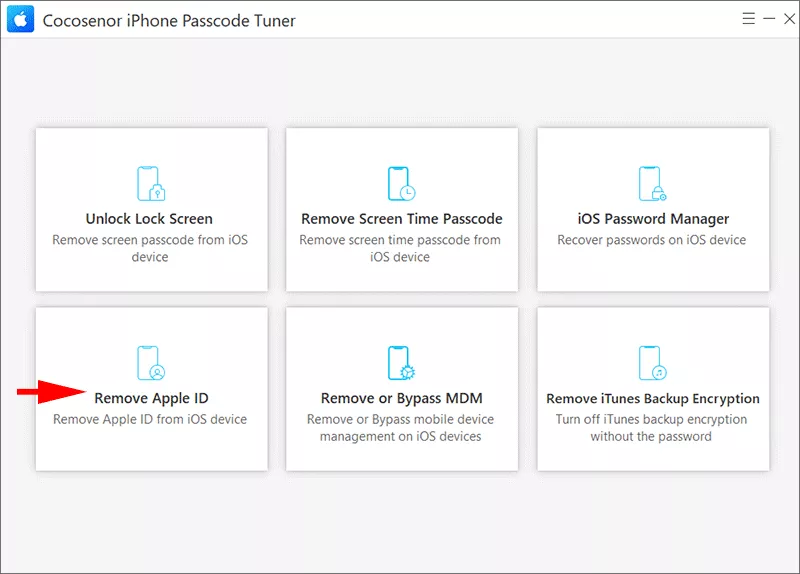
Step 4: Soon, the software detects your iPad. Just hit the Start button to go ahead.
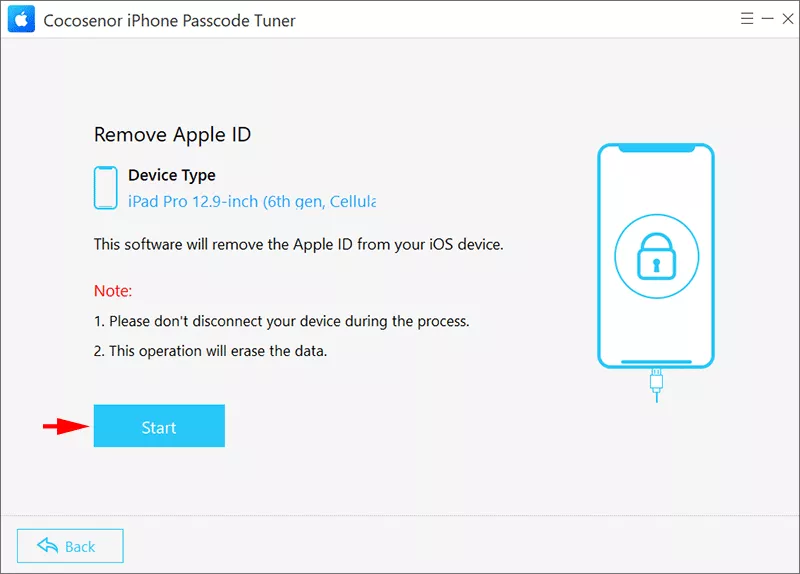
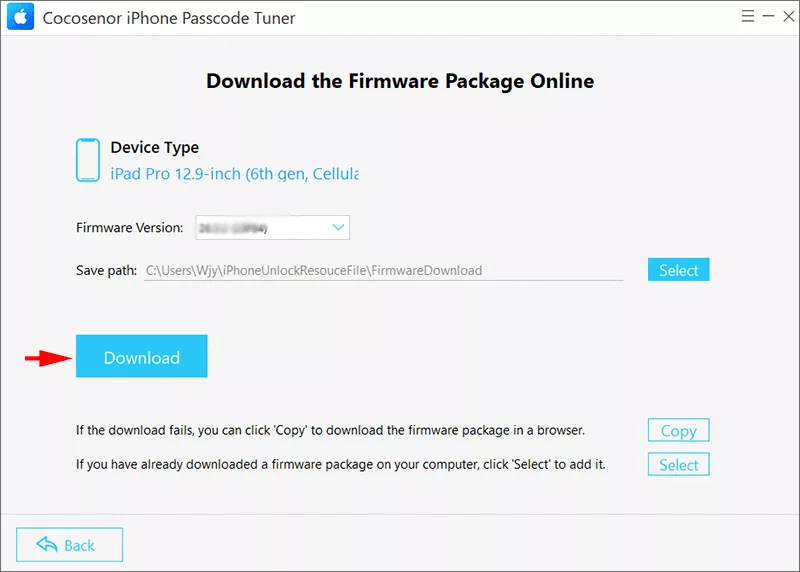
Step 5: Make sure the screen lock and Two-factor authentication are on. Then allow the tool to download the matching firmware package for your iPad model.
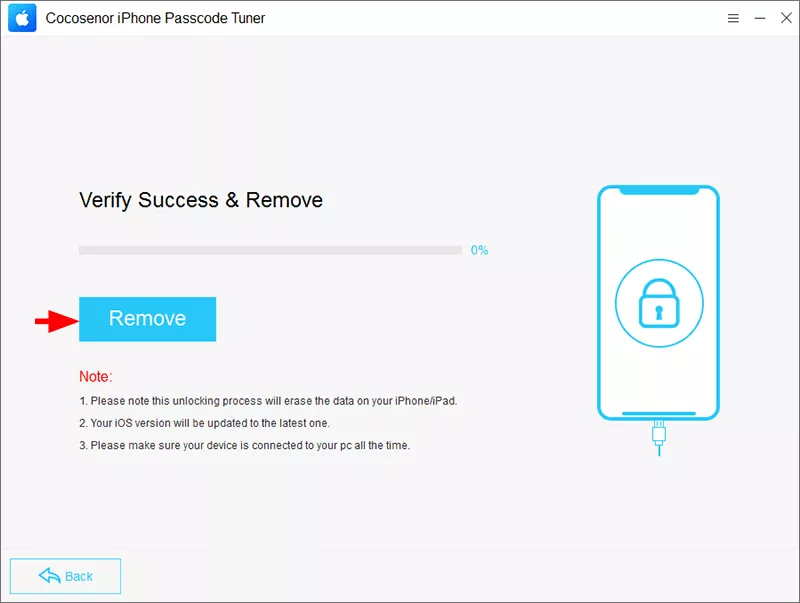
Step 6: Click the Remove button to start the removal process. Keep your iPad connected until it completes. Then follow the instructions to set up the iPad without linked Apple ID.
Reset a Secondhand iPad Without the Previous Owner's Apple ID
Buying a used iPad only to discover it's still tied to someone else's Apple ID is a frustrating but common problem. Here's how to approach it, in order of how likely each step is to work:
1. Ask the seller to remove it remotely
This is by far the fastest fix. Ask the seller to open Find My on their own device (or icloud.com/find), select the iPad, and choose Erase This Device, or go to Settings > [their name] and Sign Out directly on the iPad before handing it over. Either action releases the device from their account.
2. Use Apple's proof-of-purchase process
If the seller is unreachable, Apple can remove Activation Lock if you can demonstrate ownership. You'll typically need:
- • The original sales receipt, or the original box showing the device's serial number
- • The device's serial number (found in Settings, or on the box)
- • A visit to an Apple Store or a case opened with Apple Support
3. Check whether the device is reported lost or stolen
Before investing more time, it's worth checking the device's status. A seller unwilling to remove Activation Lock, or one who goes silent after the sale, can be a warning sign worth taking seriously before proceeding further.
4. Use iBypass Tuner to remove the activation lock
If you got the second-hand iPad and wanted to set it up, but stuck on the Activation lock screen which requires the linked Apple ID account verification, you can use the third-party tool –iBypass Tuner to remove the activation lock without contacting previous owner. Check details here: How to Remove Activation Lock without Previous Owner on iPhone/iPad.
FAQs on Resetting iPad without Apple ID
Q1: Can I factory reset an iPad without knowing the Apple ID password at all?
Yes, in most cases. If Find My iPad is off, the Settings app or Recovery Mode will erase the device using only the screen passcode. If Find My is on, you can still erase it via iPhone Passcode Tuner without the Apple ID credentials or a removal method.
Q2: Why does my iPad still ask for an Apple ID after I erased it?
This means Find My iPad was turned on before the erase, which triggers Activation Lock automatically as an anti-theft measure. Erasing the device doesn't remove this lock by itself, in such situation, you can try iBypass Tuner to bypass the activation lock.
Q3: Can I reset an iPad without a computer?
Yes, of course. If screen unlocks normally, Find My is off, you can use Method 1 (Settings > General > Transfer or Reset iPad) directly on the device to reset the iPad.
Conclusions:
Resetting an iPad without the Apple ID password is almost always possible — the method that works for you just depends on whether Find My iPad was turned on. If it's off, the Settings app or Recovery Mode will get you there in minutes with nothing but the screen passcode. If it's on and the iPhone is activated, you're not stuck, a guided tool like Cocosenor iPhone Passcode Tuner can get the iPad back to a usable state without the original credentials.
The one step worth doing regardless of which path you take: once the iPad is reset, turn Find My iPad back on and set a memorable Apple ID password (or save it in a password manager) so you don't end up back here next time.