


Fixed--Android System on Your Device Is Corrupted on Samsung
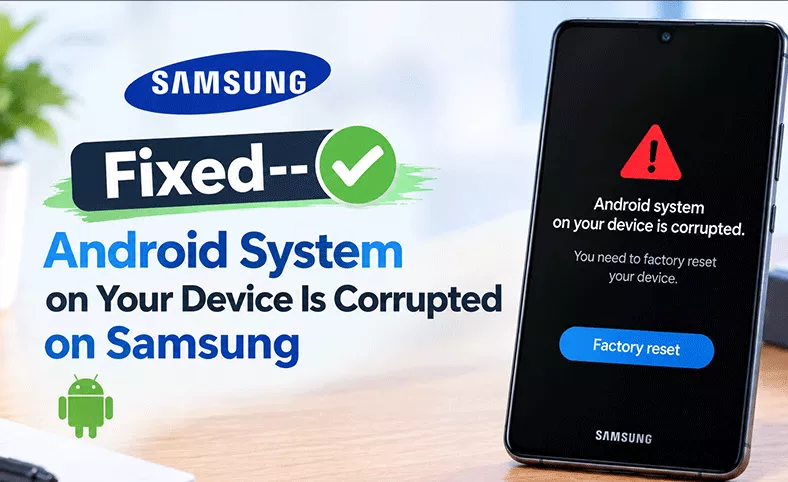
If your Samsung phone just flashed "Android system on your device is corrupted" and rebooted itself into a black screen, it's understandably alarming — but it's rarely the end of the road for the device. This error means the bootloader has detected that core system files don't match what it expects, usually after an interrupted update, a corrupted cache, or an unofficial firmware change. Most cases are fixable without a factory reset. This guide walks through the fixes in order, from the ones that touch nothing on your device to a full firmware repair.
- Contents
- What Causes This Error
- Before You Start
- Method 1: Force Restart
- Method 2: Boot Into Safe Mode
- Method 3: Clear the Cache Partition
- Method 4: Check for a Pending Software Update
- Method 5: Repair with Cocosenor Android Repair Tuner
- Compare the Methods
- Troubleshooting Table for Android System Corrupted
- FAQs on Android System on Your Device is Corrupted
What Causes This Error
- • An OTA (over-the-air) update that lost power or connection mid-installation
- • A corrupted cache partition left over from a previous update or app install
- • Rooting, or flashing a custom recovery or ROM that conflicts with the stock system
- • Malware or unapproved apps that alter system files
- • Rare hardware failure in the storage chip (eMMC/UFS), if none of the software fixes below resolve it
Before You Start
1. If the phone still boots at all, back up anything accessible (photos, contacts) via Samsung Cloud, Google, or a quick USB transfer.
2. Make sure the battery has some charge — plug it in before starting, since some steps involve multiple reboots.
3. Have a USB cable and a Windows PC on hand in case the non-destructive steps don't resolve it and firmware repair is needed.
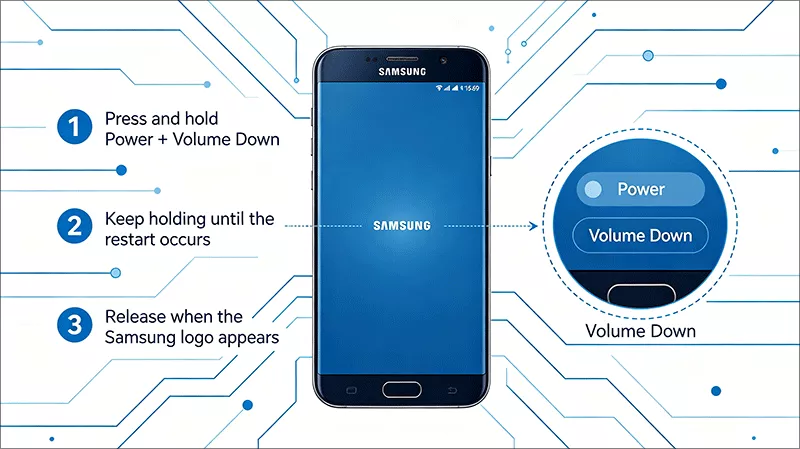
Method 1: Force Restart
This is the first thing to try, and it costs nothing — it doesn't touch any data. Press and hold the Power button and the Volume Down button at the same time. Keep holding for 10–15 seconds, until the screen turns off and the Samsung logo appears. Let go and wait for the phone to boot normally. If the error reappears immediately, move on to Method 2.
Method 2: Boot Into Safe Mode
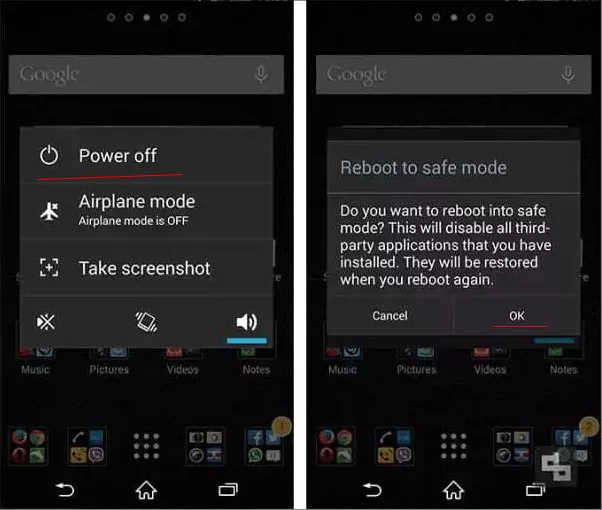
Safe Mode temporarily disables third-party apps, which helps rule out a recently installed app as the culprit.
Step 1: Press and hold the Power button to bring up the power menu.
Step 2: Touch and hold the "Power off" option until "Safe mode" appears, then tap it to restart.
Step 3: If the phone boots normally in Safe Mode, uninstall the most recently added app, then restart normally.
Method 3: Clear the Cache Partition
This wipes only temporary system cache files — it does not touch photos, apps, or personal data.
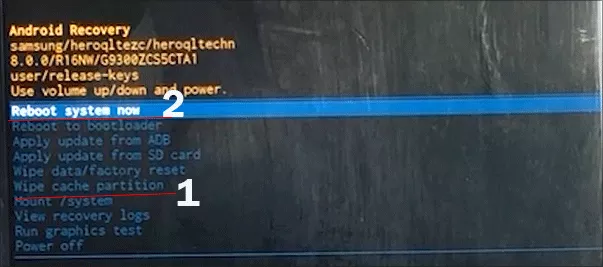
Step 1: Power off the device completely. Press and hold Volume Up + Power at the same time.
Step 2: When the Samsung logo appears, release Power but keep holding Volume Up until the recovery menu loads.
Step 3: Use Volume Down to highlight "Wipe cache partition," then press Power to select it.
Step 4: Confirm, wait for the process to finish, then select "Reboot system now."
Method 4: Check for a Pending Software Update
If the corruption happened mid-update, sometimes retrying the update from a computer resolves it before firmware repair is needed.
Step 1: Install Samsung's Smart Switch on a Windows or Mac computer.
Step 2: Connect the phone via USB (this can work even if the phone won't fully boot, depending on how far it gets).
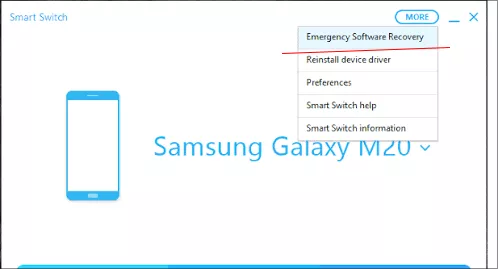
Step 3: Use Smart Switch's "Emergency software recovery" option if it's offered for your model.
Method 5: Repair with Cocosenor Android Repair Tuner
When the cache wipe and update check don't resolve it, the corruption is deeper than cache-level — it's in the system partition itself. Cocosenor Android Repair Tuner reinstalls matching firmware in a guided, easy process, which can resolve Samsung phone shows the error-- Android system on your device is corrupted try again in a few minutes.
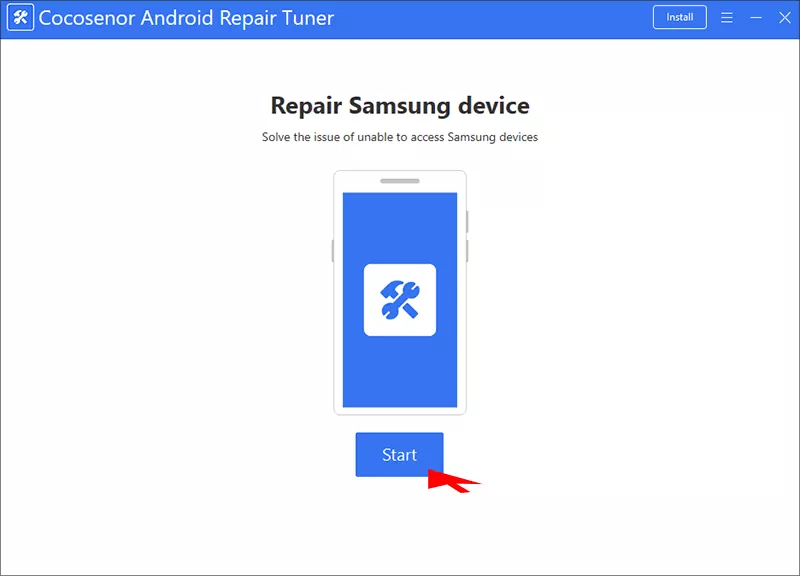
Step 1: Get Cocosenor Android Repair Tuner on your computer. Meanwhile, connect the phone via USB. Then run the software and hit the Start button.
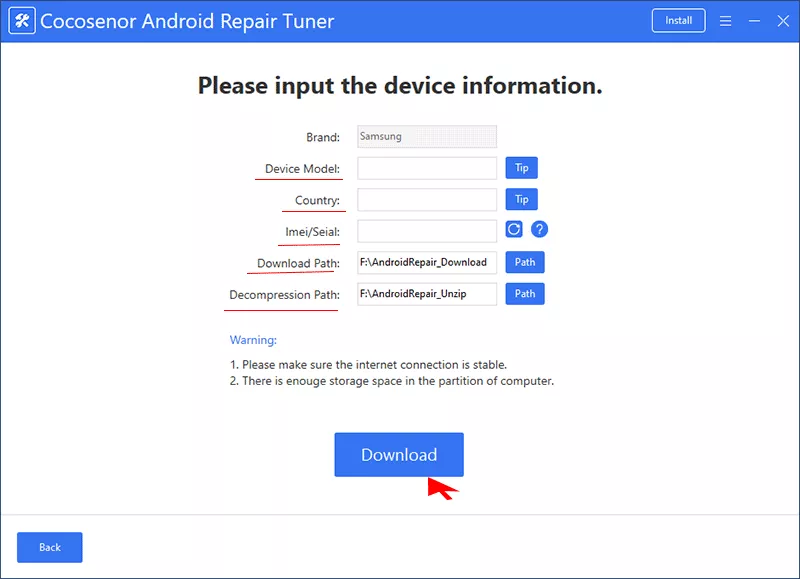
Step 2: Fill in the Samsung phone model, country and IMEI. After that, set the download path and decompression path.
Step 3: Hit the Download button to get the matching firmware package.
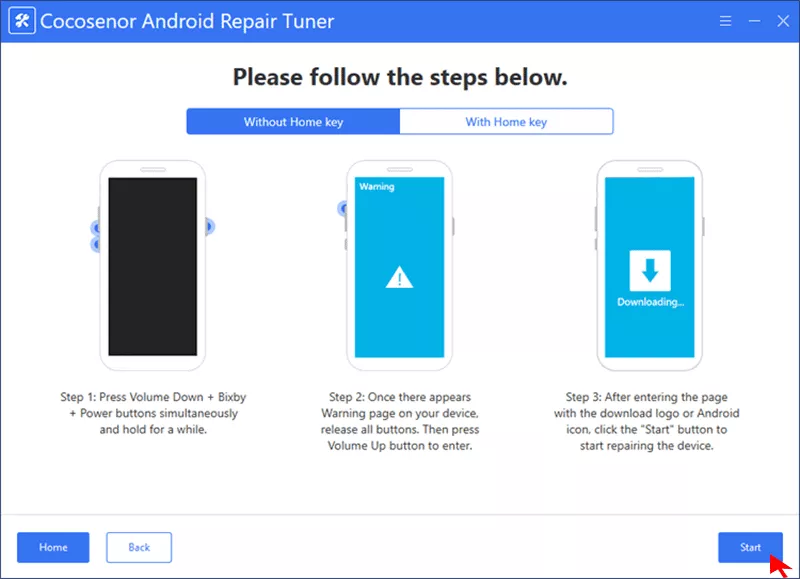
Step 4: Put the Samsung phone into Download Mode (usually Volume Down + Volume Up + Power, then Volume Up to confirm — the exact combo varies by model). Finally, click the Start button on the software bottom right corner to start repairing the Android system.
Step 5: Wait for the process to complete — the phone will reboot automatically when finished.
Compare the Methods
| Method | Data Loss Risk | Skill Needed | Best For | Time Needed |
|---|---|---|---|---|
| Force restart | None | None | First-line check for a one-off freeze | 1–2 minutes |
| Safe Mode boot | None | Low | Ruling out a third-party app conflict | 2–3 minutes |
| Clear cache partition | None (user data untouched) | Low | "Try again in a few minutes" loops caused by a corrupted cache | 5–10 minutes |
| Cocosenor Android Repair Tuner | Erase device | Low (guided, one-click) | Boot loops and "system is corrupted" errors that survive a cache wipe | 15–30 minutes |
Troubleshooting Table for Android System Corrupted
| Symptom | Likely Cause | Recommended Fix |
|---|---|---|
| "Try again in a few minutes" keeps reappearing | Corrupted cache partition | Wipe the cache partition (Method 3), then restart |
| Black screen with "No command" text | Device is stuck in stock recovery | Hold Volume Up + Power (release Power at the Samsung logo) to open the recovery menu |
| Boot loop even after a cache wipe | System partition corruption beyond cache-level damage | Use Cocosenor Android Repair Tuner's firmware repair, or a factory reset as a last resort |
| Error appeared right after an OTA update | Update download or installation was interrupted | Reflash matching stock firmware with Android Repair Tuner, or retry the update once the device boots |
| Error appeared after rooting or flashing a custom ROM | Incompatible or corrupted modification | Reflash official stock firmware; avoid re-applying the same custom ROM build |
| Phone won't power on at all | Possible hardware failure (storage chip or battery) | Try a force restart first; if there's no response, this is a hardware issue — contact a repair center |
FAQs on Android System on Your Device is Corrupted
Q1: What is the meaning of the warning: "Android system on your device is corrupted"?
It means the phone's boot process detected that core system files — the ones Android needs to start up — are missing, damaged, or don't match what the device expects. It's a protective error, not a diagnosis of physical damage; on Samsung devices it most often follows an interrupted update, a cache issue, or an unofficial software modification.
Q2: Is this error specific to Samsung phones?
The exact wording and recovery-menu behavior described here are specific to Samsung's Android skin (One UI) and its stock recovery. Other Android brands show similar corruption errors with different screens and key combinations.
Q3: Why did this happen right after a software update?
If the phone loses power, loses its connection, or is interrupted mid-installation during an OTA update, the system partition can end up partially written — some old files, some new — which the bootloader flags as corrupted rather than risk booting into a broken state.
Conclusion
"Android system on your device is corrupted" looks like a death sentence for your phone, but in most cases it's a fixable software problem, not a hardware one. Work through the steps in order — a force restart, Safe Mode, and a cache partition wipe resolve a surprising number of cases with zero risk to your data.
If those don't clear it, the corruption has reached the system partition itself, and that's exactly what Cocosenor Android Repair Tuner is built to repair. Save the factory reset for when firmware repair genuinely can't recover the device — for most Samsung users hitting this error, it never gets that far.