- Backup
- More Tools
- Support
- Store
Cocosenor Locationgo is the professional iOS location changer which enables iPhone/iPad users to change location in seconds. Besides, you can simulate GPS movement without walking or going outside, which is of great help when you play GEO-based games.
Contents:
No matter you are going to change the iOS location or simulate the GPS movement, it is necessary to enable developer mode on your iOS devices. It is simple to turn on developer mode on your devices with the below instructions.
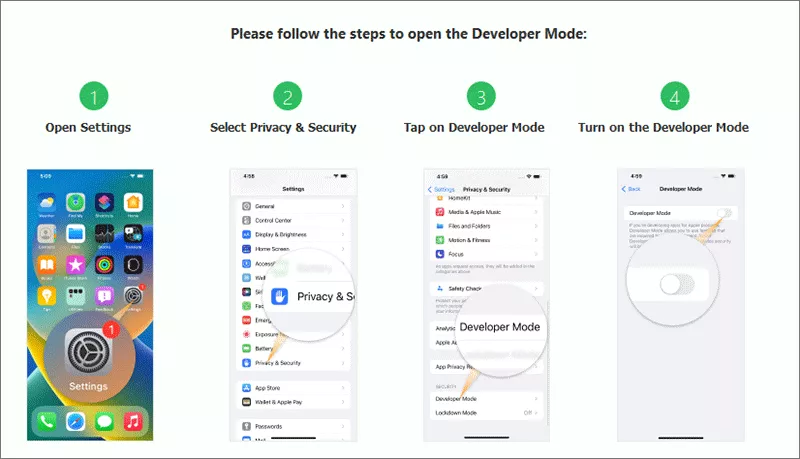
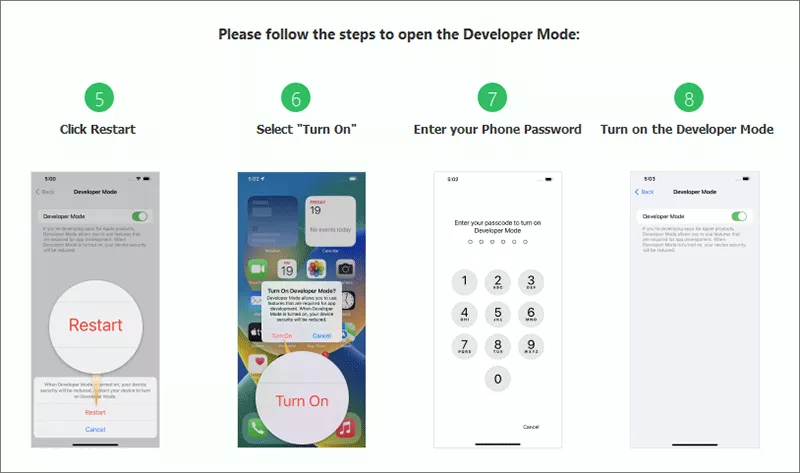
Whether you’re looking to hide your real location for privacy or simply spoof your location for entertainment, Cocosenor Locationgo will be the best helper. You can follow the below steps to change location on your iPhone.
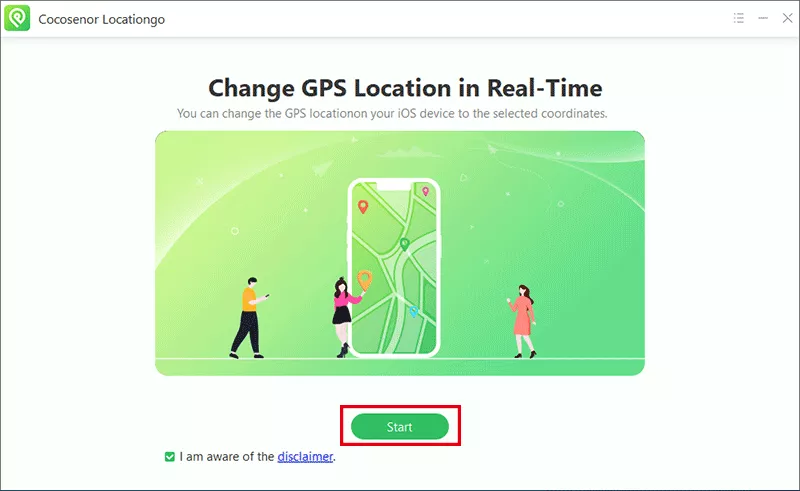
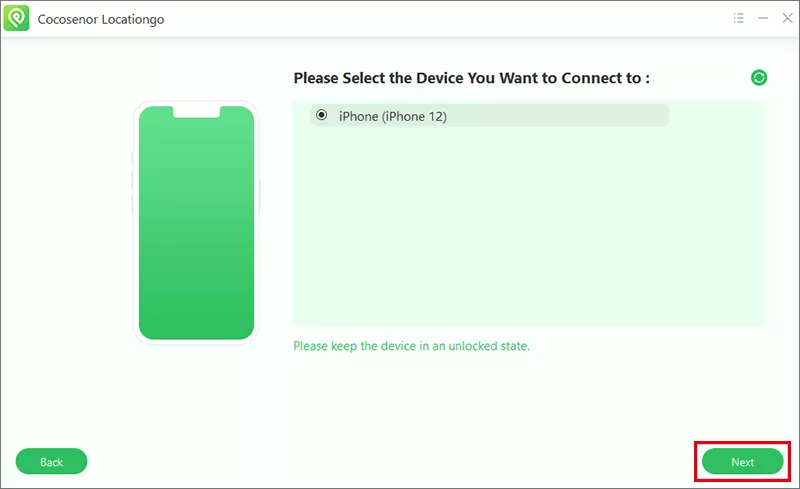
Connect the iPhone which has entered the Developer mode to your computer. After that, launch Locationgo and hit Start button on the main interface.
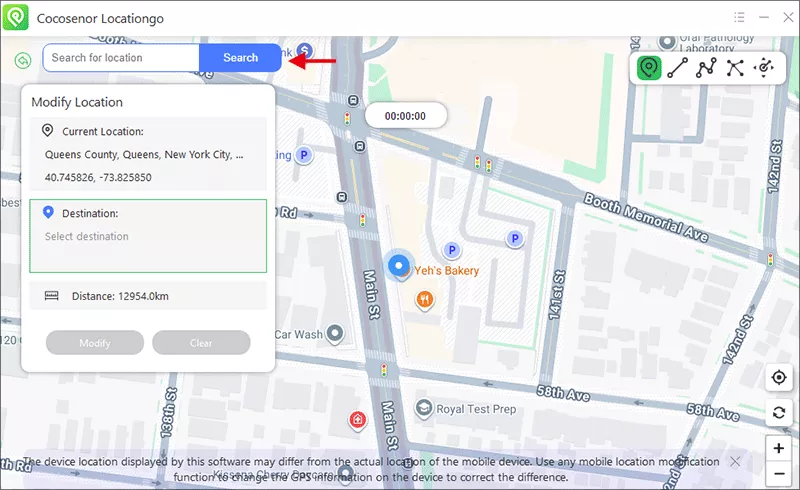
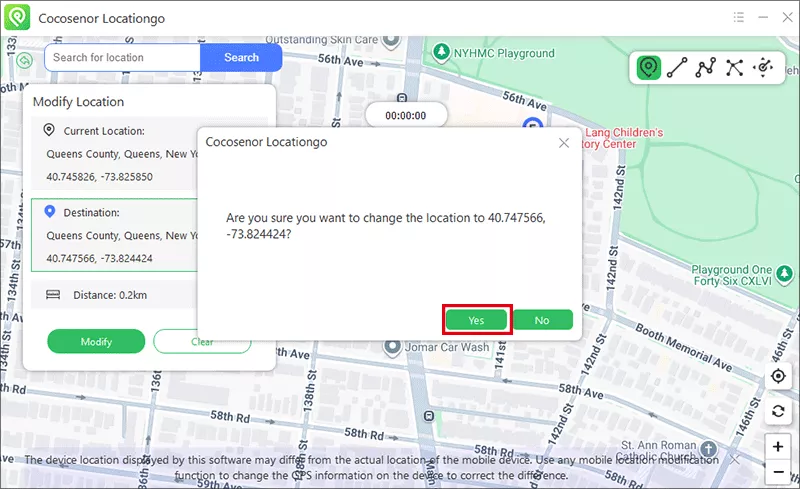
Once inside the map, you can choose your desired destination to teleport by clicking anywhere on the map or by typing the address into the search bar.
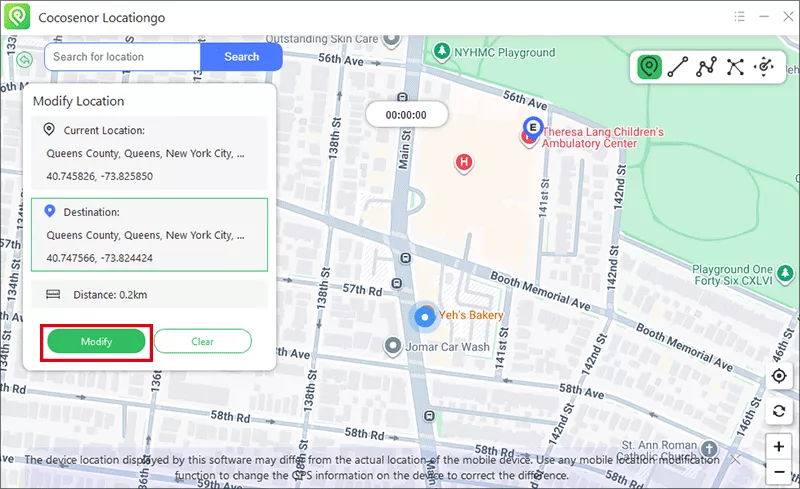
After the destination is set, you can change your current location instantly by clicking the Modify button.
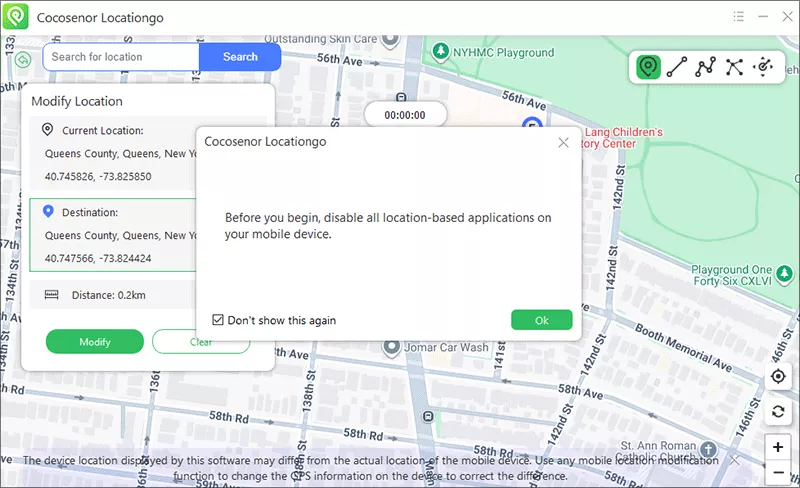
It will ask you to turn off all location-based programs on your iPhone.
Then, confirm your operation by clicking the Yes button.
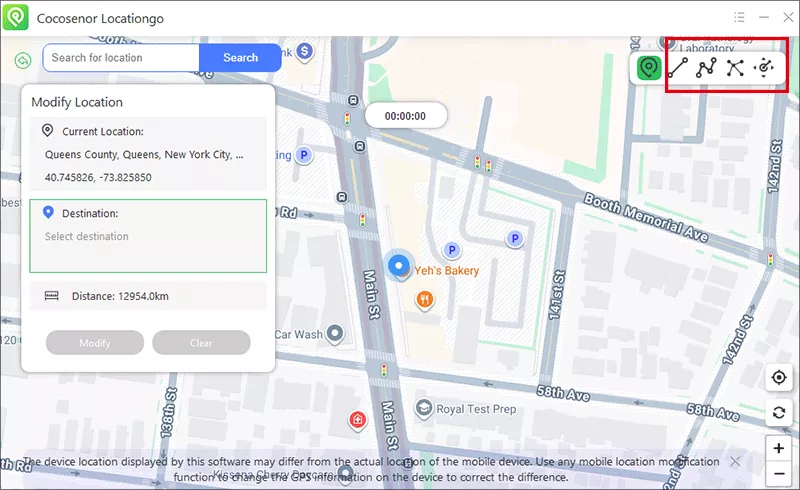
Cocosenor Locationgo offers four modes, including Single-Spot Movement, Multi-Spot Movement, Jump Move and Joystick Movement. You can choose the mode according to your situation.
In Single-Spot Movement mode, the starting point is your current location, which is set by default. You can define an endpoint to simulate a straight-line GPS movement from start to finish, mimicking a realistic journey between the two locations.
1. After opening the map, you can see the options displayed on the top right corner of the map. Select the second option: Single-Spot Movement to proceed.
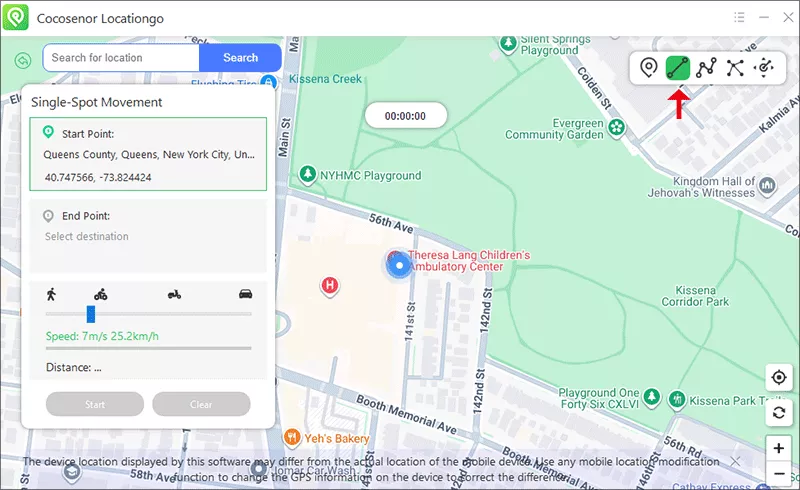
2. Select an end point from the map. Also, you an define the speed according to your needs.
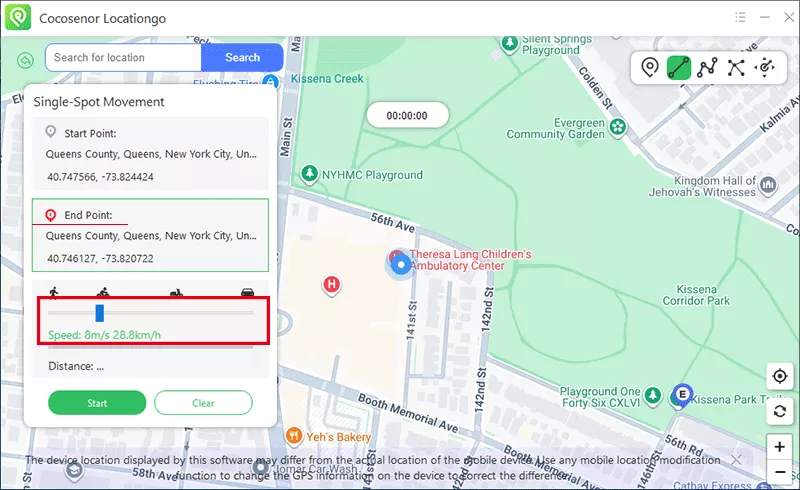
3. Click the Start button and confirm it to automatically generate a straight-line route.
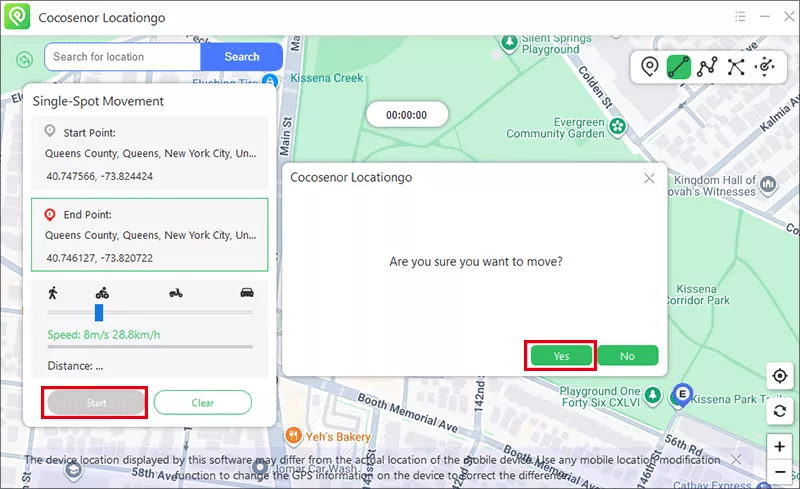
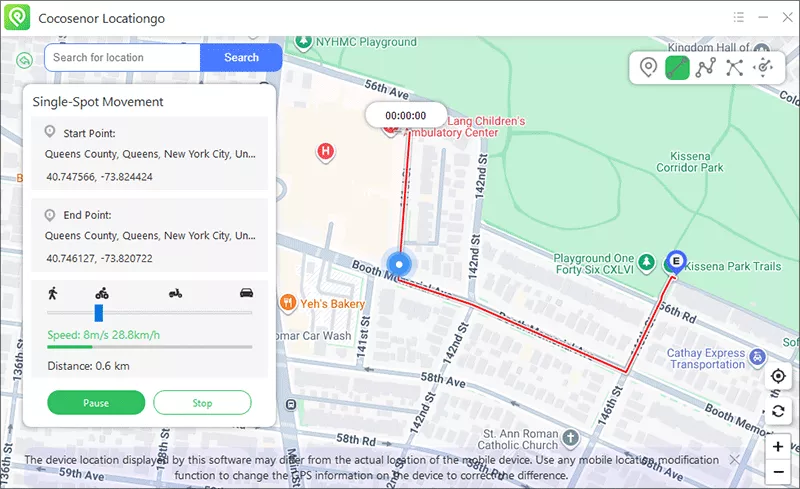
4. Soon, the journey begins and you can pause, continue, or stop the movement at any time.
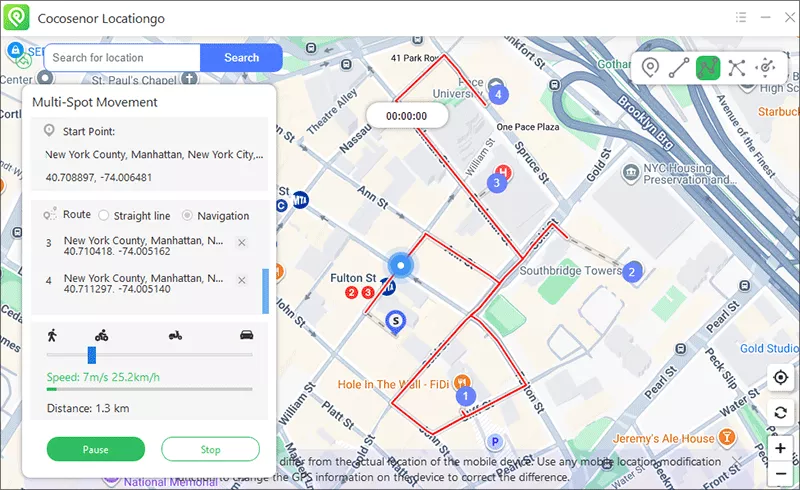
In Multi-Spot Mode, you can set several waypoints to create a custom GPS route. The simulation will move along these points in order, forming a continuous path with multiple stops.
1. Change the movement mode to Multi-Spot Movement Mode.
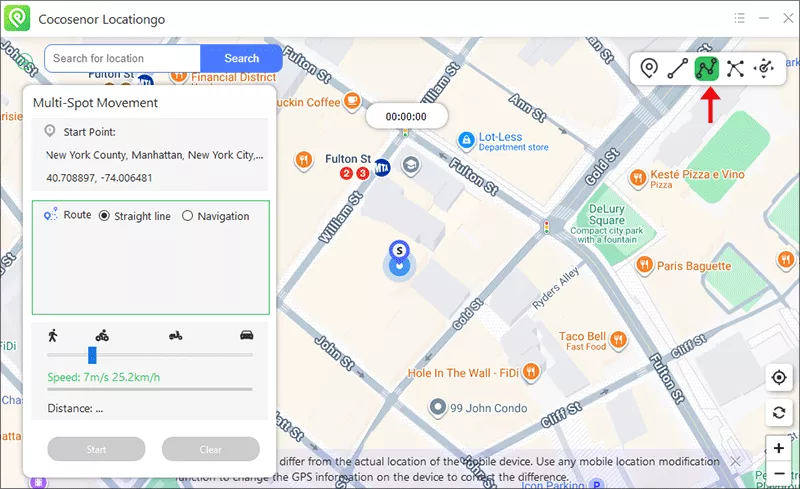
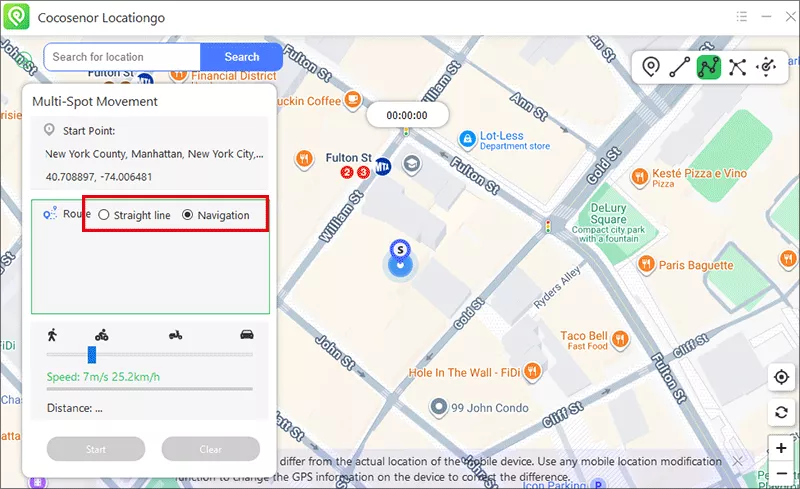
2. Select the route mode: Straight line or Navigation. For the Straight line mode, the movement will go in your set routes straightly. For the Navigation mode, the movement will go by following the GPS navigation, which will be adjusted based on the road conditions.
3. Choose the waypoints on the map. After that, set the move speed.
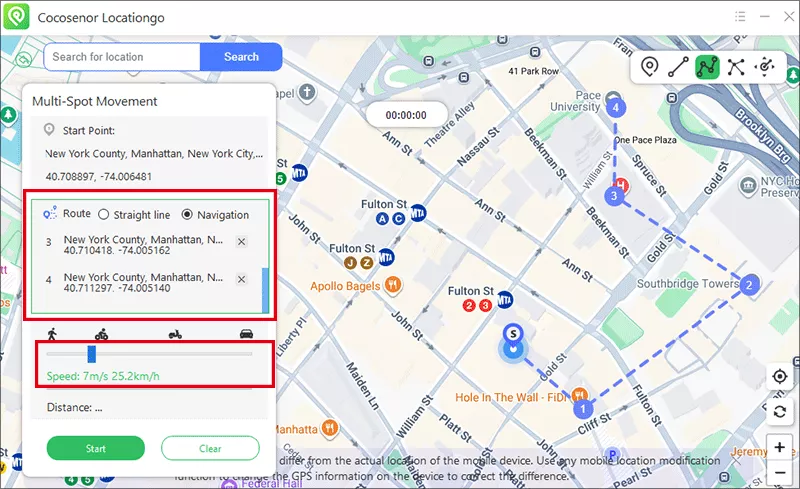
4. Hit the Start button to start simulation in Multi-Spot route.
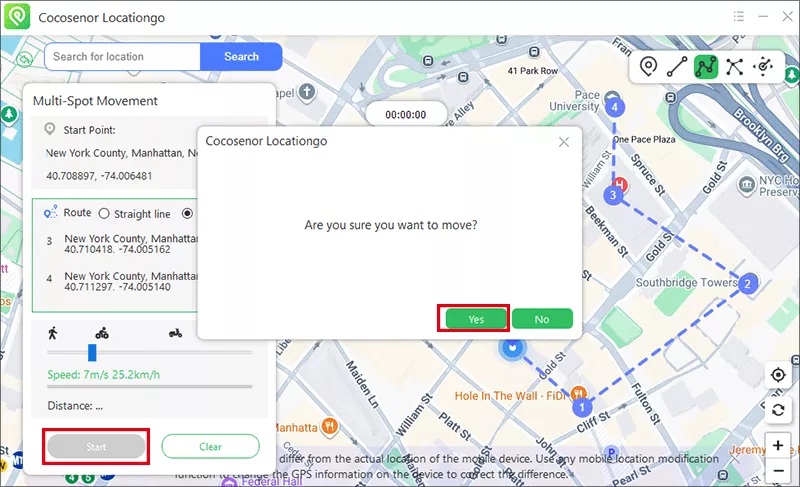
You can see the customized route on the map.
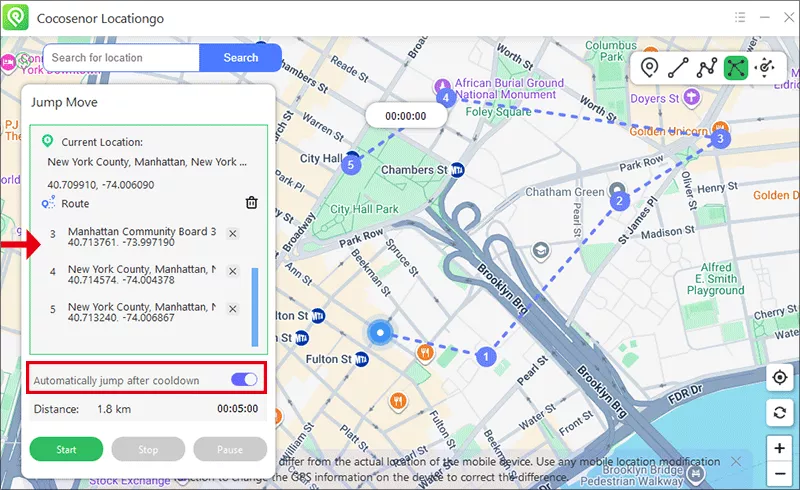
With Jump Move Mode, you can teleport instantly between places—no route required. It’s the fastest way to test app behavior across different locations in second.
1. Select Jump Move option inside the Map.
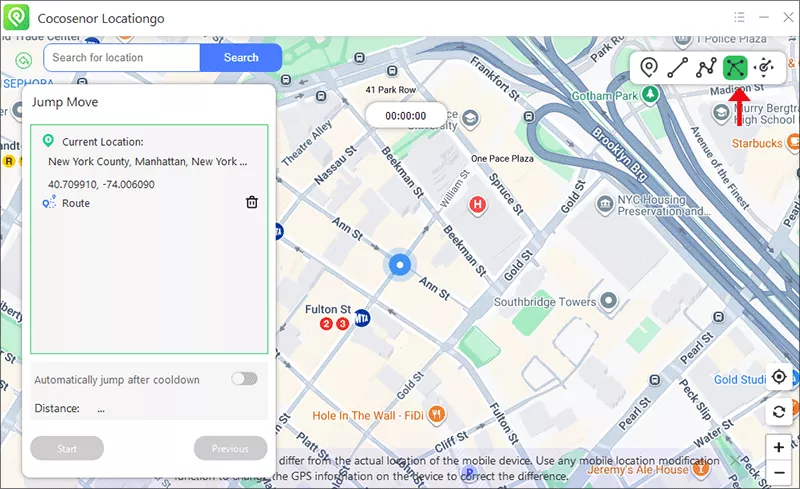
2. Select several locations. Then, you can select to jump manually by hitting on the location or automatically after the cooldown time ends.
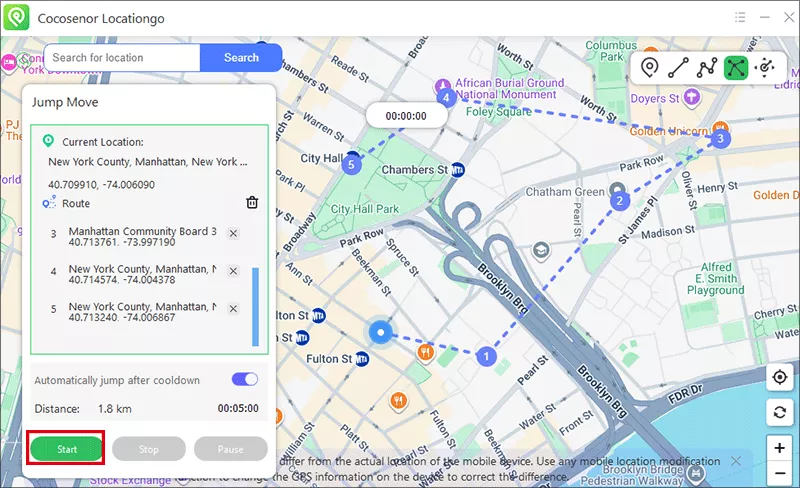
3. Hit the Start button to start teleporting.
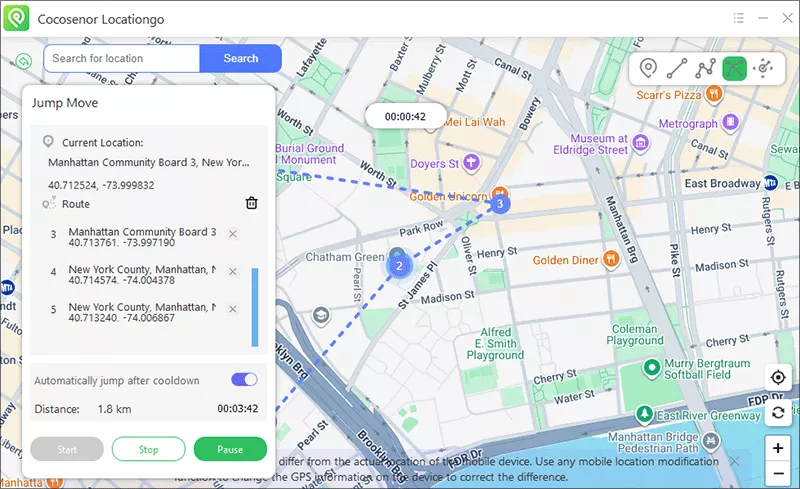
The jump move process will be shown on the map.
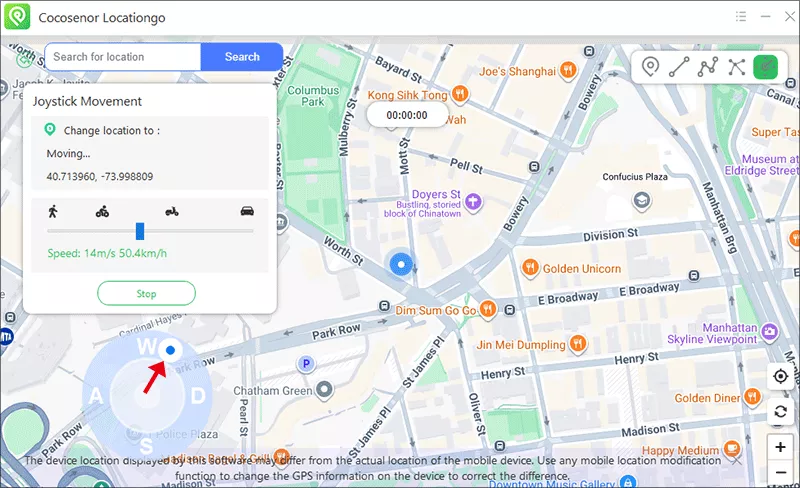
Joystick Movement gives you full control for gaming, simulations, and more. In Cocosenor Locationgo, the Joystick feature lets you move smoothly, aim where you want, and explore without limits.
1. Select Joystick Movement from the interface.
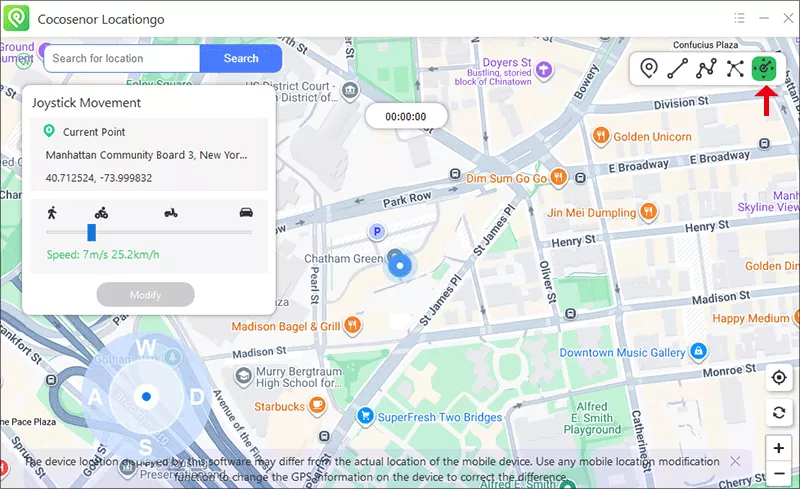
2. Drag the slider to adjust the speed of movement.
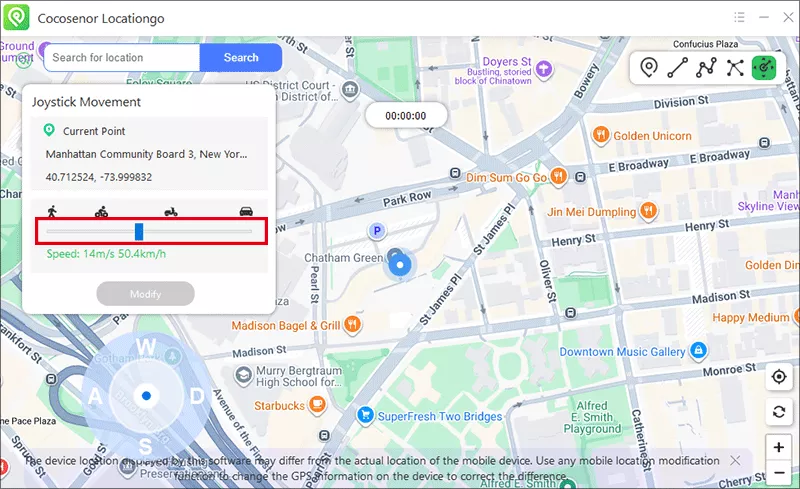
3. Drag the dot on the joystick and release it to set your direction. After that, the movement begins and you can change the direction at any time.